Troubleshooting common issues with Optimize LCP Images within Jetpack Boost

If Jetpack Boost isn’t optimizing your Largest Contentful Paint (LCP) images as expected, this guide can help you identify common issues and resolve them.

Pages not being optimized

Check page availability

  • Ensure your important pages are publicly available, and not password protected.
  • Verify pages return 2XX HTTP response (not 404 or server errors).

Review page structure

  • Pages with one clear, prominent visual element work best.
  • Multiple competing large images can complicate LCP detection.
  • Very complex layouts may require manual optimization.

Optimization results not visible

Clear caches

  • Clear your site’s page cache.
  • Clear CDN cache if applicable.
  • Test in a private/incognito browser window.

Verify implementation

On a Cornerstone Page, view the page source and look for the following attributes:

  • fetchpriority="high" on optimized images.
  • loading="eager" instead of lazy loading.
  • data-jp-lcp-optimized="true"

Specific error types

HttpError

Cause:

The page failed to fully load within 60 seconds — often due to slow server response or large, complex pages.

Solution:

  • Check your hosting performance and server logs.
  • Make sure the page loads quickly and reliably.
  • Try testing with a lighter version of the page.

LcpTimeout

Cause:

Jetpack Boost couldn’t reach the page due to a network or HTTP error — usually caused by timeouts, firewalls, or unstable connections.

Solution:

  • Verify the page loads consistently and returns a valid response (2XX HTTP code).
  • Ensure your hosting provider allows external services like Jetpack to access your site.
  • Temporarily disable security or firewall rules that may block Jetpack.

LcpMetricTimeoutError

Cause:

Jetpack Boost loaded the page successfully, but couldn’t detect the Largest Contentful Paint element within 60 seconds.
This can be caused by pages with slow-loading content, or dynamic content that never stabilizes.

Solution:

  • Ensure the page has visual content that loads within a reasonable timeframe.
  • Check for JavaScript errors or infinite loading states that prevent content from stabilizing.
  • Verify the page isn’t primarily empty, redirect-heavy, or composed entirely of dynamically-loaded content.

ElementNotUnique

Cause:

Jetpack Boost detected multiple large visual elements and couldn’t determine which one should be optimized as the LCP.

Solution:

  • Simplify your layout or ensure there’s one clearly dominant visual near the top of the page.
  • Avoid having multiple competing hero images or background sections above the fold.

ElementNotStable

Cause:

Jetpack Boost identified a potential Largest Contentful Paint element, but it did not remain consistently visible for several seconds during analysis. This often occurs with carousels/auto‑rotating sliders, animated hero sections, or components that quickly swap, fade, or slide content after load.

Solution:

  • Keep the hero/LCP element visible for at least 3 seconds during initial load (e.g., pause or delay autoplay/rotation).
  • Set the slider to start on the hero slide and delay the first transition (≥ 3s).
  • Minimize heavy entrance animations that immediately replace the hero content.
  • If you cannot make these changes yourself (e.g., using a theme or slider plugin without settings):
    • Contact the theme/slider plugin authors and request that their carousel respects prefers-reduced-motion: reduce (pause/disable autoplay and transitions when users prefer reduced motion).
    • Ask for a setting to disable or delay autoplay on initial load so the main slide remains visible long enough for analysis.

Unknown

Cause:

Jetpack Boost was unable to determine the cause of the issue during analysis.

Solution:

  • Wait a few minutes and try again.

Still Need Help?

Please contact support. We’re happy to advise.

Comments Off on Troubleshooting common issues with Optimize LCP Images within Jetpack Boost

Optimize Your Largest Contentful Paint (LCP) Images with Jetpack Boost

LCP Image Optimization automatically identifies and optimizes the most important images on your website’s Cornerstone Pages. This feature analyzes your Cornerstone Pages, identifies their primary images (if applicable), and applies technical optimizations to make them load faster for your visitors.

LCP Image Optimization is available on both the free and paid Jetpack Boost plans. The free plan allows optimization for one Cornerstone Page, while the Premium plan supports up to ten.

What is Largest Contentful Paint (LCP)?

Largest Contentful Paint (LCP) is a Core Web Vitals metric that measures how long it takes for the largest visible content element—like a large image or headline—to fully load in a visitor’s browser.

A fast LCP gives the impression that your site is quick and responsive. A slow LCP, even if other elements load quickly, can make your site feel slow to users.

Why LCP Matters for Your Website

Largest Contentful Paint (LCP) is a Core Web Vitals metric that measures how long it takes for the largest visible content element to load on your webpage.

  • Visitors judge site speed based on how quickly the main content appears, not when the entire page finishes loading.  
  • A slow LCP makes your site feel sluggish, even if other elements load fast.  
  • A fast LCP makes your site feel professional and responsive.

Search Engine Optimization

  • Since LCP is a Core Web Vital, Google uses LCP as a ranking factor in search results.
  • Websites with good LCP scores (under 2.5 seconds) rank higher than slower competitors.
  • Poor LCP scores can negatively impact your organic search visibility.

What makes LCP slow?

Common causes of poor LCP performance include:

  • Large, unoptimized images.
  • Images without proper loading prioritization.
  • Missing responsive image techniques.
  • Slow server response times.
  • Render-blocking resources.

What is LCP Image Optimization?

LCP Image Optimization is a Jetpack Boost feature that identifies the most important visual elements on your key pages and applies performance enhancements to help them load faster.

It focuses on the largest image or background image visible in the browser window when a page loads—known as the LCP element. Optimizing this element can significantly improve your Core Web Vitals scores.

How LCP Image Optimization Works

Automatic Page Analysis

The feature examines your Cornerstone Pages to identify:

  • The largest visual element that appears in the viewport.
  • If it’s a standard or background image.
  • The optimal loading strategy for each device type (mobile/desktop).

Technical Optimizations Applied

For Image Elements:

  • Optimizes the LCP image through Jetpack’s Site Accelerator.
  • Sets fetchpriority="high" to prioritize loading.
  • Applies loading="eager" to prevent lazy loading delays.
  • Generates responsive images with srcset and sizes attributes.
  • Includes high-DPI display support.

For Background Image Elements:

  • Optimizes the LCP background image through Jetpack’s Site Accelerator.
  • Adds preload links in the document head.
  • Implements responsive background images using CSS image-set().
  • Applies device-specific media queries.
  • Uses CSS overrides to ensure optimal loading.

Understanding statuses

Pending Analysis

The system is currently analyzing your pages. This typically takes a few minutes as it examines each page on both mobile and desktop.

Analysis Complete

Your LCP elements have been identified and optimizations are now active. You should see performance improvements in testing tools.

Troubleshooting Common Issues

If Jetpack Boost wasn’t able to optimize some of your pages, it may be due to issues like page accessibility, slow loading, or layout complexity.

You can find a full list of known issues and solutions here: Troubleshooting LCP Image Optimization in Jetpack Boost.

Still Need Help? 

Please contact support. We’re happy to advise.

Comments Off on Optimize Your Largest Contentful Paint (LCP) Images with Jetpack Boost

Site Speed Optimization Beyond Jetpack Boost

Jetpack Boost offers a powerful starting point, but performance can also depend on your theme, plugins, third-party scripts, hosting, and how your site content is structured. If you’ve already enabled Boost and followed the guide to improve your site speed score, this guide shares additional steps to help you go even further.

Where to start

A good first step is to test your site using tools like Google PageSpeed Insights. These tools help identify specific issues and offer actionable suggestions. You can use your Jetpack Boost score as a reference, but it’s more important to focus on how the site feels to visitors and to address the real bottlenecks these tools highlight.

Optimize theme and plugin setup

Some themes and plugins add extra code to every page—even when it’s not needed. A lightweight setup can make a big difference.

  • Use a fast, well-coded theme. Themes vary widely in performance. If your current theme loads slowly, try switching temporarily to a default theme like Twenty Twenty-Five and comparing your PageSpeed score and visual loading time.
  • Remove unused plugins and themes. If you’re not using it, it’s best to delete it. This helps reduce CSS and JavaScript bloat.
  • Turn off Jetpack modules you don’t need. From Jetpack → Settings, disable features not essential to your site.

Cut down on third-party scripts

Scripts from external sources—like analytics, ad networks, social feeds, or marketing tools—can delay page rendering.

  • Audit what’s loading. Use tools like PageSpeed or your browser’s DevTools to spot third-party scripts that might slow things down. In Chrome: right-click the page → Inspect → Network tab → refresh. Look for items loading from other sites (like ads or fonts). If something looks unfamiliar or unnecessary, it may be worth disabling a plugin or checking with your theme or host for advice
  • Limit embeds and popups. Things like videos, social feeds, or popups often load extra scripts that can slow down your site. Only use what’s really needed, and avoid adding too many at once.

Use a caching plugin (if needed)

Jetpack Boost includes basic page caching, and some hosts provide their own. If you’re not using Boost, or your host doesn’t cache pages automatically and if you are looking for more advanced caching options, you can try WP Super Cache.

Optimize your images manually

Jetpack Boost’s Image CDN resizes and compresses images automatically. But if you’re not using it—or want even more control—you can:

  • Resize images before uploading them.
  • Use tools like TinyPNG or ImageOptim.
  • Choose the right format (JPEG for photos, WebP if supported).
  • Replace oversized or full-width images when not necessary.

Use a CDN for static files

If you’re not using Jetpack Site Accelerator or Boost’s Image CDN, consider enabling them or using a service that provides this service. A CDN delivers your site’s static content (images, scripts, stylesheets) from servers closer to your visitors, reducing load time.

Reduce layout shift

If your page moves around while loading, your Cumulative Layout Shift (CLS) score will suffer. Here’s how to fix that:

  • Avoid inserting content above existing content after page load.
  • Use themes that load in a stable, predictable way.

Offload resource-heavy features

Features like search or related posts can slow down your site if handled on your own server. Jetpack offers cloud-powered options for both:

  • Jetpack Search replaces WordPress’s built-in search with fast, scalable results.
  • Related Posts can be served from Jetpack’s servers instead of being calculated on the fly.

Clean up your database

Old revisions, spam comments, and transients can slow your site down. You can use a plugin from the WordPress.org Plugin Directory to tidy up. These plugins typically offer one-click cleanup tools, and they explain what each item does before deleting anything. Be sure to back up your site first.

Check your server

A slow server can limit everything else you’ve optimized. If PageSpeed says your server is slow (look for ‘Reduce initial server response time’), talk to your hosting provider. Some may offer better performance plans or built-in caching.

If performance doesn’t improve, consider switching to a host optimized for WordPress.


Need help?

Jetpack Support is here for Boost-specific questions. While we can’t offer hands-on help with broader performance tuning, this guide is here to help you take the next steps and every improvement adds up.

Comments Off on Site Speed Optimization Beyond Jetpack Boost

Improve your site speed score with Jetpack Boost

A fast website is essential: it improves your visitors’ experience and improves your site’s visibility in search engines. This guide shows how to use Jetpack Boost to improve your site’s speed score, explains what each setting does, and offers advice if you’re not seeing the improvements you expected.


Why your site speed score matters

A faster site isn’t just a technical goal—it makes your content easier to reach, your visitors more likely to stay, and your site  feel smoother all around.

Jetpack Boost provides a performance score based on Google PageSpeed, so you can see how your site performs and where there’s room to grow. You’ll see:

  • A numeric score and letter grade for Mobile and Desktop
  • A clear visual meter showing your performance level
  • A history of your scores over time (available with a paid plan)

Mobile scores are often lower than desktop scores—don’t worry, that’s expected. Boost helps you improve both.


How Jetpack Boost helps speed up your site

Jetpack Boost focuses on front-end performance—what your visitors interact with. Boost helps pages load faster by optimizing CSS, JavaScript, images, and caching.

You can turn each feature on or off from WP Admin → Jetpack → Boost.


Optimize CSS loading

When a browser loads your site, it first looks at the design instructions provided by a site’s CSS (Cascading Style Sheets). These instructions define presentational details: colors, font sizes, etc. If the browser has to interpret all of these instructions before showing the page, it can slow things down.

Jetpack Boost solves this by identifying the Critical CSS—the instructions needed to load the visible part of the page—and puts that first. This means your site starts displaying sooner, even before everything else loads.

This can improve scores like First Contentful Paint and Largest Contentful Paint, which measure how quickly your content becomes visible.

  • With the free version, you will need to regenerate Critical CSS manually when you make major changes.
  • With a paid plan, Boost automatically updates your Critical CSS in the background when needed.

Cache site pages

When someone visits your site, WordPress builds the page from scratch. That takes time.

Page caching saves a ready-to-go version of your pages so visitors don’t have to wait. Caching can help reduce server response time and speed up repeated visits. It’s like handing out a finished copy instead of writing it again every time.

  • Enable Cache Site Pages in Boost to load your content faster.
  • If this option isn’t visible, it may be handled already by your hosting provider.

Defer non-essential JavaScript

Some scripts on your site—like popups, sharing buttons, or animations—aren’t needed immediately when the page loads.

Boost can defer these scripts so they load after your main content, helping the page load faster. This can improve render times and help with PageSpeed warnings like “Reduce JavaScript execution time.”

  • Turn on Defer Non-Essential JavaScript to prioritize your main content.
  • If something doesn’t work as expected, you may need to exclude a specific script or turn this off temporarily.

Concatenate JavaScript and CSS

Every CSS or JavaScript file your site loads is an extra request to your server—and each request slows down overall page loading.

Concatenation combines multiple files into one, which means fewer requests and faster loading. This helps reduce Total Blocking Time by making your site easier for the browser to process.

  • Turn on Concatenate JS and Concatenate CSS to streamline how your site loads assets.
  • If any designs or features break, you may need to exclude specific files. Learn how.

Use the Image CDN

Images are often the biggest contributor to slow sites. Boost’s Image CDN automatically resizes, compresses, and serves your images from high-speed servers around the world. This improves the Cumulative Layout Shift and overall page load time, especially on mobile.

  • Turn on Image CDN to optimize all images across your site automatically.
  • With a paid plan, you can adjust image quality and enable Auto-Resize Lazy Images, which helps images load only when needed—and at the right size.

Adjusting image quality

Image quality determines the balance between visual fidelity and file size. A higher quality setting preserves more image detail but produces larger files. A lower quality setting reduces file size and improves load time, but may reduce sharpness on high-resolution displays.

With a paid Jetpack Boost plan, you can adjust image quality:

  1. Go to Jetpack → Boost.
  2. Under Image CDN, click Adjust Quality.
  3. Use the Image Quality slider to select your preferred quality level. You can set this individually for JPEG, PNG, and WEBP images. You can also set this as Lossless.

After adjusting, run a new speed test from the Boost dashboard to see whether the change improved your score. If images appear noticeably degraded, increase the quality setting and retest.


Identify large images

Even with a CDN, oversized images can still lower your site speed. Keeping image dimensions appropriate helps both speed and layout stability. Boost includes a tool to help you spot the worst offenders.

  • Use the Image Performance Guide to detect images that are too large for their space.
  • Replace or resize them using an image editor or online compression tool.

If your speed score is still low

Jetpack Boost takes care of many technical optimizations, but it can’t fix every issue on its own. If you’ve enabled all Boost features and your score still isn’t where you’d like, other factors may be affecting your site’s performance. Here are some common next steps:

  • Remove unused plugins or scripts – Extra code can slow down your site.
  • Use a lightweight theme – Some themes are better optimized than others.
  • Test with Google PageSpeed Insights – See what specific issues are being flagged.
  • Talk to your hosting provider – A slow server (high TTFB) may need an upgrade or tuning.

Boost works best when paired with a clean setup and fast hosting. Think of it as part of the solution, not the whole package.


What Jetpack Boost helps with

Jetpack Boost is designed to improve how your site loads for visitors. It focuses on front-end performance and makes quick, impactful changes that can raise your speed scores. Specifically, Boost helps with:

  • Faster delivery of CSS, JavaScript, and images
  • Improvements to key Web Vitals:
    • FCP (First Contentful Paint): When something first appears on screen
    • LCP (Largest Contentful Paint): When the main content finishes loading
    • CLS (Cumulative Layout Shift): How stable the layout is as the page loads

What Jetpack Boost doesn’t cover

While Boost helps with many common performance issues, it doesn’t handle everything. It does not address:

  • Server or hosting-related slowness (like TTFB or slow response times)
  • Unused code, plugins, or third-party scripts
  • Guaranteeing a perfect score in Google PageSpeed or Lighthouse

If your speed score is still lower than expected after enabling all Boost features, other factors—such as your theme, plugin setup, or hosting environment—may be involved.

Want to go further?

Our Advanced Site Speed Optimization guide includes practical steps for deeper testing, cleanup, and improvements beyond what Boost covers. It’s a great next step if you’re ready to fine-tune your site even more.

Jetpack Support is here to help with Boost-specific features, but general performance tuning is outside our scope.

Still need help?

If Boost isn’t working as expected or you’re unsure whether a feature is active, reach out to Jetpack Support, and we’ll be glad to help.

Comments Off on Improve your site speed score with Jetpack Boost

Jetpack Boost Cornerstone Pages

Improve your site’s speed by optimizing its most important pages with the Cornerstone Pages setting.

Cornerstone pages are specific pages on your website that Jetpack Boost prioritizes. It applies tailored optimizations to improve these pages’ performance rather than making broad changes across the entire site.

Number of allowed pages

This setting is available on both the Boost free plan and the Boost Premium plan: the free plan allows you to optimize your homepage and one additional page, while the Premium plan supports your homepage and up to ten pages additional pages.

Read more about Jetpack Boost plans.

Cornerstone Pages usage

The Cornerstone Pages setting is automatically enabled once you activate Boost. You can find it below the Page Speed scores section, right above all of Boost’s features.

The box including all the Cornerstone Pages information is collapsed by default, and it shows the number of pages you currently have set up.

Clicking the arrow pointing down will expand the section, giving you more details about the preferences, including a way to manage the list of pages.

First time running Boost and Default Pages

When you activate Boost (or click Include default pages), it will populate the Cornerstone Pages list with the following URLs:

The list is limited to the number of pages available in your Boost plan.

Homepage

The home page is always a cornerstone page. For that reason, it’s above the list in its own section.

This means that you do not need to add it to the list. If you try and do that, you will be greeted with an error message.

Edit the list of pages

When adding new URLs in Cornerstone Pages, you can enter a full URL (https://example.com/shop/) or a relative URL (/shop/).

If you provide a relative URL (/shop/), Boost will expand that for you to a full URL – https://example.com/shop/

Jetpack Boost stores relative URLs for the Cornerstone Pages in the database. If your website runs on multiple domains, your URLs will automatically show the current domain in the list.

If you migrate to another domain, you won’t have to update the Cornerstone Pages list – Boost will handle it for you.

Please note that only URLs from the same domain are allowed.

If you load the default pages, you will have to manually save the URLs you added to the list by clicking the Save button.

Trailing slashes

All URLs in the list will be displayed without a trailing slash; even if you add one, Boost will remove it automatically, as the system handles slashes.

When saving the values in the database, a trailing slash will either be added or removed based on your website’s permalink structure.

Removing all pages from the list

You can remove one or more URLs from the list or all of them, then click the Save button to validate the changes. Removing all pages from the list and saving them will automatically add the home page to the list.

If you leave the Cornerstone Pages list empty, the system will consider your homepage a default page to flag and automatically list it there.

Cornerstone Pages benefits for Boost features

The Cornerstone Pages settings can positively influence active Boost features.

Page Speed scores

Page Speed scores will still be measured against your home page.

Critical CSS

When generating Critical CSS, Cornerstone Pages will have their version explicitly tailored to them, rather than the generic critical CSS generated for a group of pages.

For example, if the “About” page on your website has a unique look – different from the rest of the pages on your website – adding it to the Cornerstone Pages list will have Boost generate a Critical CSS specifically for that page’s layout.

Previously, Boost would have generated one Critical CSS that respects both layouts, which meant a wider chunk of CSS on the page.

Page Caching

Jetpack Boost automatically generates cache files for your Cornerstone Pages every 30 minutes via a scheduled WordPress Cron.

This Cache Preloading mechanism ensures your Cornerstone Pages maintain optimal performance by ensuring a cache file for all Cornerstone Pages is always available for visitors to your site.

Prerendering Pages

If your site runs WordPress 6.8 or later, Jetpack Boost includes a toggle to prerender Cornerstone Pages using WordPress’s new Speculative Loading feature.

When enabled, supported browsers (like Chrome, Edge, and Opera) may begin loading Cornerstone Pages in the background as soon as visitors hover over a link. This can result in near-instant page loads when they click.

You can toggle this setting on and off in the Cornerstone Pages section of the Boost dashboard. It’s off by default.

Prerendering pages can be unsafe in certain circumstances. Since the browser fetches the page and renders it in an invisible browser tab, any JavaScript on the page will execute. If the page makes changes on the server, such as making a purchase or subscribing to a mailing list, hovering over a link to that page will be enough for those actions to take place. The MDN web documentation here is a good resource to find out more about this.

Troubleshooting Cornerstone Pages errors

Boost does not allow the list to be updated if there are errors present, so if you encounter any of these errors, you need to correct them before saving any further changes.

ErrorCauseSolution
Page list limit exceededYou added more pages than allowed by your plan.Remove extra pages from the list or upgrade.
URL from a different domainThe URL does not match your current website domain.Use only URLs from your website’s domain.

Feedback

Your feedback is invaluable in helping us improve Boost. If you have feedback about Cornerstone Pages, please don’t hesitate to share it with us!

Still need help?

Please contact support. We’re happy to advise.

Comments Off on Jetpack Boost Cornerstone Pages

Troubleshooting Critical CSS in Jetpack Boost

If you encounter an error indicating that Critical CSS isn’t generating as expected, it’s crucial to identify the specific problem based on the error message received.

To check if Critical CSS is working, you can view your page source and look for this line:

<style id="jetpack-boost-critical-css">

To view the page source, right-click anywhere on your site and select View Page Source (or press Ctrl+U / Cmd+U on your keyboard).

If you see that line, Jetpack Boost has successfully added Critical CSS to your site. If it’s missing or if something doesn’t look right, check the troubleshooting page.

Redirect Error

This error occurs when Jetpack Boost is directed to a new URL during Critical CSS generation. This can be caused by:

  • Maintenance mode plugins which redirect to a “coming soon” page.
  • Consent management plugins which redirect to a consent page.
  • URL-rewriting plugins strip GET arguments, resulting in incorrect URLs.

Potential solutions:

  1. Ensure URLs are correctly set, and no unintended redirects are in place.
  2. Temporarily disable maintenance mode plugins to see if the issue is resolved.
  3. Configure consent management plugins to allow Jetpack Boost to access the required pages.
  4. Adjust URL-rewriting plugin settings to prevent altering target URLs.
  5. If the redirection is due to standard HTTP 301/302 redirects, it may be necessary to accept that Critical CSS can’t be generated for those pages.

If the redirection is due to standard HTTP 301/302 redirects, it may be necessary to accept that Critical CSS can’t be generated for those pages.

HTTP Errors

When generating Critical CSS, Jetpack Boost may encounter various HTTP errors. Each error indicates a specific issue that needs to be addressed. Below are the common HTTP errors you might encounter, along with their causes and potential solutions to help you resolve them effectively.

HTTP Error 401, 403

This error indicates a permission issue on your WordPress site.

Potential solutions for HTTP 401/403 errors:

  1. Check your WordPress settings or contact your hosting provider to ask why the URL is unavailable.
  2. Ensure the page is not private and accessible. To do that, open the link in “Incognito Mode” or “Private Browsing” and make sure it loads as expected when you are not logged in.

HTTP Error 404

This error indicates that the requested URL does not exist.

Potential solutions for HTTP 404 error:

  1. Confirm that the page loads successfully.
  2. If the page shows an error, ensure that it is part of your WordPress site and published.
  3. Try visiting the link using “Incognito Mode” or “Private Browsing” to check if the error occurs when you are not logged in.
  4. If you see an error only when not logged in (i.e., in “Incognito Mode”), check for plugins that might be enforcing access permissions on your pages, such as those allowing only authenticated users to view specific areas.

HTTP Error 418 – I’m a Teapot

This is typically used to indicate a request has been rejected due to security rules.

Potential solutions for HTTP 418 error:

  1. Contact your hosting provider with details of the issue, mentioning the HTTP 418 error, affected URL(s), and time of occurrence.
  2. Your hosting provider should advise you on the next steps.

HTTP Error 500 – Internal Server Error

This indicates a server-side error preventing the request from being fulfilled.

Potential solution for HTTP 500 error:

Contact your hosting and ask to check your server logs for detailed error messages.

Cross Domain Error

This occurs when the page is hosted on a different domain, and the server’s security settings prevent it from being accessed or loaded from outside its own domain.

Potential solution for Cross Domain Error: 

Visit the page and check the protocol and hostname to ensure they match those in your WordPress Administration Screen. For example: In http://jetpack.com, the http is Protocol, and jetpack.com is Hostname

Couldn’t verify page (UrlVerifyError)

For Critical CSS to work properly, Boost tries to include a meta tag to the site during critical CSS generation in order to verify the page. If for some reason it fails to add the meta tag, it will return this error.

Potential solutions for Couldn’t Verify Page error: 

  1. The most frequent reasons for this are plugins with maintenance mode turned on and pages that are behind some form of authentication (like a login form).
  2. Make sure you can still access the page when you are not logged in.
  3. If you can, but you still get this error, there may be some form of caching that is preventing Boost from adding the meta generation tag.

Failed to generate Critical CSS

This is a general error that can appear for different reasons. Check the specific error message shown in your Boost dashboard or site logs to identify what’s going wrong.

No relevant CSS found in external stylesheets

Boost relies on external CSS files to generate Critical CSS. If your page doesn’t load any, Boost cannot extract the necessary styles. You may be using an optimization plugin that inlines all CSS instead of loading it from external files.

What to do: You can safely ignore this message if the site is already using inline CSS for performance.

Connection or access issue

Sometimes, Boost fails to reach your site or is blocked from loading pages properly.

Potential solutions:

  • Make sure the website does not load over both HTTP and HTTPS. To fix, direct all website traffic to HTTPS. Your host can help with this, or use a plugin like Really Simple SSL.
  • Check that there are no redirects from the home page, such as from https://testsite.com to https://testsite.com/en. Your host can assist with unwanted redirects.
  • Confirm the site is live and publicly viewable. “Coming Soon” and “Under Construction” pages will prevent Jetpack from generating critical CSS.
  • If you’ve confirmed all of the above and still see a failure, a plugin conflict might be the cause. Conflicting plugins can interfere with the Jetpack connection or block required styles from loading properly. To test for this, follow the plugin conflict test guide.

Potential Conflicts with Other Performance Plugins

Conflicts can occur when another performance or caching plugin — such as LiteSpeed Cache — modifies how CSS is loaded or optimized. These changes may interfere with Jetpack Boost’s Critical CSS generation and cause layout problems, especially after updating the plugin or theme.

Potential solutions:

  • Temporarily disable the Optimize CSS Loading feature from Jetpack → Boost. If the layout returns to normal, the issue may be caused by a conflict with another plugin’s CSS optimizations.
  • If you’re using LiteSpeed Cache, go to LiteSpeed Cache → Page Optimization → CSS Settings, and disable the Load CSS Asynchronously option.
  • As an alternative, consider keeping Jetpack Boost’s CSS optimization off and using your caching plugin’s optimization features instead — or vice versa.
  • You can also try excluding certain stylesheets or classes from optimization in your other plugin, if supported.

If you’re unsure which plugin is causing the issue, disable them one by one and retest the layout each time.

Load Timeout Error

This might happen because of a redirect loop that might be caused by a misconfiguration of the server or some plugin (or custom code) misbehaving. We’ve also seen instances of ads taking too long to load and Boost times out while waiting for them.

Potential solutions for Load Timeout error:

  1. Clear the cache in your browser to ensure Boost loads the most recent version of the page.
  2. Visit the page while not logged into WordPress to see if the issue persists.
  3. Check how long it takes for this page to load compared to other pages on your site.
  4. If this page is slower than others, identify which plugins are active on that page.
  5. Deactivate any plugins that you believe are causing the page to load slowly.

XFrameDeny Error

Jetpack Boost uses iframes to generate your critical CSS. This error occurs when the site has a special configuration header that prevents it from loading inside an iframe. The header is called X-Frame-Options: DENY. This can be added to a WordPress site either by a plugin or by server configuration.

Potential solutions for XFrameDeny Error:

  1. Ensure you are not using any plugins that add extra HTTP headers to your WordPress site, and deactivate them if you are.
  2. If you are unsure what these headers are, or where they come from, please contact your hosting provider and ask them to remove the X-Frame-Options header from your site.

InvalidURL Error

Jetpack Boost found one or more invalid URLs while trying to generate Critical CSS. Please note, that it’s sometimes okay to ignore such URLs. There are many reasons why this can happen, so it’s hard to provide a solution that works every time.

Potential solutions for InvalidURL Error:

  1. Make sure any custom rewrites you have on your website are working properly.
  2. There might be a plugin active that’s causing one or more URLs to become invalid. Go through the list of plugins and deactivate such plugins until the problem is resolved.

Provider Error

This happens when something prevents Jetpack Boost from saving the Critical CSS that it generated for a specific group of pages. This is most often because of a Web Application Firewall (WAF), or a security plugin blocking the request.

Potential solutions to the Provider Error:

  1. See if you have any security plugins and disable them. After that, check if generation works by running it again. If it works, see if you can add an exclude rule in the security plugin for URLs containing set-provider-css.
  2. If you do not have security plugins installed, your hosting’s WAF might be blocking the request. You can check this by running this curl command in a terminal/command prompt (make sure to replace https://website.com/ with your website’s URL):
    curl --location 'https://website.com/' \ --data '<svg xmlns'
  3. If the above command shows Forbidden, you’ll need to contact your hosting provider and ask them to unblock the request.

Broken generation library

This is unlikely to happen, but we have a case if it does. If Boost’s critical CSS generation library somehow gets corrupted or some other plugin is interfering, this error will show up.

Potential solutions for Broken generation library error:

  1. Toggle the module off and on to see if the error persists.
  2. If it persists, reinstall Jetpack Boost to make sure that all its files are okay.
  3. If reinstalling doesn’t help, it’s possible that some other plugin is causing a conflict. In that case, disable the plugins one by one until the problem is resolved.

Expected an associative array, received ‘NULL’

This error can appear when Boost fails to generate Critical CSS due to a server-side issue during the request.

Potential solution for ‘NULL’ error:

  • This may be caused by a misconfiguration or problem with your host’s Memory Node.
  • Reach out to your hosting provider and ask them to check if the Memory Node is working properly.
  • If you’ve recently installed or updated plugins, or if Boost previously worked fine, a temporary server issue might be the cause.
  • If you’re using Cloudflare, try temporarily disabling it to see if that resolves the error.

Once the server issue is resolved, you should be able to regenerate Critical CSS successfully.

PayloadTooLargeError

This error appears when the generated Critical CSS exceeds 1MB. Quite often, this happens on pages that are built using page builder plugins.

If Jetpack Boost were to include the Critical CSS, that would make the page heaver and actually slow it down. As a result, it’s intentionally not included. It’s even not saved on your website.

Potential solutions for PayloadTooLargeError:

  1. See if you can update your pages to share the same blocks.

By having pages share the same layout, you make sure that the generated Critical CSS will be smaller.

If sharing the same blocks isn’t an option and the layout of the pages is too unique, then you can’t take advantage of the Critical CSS feature on the pages in that group.

Unknown Error

This occurs when an unexpected error occurs while trying to generate Critical CSS for the specified page. Jetpack Boost did not anticipate this issue.

Potential solutions for Unknown Error:

  1. Open the URL to check if the page loads correctly.
  2. Ensure the page is loading without any errors or issues.
  3. If the page loads correctly but Critical CSS still fails, please contact us so we can investigate further.

By identifying the specific issue based on the error message and following these solutions, you can address common problems with Jetpack Boost’s Critical CSS feature, ensuring your site loads efficiently and provides an optimal user experience.
Still need help?

Please contact support. We’re happy to advise.

Comments Off on Troubleshooting Critical CSS in Jetpack Boost

How the speed score is measured with Jetpack Boost?

Jetpack Boost optimizes your website’s performance, using Lighthouse to deliver accurate speed scores and enhance user experience.

How my page speed score is measured?

Our speed scoring system runs on our servers using Lighthouse for precise web page performance evaluations. This methodology, trusted across the industry and utilized by platforms like pagespeed.web.dev and Chromium-based browsers, assesses crucial factors, including load times, interactivity, and visual stability. By integrating Lighthouse into our infrastructure, Jetpack Boost ensures accurate speed scores that reflect your website’s performance.

Why do my site’s speed scores differ from Lighthouse?

Jetpack Boost uses the same Lighthouse engine as Google PageSpeed Insights, but differences can occur due to test server location, timing, or network conditions.

Why has my site’s speed score recently changed?

You might have noticed an update in your site’s speed score recently, a direct result of Jetpack Boost embracing the advancements in Lighthouse version 10. This evolution from version 9 brings a forward-thinking approach to how speed scores are determined, especially with the strategic shift away from the Time To Interactive (TTI) metric, towards a greater focus on Cumulative Layout Shift (CLS). This means CLS now plays a more significant role, making up 25% of the overall performance score.

Why is this change good for your site? By prioritizing visual stability through CLS, we’re aiming to enhance the user experience on your website. This not only aligns with the latest web performance standards but also ensures your site’s performance score is more reflective of what truly matters for both users and search rankings. With these changes, your site’s speed score may shift. While some sites will observe an improvement, reflecting a better alignment with Core Web Vitals, others might notice different results. This variance underscores our commitment to providing a holistic view of site usability and performance.

We understand changes like these can raise questions. For a deeper dive into how Lighthouse 10’s updates positively impact your site’s evaluation, we invite you to explore Google’s detailed documentation on the Lighthouse 10.0 update. These changes, effective as of April 4, 2024, are part of our continued commitment to leveraging the most current and impactful web performance evaluation methods.

Learn more → Why do my site’s speed scores differ from Lighthouse?

How can I improve my site speed score?

Jetpack Boost includes several tools to help improve your site’s performance — like optimizing CSS, caching pages, resizing images and more. To learn how to get the most out of Boost, start here:

Improve site speed score with Jetpack Boost

If you’ve already checked all Boost features and still see a low score, other factors may be involved — like your theme, plugins, or hosting environment. For broader tips, see:

Improve site speed score beyond Jetpack Boost

Need more help?

Feel free to contact us! For free Jetpack Boost users, you can post a support request on the Jetpack Boost Plugin Support page. If you upgraded, you can contact support for more personalized assistance.

Comments Off on How the speed score is measured with Jetpack Boost?

Troubleshooting Jetpack Boost caching issues

If you receive an error indicating that the cache isn’t working as expected, it’s essential to identify the specific problem based on the error message. Below, you’ll find detailed guidance to troubleshoot and resolve these common caching issues, ensuring your site’s caching is optimized and functional.

File access problems

Issue: Jetpack Boost’s page cache needs to update specific directories and files within your wp-content directory to function correctly. These critical locations include:

  • wp-content: The primary content directory of your WordPress installation, where Jetpack Boost tries to create a boost-cache subdirectory.
  • wp-content/boost-cache/: Contains Jetpack Boost’s page cache configuration and cached content, which must be writable.
  • wp-content/boost-cache/config.php: Holds the page cache configuration and needs to be writable.
  • wp-content/advanced-cache.php: Facilitates serving cached content before WordPress fully loads and must be writable.

Solution: Check and adjust the permissions of these files and directories to ensure they are writable by WordPress. Use FTP/SFTP to set file permissions to CHMOD 644 or 666 and directory permissions to 755 or 775. This enables Jetpack Boost to cache your site’s content effectively.

Issue: Jetpack Boost’s caching does not support the “Plain Permalinks” setting, due to its reliance on unique URLs for efficient content caching and retrieval.

Solution: Change to pretty permalinks by going to Settings → Permalinks in your WP Admin. Select any option other than “Plain” and save your changes.

Advanced cache incompatibility

Issue: Conflicts with an existing caching system, installed by another plugin or your hosting provider, can impede Jetpack Boost’s caching.

Solution:

  • Deactivate any conflicting caching plugins via the Plugins section in WP Admin.
  • For hosting-related caching conflicts, consult your provider to resolve the issue, potentially by disabling their caching solution.
  • If your hosting provider comes back to you and the issue is not resolved, check if there’s a file called advanced-cache.php in your wp-content directory. If there is one, delete it.

If you’re seeing layout issues rather than caching errors, it may be caused by a plugin conflict affecting CSS. See Potential Conflicts with Other Performance Plugins for more details.

Advanced cache for WP Super Cache

Issue: If WP Super Cache is active, it can conflict with Jetpack Boost’s caching mechanism.

Solution: Deactivate the WP Super Cache via the Plugins section in your WP Admin to eliminate the conflict and enable effective caching with Jetpack Boost.

Unable to write to advanced-cache.php

Issue: Jetpack Boost requires a writable advanced-cache.php file to efficiently serve cached content.

Solution: Adjust the advanced-cache.php permissions within the wp-content directory to CHMOD 644 or 666, ensuring Jetpack Boost can modify the file as needed.

WP_CACHE defined but not true

Issue: The WP_CACHE constant in wp-config.php must be true for Jetpack Boost to use WordPress caching capabilities. A false setting prevents activation.

Solution: Locate and modify the WP_CACHE definition in wp-config.php. Change it to true if set to false or add define( 'WP_CACHE', true ); above the "That's all, stop editing! Happy publishing." line if not defined.

WP-Config not writable

Issue: Write protection on wp-config.php can prevent Jetpack Boost from adding the necessary PHP line for caching activation.

Solution: Manually adjust wp-config.php permissions to make it writable, or add define( 'WP_CACHE', true ); manually if permissions are restricted. Ensure this line is placed above the "That's all, stop editing! Happy publishing." comment.

By identifying the specific issue based on the error message and following these solutions, you can address common problems with Jetpack Boost’s caching feature, improving your site’s performance and user experience.

Manually Deleting the Boost Cache Directory

Issue: In some cases, using the “Clear Cache” button in Jetpack Boost may not fully remove cached files from the /wp-content/boost-cache/ directory. This can lead to the accumulation of unnecessary files, contributing to high file server usage.

Solution: It is safe to manually delete the /wp-content/boost-cache/ directory if the “Clear Cache” button does not remove the files as expected. After manually deleting the folder, Jetpack Boost will regenerate the necessary cache files when it is enabled again. You can do this by accessing your site’s file manager through FTP/SFTP or your hosting provider’s control panel.

Resetting Jetpack Boost Cache After Conflicts

Issue: In some cases, Jetpack Boost’s caching feature may stop working correctly after enabling and disabling different caching plugins or making repeated changes to your site’s caching setup. If the Boost cache doesn’t activate even though it appears everything is in place, a full reset can often resolve the issue.

Solution: Follow these steps to reset the Boost cache configuration:

  1. Uninstall other caching plugins, even if they’re inactive. Do this from the Plugins page in WP Admin (don’t delete them manually via FTP). This ensures the plugins can run their cleanup routines.
  2. In the Boost settings, deactivate the Boost cache module (if it’s currently on).
  3. Delete the /wp-content/boost-cache/ folder using FTP, SFTP, or your host’s file manager.
  4. Delete the wp-content/advanced-cache.php file, if it exists.
  5. Open your wp-config.php file and look for a line like define( 'WP_CACHE', true ); — remove it or comment it out if present.

After completing these steps:

  • Reactivate the Boost cache module from the Boost settings.
  • Boost will recreate the necessary files and regenerate its cache configuration.

This reset is especially helpful if caching broke after switching between multiple plugins or hosts. If you’re unsure about any of the steps, your hosting provider may be able to help.

Get help

Need more help? Feel free to contact us! For free Jetpack Boost users, you can post a support request on the Jetpack Boost Plugin Support page. If you upgraded, you can contact support for more personalized assistance.

Comments Off on Troubleshooting Jetpack Boost caching issues

Caching site content with Jetpack Boost

Speed up website performance by storing frequently accessed content locally, reducing load times for visitors. 

To access the caching feature, ensure the Jetpack Boost plugin is installed and active. For installation instructions, visit our installation guide.

Enabling the cache feature

When the Jetpack Boost plugin is active, you can enable the cache feature by following the steps below:

  1. Start from your site’s WP Admin.
  2. Navigate to Jetpack → Boost.
  3. Locate the “Cache Site Pages” and use the toggle to enable the feature

Verifying if the caching works

You can verify that the cache is working by looking in wp-content/boost-cache/cache/ on your server for cached files. You can also open your site in a private or incognito browser (the plugin only caches page requests by logged-out visitors) and do the following:

  1. Open the Web Developer console and navigate to the Network tab.
  2. Clear the list, then reload the page.
  3. Click on the entry for your page and examine the Response Headers. You will find one called “X-Jetpack-Boost-Cache” with a value “hit” if it was served from the cache. If the page wasn’t cached, the value will be “miss”.

If a page is missing the “X-Jetpack-Boost-Cache” header, its URL probably excluded from caching.

Checking whether you’re seeing a cached or uncached page

If your site behaves differently when you are logged in versus logged out, you may be seeing a cached HTML page served by an external caching layer (such as your hosting provider, a CDN, or another caching plugin).

To check this:

  1. Open the affected page in a private or incognito browser window.
  2. Add a query parameter (?nocache=1) to the URL. This will look like: https://yourjetpack.blog/?nocache=1
  3. Compare how the page loads with and without the parameter.

If the page loads correctly with the parameter but not without it, the site’s current code is correct and the issue is cache-related.

In this case, contact your hosting provider or review any other caching layers on your site and ask for a full cache purge.

Adding a query parameter does not fix the issue, it only bypasses the cache so you can confirm whether caching is the cause and continue troubleshooting.

Disabling any other caching system present on the site

While Jetpack Boost can work alongside other performance optimization plugins, it’s essential to ensure no overlapping features could conflict, particularly other caching mechanisms. It’s recommended to use one caching solution at a time for optimal performance.

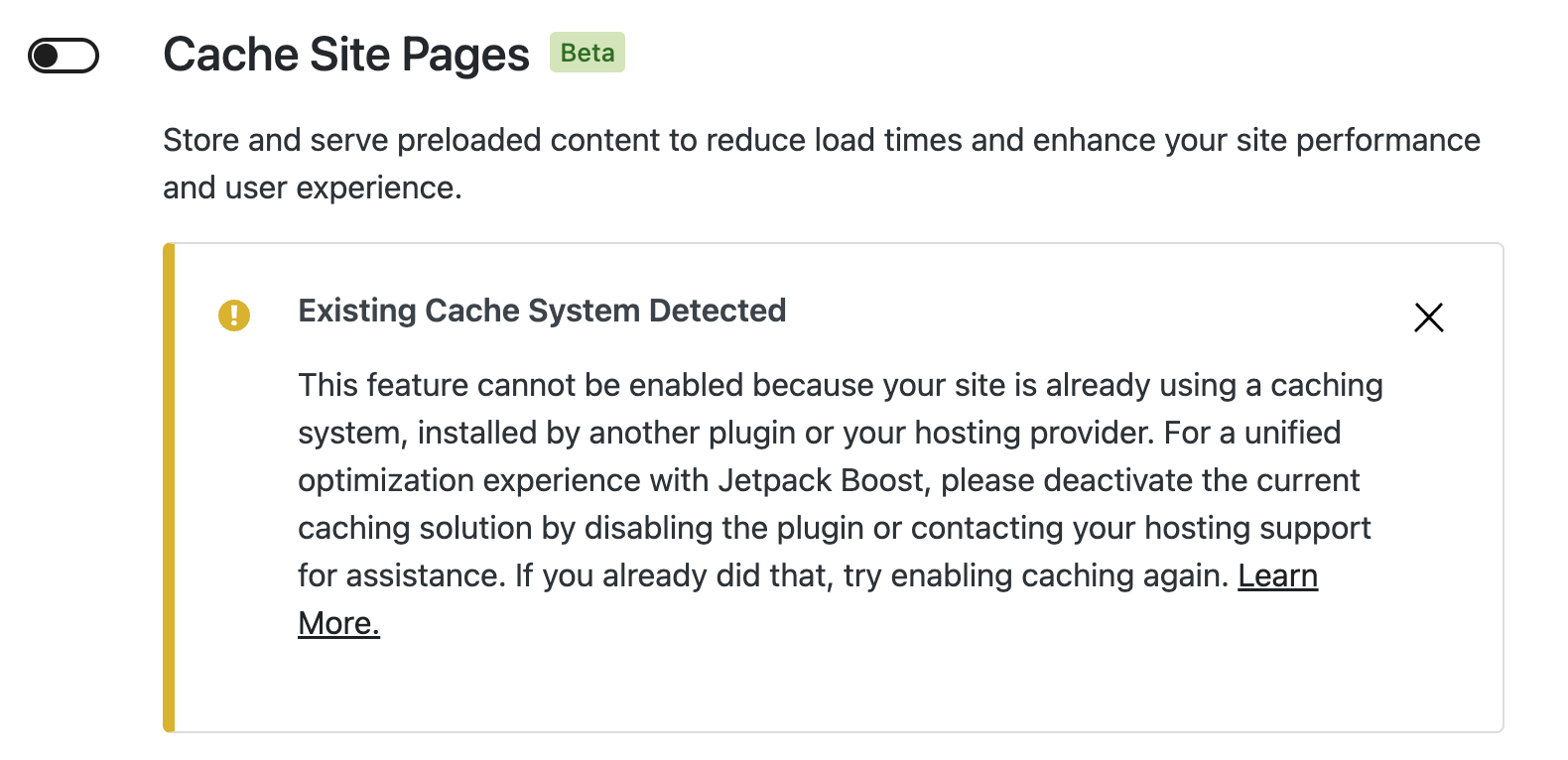
If your site uses a caching plugin or if your hosting provider includes a caching system, you might see a little warning pop-up after you turn on the Cache Site Pages feature in Boost. This is just to let you know that Jetpack Boost couldn’t activate the feature due to the existing cache setup.

Jetpack Boost is unable to activate the cache if there’s another cache system in place

To benefit from Jetpack Boost’s integrated functionalities, including its caching feature and all the other features, you must disable the other caching system. If it’s a plugin, please deactivate it, and if it’s from your host, please contact the hosting provider for assistance. 

Please note that some hosting providers will not allow you to choose your own page caching solution. In such cases, Boost’s page cache cannot be enabled on your site. 

The technical side of caching

All page caches used by WordPress must use a special file in your wp-content directory called advanced-cache.php to drive their caching features. Jetpack Boost will show an “Existing Cache System Detected” message if we detect an advanced-cache.php file in your wp-content directory.

If you have access to the files in your WordPress installation, check this file to see if it contains information about what caching solution you currently have configured.

If you have an empty advanced-cache.php file installed, your hosting provider may have placed that file there to prevent you from using your own page caching solution. In such cases, your hosting provider likely has a cache built-in. We recommend that you contact your hosting provider for information.

Jetpack Boost provides several filters for developers looking to customize caching behavior. These include jetpack_boost_cache_bypass_patterns for changing bypass patterns, jetpack_boost_cache_request_cacheable to specify cacheable requests, and jetpack_boost_cache_accept_headers to modify caching based on content types.

Further details can be found in the Cache API documentation.

Excluding Specific Parts of the site from Caching

You may have certain pages on your site, such as the cart page or those with frequently updated content, that you prefer not to cache to ensure they always display the most current version. Jetpack Boost offers a straightforward way to designate which areas of your site should remain uncached.

To exclude different parts of the site from caching, you can follow the steps:

  1. Navigate to Jetpack → Boost in your WP Admin
  2. Enable the Cache Site Pages module.
  3. Look for a Show Options button on the right side and click it. This action will reveal a field for input.
  4. In this new field, enter the paths for any parts of the site you wish to keep uncached.
Excluding Specific Parts of the site from Caching

Remember, you don’t need to use full URLs here. For instance, to exclude a shop page from being cached, simply input “/shop” (without the quotes). Place each path on its own line. If you need to exclude multiple pages under a single directory, you can use the wildcard symbol (.*) in your path. This might look like /blog/(.*) to exclude all pages under the “blog” section.

Tracking Caching Events (logging)

If you run into trouble while using the cache, it can sometimes be helpful to enable its Logging feature to track events that occur in the caching system. 

To track caching events, follow these steps:

  1. Navigate to Jetpack → Boost in your WP Admin
  2. Enable the Cache Site Pages module.
  3. Click the Show Options button on the right side. 
  4. Check the option to activate logging. 
  5. Click See logs to see the logs and caching events.
Enabling tracking caching events

Typically, the cache logging system will track which pages are being cached, which are being served from your cache, and when your cache is deleted due to either the cache becoming too old, or due to changes on your site.

Please note that this feature is normally disabled by default, as writing extra logs to your disk may have a small performance impact on your server. Remember to deactivate the logging system once you have finished troubleshooting any problem you may need to investigate.

Clearing cache

Jetpack Boost automatically clears cached content when posts are updated, published, or deleted, and when comments are modified or removed. Manual cache clearing should only be necessary if you notice outdated content that hasn’t been automatically refreshed.

To clear the cache manually, click Clear Cache button from the Cache Site Pages feature section:

Clearing Cache

Jetpack Boost’s page cache automatically clears cached content when you update, publish, or delete a post; when a comment is modified, added, or removed; or when you switch themes. This ensures your site’s content remains current without any extra effort on your part.

Improving your site’s loading speed by caching content can positively impact your SEO. Faster sites provide a better user experience, which is a factor search engines consider when ranking sites.

Adjusting the cache duration

Content stays cached for 1 hour. This can be changed by adding a line to your site’s wp-config.php file.

define( 'JETPACK_BOOST_CACHE_DURATION', 3600 );

Where 3600 is the duration of the cache in seconds. You can adjust this value according to your needs to control the freshness of your cached content.

However, WordPress comes with a wide variety of plugins and settings, so it can miss some updates. If you notice that some content on your site appears to be out-of-date after making a change, you can clear your page cache at any time.  

Changing the cache parameters with filters

Jetpack Boost provides several WordPress filters that enable developers to customize how visitors are identified for serving cached content. These powerful features require some technical expertise to implement effectively. For detailed explanations of each filter and helpful example code to get you started, check out the Jetpack Boost Filters Documentation.

Troubleshooting caching issues

For troubleshooting Jetpack Boost caching issues, please refer to our Troubleshooting Guide for detailed solutions.

Get help

Need more help? Feel free to contact us! For free Jetpack Boost users, you can post a support request on the Jetpack Boost Plugin Support page. If you upgraded, you can contact support for more personalized assistance.

Comments Off on Caching site content with Jetpack Boost

Speed up CSS Loading with Jetpack Boost

Jetpack Boost helps your site load faster by optimizing how CSS is delivered. The Critical CSS feature moves the most important styling information to the top of your pages, helping your content display sooner, especially on mobile. This improves your visitors’ experience and your site’s speed score.

Depending on your plan, this feature is available in two versions: manual generation (free plan) and automated generation (paid plan)

What is Critical CSS?

Critical CSS refers to the essential styles needed to render the visible part of a page. Jetpack Boost extracts this CSS and inlines it directly in your page’s <head> to reduce delays in loading key visual elements.

Jetpack Boost stores each Critical CSS file as a custom post type in your WordPress database (wp_posts table).

To support both desktop and mobile layouts, Boost samples your site at multiple screen widths and generates a single Critical CSS set that works across devices.


Manual Critical CSS (Free Plan)

If you’re using the free version of Jetpack Boost, you’ll need to generate Critical CSS manually whenever your site changes.

How to enable and generate Critical CSS

  1. Go to Jetpack → Boost in your WordPress dashboard.
  2. Toggle on Optimize Critical CSS Loading (manual).
  3. Click Regenerate whenever your site’s layout or design changes.

Make sure to stay on the page while regeneration is in progress. Leaving early may interrupt the process.

When to regenerate Critical CSS

It’s important to regenerate Critical CSS after:

  • Changing or updating your theme
  • Adding or editing posts and pages with new layouts or blocks
  • Installing or updating design-related plugins
  • Updating WordPress core

Upgrading to a paid Jetpack Boost plan will automate Critical CSS generation.


Automated Critical CSS (Paid Plan)

Automated Critical CSS is available with the Jetpack Boost paid plan or Jetpack Complete.

When you upgrade, Jetpack Boost will automatically regenerate Critical CSS every time your site changes — no action needed.

How it works

  • After upgrading, the Automatically Optimize CSS Loading setting will be enabled by default.
  • Jetpack Boost monitors your site for design changes and generates Critical CSS as needed.
  • You’ll see status messages confirming that CSS is being generated or is up-to-date.

How to force regeneration manually (if needed)

Even with automatic generation, you can still click Regenerate from the Jetpack Boost dashboard if you suspect something is out of date.

Benefits of automated Critical CSS generation

  • Save time — no manual steps needed
  • Avoid missing updates that could impact performance
  • Benefit from server-side CSS generation for improved accuracy
  • Get access to direct support if something goes wrong

Status Messages

Jetpack Boost displays a message under the Critical CSS toggle to keep you informed. Here’s what they mean:

  • “Jetpack Boost will generate Critical CSS for you automatically.”
    The system is working normally and monitoring changes.
  • “X file(s) generated Y time ago.”
    Generation completed successfully. No further action is needed unless your site has changed.
  • “X file(s) could not be automatically generated.”
    Some pages failed. This may be expected (e.g., plugin-generated pages). See the troubleshooting guide for more details.
  • An error message is shown.
    CSS generation failed. Your site will still load, but may be slower. See below for troubleshooting steps.

Turn Off Automated Critical CSS (Developers)

If you have the paid plan but prefer the manual version, you can disable the automated feature by adding this filter to a must-use plugin (mu-plugin):

add_filter( "jetpack_boost_has_feature_cloud-critical-css", '__return_false' );

Once disabled, the manual Optimize CSS Loading toggle will return to your dashboard.


Troubleshooting

If Jetpack Boost fails to generate Critical CSS or you see a message indicating problems, follow the steps in our full guide:

Troubleshooting Critical CSS in Jetpack Boost

Still need help?

Please contact support. We’re happy to advise.

Comments Off on Speed up CSS Loading with Jetpack Boost
  • Enter your email address to receive news and updates from Jetpack

  • Join 99.1K other subscribers
  • Browse by Topic