Two new search experiences in Jetpack Search

Site search used to mean picking between whatever your theme renders and a separate overlay UI that doesn’t always match the rest of your site. Jetpack Search Blocks project closes that gap. This release ships with two brand-new search experiences — Embedded and the blocks-powered Overlay — both built from real WordPress blocks, both styled by your theme. Pick the one that fits your site, edit it in the block editor, and you’re done.
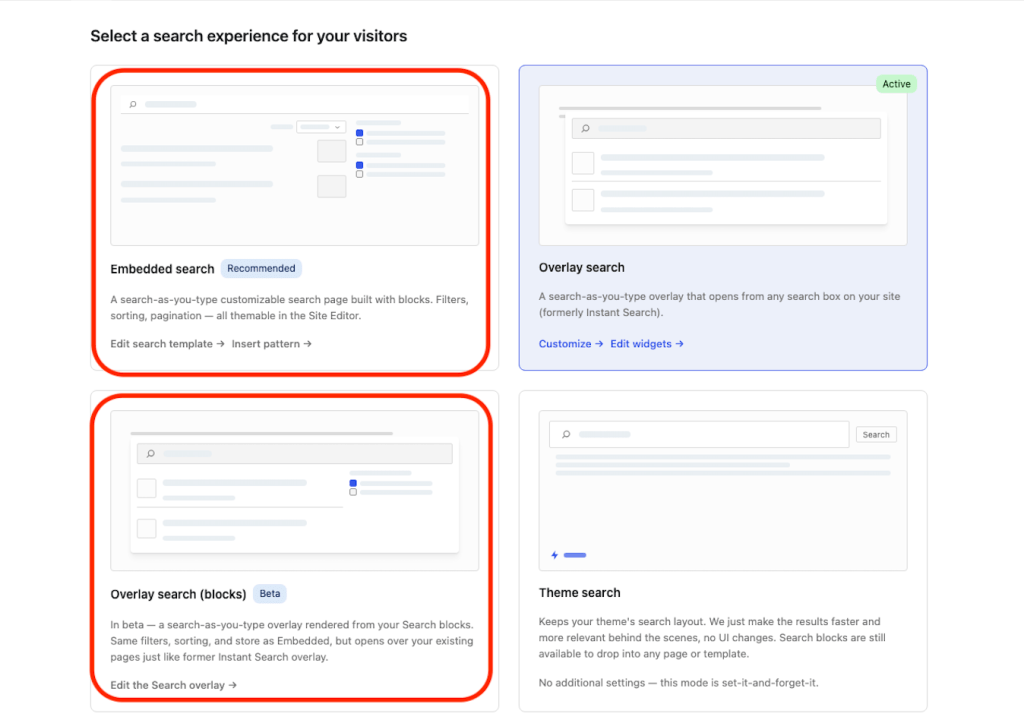
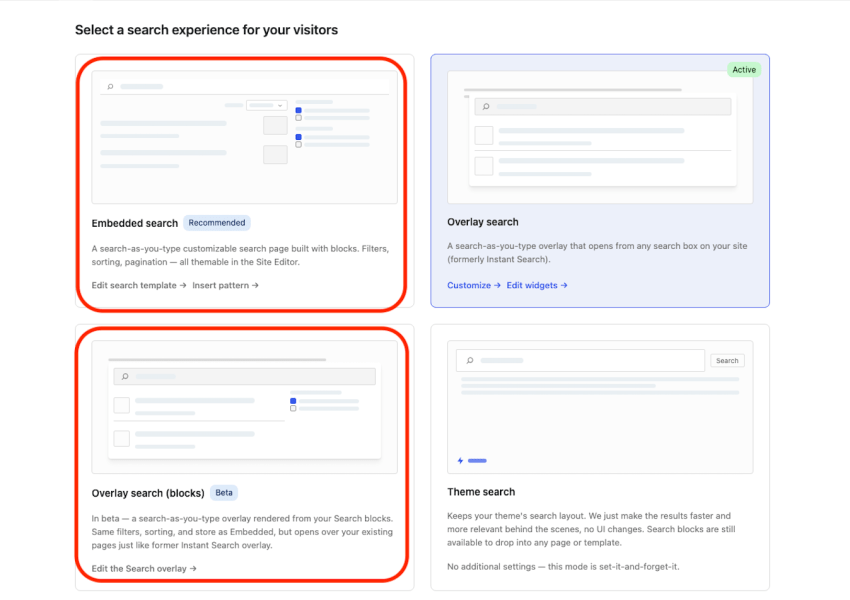
The Experience Selector in the Search dashboard showing the new options

A search experience that fits your site

For years, “site search” meant a compromise. The theme-rendered results page gives you native styling but limited control over filters, sort, and layout. The classic Instant Search overlay gives you fast, filterable results but lives in a parallel UI that doesn’t always match your site.

Search new experiences take a different approach. Both new experiences are composed from a single set of search blocks — search input, filters, sort, results list, load-more — that you arrange, style, and edit just like any other block on your site. The result is a search experience that uses your fonts, your colors, and your spacing out of the box.

Meet the two new experiences

Embedded search. A full search page rendered inline in your theme. Visitors land on a real URL, search-as-you-type, and see filters, sort, and load-more on the same page. The template lives in your theme’s search.html on block themes, or a built-in fallback template on classic themes, so it follows the rest of your site naturally.
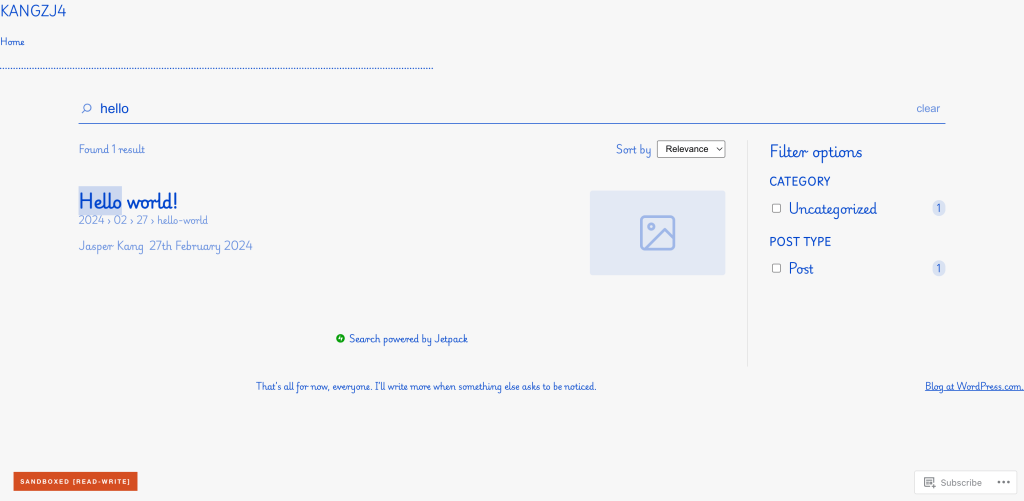
The Embedded search experience on a content site, showing filters in a sidebar and results in the main column

Blocks-powered Overlay (beta). A modal-style overlay that opens on top of the current page when a visitor triggers search. Same Search Blocks framework as Embedded — same blocks, same styling — just rendered in an overlay container instead of taking over the page. Good for sites that prefer the quick-search pattern but want it styled to match.
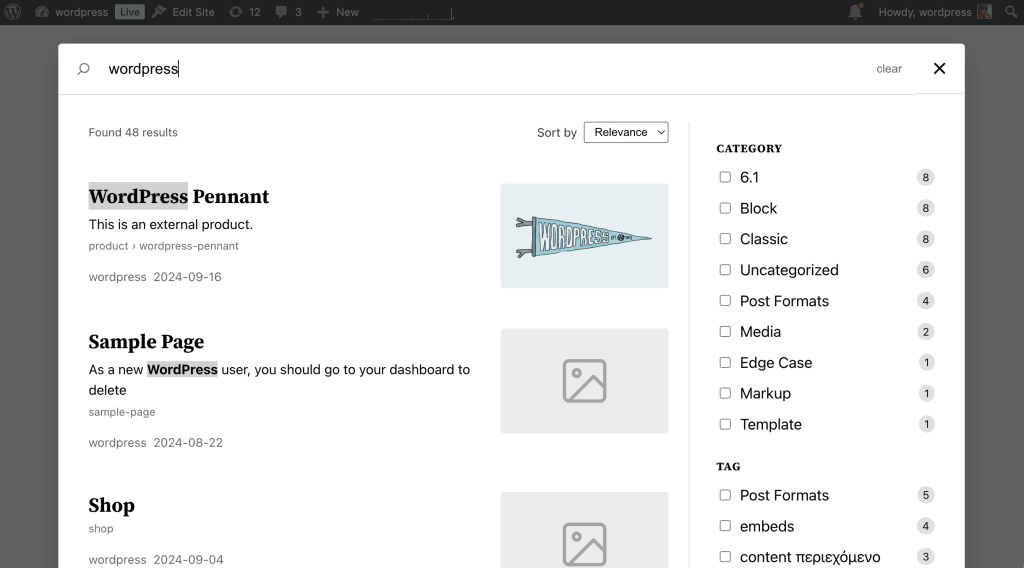
The Blocks-powered Overlay opened on top of a normal page, with results visible and the underlying page dimmed

How to pick which

Both experiences are mutually exclusive on the search route — pick one in the Experience Selector and that experience takes over. A rough guide:

  • Embedded is the right fit when you want search results to feel like a native page in your theme. Real URLs, bookmarkable, indexable, and the page is yours to design.
  • Blocks-powered Overlay is the right fit when you’d rather keep visitors on the page they’re reading. Same blocks, same styling, just delivered as a modal.

The classic Instant Search overlay — the original quick-search experience some sites already use — is still fully supported and available alongside the new options in the Experience Selector. Over time, as the blocks-powered Overlay matures, we expect it to become the recommended path. For now, sites can stay on the classic Overlay as long as they want.

Editable in the block editor

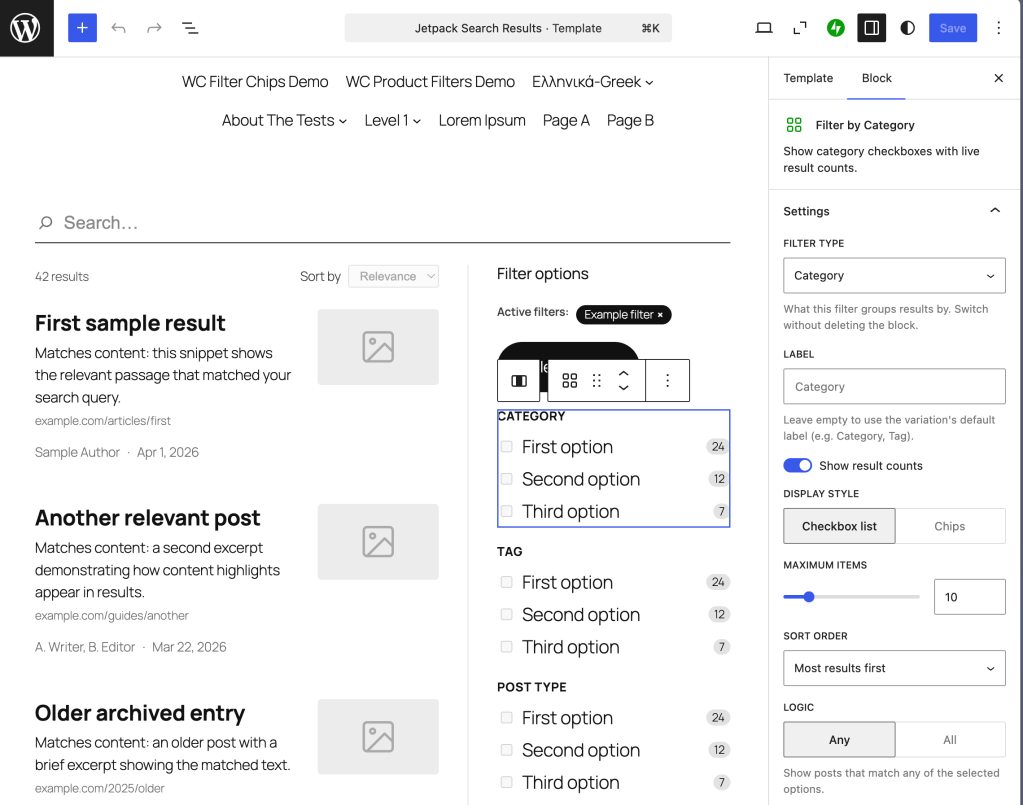
Both new experiences are template-driven and editable. Open the search template in the block editor, rearrange the filters, swap the empty state, add a hero above the results, customize the load-more button — it’s all blocks, in the same editor you already use for posts and pages. Save once, and that’s what visitors see.
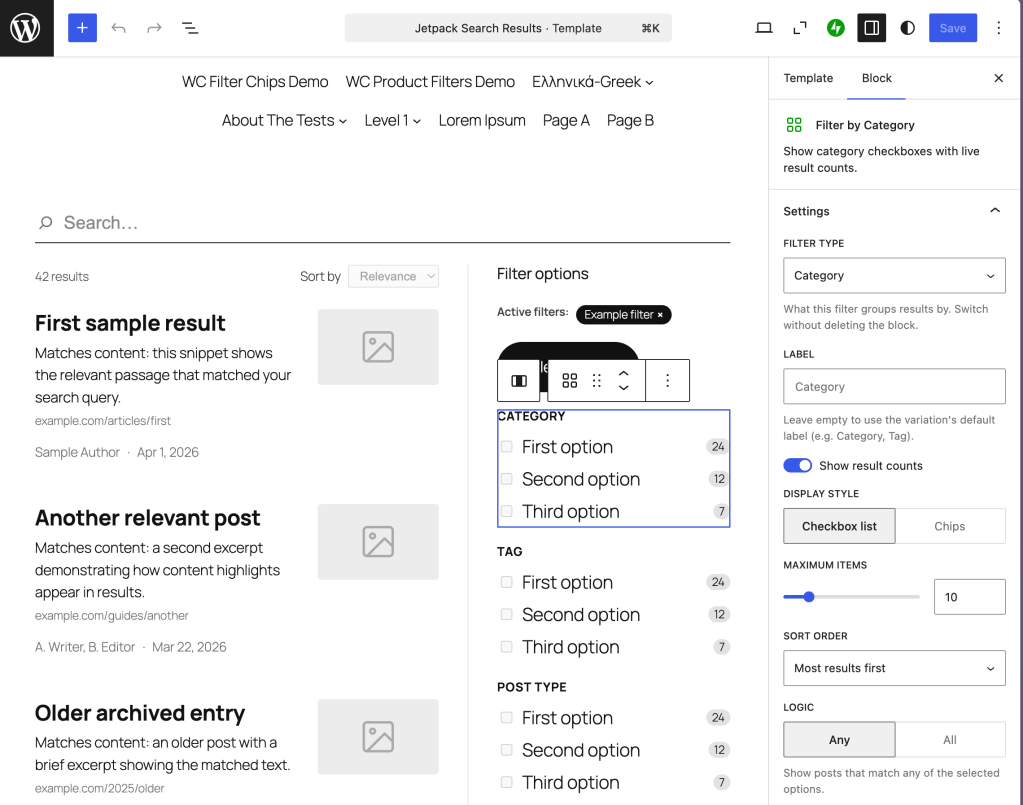
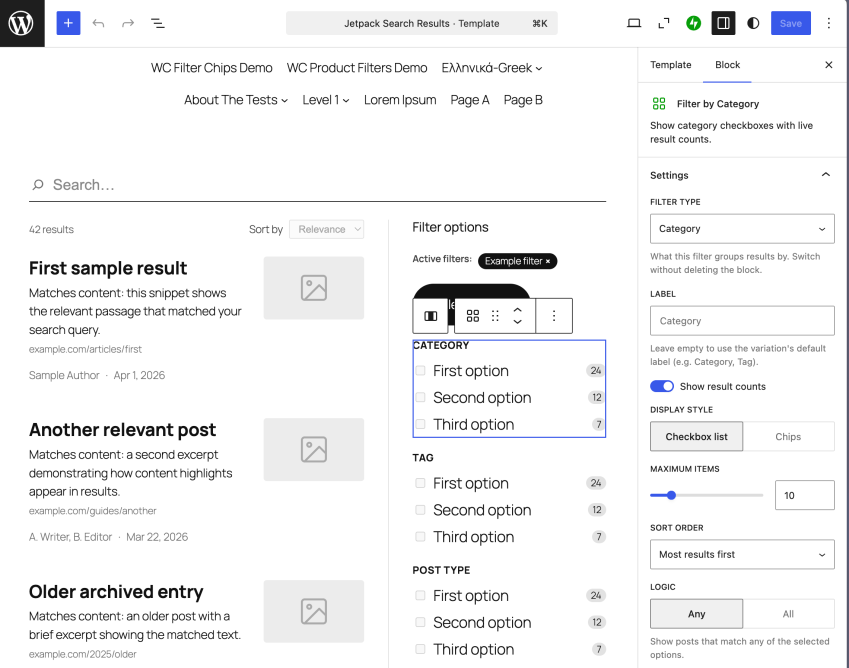
Editing the search template in the block editor, with the filters and results visible in the canvas

Availability

Jetpack Search new experience options ship with Jetpack 15.9 / Jetpack 7.0 and is already live on WordPress.com Simple sites. Both new experiences are available out of the box on any site with a Jetpack Search plan — no opt-in filter, no extra setup. Open the Search dashboard, choose Embedded or the new Overlay, save, and you’re done.

How did this ship so fast?

The new Search experiences were built during Automattic’s Radical Speed Month — a four-week sprint where two engineers used AI pair-coding to land 140+ PRs and 20 new blocks.

Search that fits your site, starting today

If you’ve been waiting for site search that looks like the rest of your site — and behaves like a real part of your editor — this is the release. Pick the experience that fits, edit the template, and ship.
Posted in Jetpack News | Leave a comment

A search built for your WooCommerce store

Shoppers don’t search the way readers search. They want to narrow by category, brand, price, rating, and stock status — and they want to do it without leaving the results page. Jetpack Search Blocks ships with a full set of WooCommerce-aware search blocks that turn your shop’s search into the kind of filterable, faceted experience visitors actually expect from a store.

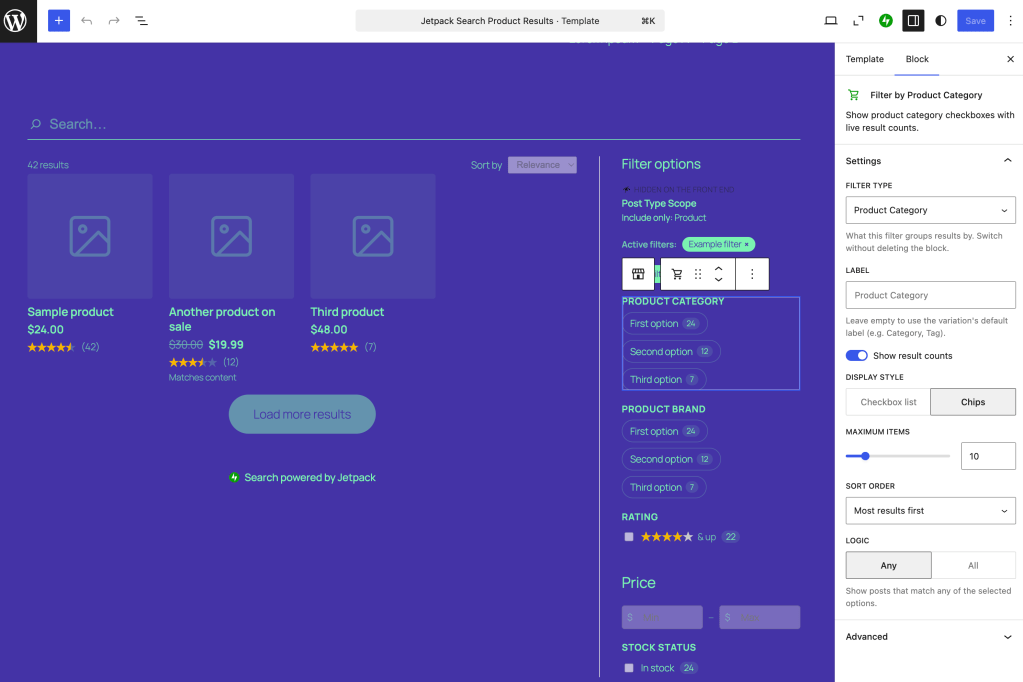
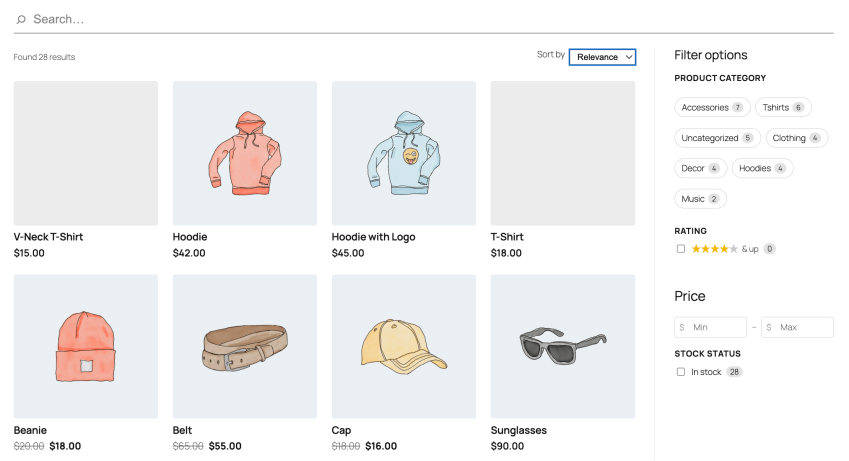
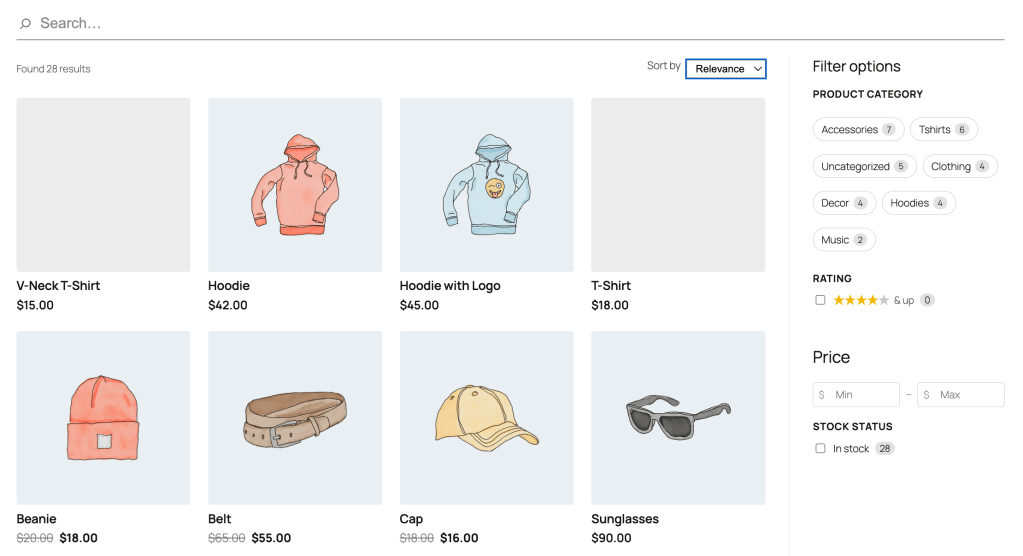
A shop search page with the new filter sidebar — categories, brands, price slider, rating, stock — all visible alongside product results

The gap in store search

Native WooCommerce search returns matching products, but it doesn’t help shoppers narrow down. A long list of t-shirts is still a long list of t-shirts. To get filters by brand, attribute, or price, store owners have typically reached for a separate plugin — then a different one for an instant-search UI, then a third for sort. Each one with its own settings, its own styling, its own dashboard.

Search Blocks collapses that. Filters, sort, and a product-aware results layout are all native blocks in the same Search Blocks framework — the same blocks you’d use on a content site, with extra options that light up automatically when WooCommerce is active.

New WooCommerce filter blocks

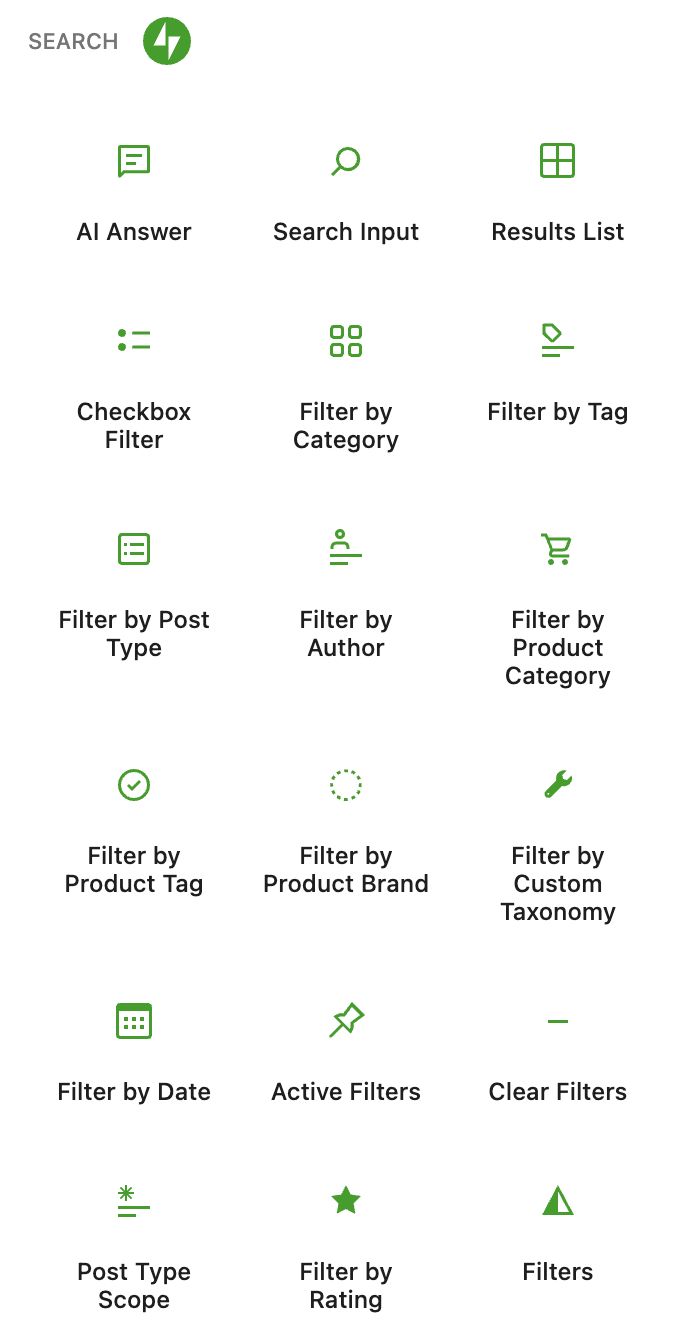
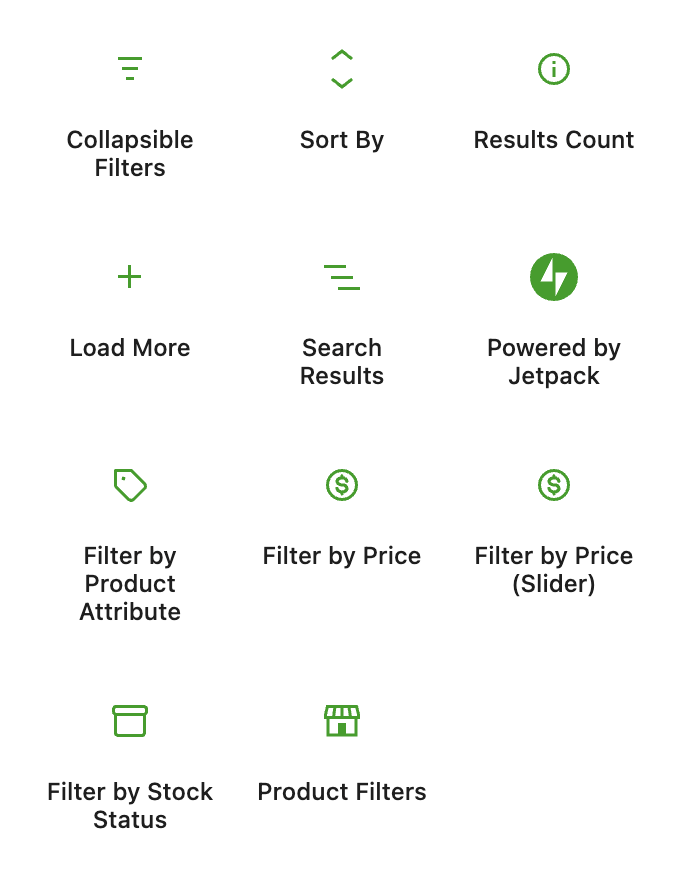
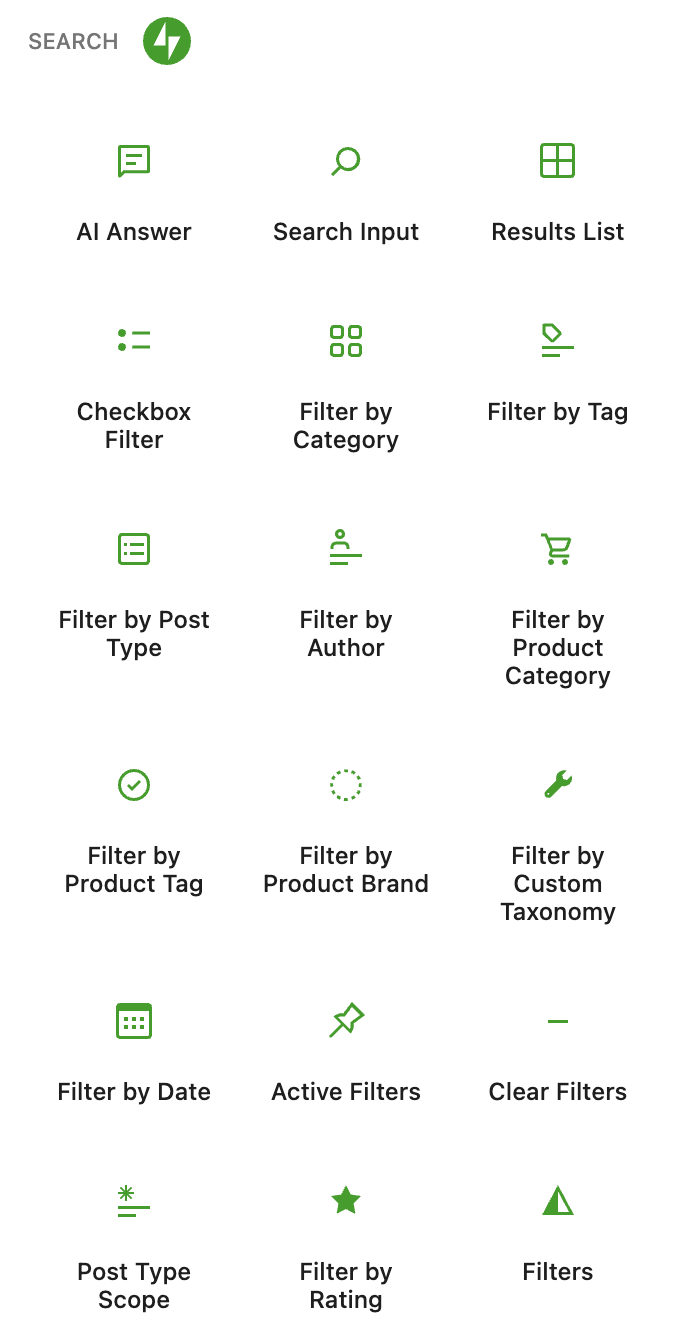
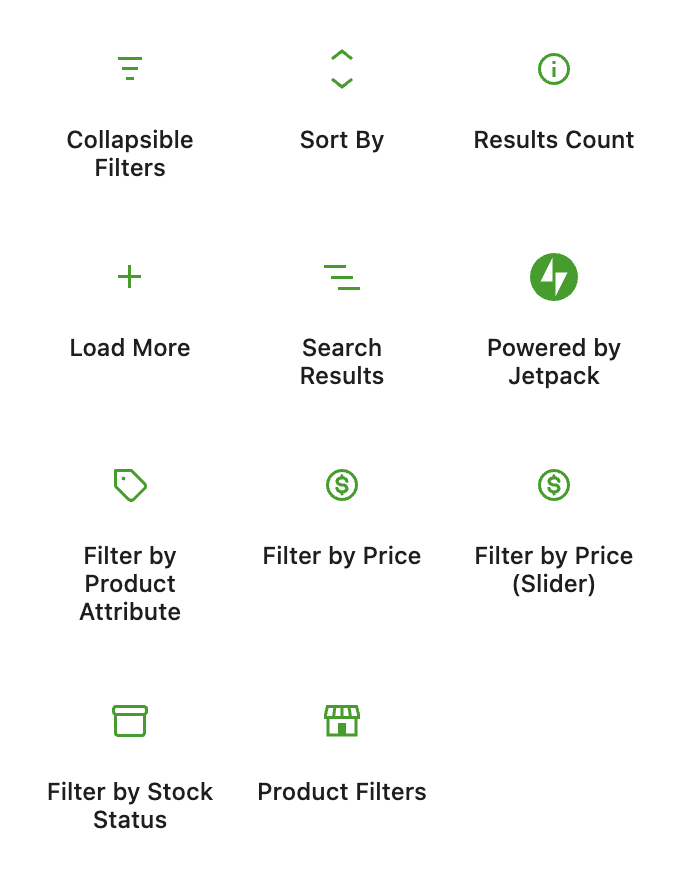
When a site has WooCommerce installed, five new product-specific blocks become available in the inserter:

  • Filter by Product Attribute. Any registered product attribute — size, color, material, capacity — gets its own filter block, with one block per attribute so you can place them independently.
  • Filter by Price. A range control with live min/max, so shoppers can drag to set a budget without typing.
  • Filter by Rating. “4 stars and up”, “3 stars and up”, with one click.
  • Filter by Stock Status. In stock, out of stock, on backorder — however your store is configured.
  • Product Filters. A pre-arranged container that combines the most common product filters into a ready-to-go sidebar, so you don’t have to assemble it block by block.

Three new variations also appear on the standard Checkbox Filter — for Product Category, Product Tag, and Product Brand — each as a distinct card in the inserter, so authors can pick exactly what they want without configuring a generic taxonomy filter.

Product-aware results

A few existing search blocks pick up product-aware features when WooCommerce is on:

  • Results List gets a Product layout — image, title, price, rating — alongside the default Post layout. Switch between them in the block inspector.
  • Sort By picks up Price (low to high), Price (high to low), and Rating sort orders, matching the conventions shoppers already know from other stores.
  • Active Filters shows a dismissable price-range chip when a price filter is applied, so shoppers can see and clear the current range at a glance.
The block editor showing the Results List Product layout selected, with Product Category By options open in the inspector

On automatically, gated cleanly

You don’t have to flip a setting. When WooCommerce is active on the site, the product blocks appear in the inserter and the WC-aware options light up on the existing blocks. On a site without WooCommerce, none of it shows up — the inserter stays clean, the inspector stays focused, and there’s no visual noise from features the site can’t use.

Availability

The WooCommerce features ship with Jetpack 15.9 alongside the rest of Search 7.0, and are already live on WordPress.com Simple sites. Any site with WooCommerce active and a Jetpack Search plan gets them out of the box.

How did this ship so fast?

Like the rest of Search Blocks, the WooCommerce blocks landed during Automattic’s Radical Speed Month — a one-month sprint where two engineers used AI pair-coding to ship a backlog item that had been on the list for years. 140+ PRs, 20 new blocks, four weeks.

Give your shoppers the filters they expect

If you run a WooCommerce store on Jetpack, you can ship a faceted, filterable, sort-aware search experience today — without stitching together three plugins to get there.

Posted in Jetpack News | Leave a comment

Build your search page with blocks

Most search results pages look the same: a list of titles, a snippet, maybe a date. Whatever your theme ships is what your visitors get — and if you want filters, sort, or a different empty state, you’ve historically had to edit theme templates by hand. With Jetpack Search Blocks, the search page is a real block template. Open it in the block editor, drop in the blocks you want, save. That’s it.

The block editor open on a search template, with filters in a sidebar block and results in the main column

The problem with default search

WordPress search runs a standard query and renders whatever your theme’s search.html (or search.php) puts on the page. That works fine — until you want something more. Maybe you want filters by category. A “load more” instead of pagination. A different empty state. A featured pattern above the results. A sort dropdown that respects the way you organize your content. Doing any of that has historically meant editing templates by hand, or reaching for a third-party plugin that brings its own UI.

The Search Blocks library

Jetpack Search Blocks ships a library of native blocks that together compose a complete search experience:

  • Search Input. The search-as-you-type field. Drop it into a header, a sidebar, or the results page itself.
  • Filters. Checkbox filters for taxonomies, post types, dates — plus filter compositions like the default vertical sidebar or the collapsible popover layout.
  • Results. The Results List with selectable layouts, plus Results Count, Sort By, and Load More — each independently configurable.

Every block exposes its own settings in the inspector — header text, layouts, how many items per page, which taxonomies to filter on. The blocks are theme-aware: they use your site’s fonts, colors, headings, and spacing out of the box, so the search page looks like it belongs on your site.

A search page you can actually design

Open the Embedded search template (on block themes) or its built-in fallback (on classic themes), and you’re in the block editor. From there, the page is yours:

  • Rearrange filters into a left sidebar, a right sidebar, or a horizontal bar above results.
  • Add a hero block above the results with a custom title, intro paragraph, or featured image.
  • Replace the default empty state with a Pattern showing your most popular content or a CTA.
  • Drop a Sort By dropdown, configure the order options, and place it wherever you want.

When you save, that’s what visitors see. Search-as-you-type still works — the filters update results in real time as visitors interact — but the layout, copy, and styling are yours.

Works with any theme

Block themes pick up the template through the same template system that powers the rest of full-site editing. Classic themes get a fallback template that ships with Jetpack Search and adopts the theme’s fonts, colors, and content width. Either way, you don’t have to migrate to a new theme to use Search Blocks.

Availability

Embedded search ships with Jetpack 15.9 / Jetpack Search 7.0 and is already live on WordPress.com Simple sites. Activate it from the Experience Selector in your Jetpack Search dashboard. Any site with a Jetpack Search plan can switch it on — no opt-in filter, no extra setup.

How did this ship so fast?

The blocks landed in a one-month sprint — Automattic’s Radical Speed Month. Two engineers used AI pair-coding to the 20 new blocks in four weeks. Backlog items that had been sitting for years finally got their week.

Make search feel like the rest of your site

If “search page” has always been the part of your site you couldn’t quite customize, this is the release that hands the keys back. Open the editor, drag in the blocks, and design the page you actually wanted.

Posted in Jetpack News | Leave a comment

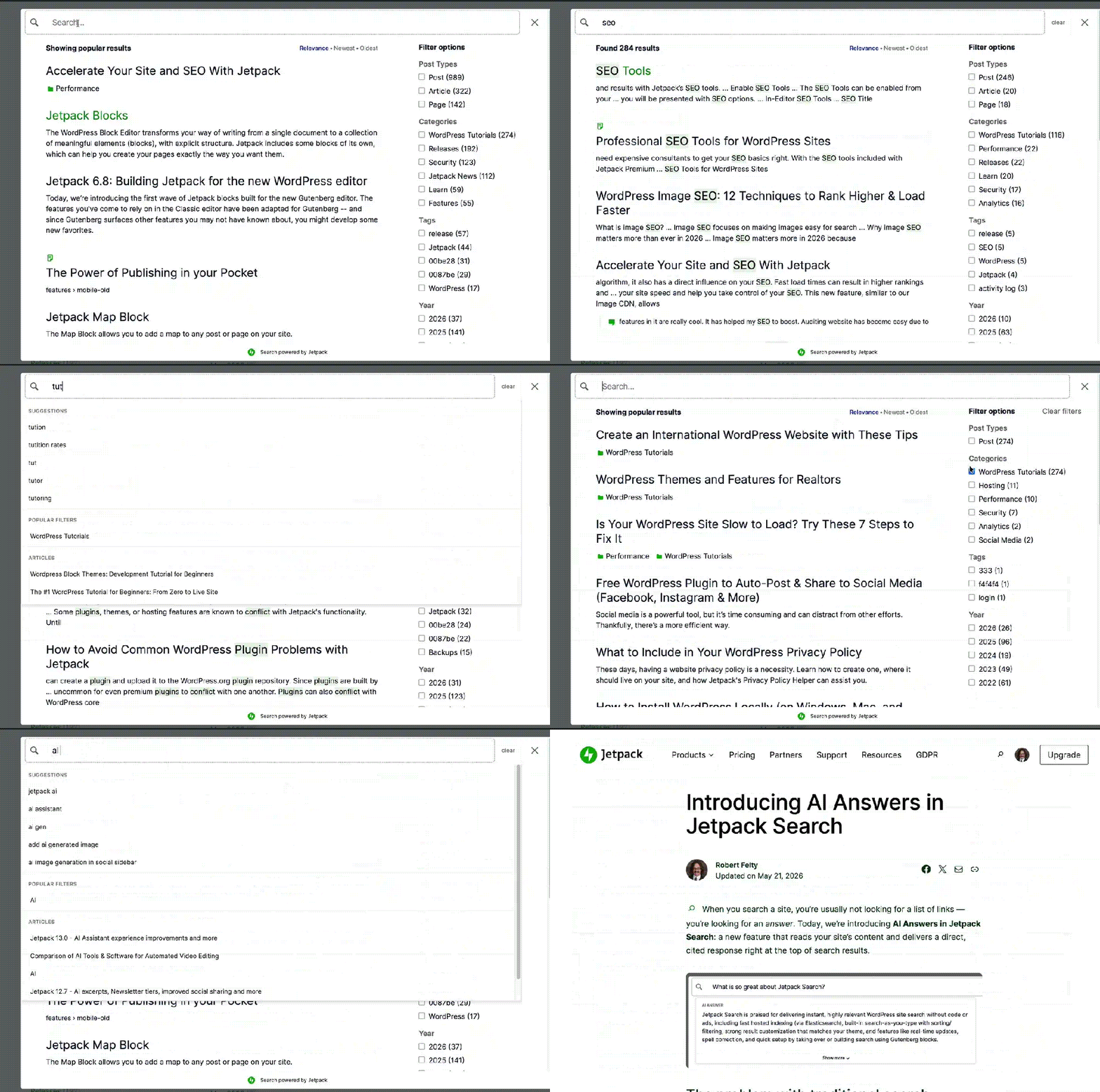
Introducing auto-complete suggestions in Jetpack Search

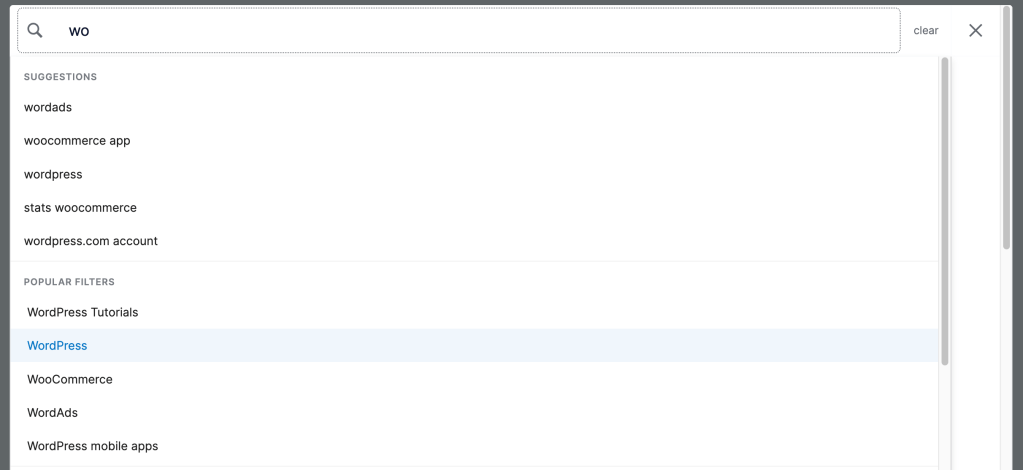
Jetpack Instant search allows you to see results as you type. That’s fast. But it’s not always what people actually need. Sometimes you want a nudge in the right direction before you’ve even finished your question.

Today we’re adding exactly that to Jetpack Search. The new Search Suggestions feature shows visitors three types of helpful options as they type, making it quicker and easier to find what they’re looking for on your site.

The problem with traditional search

When someone lands on your site and opens the search bar, they’re not always sure what to type. Maybe they’re new to your site. Maybe they can’t remember the exact words used in a post. A blank search box and a list of results can feel like a lot of work.

There’s also the navigation problem. Most sites organize their content with categories or tags, but finding those in the UI can be frustrating. The ability to suggest relevant tags and categories solves this.

How it works

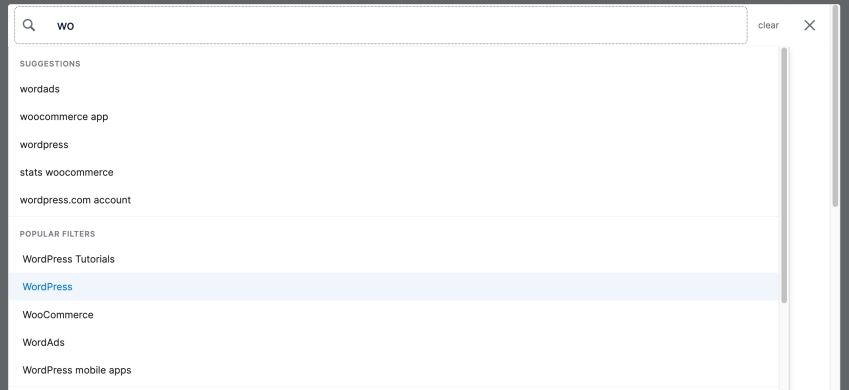
When Search Suggestions is enabled, visitors see three kinds of suggestions as they type:

  • Query suggestions based on what other visitors have actually searched for on your site. These come from real search history, so they reflect the words and phrases your audience already uses.
  • Filter shortcuts for common categories and tags. Visitors can narrow their search with a single click and keep refining without leaving the search interface.
  • Direct article links for posts and pages that closely match what’s being typed. If the answer is on a specific page, visitors can go straight there without sifting through results first.

See it in action

Try it yourself right now. Use the search bar on jetpack.com and start typing. The suggestions appear instantly, and yes, that speed is real.

Availability

Search Suggestions is available now on all WordPress.com sites. Simply add a Jetpack Search subscription from your wp-admin dashboard. You can start off with the free plan if you want, which includes searching up to 5000 posts/pages and 500 requests per month.

It will also be included in the next Jetpack Search plugin release for self-hosted sites. To try it before then, enable it today with the Jetpack Beta Tester.

How did this ship so fast?

This feature required building a brand-new Elasticsearch index from scratch, which is why it had been sitting on the wish list for years without ever getting built. It always felt like too big a project to squeeze in.

What made the difference was Automattic’s Radical Speed Month initiative, which carved out dedicated time to tackle exactly these kinds of features. Two developers built it in roughly two weeks, with significant help from AI throughout. It’s another example of Automattic using AI not just in its products, but to build them.

Better search, starting today

Ready to give your visitors a smarter search experience? Get Jetpack Search

Posted in Jetpack News | Leave a comment

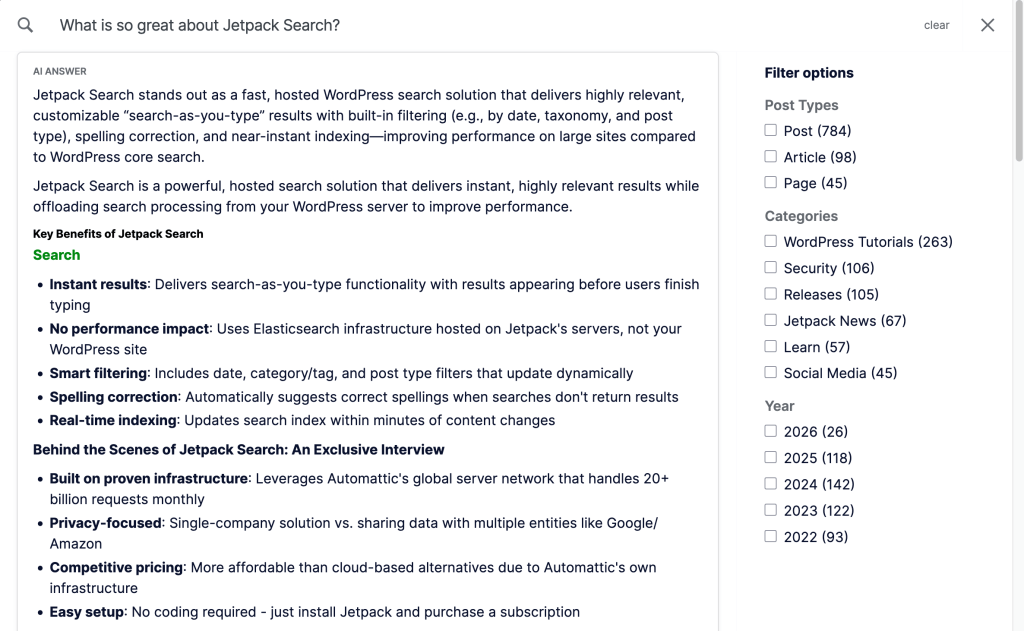
Introducing AI Answers in Jetpack Search

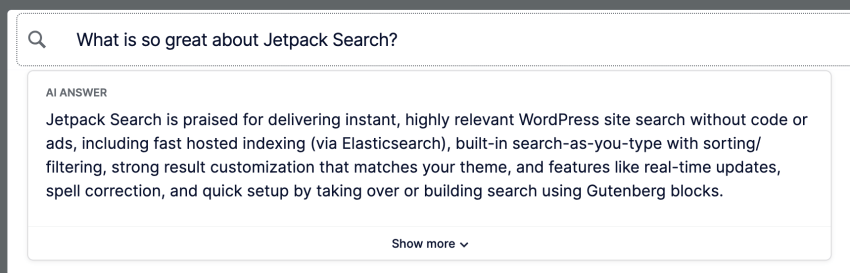
When you search a site, you’re usually not looking for a list of links — you’re looking for an answer. Today, we’re introducing AI Answers in Jetpack Search: a new feature that reads your site’s content and delivers a direct, cited response right at the top of search results.

The problem with traditional search

Site search has always been good at returning results. But results still require work — clicking through, skimming, reading multiple pages to find the one specific thing you needed.

There’s also a subtler problem: if you can’t remember the exact words used in a post, you may get no results at all, even when the answer is sitting right there on the site.

Jetpack Search already delivers fast, accurate, relevancy-ranked results. AI Answers takes it a step further.

How it works

When a visitor submits a search query, Jetpack Search now runs multiple searches at varying levels of precision in parallel. If exact matches exist, it uses those. If not, it broadens the query — and rephrases it if needed — to find the best available answer. This dramatically reduces the “no results” dead end that frustrates so many site visitors.

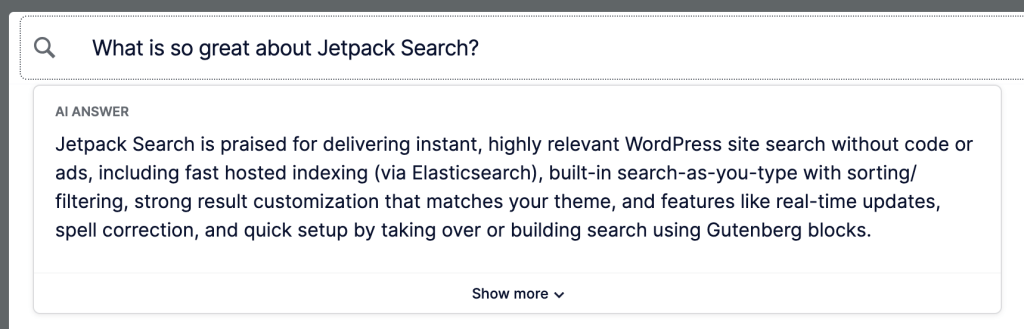
The results are then passed to an AI model, which generates a concise summary grounded entirely in your site’s own content. Visitors get their answer immediately, with source links so they can read more if they want.

What visitors see

  • A brief AI-generated summary appears at the top of search results, grounded in your site’s own content
  • A “Show more” option lets visitors expand the answer for additional detail
  • Source links are always shown, so visitors can read the original posts in full

See it in action

Curious what it feels like? Try it right now — use the search bar on jetpack.com and ask it something. See how quickly an answer appears.

Availability

AI Answers is available now on all WordPress.com sites. You’ll need a paid Jetpack Search subscription to use it — and if it turns out it’s not for you, we offer a 14-day money-back guarantee, no questions asked.

AI Answers will also ship as part of the Jetpack Search 7.0 release for self-hosted sites. If you’d like to try it before then, you can enable it today using the Jetpack Beta Tester.

Didn’t something like this take a team of developers months to build?

You might think so — but it didn’t. AI Answers was built by just two developers in roughly two weeks, as part of Automattic’s Radical Speed Month initiative. That kind of pace is possible because Automattic is at the forefront of using AI to accelerate its own development process. This isn’t just a feature about AI — it was built with AI.

Give your visitors instant answers

Ready to put AI to work on your site? Learn more about Jetpack Search →

Posted in Jetpack News | Leave a comment
  • Enter your email address to receive news and updates from Jetpack

  • Join 99.3K other subscribers
  • Browse by Topic