

If you’re a site owner, few things make your stomach drop like trying to load your website only to receive a cryptic error message. You’re probably familiar with the 404 Page Not Found error, but what about the 502 Bad Gateway issue?
Fortunately, the 502 error is usually easy to fix. Once you’ve found the source of the problem, resolving it is something most WordPress users can do on their own, without advanced technical knowledge.
In this guide, we’ll cover the different causes of a 502 error. Then, we’ll show you how to isolate and resolve the issue.
In a hurry? Start with this quick checklist:
- Reload the page and test from another device or browser.
- Temporarily disable your CDN (like Cloudflare) and test again.
- Disable recent plugins/themes and check your WordPress error logs.
- If the error only appears under high traffic, contact your host with recent log entries.
What causes the “502 Bad Gateway” error in WordPress?
The 500 series error codes, also known as HTTP status codes, are used to diagnose communication errors between a web browser and website server. Essentially, when a browser tries to connect to a website, it contacts the website’s server to request access. If this request cannot be fulfilled, then a 500 series error is usually returned, explaining what went wrong.
Error 502 indicates a bad gateway. This is when a server attempts to access another server but is unable to complete the request.
Usually the error is not with the website itself, but the server being accessed. The website is simply behaving as a middleman, or “gateway,” but is unable to deliver the requested data.
If your WordPress site is being affected by a persistent 502 error, it may be a server error outside of your immediate control. This error can make your site inaccessible to visitors. It can also negatively impact your search rankings, as search engines may be unable to access your site.
While this is normally an issue with your host’s servers rather than your website, there are still some things you can do to fix the problem. In this next section, we’ll cover some possible solutions.
How to fix the 502 Bad Gateway error in WordPress (9-step workflow)
Use this workflow from the least invasive checks to deeper server-level diagnostics. After each step, reload your site in an incognito window and on a different network if possible.
1. Check whether the 502 comes from your browser, CDN, or host
First, try loading your site from:
- A different browser and device
- A different network (mobile hotspot vs home Wi-Fi)
- With any VPN or ad blocker temporarily disabled
If you use a CDN like Cloudflare, look at the error page. Cloudflare 502 messages usually mention “Cloudflare” in the page design or footer. If the 502 page looks like your usual browser error, it’s more likely coming directly from your hosting server.
2. Refresh the page
As with most server issues, simply refreshing the page is always worth a try. If the error was very temporary or just a fluke, it might go away with a refresh.
A temporary blip or loss of service from an upstream server might resolve itself, allowing for the connection to complete on the next attempt. Sometimes a spike in traffic or loss of connection at the target server can also cause issues. As you’re troubleshooting, you may want to refresh every so often to see if the error persists.
If refreshing the page solves the problem, it’s safe to assume that the source of the cause was your host. These issues usually resolve themselves quickly.
3. Clear your cache and DNS
On rare occasions, a full cache on the client’s end can simulate server errors, as it’s unable to receive new data as requested. While this is unlikely to return a 502 Bad Gateway error, clearing the cache is a quick and easy fix that can help you rule out the issue.
Let’s look at how to clear the cache in Google Chrome. Most other browsers will follow a similar process.
First, click on the three-dot icon in the top right corner of the browser window and select Settings. Then, navigate to Security and Privacy on the left.
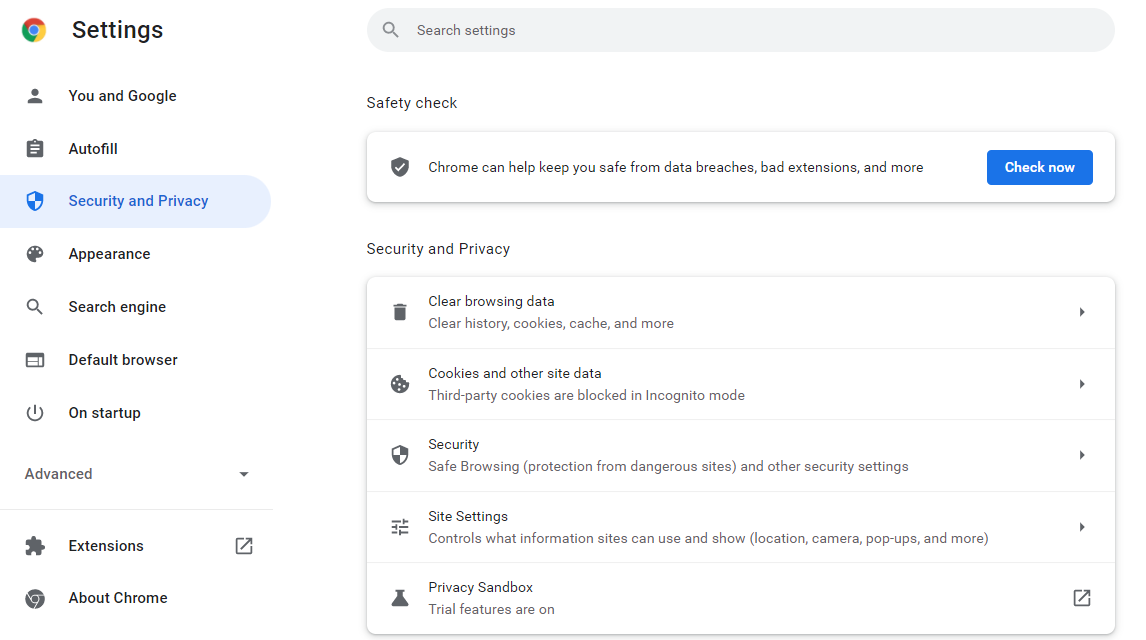
Here, select Clear browsing data. A popup window will appear. You’ll want to select All time as the time range, and check the box for Cached images and files.
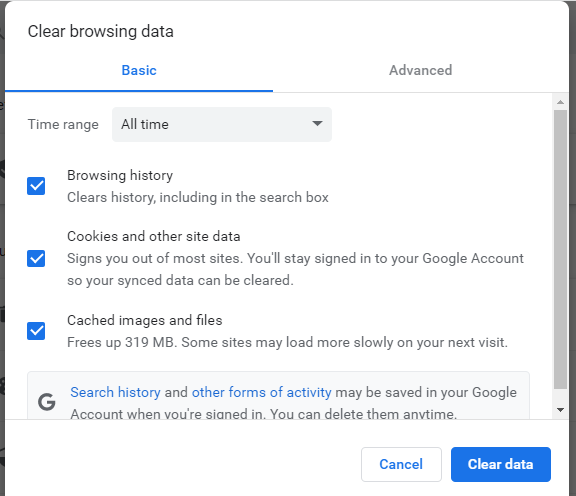
Then, just click on the Clear data button and your cache will be emptied. This will free up space for new data.
You may also want to check your Domain Name System (DNS). Like your browser cache, clearing your DNS could be a quick fix if there’s an issue with an IP address.
To clear your DNS, simply open the command prompt and type in the following command:
C:/Users/example>
C:/Users/example>ipconfig /flushdns
After clearing your cache and DNS, try refreshing the page to see if the problem has been resolved. If it’s still there, you can move on to the next method.
4. Deactivate your plugins and theme
If the 502 Bad Gateway error cropped up after installing a new theme or plugin, it’s possible that one of these programs could be the culprit. A poorly coded or incompatible plugin could cause a conflict that results in a server being slow or unable to communicate.
To find out if this is the case, you’ll need to deactivate your plugins. If you still have access to your site, go to your WordPress admin area and navigate to Plugins. Then, select and deactivate any new plugins you’ve installed:
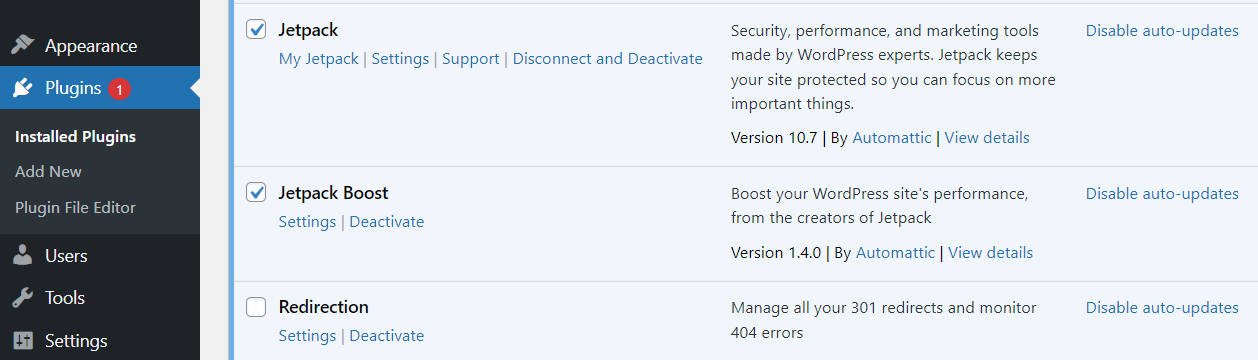
Alternatively, you can deactivate all of your plugins at once to see if the issue resolves itself. If it does, you’ll have to reactivate your plugins one at a time in order to see which one is acting up.
If you’re unable to access your WordPress admin dashboard, you’ll need to go through a backdoor to manually deactivate your plugins without logging into wp admin. You have two options: connect to your website via the File Manager in your hosting account, or use a File Transfer Protocol (FTP) client like FileZilla.
We’ll be using FileZilla to show you how to connect to your site’s back end and deactivate your plugins. You’ll need to enter your credentials, including username and server address. You can obtain this information from your hosting account.
Once you’ve connected to your site, you’ll need to navigate to the root folder. This contains all of your site’s files, and is normally called www, public, or public_html.
Then, open your wp-content folder and locate the plugins folder.

Next, rename the folder from plugins to something else, like plugins_old. This will break the pathway and all plugins on your site will be deactivated.
Now, try to refresh your page. If the issue hasn’t been resolved, then your plugins are not the culprit and you can rename the folder back to plugins to reestablish the pathway.
If deactivating the plugins resolves the issue, you’ll need to find out which one is at fault. To do this, rename the plugins folder back to its original name. Then, rename the folders for the individual plugins and keep refreshing the page until you find which one is causing the error.

Renaming each individual folder will break the pathway to just one plugin, rather than all of the plugins at once. Once you have identified the faulty plugin, you can access your WordPress admin dashboard to address it accordingly. For instance, you might decide to delete the plugin and install an alternative.
You can follow a similar procedure to check your themes. These are located in the themes folder within wp-content.
If the problem persists after deactivating your plugins and theme, you can rule out bad code as the cause. Let’s look at a few other possible solutions.
5. Check your updates
WordPress developers are constantly updating plugins and themes to fix bugs, improve features, and solve security issues. It’s crucial to keep your site updated not only for security, but also to avoid compatibility issues.
Some themes and plugins are only designed to be compatible with certain versions of WordPress. When installing a new tool, you’ll want to check the required WordPress version.
In the example below, you can see that a WordPress version older than 5.0 or newer than 5.9.1 may not be compatible with the plugin.

This could lead to unexpected behavior from the plugin. Incompatibility issues can cause crashes, long loading times, and time outs that could result in the 502 error.
You can check your current version of WordPress by navigating to Home → Updates in your dashboard.
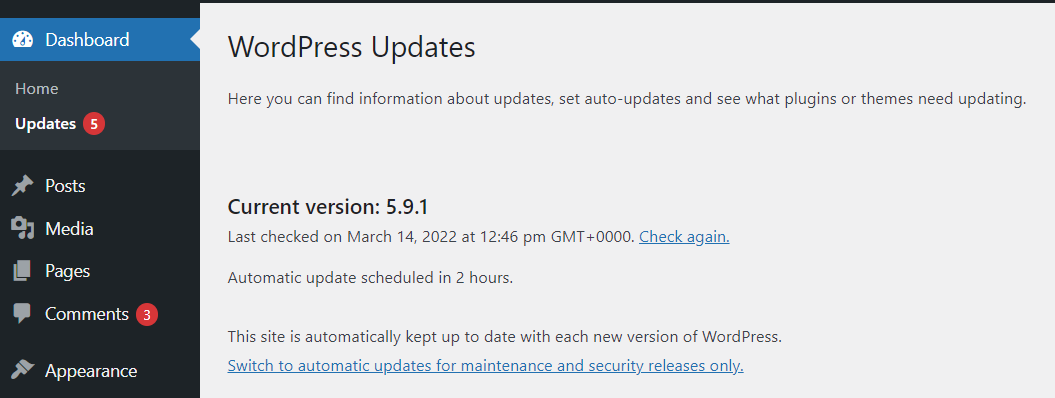
While you’re here, you can run any necessary updates. You might also want to go to your Plugins page to make sure that all of your software is up to date.
6. Disable the CDN or firewall
If you’re using a content delivery network (CDN) for WordPress, this may increase the chance of a 502 Bad Gateway error as data is being transmitted from and through multiple servers. If there’s a problem with any of these gateways, it could result in an error.
To rule this out, you can disable your CDN to see if there are any changes. If you’re using a plugin to integrate a CDN, simply deactivate that plugin as shown above. If your CDN comes with its own page on your dashboard, there’s likely a setting that allows you to disable it directly.
Security services like firewalls can also cause the 502 Bad Gateway error. These extra layers of security often rely on additional gateways which can fail or delay the request long enough to time out and cause an error. Turning off your firewall temporarily can help you rule out this as a cause.
7. Investigate server-side issues & logs
If the basic steps don’t work, the error is likely on the server. Here’s how to investigate like a pro:
A. Check your site’s error logs
Your server logs are the most reliable source for pinpointing 502 errors.
Location: Look for a file named error.log or debug.log in your server’s root directory or inside the wp-content folder. If you can’t find it, you may need to enable debug mode in WordPress by adding the following to your wp-config.php file:
define( 'WP_DEBUG', true );define( 'WP_DEBUG_LOG', true );define( 'WP_DEBUG_DISPLAY', false );
What to Look For: Scan the log for entries containing “PHP Fatal error” or “timeout” that occurred around the time of the 502 error. This will often point directly to a specific plugin or theme file causing the issue.
B. Check for PHP timeouts
A process on your server may be taking too long to execute, causing the gateway to time out. This often happens with resource-intensive plugins or complex database queries.
The Cause: Your server has a max_execution_time value for PHP scripts. If a script exceeds this limit, the server can return a 502 error.
The Solution: You can request your hosting provider to increase this limit or identify and optimize the slow-running script identified in your error logs.
C. Address PHP-FPM issues
Many modern hosts use PHP-FPM to process PHP. A common cause of 502 errors is a misconfiguration or restart of this service. While you often need your host’s help for this, you can ask them specifically to “check if PHP-FPM is running correctly and if it needs a restart.”
8. Contact your hosting provider
If none of the above solutions seem to solve the problem, it’s likely that the cause is coming from a hosting server. Try contacting your hosting provider to see if they’re aware of any issues or outages that could be affecting your site. It may be as simple as a server overload or scheduled maintenance. Additionally, a power outage may temporarily affect the service.
Remember that the 502 Bad Gateway error can shut down traffic and negatively impact your site’s search engine rankings. If the source of the problem is your host, and the issue occurs often or for extended periods of time, you may want to consider more reliable hosting options to avoid future problems.
9. Restore a backup
In the event that you can’t find a solution or your host is unable to identify any issues on their end, you can try restoring a backup of your website. If the backup does solve the problem, you’ll need to do some detective work to find out what’s causing the error. This means you’ll need to track any changes you’ve made since the last backup.
As you can imagine, this may be a little time-consuming. Fortunately, you can use a powerful tool like Jetpack Backup to streamline the process. This user-friendly plugin automatically creates backups that you can revert to for any reason.
Moreover, Jetpack comes with an activity log that tracks every change you make to your site. This way, you can easily identify any recent changes that may have caused the 502 Bad Gateway error.
How to avoid the 502 status error in the future
As we have seen, the 502 status error can make your site inaccessible, which can harm your search rankings and conversions. Fortunately, there are steps you can take to prevent bad gateway errors in the future. Let’s look at some effective precautions.
1. Vet new plugins and themes
Whenever you add a new plugin or theme to your site, you’ll want to vet it for quality and compatibility. It’s important to make sure that any code you’re adding to your site is coming from a reputable source. You may also want to check the reviews for any known issues.
Some themes and plugins are only compatible with certain versions of WordPress. Ideally, you’ll only install plugins that are regularly updated.
Keeping your WordPress core, plugins, and themes up to date is also important. Updates usually fix bugs and gaps in security that can cause a number of issues.
Outdated plugins may lose compatibility with newer versions of WordPress, which can lead to errors on your site. Therefore, you may want to enable auto-updates on your site to avoid issues in the future.
2. Upgrade to a more powerful hosting solution
One of the most important things you can do to prevent the 502 Bad Gateway error is to ensure that you have adequate resources for your site.
If your growing website is receiving more and more traffic every day, you may need to upgrade your tier of service to meet these demands. If your hosting server or allocation on that server is overloaded, requests are much more likely to time out and cause the 502 Bad Gateway error.
Therefore, you might want to upgrade to a more advanced tier. Alternatively, you might consider switching to a different hosting plan, like dedicated or Virtual Private Server (VPS) hosting.
3. Check your WordPress error logs
If you encounter the 502 Bad Gateway error intermittently and have not been able to nail down the cause of the problem, checking your error logs may help give you some clues. For example, if the error occurs at your highest traffic times, it’s likely that these spikes are overloading the server.
You can find your error logs in the same directory as your themes and plugins. Connect to your site via FTP or the File Manager in your hosting account, and open the wp-content folder. Here, you’ll see a file called debug.log.
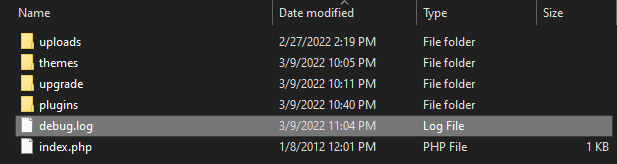
If you can’t find this file, you may need to activate your log errors. You can then open the file to find and fix the error.
By practicing safe habits and being aware of changes to your site, you can prevent many connection errors. As always, regular backups offer peace of mind and enable you to rule out errors on your end. Having a suitable host is also important for handling all of your traffic and maintaining quick load times.
Frequently asked questions
What is the meaning of ‘502 Bad Gateway’?
The “502 Bad Gateway” error is a standard HTTP status code indicating a communication breakdown between two servers on the internet. When you visit a website, your browser sends a request that often passes through an intermediary server, known as a gateway or proxy. This gateway then forwards the request to the main server that holds the website’s data.
A 502 error occurs when the gateway receives an invalid, incomplete, or nonsensical response from that main server. It is a server-side error, meaning the problem is not with your computer or internet connection but with the website’s server infrastructure.
What causes a 502 Bad Gateway error in WordPress?
This error happens when there is a communication problem between the servers that help your website load. Your WordPress site often relies on multiple servers. One server, a gateway, might be a proxy or a CDN. It asks the main server, where your site’s files are, for information.
If the main server sends back a bad or empty response, the gateway shows a 502 error. Common reasons include the main server being too busy, a plugin or theme breaking something, or a configuration mistake in the server’s settings.
Can a WordPress plugin cause a 502 error?
Yes, a problem with a plugin is a very frequent reason for a 502 error. A plugin can cause this issue in a few ways. It might have bad code that stops PHP, the language WordPress runs on, from working correctly.
It could also use too many server resources, which overloads the server and prevents it from responding properly. Sometimes, two plugins might conflict with each other, leading to an error. To check if a plugin is the cause, you can temporarily disable all plugins and see if the site works again.
How is a 502 error different from a 503 or 504 error?
These are all server errors, but they point to different problems. A 502 is a bad response, a 503 means the server is unavailable, and a 504 is a timeout. A 502 Bad Gateway means one server got a bad message from another.
A 503 Service Unavailable error means the server is working but is too busy or under maintenance to handle your request right now. A 504 Gateway Timeout happens when a server is waiting for a response from another server but does not get one in time. Knowing the difference helps you understand if the problem is a bad communication, an overloaded server, or a slow process.
Will a 502 error fix itself?
Sometimes, a 502 error can fix itself, but you should not count on it. If the error was caused by a temporary spike in website traffic or a brief server hiccup, it might go away on its own in a few minutes.
However, if the root cause is a bad plugin, a theme conflict, a PHP error, or a server misconfiguration, the 502 error will keep happening until the underlying issue is fixed. It is always best to investigate the problem instead of waiting for it to disappear, as your site will be down for visitors during that time.
How do I fix a 502 error if I cannot access my WordPress admin dashboard?
You will need to use an FTP client or a file manager in your hosting control panel to access your website’s files directly. Since you cannot log in to WordPress, you must troubleshoot from the backend.
The most common first step is to disable your plugins. Using FTP, navigate to your wp-content folder and rename the plugins folder to something like plugins_old. This deactivates all plugins. If your site comes back online, you know a plugin was the cause. You can then rename the folder back and activate plugins one by one to find the problem.
Can a 502 error hurt my site’s SEO?
Yes, a 502 error can harm your SEO if it is not fixed quickly. If a Google search bot tries to crawl your site and repeatedly finds a 502 error, it cannot access your content. A brief error for a few minutes is usually fine.
But if the error lasts for hours or days, Google may think your site is unreliable and could temporarily drop your pages from search results. This makes your site invisible to potential visitors. Fixing the error promptly is important to protect your rankings and ensure both users and search engines can access your site.
Can a firewall or CDN cause a 502 Bad Gateway error?
Yes, both security firewalls and Content Delivery Networks (CDNs) can sometimes be the source of a 502 error. Services like Cloudflare or Sucuri act as a gateway between your visitors and your server. If the firewall blocks a request or if the CDN cannot properly connect to your origin server, it might show a 502 error page.
A simple way to check this is to temporarily pause the service. If the error disappears, you know the firewall or CDN is the issue. You may then need to check your settings within that service or contact their support for assistance.
What is a PHP timeout and how does it relate to a 502 error?
A PHP timeout happens when a script on your site takes too long to run and the server stops it. This can lead to a 502 error. Your web server has a rule that says how long a single PHP script is allowed to run. This is called the max_execution_time.
If a script, maybe from a complex plugin or a slow database query, takes longer than this limit, the server forces it to stop. When this happens, the process fails, and the server might send a 502 error because it cannot complete the request. To fix this, you either need to increase the timeout limit or fix the slow script.
How can I check my WordPress error logs to find the cause of a 502 error?
You can check the error logs by enabling debug mode in WordPress, which creates a log file of all errors. To do this, you need to edit your wp-config.php file, which is in the main folder of your WordPress installation. Add these lines of code to the file: define(‘WP_DEBUG’, true); and define(‘WP_DEBUG_LOG’, true);.
This tells WordPress to start logging errors. After you save the file, visit your site to trigger the error again. Then, look for a new file named debug.log inside your /wp-content/ folder. This log will often contain specific error messages pointing to the exact file causing the problem.
Is a 502 error my fault or my hosting provider’s fault?
It can be either. The problem could be with your website’s configuration, or it could be an issue with the hosting server itself. The issue is likely on your end if it is caused by a plugin conflict, a custom code error, or a broken theme. You can fix these problems yourself.
The issue is likely your host’s fault if it is caused by the server being overloaded, network problems, or issues with core server software like PHP or the database. In these cases, you cannot fix it yourself. You must contact your hosting provider’s support team for help.
There’s no such thing as being too prepared
As we’ve seen, the 502 Bad Gateway error can have a negative impact on your site’s SEO and availability. Therefore, it’s important that you know how to diagnose it and prevent future issues.
Whenever you encounter this error, you may want to try refreshing the page and clearing your browser cache. If that doesn’t resolve the issue, you might need to deactivate your plugins, disable your CDN, or contact your host for assistance.
Alternatively, you could restore a backup of your site. By using a service like Jetpack Backup, you can easily restore previous versions of your content. If the error goes away, then the cause was likely a change made since the time of that backup. You can then use Jetpack’s activity log to track these changes and resolve the issue.

 Jetpack