

As your website grows, internal searches become more important. People want to find what they’re looking for quickly and without any hassle. Provide a good experience like this, and they’ll stick around longer and be more likely to take the actions you want — sign up for your newsletter, fill out the lead gen form, or even buy a product. If you have thousands of visitors, a 2% bump in conversion rate is a big deal.
The good news is that, if you’re using WordPress, it includes a built-in search function. The better news is that you can customize it to extract every possible bit of value from this super important part of your site.
You’ll want to make sure your search is easy to use and navigate. You should include filtering options, infinite scrolling, and highlighted search terms. On top of that, your search page should be optimized for mobile devices.
In this guide, we’ll talk about why it makes sense to create a WordPress custom search results page. Then we’ll show you four ways to do it. After that, we’ll discuss some best practices and explain how using Jetpack Search further enhances the user experience.
Why you should edit your WordPress search results page
A lot of web interactions depend on keeping visitors happy. For instance, if your store’s pages take too long to load, customers are a lot less likely to stay on your site. 53 percent of visitors will abandon a mobile site if it takes over three seconds to fully display.
A similar logic applies to search results. Visitors expect internal search to be efficient and easy to use. And people will most likely leave a website if they use its search tool and can’t find the content they need.
That’s particularly true for ecommerce sites. 79 percent of consumers say that internal searches tend to provide irrelevant results. More importantly, eight in ten consumers in the U.S. report that they’re likely to make a purchase on another website if they fail to find what they need within a shop’s internal search results.
With that in mind, customizing or editing the WordPress search results page can be a smart move if you keep two things in mind: the search results page should be easy to navigate, and it should provide visitors with ways to narrow down the results. Both make it easier for searchers to find exactly what they’re looking for.
Four ways to customize your WordPress search results page
Now, let’s go over four ways you can customize a WordPress search results page to make it more user-friendly and effective.
1. Install an advanced WordPress search plugin
Using a plugin is the simplest way to customize a WordPress search results page without working with code.
But your results with this approach will depend on the WordPress site search plugin you use.
If you want the best experience for your visitors while keeping maximum control over branding, functionality, and even the results themselves, you’ll want a plugin like Jetpack Search.

Offer instant search for your website: As soon as a user starts typing, the plugin starts displaying relevant answers.
Accurate results before a visitor even finishes typing? You can’t get much faster than that.
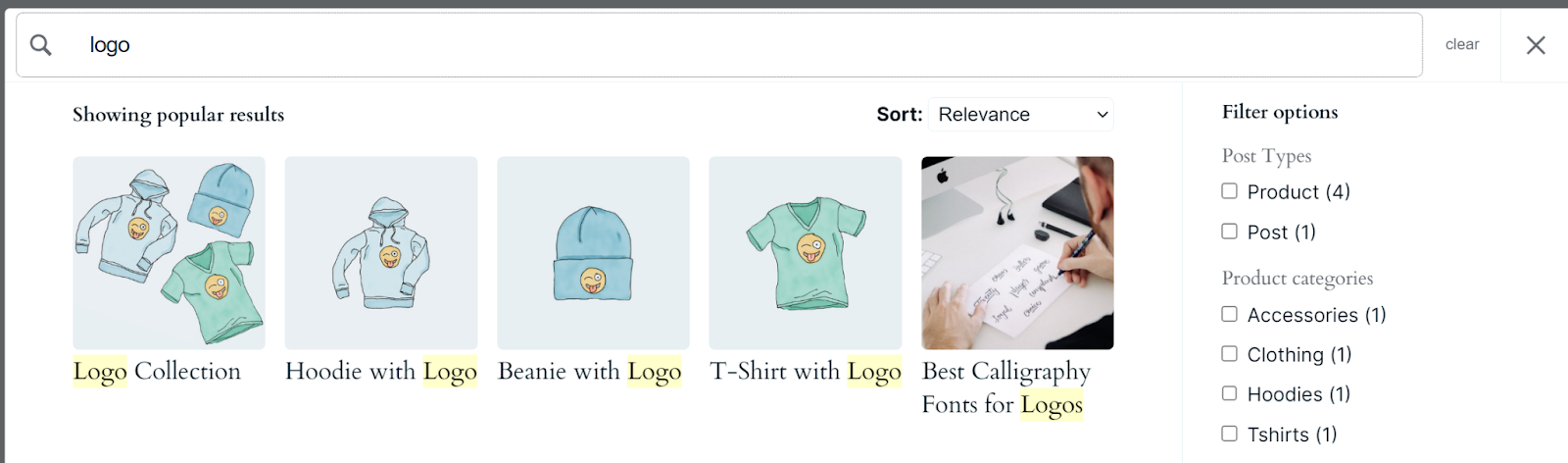
It also offers the option to filter results by categories, tags, dates, post types, and custom taxonomies. This way, visitors can sort through search results without needing to refresh the page — further reducing friction.
It also supports 38 languages and is smart enough to correct spelling errors and understand vague submissions.
There’s both a free and premium version of Jetpack Search. The free tier supports up to 5,000 indexed post types and 500 monthly requests, although it does include the Jetpack logo on search pages.
To use the plugin, install and activate it. Then go to Jetpack → Search, and click on Start for free.

The plugin will ask you to complete a checkout process, at no cost if you select the free plan. When you return to the dashboard, you’ll see that the Jetpack → Search page now includes information about your monthly usage.
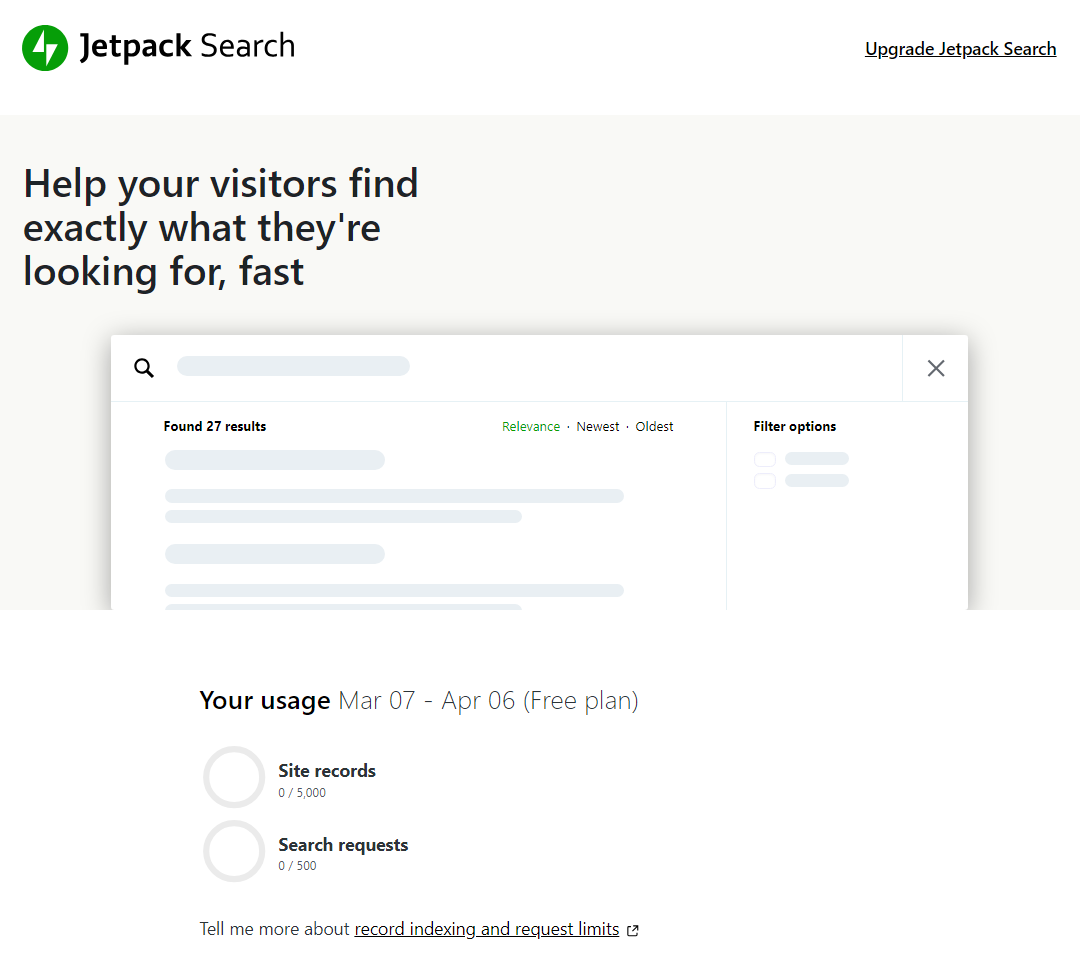
The indexing process is automatic, but it can take a while for the plugin to index your site’s content. The more content there is on your site, the longer that indexing will take.
If you scroll to the bottom of the Search page, you’ll see the options to toggle Jetpack Search’s features on and off, as well as instant search. Leave both options enabled for the best user experience.

There are two other customization options you can take advantage of. If you click on Customize search results, an editor will launch that enables you to modify the style and appearance of your WordPress search page.
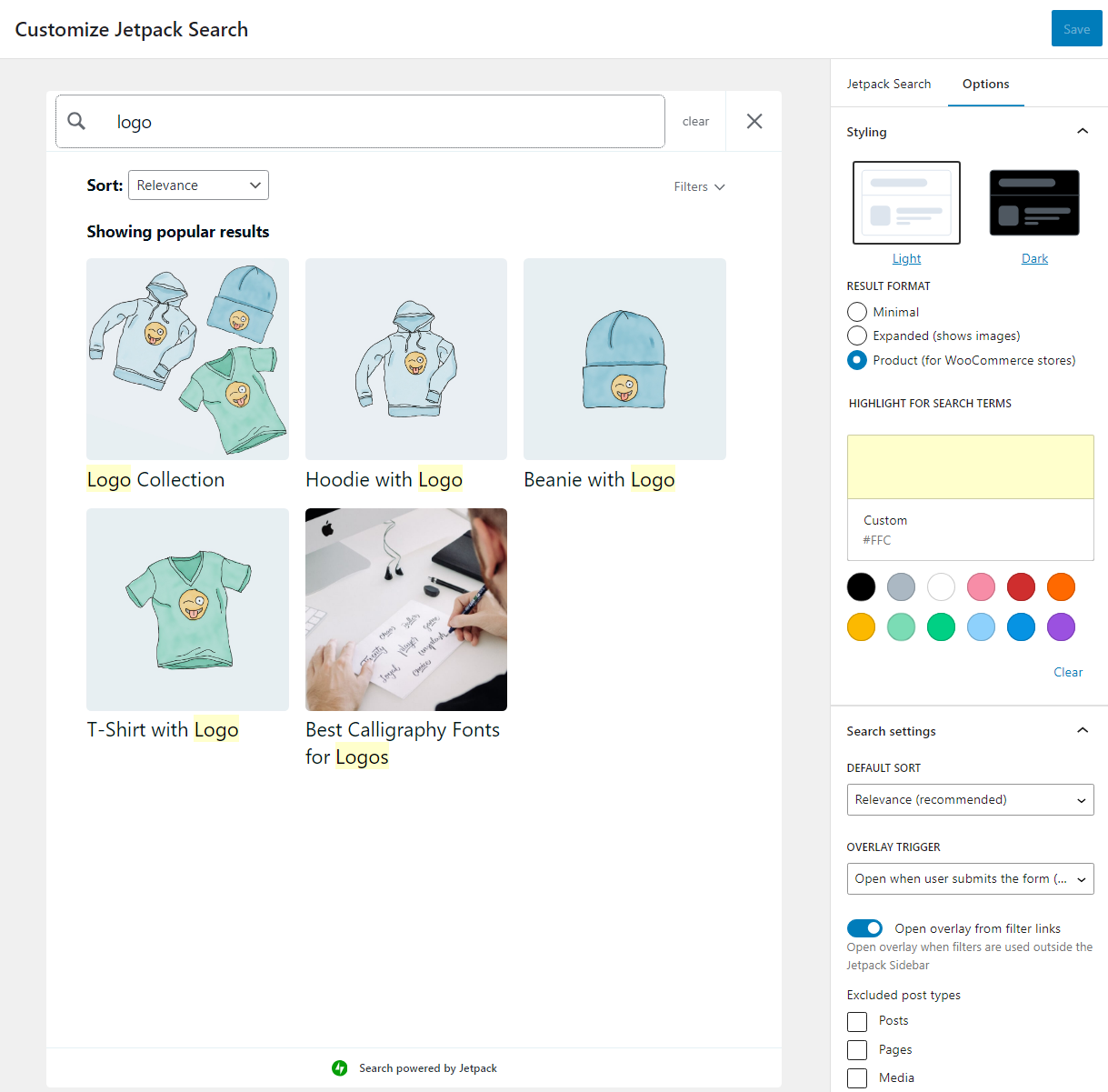
This editor includes options for light and dark page styles, results formatting, and search term highlighting. You can also modify the order in which results appear and exclude specific post types.
If you return to the Search page, you’ll also see an option labeled Edit sidebar widgets next to the Customize search results button. If you click on this, it will load the Appearance → Widgets tab and enable you to add Jetpack Search blocks to your site’s sidebar or footer.
If you’re ready to improve your site’s UX and get better engagements and more conversions from your hard work, get Jetpack Search today and start seeing better results tomorrow.
If you want to spend more time customizing search, we’ll continue on with a few more options!
2. Use the WordPress block editor
If you use a WordPress block theme, you can leverage the block editor to customize its templates. That means you can modify any of the theme’s page designs using blocks, including its search page template.
To determine whether you’re using a block-enabled theme, go to the dashboard and look for Appearance → Editor. If you don’t see this option, it means your theme doesn’t support full site editing.
If you do see that option, go ahead and select it. On the next screen, you can navigate your theme’s templates and select the one you want to customize.

Keep in mind that not all themes come with search page templates. If your theme doesn’t, that means it uses a default style. In that case, you can either create a template from scratch or use a plugin like Jetpack Search to customize the results page.
Next, click on Pages and look for the Search Results template in the next menu. Clicking on that template will load a preview of it on the right side of the page.

To edit the template, click on the pencil icon next to the Search Results header on the left side of the screen. This will launch the block editor for that specific template.

Once you’re in the editor, you can customize any aspect of the page’s design. For instance, you might want to modify the header, which you can do by clicking on it and accessing the block options menu.
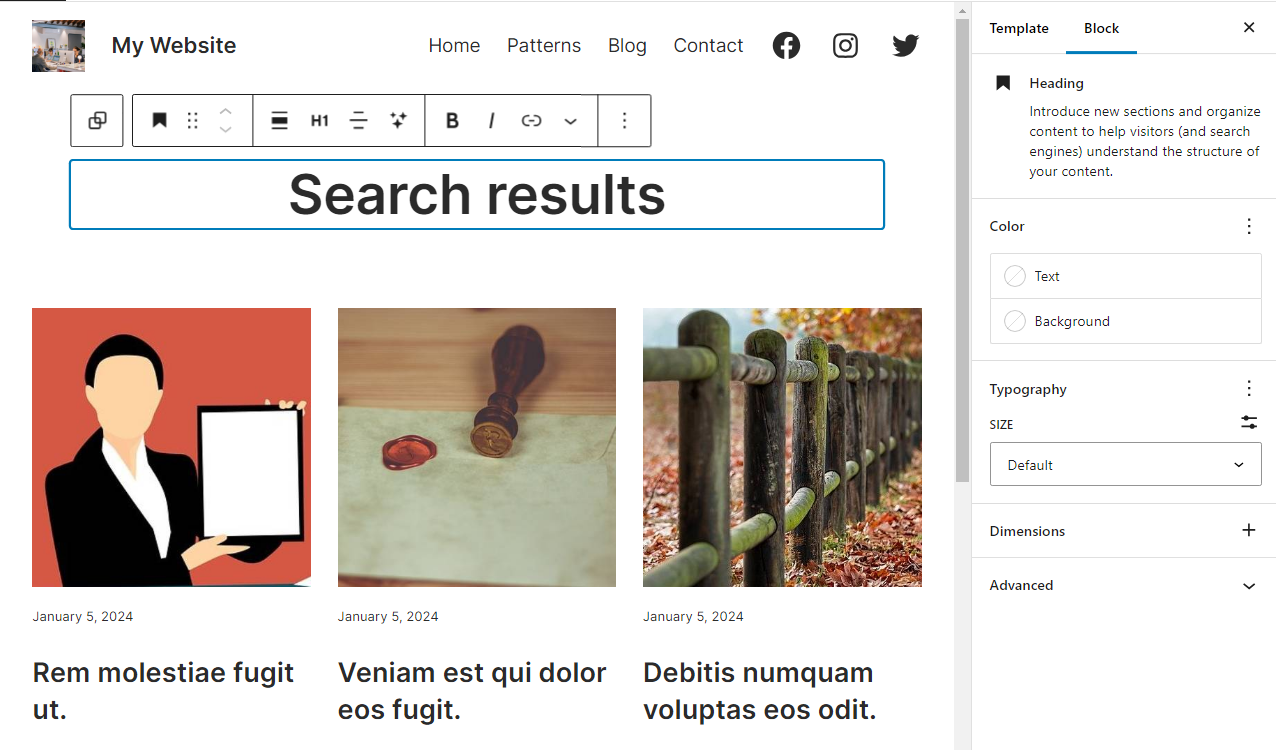
If you select the search results, you’ll see that the editor treats them as a Post Template block. You can’t directly change what results the search shows using the block editor. But you can customize aspects of the page’s layout, like the number of columns for search results, their typography, and colors.

When you’re done, click on Save in the top-right corner of the screen. Then you can try out the search function, and check out your new search results page design on the front end.
3. Use the WordPress Customizer
Only block themes allow you to edit your WordPress search results page using the block editor. If you’re using a classic theme, you’ll need to use the WordPress Customizer to make changes to page templates.
If you’re not sure what type of theme you’re using, go to Appearance → Customize. That option will only appear for non-block themes. Clicking on Customize will launch the WordPress Customizer.
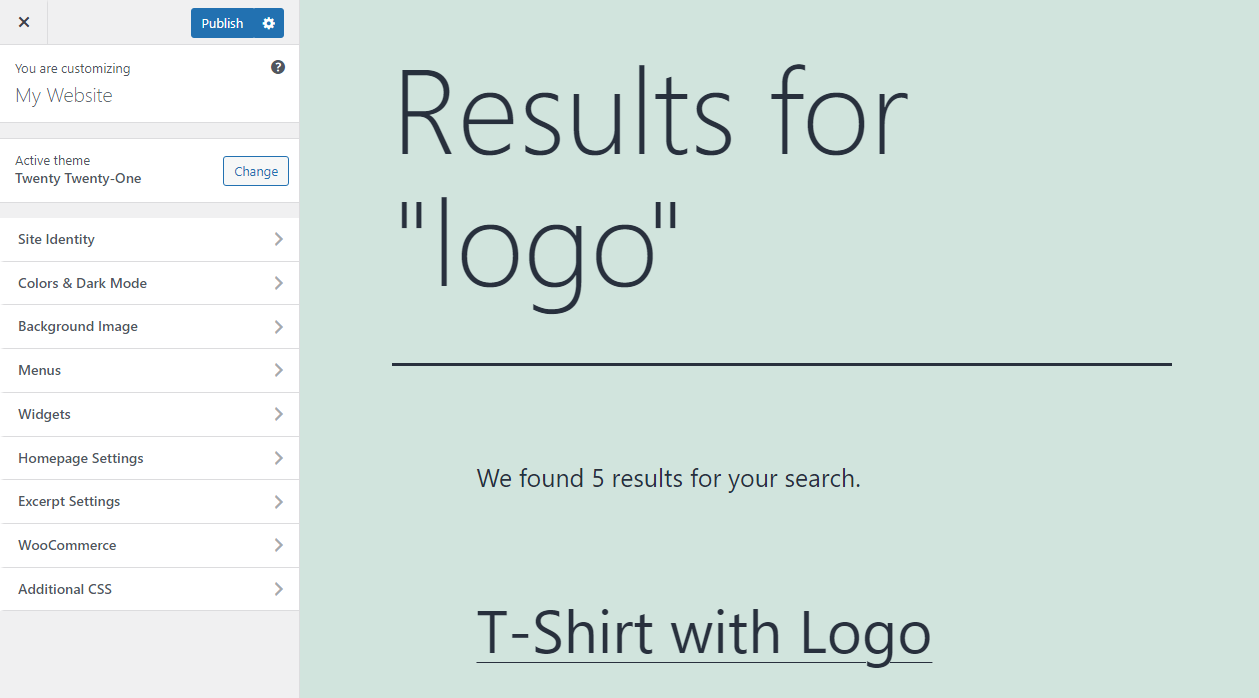
The Customizer enables you to change several aspects of your site’s design using a configuration menu. The primary downside of the Customizer is that you can’t use it to change the design of specific pages. Any changes you make using the Customizer apply on a sitewide basis (unless you use custom CSS).
What’s more, the changes you can make with the Customizer will depend on what theme you’re using. Generally speaking, you’ll be able to customize your site’s background color, typography, button designs, and even its general layout.
Select the menu item that corresponds to the design element you want to change, and look at the options the theme provides. For instance, if you want to edit the background color for your site, you’d click on the Background menu and use the color picker to change the design.

While this method is somewhat limited, it can be a good option if you’re using a classic theme and want a simple look. If you’d like to make more in-depth changes to the WordPress search page without using a plugin or a block theme, you’ll need to do so manually, which means using code. We’ll explore that option more in the next section.
Keep in mind that if you’re currently using a classic theme, you can always switch to a block theme. That way, you can use the block editor to create a WordPress custom search results page, as described above.
4. Add custom code manually
There’s no limit to what you can do with WordPress, especially if you’re comfortable customizing code manually and have experience with web development.
You’re free to customize the template files for any theme you use. WordPress doesn’t limit you in any way. But customizing these files can break your website if you don’t know what you’re doing.
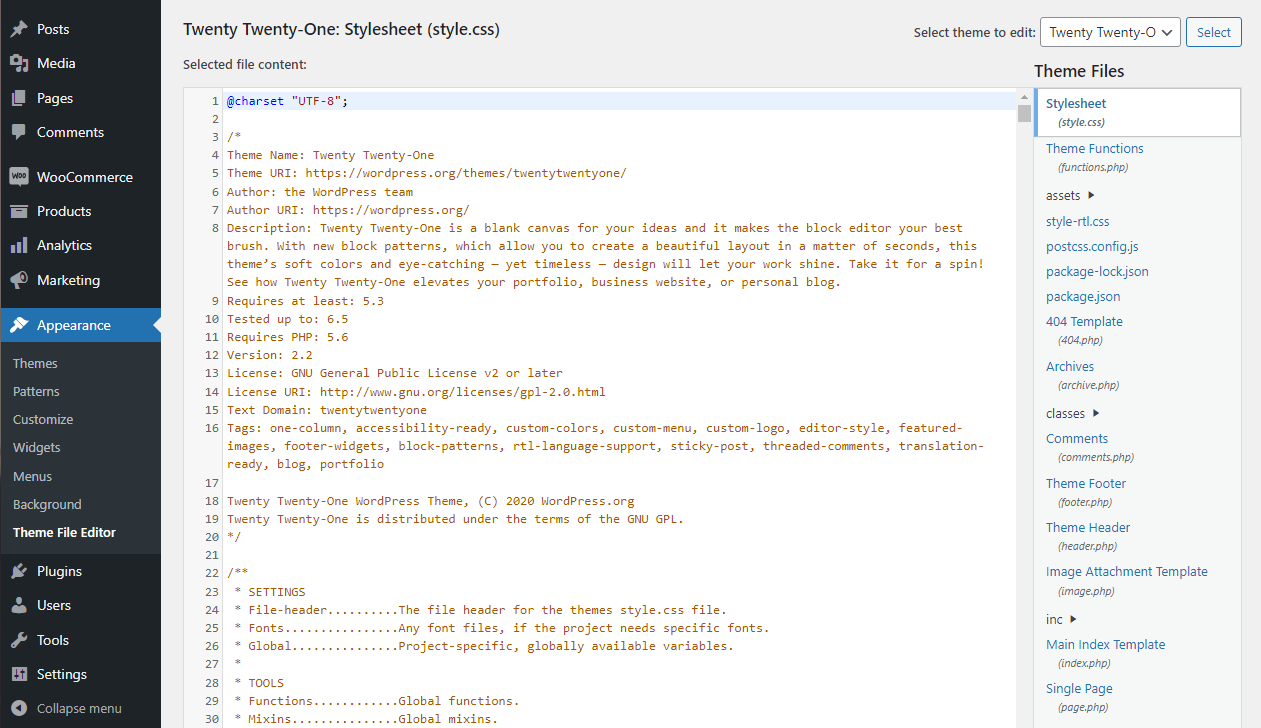
So if you don’t have experience with web development, your best bet is to use one of the other customization methods discussed so far. Alternatively, you may want to hire a professional who can make the changes you need to the search results page.
It’s also important to note that using custom code you find online to edit page templates can have unforeseen consequences. If you’re not sure how to vet or edit the code, it will be difficult for you to integrate it with your theme files. Moreover, code that works for one theme might not work for others.
No matter what changes you’re making, remember to use a staging site when experimenting with this approach. Then, once you’re ready, be sure to back up your actual website in full before you make any changes to its code.
This is standard practice, and ideally, you’ll always have recent backups for your website. If you don’t have a backup solution yet, consider using Jetpack VaultPress Backup, which creates real-time backups for your site and stores them securely.
Five best practices to optimize your WordPress search results page
If you’re not sure which of the above methods you should use to customize your WordPress search page, you’ll want to consider the types of changes you’d like to make. Here are some best practices you can implement to improve your visitors’ search experience.
1. Implement instant search
People are used to getting instant results on the web. If it takes a while to find something, visitors can get frustrated and might decide to leave your website.
The way WordPress search works by default is like this — you use the search bar, confirm your query, and the website loads a new page with the results. Instant search means that once you start typing, you’ll start seeing results. And if you don’t like the options it returns, you can modify the search or apply filters and the results will automatically change without the need to load a new page.
This functionality makes searching more user-friendly. That’s especially true if your website is slow to load, as forcing visitors to wait for new search results back to back can be frustrating.
There are different ways to implement instant search. Some websites show results directly within the search bar, whereas others will update the search page when you enter a new query. Jetpack Search instantly updates the WordPress search results page, so visitors never have to wait.
2. Include descriptive page titles and snippets
Sometimes, search results pages don’t include enough information for visitors to decide which item to click on. To avoid this mistake, all pages being indexed should include descriptive page titles and a snippet or description.
Including featured images is also a good idea.

Failing to include these elements will make your search page less user-friendly. More importantly, it can make it almost impossible for people to find what they’re looking for. Without clear titles and descriptions, visitors might have to click on multiple results before they identify the right one.
In terms of design, this means leaving enough space in the search results page layout for each entry to include an image, as well as a full title. You’ll also want to configure results to show long enough descriptions that people can get more information on what that page contains.
3. Provide filters to narrow down results
Filters are an essential part of online searches. If you have a website with a large number of pages, posts, products, or other custom post types, you’ll need filters in order to create a usable search experience.
With filters, your website’s visitors can narrow down the number of results they see. This can help them find what they need more efficiently than navigating through results manually.
By default, WordPress doesn’t include filters for its search functionality. You can use plugins like Jetpack Search to add filters to search results pages.

Note that most websites can benefit greatly from different sets of filters. To give an example, if you run an online store, you’ll want to offer filters that correspond to product categories, tags, prices, and even shipping options if possible.
4. Highlight search terms in results
If a visitor runs a search that returns a lot of results, identifying the right option to click on can be a challenge. One option to make search pages more user-friendly is to highlight the terms searchers are looking for in each result.
Highlighting search queries shows visitors which results include the exact words they’re looking for and in what context. This can help them identify which results are most relevant and which they can ignore.

Jetpack Search automatically highlights the search terms in all the results it shows. This also applies if the search results update due to a change in the query.
Highlighting queries is a simple change that makes navigating results more accessible. With Jetpack Search, it’s a feature you can implement easily.
5. Optimize the search results page for mobile devices
Mobile usage now accounts for over 50 percent of all traffic on the web. That means if your website isn’t mobile-friendly, you’re offering a subpar experience to around half of your potential visitors.
At a minimum, “mobile-friendly” means that a website is easy to navigate using smaller screens and touch interfaces. This also applies to WordPress search results pages. If these pages are difficult to navigate on mobile devices, it’s possible that visitors will grow frustrated with the experience and leave.
The appearance of your search results page on mobile devices will greatly depend on what theme you’re using and what customizations you make to it. One way to make your search results page more mobile-friendly is to use Jetpack Search.

The plugin automatically replaces the search results page with a new design that looks great on both mobile devices and bigger screens.
How Jetpack Search enhances the search experience in WordPress
So far, we’ve talked a lot about how Jetpack Search works and how to use the plugin to customize the WordPress search results page. Now, let’s briefly recap how it can improve the search experience:
- Instant search and filtering without reloading the page. Jetpack Search enables you to run as many searches as you want without having to reload the results page. The results update instantly, which can make narrowing down searches much faster.
- Indexing for additional types of content. You can configure Jetpack Search to show the types of content you want in the search results. The plugin also supports WooCommerce, leading to an advanced WooCommerce product search experience.
- Customizable search pages. You can customize the Jetpack Search results page in several ways. This gives you full control over how the results page looks and what types of elements it displays.
- Infinite scrolling. This feature replaces pagination, and makes it, so visitors don’t need to load a new page to see additional results. The results will continue to load as visitors navigate through them, for as long as there are more options.
- Post date information displays. Jetpack Search enables you to display post dates on the search results page. This can give visitors context about how relevant a result might be, depending on when it was published.
Overall, Jetpack Search helps you incorporate the best practices you’ll need to customize the WordPress search results page. Moreover, the plugin requires little to no configuration. Enabling it automatically implements most features, and you’ll only need to spend time on its design customization options (if you want).
Frequently asked questions
If you still have any questions left about WordPress search and how to customize the results page, let’s talk about them.
What is a WordPress search results page?
When you run a search in WordPress, the CMS loads a new page that includes the results. Some WordPress themes include a search results page template by default, which you can customize. Alternatively, you can design one from scratch.
Can I customize the search results layout without coding knowledge?
You can customize the WordPress search results layout using plugins or the block editor. To use the editor, you’ll need a block theme. Alternatively, a plugin like Jetpack Search makes it easy to add advanced enhancements like live search, highlighted search terms, and much more.
How do I create a search results page with a live search feature?
You’ll need to use a plugin to add live search to your WordPress website. Jetpack Search is an excellent option for the job. It continuously updates the results page as visitors type and modify search queries, which means searches occur in real time.
How can I implement fuzzy search to handle misspellings in WordPress search queries?
Some search plugins for WordPress offer support for ‘fuzzy’ searches. This way, they can display results even if the query is slightly misspelled. Jetpack Search displays results for similar queries if the original one fails to get any hits.
Is it possible to create a search results page that supports multiple languages?
To get support for multiple languages, you’ll need a WordPress search results page plugin that can accommodate this. Jetpack Search provides support for dozens of languages. Moreover, the plugin can show results for misspelled queries in several languages, thanks to multilingual support.
Optimize your WordPress search results page
Search becomes more and more critical as your website grows. The more pages there are to navigate, the more likely it is that visitors will need to use the search function to find what they want. If you don’t provide a search experience that’s intuitive and accurate, you might find yourself losing some of your audience.
With WordPress, there are a few options when it comes to customizing your search results page. You can use a plugin, the block editor, or the WordPress Customizer. Alternatively, you can manually change it using custom code.
That said, using a plugin like Jetpack Search is by far the simplest way to enhance the WordPress search experience and modify the results page. The plugin offers lots of customization options for both appearance and functionality. It allows you to enable infinite scrolling, filters, and instant search to help visitors find the results they need more efficiently!

Help your visitors find what they need
Instantly deliver the most relevant results to your visitors with Jetpack Search. No coding required, no ads, and no tracking.
Get Jetpack Search for free Jetpack