

Imagine setting up a lead capture or newsletter registration form, only to later find out that subscribers haven’t been receiving your emails. It’s very frustrating, and unfortunately, it’s one of the most common problems WordPress users face.
This is why you need to set up SMTP (Simple Mail Transfer Protocol). Without it, emails containing contact form submissions, password reset links, new user registration notices, and WooCommerce order confirmations will likely end up in spam folders — or won’t arrive at all.
Below, we’ll take a closer look at SMTP and how it improves email deliverability. We’ll then show you how to set it up in WordPress using a plugin and troubleshoot common SMTP issues.
How WordPress sends emails by default
WordPress uses the wp_mail() function to send emails. This is built on the basic mail() function provided by PHP, the programming language that WordPress software is based on.
While wp_mail() gets the job done, it’s not secure or reliable. This is because it doesn’t authenticate emails sent from your website.
As a result, your emails will lack the trust signals that email clients like Gmail and Outlook use to verify the authenticity of the sender. This means that they’ll likely be flagged as spam or blocked entirely.
| Email Journey Type | Origin | Method | Security Check | Destination |
|---|---|---|---|---|
| ❌ Bad Path | WordPress | PHP Mail Function | (No Auth) | Gmail Spam Folder |
| ✅ Good Path | WordPress | SMTP Plugin | (SPF/DKIM Check) | Gmail Inbox |
Additionally, many hosting servers aren’t configured to handle complex email protocols. They’re primarily optimized to serve web pages. Therefore, messages sent via wp_mail() may be blocked, delayed, or marked as suspicious by receiving servers.
Plus, some providers block common SMTP ports or throttle email traffic to prevent abuse. This can further impact email deliverability.
Note that web hosting and email delivery are two different services. Web hosting serves your website to visitors, while email delivery requires configured mail servers, authentication protocols, and sender reputation management.
So, even if your hosting provider lets you create a custom email address for your website, you’ll still want to use a dedicated SMTP service to significantly improve the chances of your emails arriving in your recipients’ inboxes.
What is SMTP (Simple Mail Transfer Protocol)?
SMTP is the standard communication protocol for sending emails across the Internet. Unlike the default wp_mail() method in WordPress, SMTP requires authentication. It also uses encryption to ensure that your messages are delivered securely.
SMTP connects to a mail server (like Gmail, Outlook, or a transactional email provider like your web host) through a username and password. This connection is encrypted with SSL or TLS, which protects both the sender and the recipient.
How SMTP enhances WordPress email deliverability
Now that you have a clearer idea of what SMTP is, let’s talk about how it boosts WordPress email deliverability.
For starters, SMTP requires you to authenticate your identity using credentials provided by your email service provider. This ensures that the messages originate from a trusted source (i.e. your website).
Encrypted connections (using SSL or TLS) add another layer of security. These ensure that your emails can’t be intercepted by cyber criminals during transit.
When emails are sent through a trusted SMTP server, they are more likely to be accepted by receiving servers. This improves your domain’s sender reputation over time, so your messages have a lower chance of being marked as spam.
SMTP is supported by all major email services, including Gmail, Outlook/Office 365, Zoho, SendGrid, Mailgun, and Amazon SES. These services provide the credentials you need to send authenticated emails through your WordPress site.
How to set up SMTP in WordPress (a step-by-step guide)
Now, let’s show you how to set up SMTP with a WordPress plugin.
1. Install a WordPress SMTP plugin
One of the best SMTP plugins on the market is MailPoet. Designed by Automattic (the people behind WordPress.com), this transactional email service comes with a built-in SMTP solution that’s very easy to activate. Plus, it guarantees a near 99% global delivery rate.
To get started, go to Plugins → Add Plugin and use the search bar to find the tool.

Click on Install Now and Activate. WordPress will direct you to MailPoet’s setup page.

Note that you’ll need a MailPoet account to continue. You can create one for free.
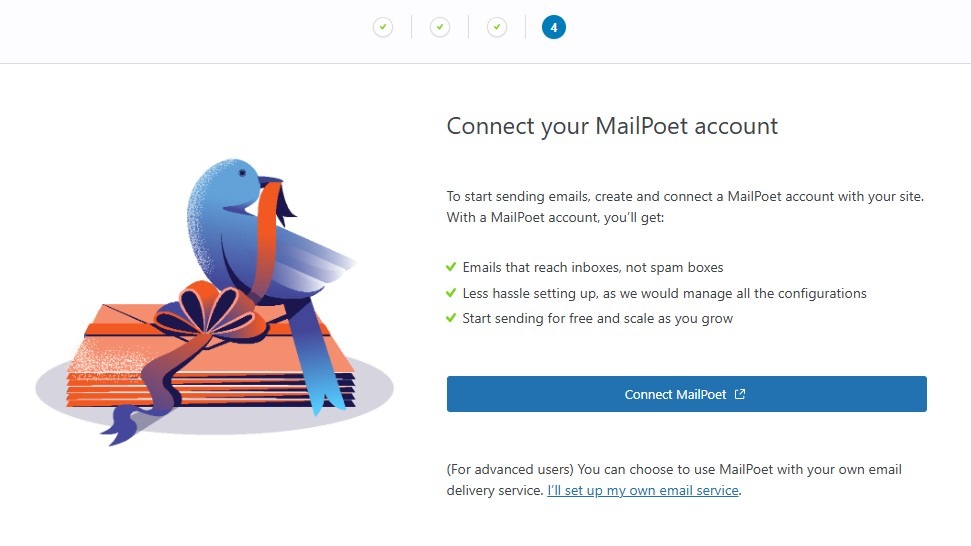
Once you’ve created an account, you can simply connect it to your WordPress website.
2. Configure SMTP plugin settings
Now, you can configure your SMTP plugin settings. In your WordPress dashboard, go to MailPoet → Settings and select the Send With tab.
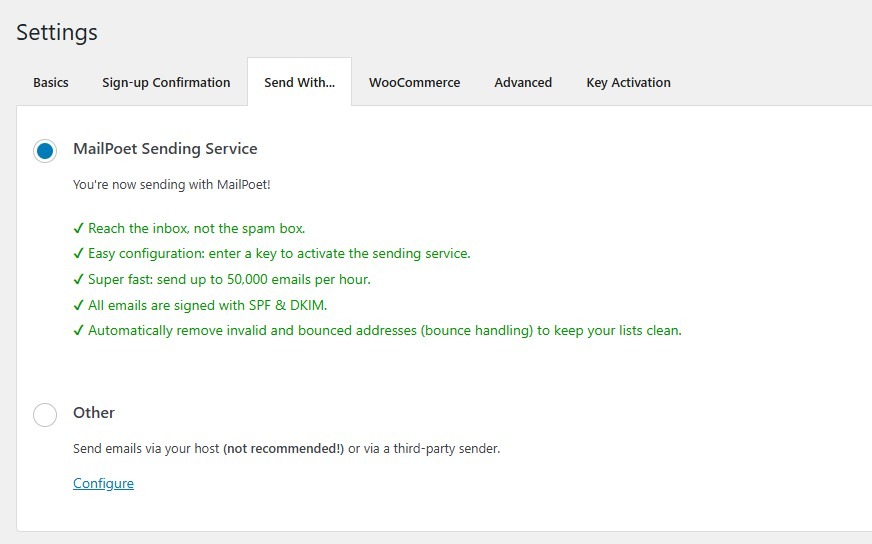
Here, you can select MailPoet Sending Service to reroute all WordPress emails through the plugin’s SMTP solution. This is available for free for up to 5,000 emails per month.
You also have the option to connect the plugin to another SMTP service like SendGrid and Amazon SES. To do this, select Other and follow the instructions to connect to your chosen service.
How to test your WordPress SMTP setup
Most SMTP plugins have a built-in test email feature. You can use it to send a message to your own address and confirm a successful delivery.
You can also submit a form from your website to make sure that contact form notifications are delivered correctly. This is especially useful for checking formatting, reply-to headers, and other content.
If you use WooCommerce, you could even do a test purchase to check that order notifications and confirmations are received.
Once you’ve received your test email, you’ll want to examine its headers to ensure that your domain is passing authentication checks. This also helps you confirm that your DNS records (SPF, DKIM, and DMARC) are properly configured and that your SMTP connection is working as it should.
Open the email in your inbox and locate the option to “view original message” or “view headers.” This varies by email client, so you might need to refer to their documentation to see how it’s done.
If you’re using Gmail, click on the three dots near the sender information and look for the Show original option.
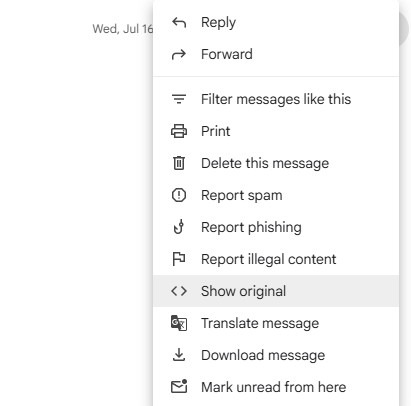
In the page that opens, you’ll see more information about the message. Look for the following authentication results:
- spf=pass: Shows that the IP address sending the email is authorized by the domain’s SPF record
- dkim=pass: Confirms that the email hasn’t been altered during transmission, and that the signature matches the domain’s DKIM key
- dmarc=pass: Means that SPF and/or DKIM align with your domain’s policies
If any of these checks fail, there might be a problem with your DNS configuration or how your SMTP service handles message signing.
Troubleshooting common SMTP issues
Setting up SMTP is a straightforward process, but you might encounter some issues. Let’s look at the most commonly reported problems, and how to solve them.
Invalid SMTP credentials
Incorrect credentials are one of the most common SMTP issues. So, you’ll want to double-check your username and password or API key.
If your provider requires an app-specific password, make sure that you’ve generated it correctly in your email provider’s account settings. If you’re using OAuth authentication, check that the token is still valid and hasn’t expired.
Ports blocked by hosting provider
To prevent spam, some web hosting providers block outbound SMTP traffic on ports like 587 and 465.
If you’ve done everything correctly but your test email fails to send, you’ll want to reach out to your host. They may need to unblock the necessary ports, or provide an alternative method for sending emails via SMTP.
DNS records not propagating
Services like SendGrid, Mailgun, and Amazon SES typically require DNS verification to confirm domain ownership and allow email sending. This involves setting up SPF, DKIM, and sometimes DMARC records.
These records usually take up to 48 hours to propagate. Until the process is ready, your emails might fail authentication and be marked as suspicious. You can use DNS propagation check tools to monitor their status.
Once the propagation period is over, send a test email again. If it’s not working, there might be another issue.
Plugin conflicts
If you have multiple plugins on your website that are trying to modify mail settings, it can lead to conflicts that affect email delivery. You might also encounter an issue if you have a form builder on your website that’s not compatible with the SMTP plugin or service that you’re using.
If emails suddenly stop working, try deactivating recently installed or updated plugins. You’ll want to focus on tools related to email, website security, or performance optimization.
If your emails work when a particular plugin is deactivated, investigate the issue by reaching out to its developers.
Two-factor authentication and app passwords
If your account has two-factor authentication (2FA) enabled, you might not be able to use your regular password for SMTP.
Most providers like Gmail and Outlook offer the option to create an app-specific password, and you’ll want to use this in your SMTP plugin (instead of your main account password). If you’re unsure, you’ll likely find information about 2FA and passwords in your provider’s documentation.
Gmail API quota exceeded
If you’ve configured SMTP using Gmail’s API, you’ll likely encounter daily sending limits. Free Gmail accounts are limited to 500 messages per day. Google Workspace accounts may have higher limits.
If you exceed these quotas, your emails will fail to send until the quota resets. So, you’ll want to monitor usage and consider switching to a premium service if your traffic grows.
Frequently asked questions
Finally, let’s answer some common questions about setting up SMTP in WordPress.
What’s the difference between WordPress default email and SMTP?
The default WordPress method (wp_mail()) uses your server’s basic mail function and therefore lacks authentication measures. Meanwhile, SMTP connects to a mail server with secure credentials and encryption, improving email deliverability.
What types of WordPress emails does SMTP Improve?
SMTP helps with all emails sent from your WordPress site, including contact form submissions, new user registrations, password reset requests, WooCommerce order confirmations, newsletters, and more.
How much does it cost to set up SMTP for a WordPress website?
You can set up SMTP for free when using a plugin like MailPoet. Additionally, Gmail, Outlook, and other email providers offer free SMTP services with some limitations, while premium services like SendGrid or Mailgun offer free tiers and charge based on volume.
Do I need to pay for an SMTP service?
Not necessarily. You can use MailPoet, which has a free version that works for most small sites. If you have a more complex site with higher email volumes, you might need to get a paid SMTP service that offers better deliverability, analytics, and support.
Can I use Gmail SMTP for WordPress emails?
Yes, you can connect to Gmail SMTP, but you’ll likely need to enable 2FA and create an app-specific password.
Can I use Outlook or Office 365 SMTP for WordPress emails?
Yes. To do this, use smtp.office365.com as the host and port 587 with TLS. You’ll also need to add your full email address as the SMTP username, and generate an app password if you have 2FA enabled.
Do I need technical skills to configure SMTP in WordPress?
No. Most SMTP plugins offer guided setup wizards. Just follow the prompts and enter information like sender name and email address. If you encounter any issues, you can always contact the plugin developers or your mail providers for assistance.
Can I use SMTP with any WordPress contact form plugin?
Yes. SMTP works with most major form plugins, including Jetpack Forms, WPForms, Ninja Forms, Contact Form 7, and Gravity Forms.
What are recommended contact form plugins for WordPress?
Jetpack Forms is a powerful form plugin by Automattic, the same people behind WordPress.com. It comes with pre-made templates for lead capture, registration, feedback, contact, and other forms.
It integrates seamlessly with the block editor, and you can add a form on any page or post on your website. Simply add the Form block, choose a template, and customize the fields and appearance to suit your needs.
Jetpack Forms is free and is included with the default Jetpack plugin. It also integrates with Akismet to prevent spam and Jetpack AI Assistant to create nearly any form with a simple text prompt.

 Jetpack