Ensure that the images used on your site’s pages and posts are the right size with Jetpack Boost’s Image Performance Guide.
Use the Image Performance Guide
The Image Performance Guide will calculate the recommended dimensions for images on your site. By resizing your images to these dimensions, you can reduce the file sizes and subsequently reduce your site’s page load times. Our Image Performance Guide offers best practices, helpful tips, and actionable steps to help you get the most out of your images.
- On your WP Admin dashboard, navigate to Jetpack → Boost, scroll down the page and toggle the Image Guide feature.
- Check the images on your site. While logged in, visit your site, and you’ll see a bubble with a number on each image. When hovering over the bubble, a card with the details about the image will be displayed as follows:
- The image name: if you click on it, the image will be opened in a new tab.
- Image file dimensions: it shows the actual size of the image.
- Expected dimensions: this is the suggested ideal size of the image in order for it to be loaded on the page as quickly as possible.
- Size on screen: it shows the size of the image displayed on the screen when visiting the page.
- Image Size: it shows the actual file size for the image.
- Potential savings: it shows how much the file size could be reduced by resizing the image to match the Expected Dimensions exactly.
Test the Image Performance Guide with different devices and settings
The Image Performance Guide shows you information about your images as they appear on the current device. We recommend testing your site from a few different device types to ensure that they are served efficiently, no matter how users visit your site.
Different devices have different pixel densities. Pixel density is a measure of the number of pixels that appear within a given area of the screen. It can affect the number of pixels used on the screen to render an image at a particular size.
As the Image Performance Guide shows you how well your images suit the current device, it is worth testing it from multiple devices, such as computers and phones, to get a more complete picture of how well optimized your images are on different screens.
Zooming in or out on your web page can also affect your browser’s pixel density, which in turn affects the results from the Image Performance Guide. We recommend using the feature at the standard zoom level for your browser.
We use small Indicators to show relevant information without being intrusive. For smaller images, the overlay bubble will appear as a small dot instead.
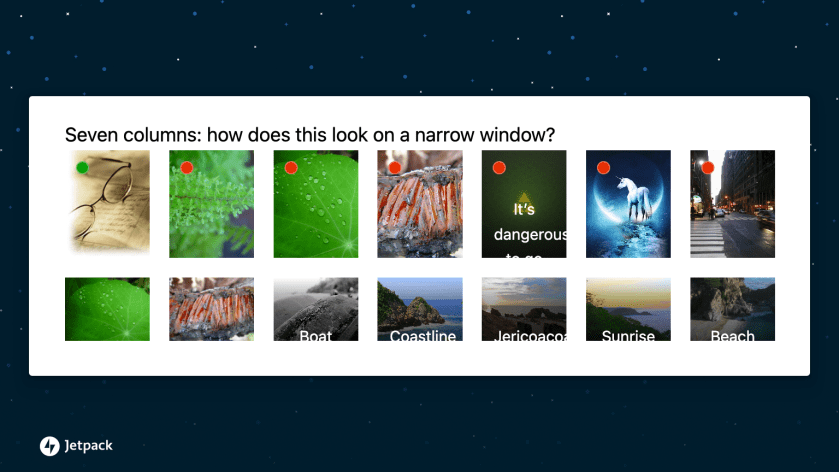
Pause the Image Guide
Once the image guide is turned on, you can set the feature as needed to Active or Paused from the WordPress Admin bar by clicking Image Guide.

The Boost Image Guide does not operate with page builders
Some page builders use iframes to render content, which results in the Image Guide displaying details in the admin area. To provide a lean experience, we disabled Image Guide when page builders are used.
How to optimize the images on your site
By optimizing the size of your images, you can improve the overall performance of your site, which can help site pages load more efficiently.
While Jetpack Boost can’t optimize the images hosted on your own server, you can enable the Jetpack Image CDN under Jetpack > Boost to serve optimized images from Jetpack’s servers instead. To learn more about the Image CDN, check out our Site Accelerator guide. For more granular control over image quality and enhanced image optimization, consider upgrading Jetpack Boost or subscribing to Jetpack Complete.
Below are a few options for optimizing the images on your site.
Before uploading them to the Media Library
There are a few different ways to optimize your images before uploading them to your Media Library:
- Resize: Make sure that the image size you’re uploading is sufficient for the way you’ll be using it. For example, if you’re going to be using an image at a max size of 800px by 800px, upload the image at that size.
- File Type: This really depends on the purpose of the image:
- JPG: If you want an image that loads quickly, doesn’t have a transparent background, and the image doesn’t need to have a great deal of detail, using a JPG is recommended. This is good for things like photos that will be used in a gallery, or other applications where a super high quality image isn’t needed.
- PNG: If you want an image that has a transparent background, and needs to be super high quality, using a PNG is recommended. This is good for things like logos, or other images that a user may look at in high detail, such as product images.
Activate the Jetpack Site Accelerator
The core Jetpack plugin includes our Site Accelerator; a free service which optimizes your images and serves them from a global network of servers (often called a CDN, or Content Delivery Network), enabling images to load from servers closer to the users accessing them when they browse your site. Site Accelerator also automatically resizes your images to fit in many situations.
We recommend using Site Accelerator to improve the performance of your images, particularly in cases where the Image Guide indicates they are over-sized.
Resize images from within your Media Library
You can resize images directly in your Media Library. Editing images and scaling them to an appropriate size in your Media Library is a non-destructive operation. In other words, it creates a new version of your image at the size you specify, leaving your original image unchanged.
Privacy Information
The Image Performance Guide is deactivated by default. You can activate it from your WP Admin dashboard → Jetpack → Boost.
| Data Used | |
|---|---|
| Site Owners / Users This feature examines the images in use across your site, and how and where they are rendered. | Site Visitors None. |
| Activity Tracked | |
| Site Owners / Users We track statistics on the over-sized images identified by the Image Guide, to help us improve the service and target improvements effectively. Specifically, we track the size of over-sized images, and the approximate location within the page they appear (e.g.: within post content, or theme files) | Site Visitors None. |
| Data Synced (Read More) | |
| Site Owners / Users None. | Site Visitors None. |
 Jetpack