Pre-requisite: the following VideoPress settings and options are only be available if you have the standalone Jetpack VideoPress plugin installed; please ensure that the VideoPress plugin is active before following this guide.
From your WP Admin, go to Jetpack → VideoPress to access your VideoPress library.
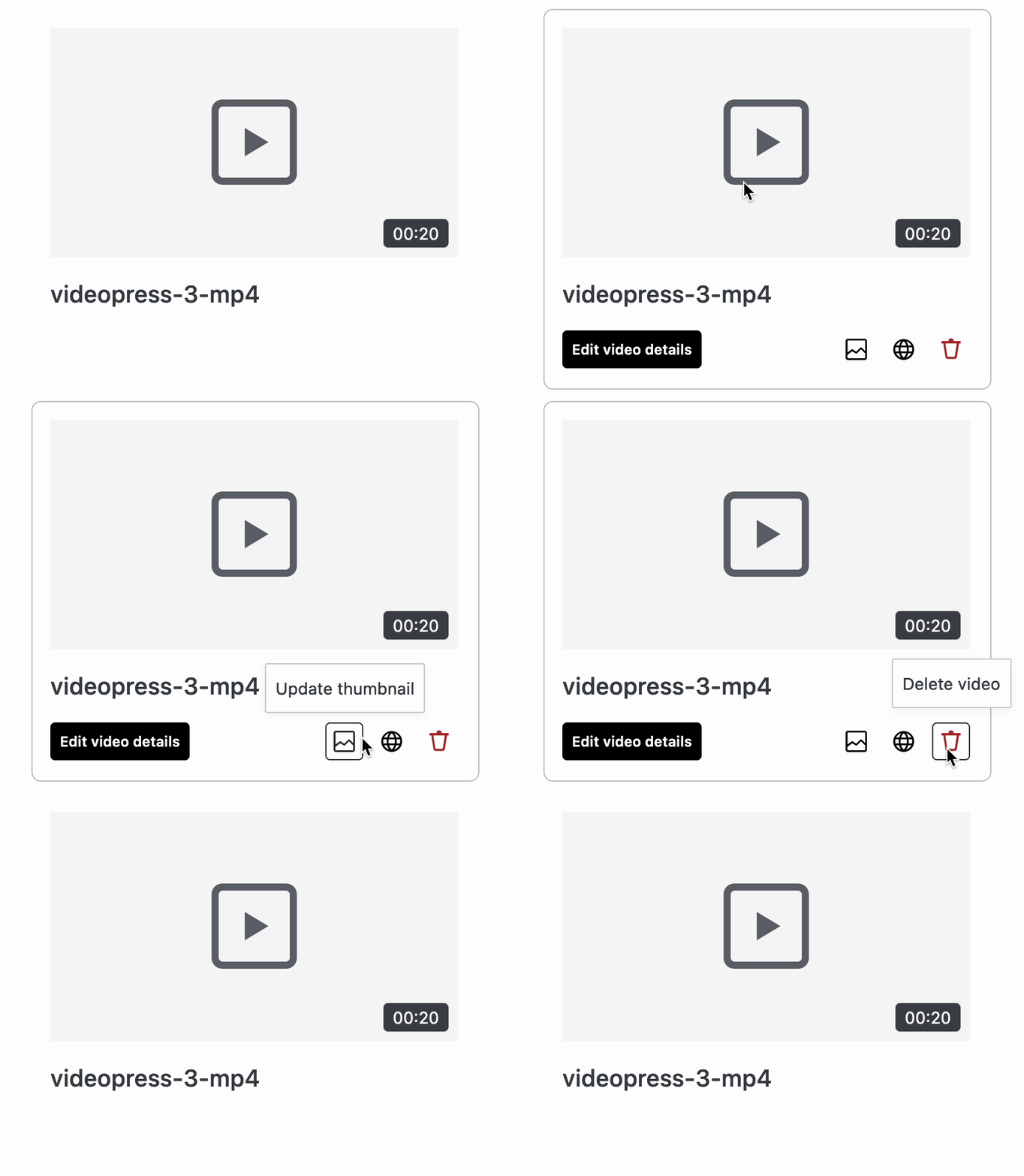
Once you’ve uploaded your video, hover over it to make changes to these configurations:
Edit Video Details
You can change the title and description of your video. This is helpful for SEO and accessibility. You can also add chapters.
To edit video details, a site admin must have their WordPress.com account connected to Jetpack. Secondary admins without a connected WordPress.com account cannot edit video titles, thumbnails, descriptions, or chapters.
Update thumbnail
VideoPress will choose a thumbnail to display automatically, but you can edit it here.
- Click on the pencil icon on the existing image.
- Select a frame, choose a picture from your media gallery, or upload a new image.
- Save changes.
Adjust privacy
Change the privacy of your video to Public, Private, or to default to your site’s settings for all videos.
WordPress shortcode
You can copy the WordPress shortcode by clicking Copy, as shown in the image below. For greater control over the width of the video player, you can use this shortcode block as described under Resizing a video.
Adaptive streaming with VideoPress
VideoPress features adaptive streaming, which optimizes playback speed by adjusting the video quality to fit the viewer’s bandwidth and display size. However, viewers can still manually select their preferred video quality from the video player’s menu.
To learn more about other VideoPress options, please visit this guide.
Still need help?
Please contact support. We’re happy to advise.
 Jetpack