

To run a successful WordPress website, you’ll need to become familiar with plugins and services that provide the functionality you’re looking for. Some plugin choices are pretty easy. For example, to start a store, you need WooCommerce. To create online courses, you want Sensei LMS.
But when it comes to security, you’ll find that there are a lot of options to choose from, and the WordPress security services and plugins you opt for will significantly impact your site’s protection.
Some services focus on specific functionality, like two-factor authentication (2FA) and spam protection. Others add multiple security features to your site. Once you understand how these tools work, you’ll be better prepared to keep your website and its users safe.
This guide will introduce you to ten of the top kinds of security services you may need and the tools that best fit each category.
1. An all-in-one security plan (Jetpack Security)
All-in-one WordPress security plugins add several protective tools to your website at once. The goal is to centralize key security features, so you don’t need to set up multiple solutions and figure out how to make them work well with one another.
Jetpack’s Security plan includes a collection of features that are designed for ease of use. With this plugin, you’ll get access to backup functionality, security logs, spam protection, a website application firewall (WAF), malware scanning and fixes, and more.
Key features of Jetpack Security:
- Automatic, real-time cloud backups and one-click restores
- Ten GB of cloud storage for backups
- Comment and spam protection through Akismet
- A website activity log with data from up to 30 days
- Automatic WAF setup and integration
- Malware scanning (using WPScan) and one-click fixes for most problems
- Brute force attack protection
- Downtime monitoring
- Secure authentication
Pros of Jetpack Security:
- It combines multiple security features into a single package.
- It’s developed and maintained by Automattic (the people behind WordPress.com)
- It’s easy to use and configure
- It provides automatic, real-time backups, so you always have up-to-date copies of your site.
- There’s a mobile app so you can access site information and backups and restore your site from anywhere with an internet connection.
Cons of Jetpack Security:
- It’s a premium plan on the free Jetpack plugin.
- Prices are a bit higher than some other all-in-one security plugins.
- With Jetpack Security, you can easily toggle features on and off, and trust that they’re set up properly for your WordPress site. However, this does mean that settings aren’t as customizable as some experienced developers may want.
Ease of use:
One of the main benefits of Jetpack is that all the tools are user-friendly. Jetpack Security doesn’t disappoint in this regard. The interface is simple to navigate, the plugin includes clear explanations for its features, and it’s easy to toggle things on or off as needed.
Price:
Jetpack Security requires a premium subscription. Plans start at $5.97 per month billed yearly, and include all the features we’ve covered so far.
Jetpack also offers performance and marketing-related tools, and both those, and their security features, can be purchased as individual plans or plugins. We’ll discuss some of the individually available security features below.
2. A backup plugin (Jetpack VaultPress Backup)
Every WordPress website needs a backup solution. This is a key WordPress security service because it enables you to restore your website to an earlier version if anything goes wrong. A good backup tool helps to address human errors, cybersecurity attacks, breaks caused by plugin conflicts after an update, and dozens of other situations.
Jetpack VaultPress Backup automatically backs up your site to secure cloud servers — a safer option than storing backups locally or relying on your web host’s built-in backup solution. Storing backups in the cloud means you’ll still have access to them even if you can’t log into your WordPress dashboard or hosting account.
VaultPress Backup also creates backups in real time. This means that every action you take is saved instantly — not just every 24 hours or once a week. You’ll also get access to a 30-day activity log that outlines important actions taken on your site and serves as a tool to identify the cause of issues and the exact point to which you want to restore after an emergency.
Key features of VaultPress Backup:
- Real-time backups
- Secure, off-site cloud storage
- Ten GB of storage space
- The option to restore backups from the cloud, even if your website is inaccessible
- A mobile app for management anywhere with an internet connection
Pros of VaultPress Backup:
- Real-time, automatic backups mean you’re not tied to a set schedule.
- Backups are accessible even if you can’t log in into the WordPress dashboard.
- You can restore backups with a single click.
- The plugin gives you access to an activity log.
- It saves all WooCommerce orders, no matter what point you restore your site to.
Cons of VaultPress Backup:
- It’s a premium plugin.
- Backup storage, though generous, is not unlimited.
Ease of use:
A lot of free WordPress backup plugins require you to initiate copies of your site manually. Other solutions schedule backups so they’re automatic, but still rely on a daily or weekly interval schedule.
VaultPress Backup saves your site automatically any time you make a change to it. You’ll likely only interact with the plugin if you need to restore a backup, which is a simple process.
Price:
VaultPress Backup subscriptions start at $2.97 per month billed yearly. You can also get access to VaultPress Backup with a Jetpack Security subscription (starting at $5.97 per month, billed yearly), which bundles in several other security solutions.
3. An enterprise-level vulnerability scanner (WPScan)
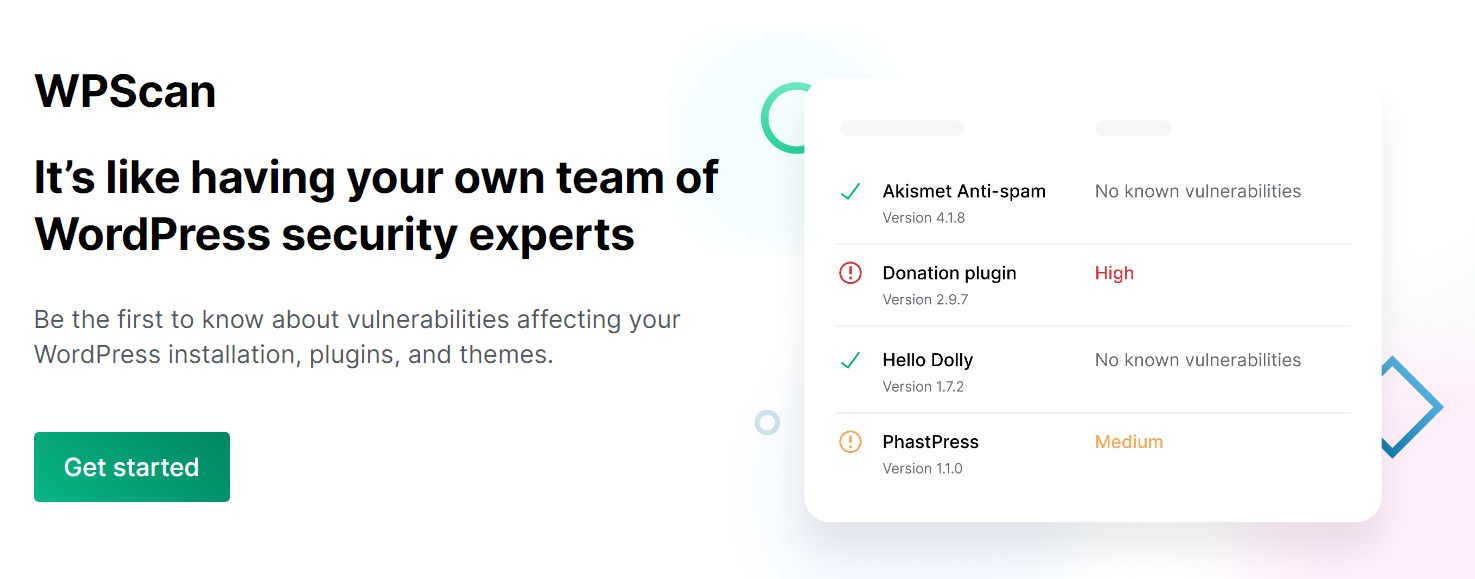
WPScan maintains the largest database of WordPress vulnerabilities in the world. This database receives constant updates, and enterprise organizations can access it to identify weaknesses that hackers could exploit.
The WPScan CLI Scanner works as a penetration testing tool and shows your security team what outside hackers may be able to identify about your site. You can then use this information to harden your defenses. If you have robust security solutions installed, like those discussed in this article, the report will hopefully show very few issues.
The WPScan plugin, only available for enterprise clients, works from the inside with a full understanding of everything you have installed on the site. Using this information and the robust database, it identifies vulnerabilities that your team can work to patch.
Together, these two tools provide a more complete look into your site’s level of protection.
Not an enterprise? You can still take advantage of WPScan’s legendary database with the Jetpack Protect plugin. This plugin identifies vulnerabilities on your site and provides guidance on next-steps to resolve issues.
With a Scan plan upgrade, it will also automatically search for malware and provide one-click fixes for most issues. All of this is again available as a standalone service or as part of a Jetpack Security plan subscription.
Key features of WPScan:
- A massive database of WordPress vulnerabilities
- Widespread contributorship from both dedicated security experts and real site owners
- The ability to access the tool using a variety of methods
- Enterprise-level custom solutions
Pros of WPScan:
- It’s the largest database of WordPress vulnerabilities.
- It’s trusted and proven by a variety of tools and vetted by top security experts.
- Non-enterprise organizations can get access to the tool with a free plugin.
Cons of WPScan:
- Some WPScan features are only available for enterprise organizations.
- Not all issues uncovered by scans have simple fixes.
Ease of use:
Your experience with WPScan will vary depending on what tool you use to access the database. Some plugins, including Jetpack, make the process simple. They may also include one-click fixes for any issues you uncover.
Other tools, like WP-CLI, enable you to leverage the database in a more customized way, but it’s only intended for enterprises.
Price:
The price will vary depending on what WordPress security service you use to scan your website using WPScan. You can get access to the WPScan database for free via Jetpack Protect, and as a part of Jetpack Security (starting at $5.97 per month, billed yearly).
4. Spam protection (Akismet)
Spam is one of the banes of running a WordPress website. Every site with comment sections or contact forms will have to deal with spam, a lot of it coming from bots.
Akismet makes it easier to deal with all that spam by filtering most of it out. The plugin can do this by blocking known malicious IP addresses, filtering comments that include links or known words associated with spam, and several other AI-powered features. It does all of this with 99.99% accuracy.
The plugin works automatically, but you also get the option to moderate every comment that Akismet filters. This will help you see the kind of content the plugin blocks, and approve any comments that might be miscategorized as spam.
Your input can also be used to customize the protection it provides to increase its accuracy for your specific site and audience.
One of the biggest benefits of Akismet is that it doesn’t require visitors to use a CAPTCHA (you know, those annoying puzzles that make you find all the stoplights?) to prove their legitimacy. With fewer barriers in the way of engagement on your site, you can expect to maximize conversion rates from your traffic.
Key features of Akismet:
- Automatic spam protection
- Access to a known database of spammers
- Customization options
- CAPTCHA-free spam prevention
- A comment moderation queue
Pros of Akismet:
- It handles most spam automatically, doesn’t require a CAPTCHA, and includes a feature to outright block and delete the worst offenders.
- You can customize the spam moderation settings to flag specific words.
- It works with 99.99% accuracy.
Cons of Akismet:
- Sometimes the plugin flags non-spam comments, and you’ll need to check the moderation queue to approve them.
Ease of use:
Akismet is designed to be a hands-off plugin. It automatically filters spam, and you can mostly let the plugin flag comments and forget about them.
Things get trickier if you have a lot of user activity and receive large numbers of comments. In that case, Akismet might flag the occasional non-spam comment, so you’ll need to use the moderation queue to approve those manually.
Price:
Akismet is a free plugin for non-commercial sites. Paid plans are available for professionals, and it’s worth every penny for the time it saves, protection it provides, and engagement it enhances.
5. A web application firewall (Jetpack)

A web application firewall (WAF) is software designed to block malicious connections to your site. These connections can be the result of attempted brute force attacks or even SQL injections.
Some WordPress security plugins include WAF functionality. Jetpack is one of them, and it can help you protect your site against brute force and DDoS attacks. Jetpack maintains a database of known malicious IP addresses it references to identify and block dangerous users.
Key features of Jetpack’s WAF:
- DDoS protection
- Brute force attack protection
- The option to allowlist IP addresses
Pros of Jetpack’s WAF:
- Jetpack Security works mostly in the background, and you don’t need to worry about in-depth configurations.
- You can allowlist IP addresses to avoid false positives.
- The WAF is easy to turn on and off with a simple toggle.
Cons of Jetpack’s WAF:
- You get little control over the WAF’s configuration, which can be limiting if you have experience working with this type of software.
Ease of use:
Jetpack’s WAF functionality is designed to require little setup. The WAF is enabled by default, but you can toggle it on and off at will.
Price:
To access WAF functionality, you’ll need one of the following premium Jetpack plans:
- Jetpack Security ($5.97/mo.)
- Jetpack Complete ($14.97/mo.)
- Jetpack Scan ($2.97/mo.)
6. An SSL certificate (Let’s Encrypt)
A secure sockets layer (SSL) certificate tells the world that your site is authentic and enables your server to load content over HTTPS. This is a more secure version of the HTTP protocol that encrypts data during transit, protecting user information against attacks.
To get an SSL certificate, you must go through a certificate authority. These services are approved to offer SSL certificates, and Let’s Encrypt is one of the most popular options because it’s both reliable and free.
If you use a WordPress web host that offers free SSL certificates, chances are they’re from Let’s Encrypt. Your hosting provider may also set up the certificates for you.
Key features of Let’s Encrypt:
- Free SSL certificates
- Integration with some web hosts
Pros of Let’s Encrypt:
- You can install a Let’s Encrypt certificate on any website.
- Some web hosts work with Let’s Encrypt, and automate the entire process from administration to setup.
- The certificate administration and renewal process is instant.
Cons of Let’s Encrypt:
- If your web host doesn’t work with Let’s Encrypt, registering for and setting up a certificate can be a bit complicated.
Ease of use:
If you use a web host that offers free Let’s Encrypt certificates, it will take care of the entire process for you.
On the other hand, if you’re obtaining and installing the certificate manually, you’ll need to use either the command line or your web host’s control panel. This is a technical process that will require you to follow a set of instructions. After this, you’ll also need to configure WordPress to load over HTTPS.
Price:
Let’s Encrypt offers free SSL certificates.
7. A 2FA solution (miniOrange Google Authenticator)
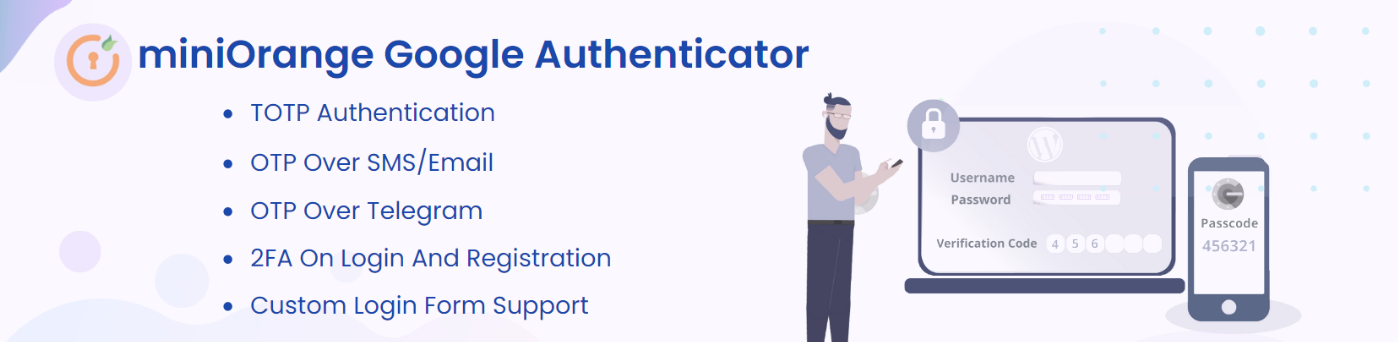
Two-factor authentication (2FA) is one of the most effective ways to protect your WordPress website. With 2FA, users must provide a second form of authentication before they can access their accounts. That could be an SMS message or an email containing a one-time code, though there are also additional options, like apps.
miniOrange is a plugin that enables you to set up 2FA for your website, and lets users log in with their favorite authentication apps. That includes options like Google Authenticator, Duo Authenticator, LastPass Authenticator, and more.
You can also configure the plugin not to use apps, and instead send one-time codes via a channel of your choice. Although the base plugin is free, there’s a premium version that offers more authentication options.
It’s also worth noting that Jetpack includes 2FA functionality powered by WordPress.com. If you’re using WordPress.com or are interested in other Jetpack features, this is the easiest way to implement 2FA on your site.
Key features of miniOrange:
- Multiple 2FA options
- The ability to send 2FA codes through various channels
- Integration with several authentication apps
Pros of miniOrange:
- The plugin works with almost every channel and authentication app available.
Cons of miniOrange:
- Setup can be tricky since you have a lot of options at your disposal.
Ease of use:
The miniOrange plugin is easy to set up, but it requires some configuration on your end. You’ll need to decide what 2FA channels or apps you want the plugin to work with, then configure and test them. This is not a complicated process, but it requires you to follow some tutorials.
Price:
miniOrange is a free plugin, with premium licenses starting at $99 per year. The free version of the plugin should be sufficient for most sites.
8. An activity log (Jetpack)
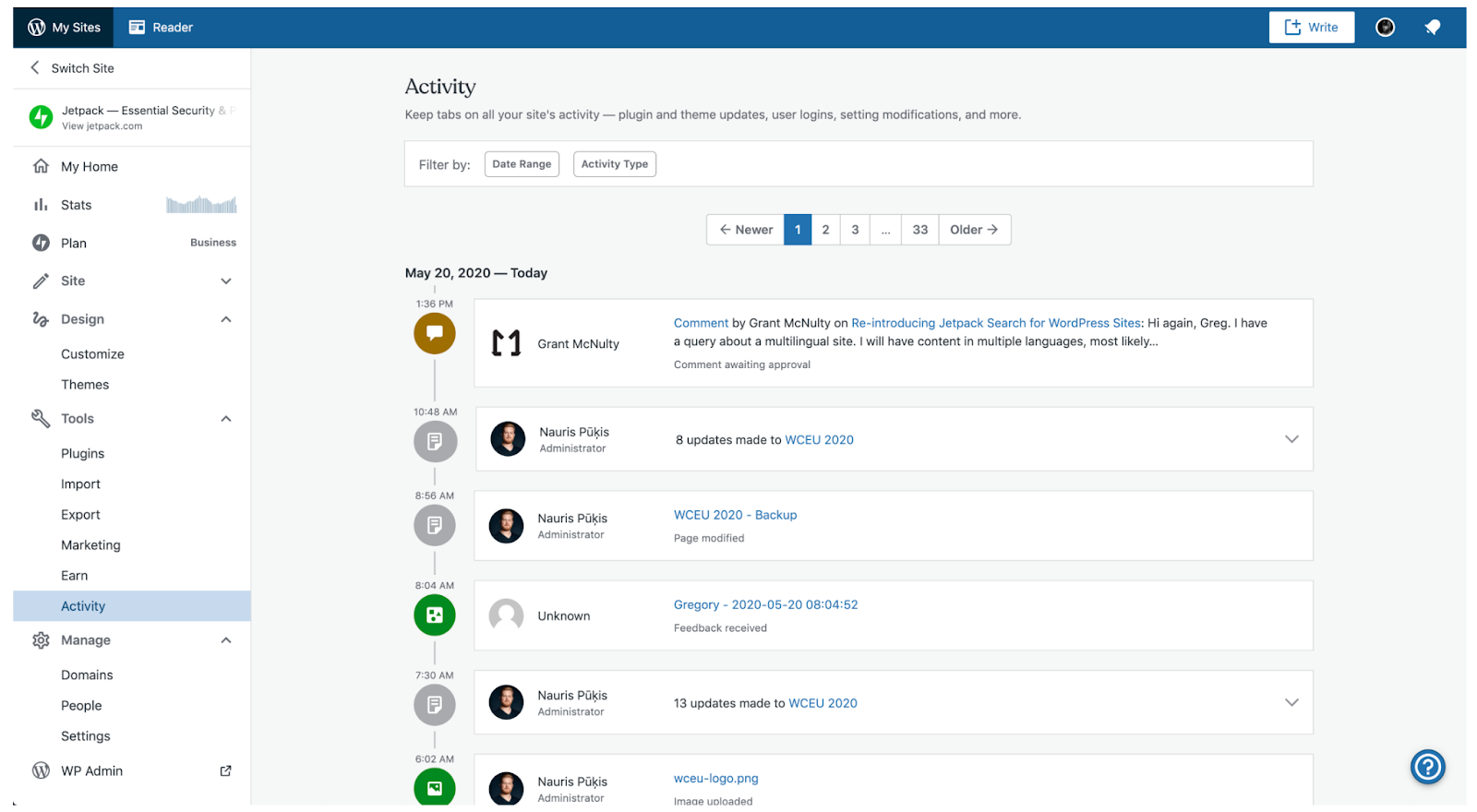
The more you know about what’s happening on your website, the more secure it will be. Activity logs are tools that provide you with an overview of actions taken on your site, including details like who took each action and when. Unfortunately, this is not a feature WordPress offers out of the box.
If you want to be able to check an activity log in WordPress, you’ll need to set one up using a plugin. The Jetpack plugin includes a free WordPress activity log for the last 20 events and various premium Jetpack plans (Jetpack Security, Complete, and VaultPress Backup) include enhanced storage times.
Jetpack’s activity log includes information about events like updates to the site, new plugin and theme installations, comments, media uploads, and more.
The activity log also tells you who was responsible for each event. This can be incredibly helpful when troubleshooting security issues, and even for getting to the root of human errors.
Key features of Jetpack’s activity log:
- Detailed monitoring of user activity
- Up to one year of activity storage (depending on your plan)
- The ability to check login attempts, content and comment submissions, installations, and other events
Pros of Jetpack’s activity log:
- You can access the activity log even if you can’t log in to your WordPress dashboard.
Cons of Jetpack’s activity log:
- The free plan limits the activity log to the last 20 events.
Ease of use:
The Jetpack’s security log doesn’t require any configuration. You can access it from the dashboard at any time, although it will redirect you to the Jetpack website to check on your site’s activity.
This approach makes the plugin more secure, as it means you can monitor the log even if you lose access to your website. In combination with Jetpack VaultPress Backup (or a plan that includes this feature), you can identify activity that caused an issue and then restore to the point before with just a click.
Price:
You can access the activity log with the free Jetpack plugin or one of several premium Jetpack plans — including, yet again, Jetpack Security.
9. Downtime monitoring (Jetpack)
If you use a reputable web host, your site should rarely (if ever) face downtime. But if you do encounter a technical issue or attack that takes down your website, you need to know about it as soon as possible.
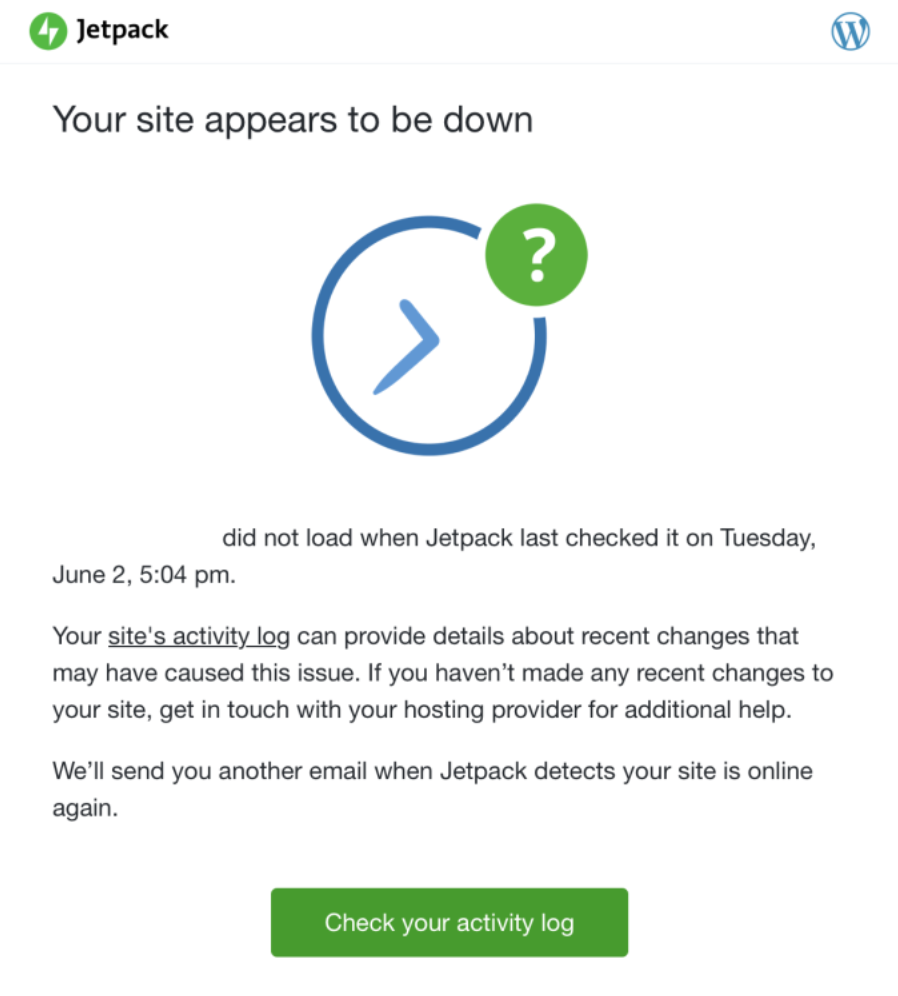
Downtime monitoring tools check periodically to see if your site’s accessible, and will send you a notification if it isn’t. With Jetpack Security, you’ll get the combination of downtime monitoring alongside an activity log.
This is important because, when Jetpack sends you a notification about your site being down, it also includes a link to your site’s activity log. That means you’ll be able to instantly check what happened before your site became inaccessible, which can provide you the information you need to resolve the problem.
Key features of Jetpack’s activity log:
- Downtime monitoring for your WordPress site
- Notifications when your site goes down and when it’s accessible again
Pros of Jetpack’s activity log:
- The plugin monitors your site in the background and will instantly send a notification when it detects any downtime.
Cons of Jetpack’s activity log:
- The plugin only sends notifications via email.
Ease of use:
There’s no configuration necessary with this plugin. Downtime monitoring is enabled by default, so you can sit back and relax unless you get a notification email from Jetpack.
Price:
Downtime monitoring is included in the free Jetpack plugin and all premium plans that use it.
10. A CDN and DDoS protection (Cloudflare)
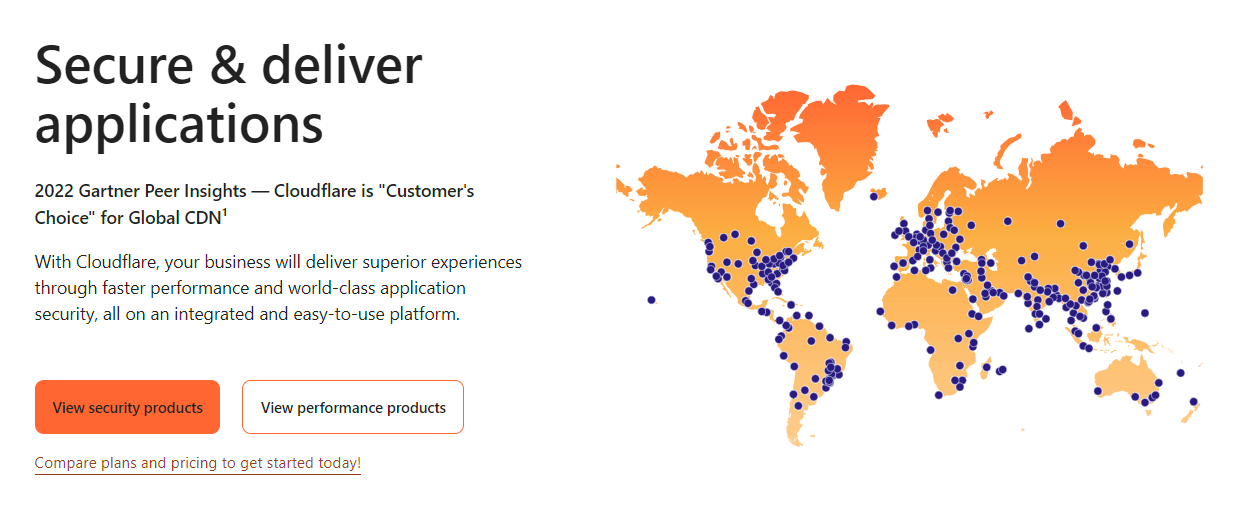
A content delivery network (CDN) is a collection of data centers located in key places across the globe. These data centers store copies of your WordPress website and load them for visitors from the nearest physical location.
If you have visitors from all around the world, this is a huge advantage, as even lightning-fast data transfers take a while from thousands of miles away.
You’ll also benefit from having an extra layer between visitors and your website. A CDN like Cloudflare can help protect against DDoS attacks and other cybersecurity threats by using that layer to monitor everyone trying to access your site and essentially multiplying your server bandwidth if there’s a sudden spike in traffic.
Cloudflare offers a variety of plans and is easy to integrate with WordPress. In fact, some web hosts provide access with their plans.
Key features of Cloudflare:
- The ability to cache your website on a global network of data centers
- The ability to speed up your site
- Protection against threats like DDoS attacks
Pros of Cloudflare:
- Proper implementation can drastically reduce loading times.
- You can protect your website against cybersecurity threats at the same time.
Cons of Cloudflare:
- The free plan is very limited.
- Premium plans are relatively costly.
- Some visitors will have to solve a CAPTCHA to access your site, depending on their locations and IP addresses.
Ease of use:
Integrating WordPress with Cloudflare can be relatively simple with the right plugin. Manual integration is a bit trickier, and requires you to be familiar with editing domain nameservers.
You’ll also need to learn how to use a CDN. Cloudflare provides ample documentation, but configuring the CDN optimally and making it work with your website can take some time.
Price:
Cloudflare offers a free plan with limited features. Premium plans remove that cap and start at $20 per month billed annually.
We guard your site. You run your business.
Jetpack Security provides easy‑to‑use, comprehensive WordPress site security, including real‑time backups, a web application firewall, malware scanning, and spam protection.
Secure your siteWhat to consider when choosing a WordPress security service
Each WordPress security service on this list provides a solution to specific security risks. And every WordPress website can benefit from these types of tools. But the tools you decide to use are up to you.
If you want to make sure your site is as protected as possible, an all-in-one tool like Jetpack Security is the most effective approach. It protects against many types of security risks in a single, user-friendly package. Otherwise, you’ll need to address each issue separately, based on what your specific website needs.
When choosing a security tool, also ask questions like:
- Does it integrate seamlessly with WordPress?
- If the tool is a plugin, is it updated regularly?
- Does it slow down your website?
- Is there support available?
- Does it fit into your budget?
- Can you use it based on your current experience level?
Frequently asked questions
If you still have any questions about which WordPress security services to use or why they’re essential, this section will aim to answer them.
What are the essential security services every WordPress site should have?
If you don’t have the time or budget to set up every security service your website needs, you have to make some tough decisions. A good place to start is with a web application firewall, a real-time backup solution, and an SSL certificate.
What is the fastest way to secure my WordPress site?
An all-in-one security tool like Jetpack Security will enable you to quickly secure your WordPress website, thanks to a combination of vital features that can be toggled on immediately. Jetpack Security helps you manage backups, access activity logs, protect your site against spam and DDoS attacks, and more. Because all of these features are bundled into one plugin, it’s easy and fast to get up and running.
How can a backup plugin help with WordPress security?
Full-site backups can come in handy in a variety of situations, from cyberattacks to a misplaced line of code. And a cloud-based backup solution is the ideal choice because it protects your files from issues with your server that could bring down your site and your backups simultaneously.
Cloud-based backups like those offered with Jetpack VaultPress Backup also allow you to access and restore your site even if you can’t log into the WordPress dashboard.
What should I look for in a backup plugin for my WordPress site?
A great backup plugin automates the entire process, so you don’t have to worry about creating copies of your site regularly. If possible, the plugin should back up your site every time you make changes to it, to prevent data loss.
Some solutions, like Jetpack VaultPress Backup, also offer off-site storage for backups. This is critical from a security standpoint, as it reduces the risk that you’ll lose access to those copies if the server goes down and protects them if your host is compromised.
How often should I back up my WordPress site?
At a minimum, you should back up your site daily. But the ideal solution is real-time backups, so every single change made on your site is saved as it happens. This is particularly important for sites that are updated frequently, such as blogs and ecommerce stores.
What is a malware scanner, and why is it important for WordPress security?
A malware scanner is a security service that analyzes your site for malicious files or code. The effectiveness of the scanner will depend on what level of access it has to your site, and the quality of the database it compares information against.
With Jetpack Security, you gain access to a powerful malware scanner. This automatically checks your site for problems and alerts you if anything is found.
How can I protect my WordPress website from brute force attacks?
A security plugin or a WAF can help protect your site from brute force attacks. These security services, such as the one provided by Jetpack, block known malicious IPs from accessing your website or overloading your server.
Jetpack Security: The all-in-one security and recovery tool for WordPress
If you don’t want to cobble together three or four different security services to get the coverage you need, your best option is Jetpack Security. Its name comes up time and time again on this list because it covers all the essential elements you need to prevent hacks and quickly recover during emergencies.
It’s a plug-and-play option developed and maintained by the people behind WordPress.com — so you know it works and works well.
It includes automatic, real-time backups and off-site storage (plus one-click recovery), as well as a firewall, brute force attack protection, activity log, two-factor authentication, downtime monitoring, spam protection, and more.
Jetpack Security is a more cost-effective route to total protection than setting up multiple plugins that may not all play nicely together.
If you do just want one specific security feature provided by Jetpack, you can explore their individual plans and plugins here to create a more customized solution.
Ready for a safer site and better sleep? Try Jetpack Security today!

We guard your site. You run your business.
Jetpack Security provides easy‑to‑use, comprehensive WordPress site security, including real‑time backups, a web application firewall, malware scanning, and spam protection.
Secure your site Jetpack