With Jetpack, you now have the power of AI at your fingertips, making it effortless to craft engaging post excerpts.
What is a WordPress post excerpt, and why are they important?
Think of an excerpt as a teaser for your post. A typical excerpt is a one to three-sentence summary of your post that you can craft yourself or take advantage of Jetpack AI to generate one for you. Specifically designed for posts, excerpts show a short summary instead of the full content on pages like your recent posts page, archives, or search results.
If you’ve enabled the Jetpack Newsletter, you can configure it so that your subscribers only receive an excerpt via email, coupled with a link to the full story, keeping them engaged and curious.
Requirements for using Jetpack AI to create post excerpts
Jetpack AI requires a website connected to Jetpack, using the block editor with Jetpack Blocks activated. For more details, check the Requirements.
Usage Limitations
The AI-powered excerpts are a part of our Jetpack AI Assistant suite.
Jetpack AI offers you 20 free requests to get started. For more information about upgrading, please refer to our detailed Usage limitations and upgrades guide.
How to use Jetpack AI to craft your post excerpts
Jetpack AI features are only available with the block editor; the Classic Editor does not support AI-powered excerpts. For guidance on activating Jetpack Blocks, refer to this support guide.
Here is how to use AI to generate a post excerpt:
- Start by drafting your content. The excerpt will be based on what you write.
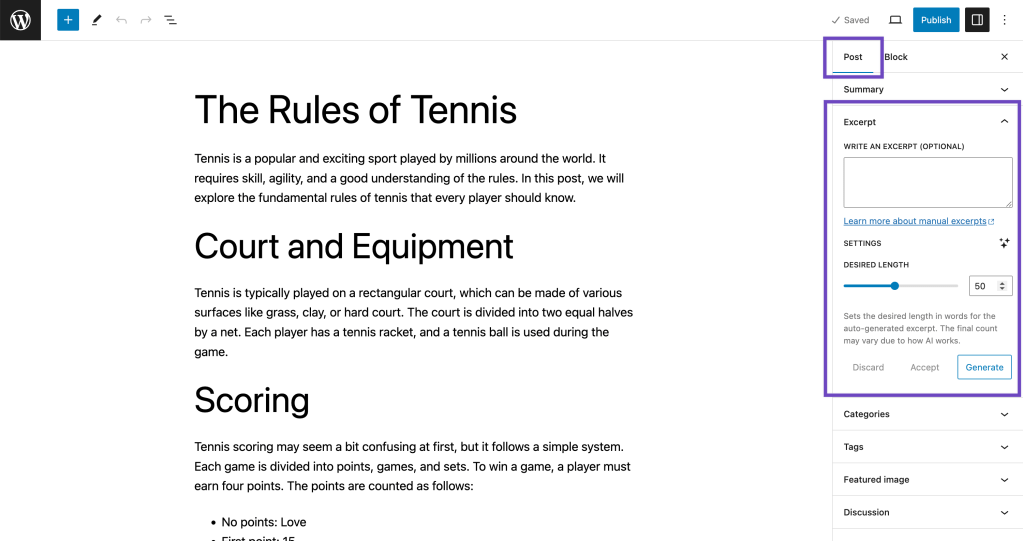
- Find and expand the Excerpt section in the sidebar of your post editor. Make sure you’ve clicked on either the Post tab at the top, otherwise, you will not see the Excerpt section.
- Find the Generate button at the bottom of the Excerpt section. If you do not see the Generate button, make sure that:
- The latest version of Jetpack is installed, activated, and connected.
- Jetpack Blocks are activated; this support guide has the details if you need help.
- Choose your preferred settings. For a detailed walkthrough of the available settings, refer to the Tailor Your AI Excerpt to Your Needs section.
- Click Generate.
- After a brief pause, the AI will have your excerpt ready. You’ll notice the Generate button greyed out (disabled).
- You can discard or accept the generated excerpt by clicking the Discard of Accept button.
- Discard will revert your excerpt to its previous version.
- Once you discard, accept, or modify the settings, the Generate button will be available again, allowing for a fresh generation.
- You can continue this process until a post excerpt you like is generated.
- You are all set! You can use the AI-generated excerpt as-is or adjust it manually.
Tailor your Jetpack AI-generated excerpt to your audience
You can fine-tune your excerpt’s characteristics to resonate best with your audience. You can configure its length, select a language, and set a tone. You can also choose which AI model you want to use.

How to choose your Jetpack AI-generated excerpt’s length
You can choose the desired length (number of words) of the excerpt. Please note that the final word count may differ slightly because of how sentences form. If you need an exact count, you may need to tweak the outcome manually.
How to set the length of your excerpt:
- Slide along the Desired Length scale. You have a range between 10 to 100 words, with a default set at 50.
How to choose your Jetpack AI-generated excerpt’s language
By default, the excerpt will be generated in the language used for the content of the page. The tool will try to detect the language automatically.
You can also choose from one of the supported languages: French, Spanish, German, Italian, Portuguese, Russian, Chinese, Japanese, Arabic, Hindi, and Korean.
How to change the language:
- Find the Settings just below the Excerpt field.
- Click the Sparkles icon to expand the settings view.
- Click the Language tab and make your selection.
Click Generate.
How to choose your Jetpack AI-generated excerpt’s tone
While the default tone of excerpts is formal, you have a rich palette of tones to capture the right mood: informal, optimistic, humorous, serious, skeptical, empathetic, confident, passionate, or provocative.
How to set the tone:
- Find the Settings just below the Excerpt field.
- Click the Sparkles icon to expand the settings.
- Click the Tone tab and pick the one you want to use.
Click Generate.
How to choose the AI model Jetpack uses to generate your post’s excerpt
When generating excerpts, you can choose between GPT-3.5 Turbo or GPT-4 models.
- GPT-3.5 Turbo is faster and works, great for most everyday tasks.
- GPT-4 is a slower but the most capable model. It’s great for tasks that require creativity and advanced reasoning. AI Excerpts user GPT-4 by default.
How to switch between models:
- Locate the Settings just below the Excerpt field.
- Click the Sparkles icon to expand the settings.
- Click the Model you want to use.
Click Generate.
How to troubleshoot issues with Jetpack AI excerpt generation
Theme compatibility and post excerpts
Not all themes support post excerpts. If the excerpts do not appear as expected on your site:
- Temporarily switch to the “Twenty Twenty-One” theme.
- Check again your recent posts page.
- If the excerpts display as they should, the issue likely lies with your original theme.
- Next Step: Consider reaching out to the theme’s developer to inquire about adding support for post excerpts.
Theme-imposed word count limits for post excerpts
Certain themes, notably “Twenty Twenty-Two” and “Twenty Twenty-Three” block themes, cap the excerpt’s word count. By default, they’re set to a 55-word limit. If you feel comfortable with editing page templates and wish for a different word count, you can make adjustments directly in the theme templates. However, due to our scope of support, this is not something we can provide assistance for.
Jetpack AI’s excerpt generation and Parse.ly excerpt generators can’t be active at the same time
When you install the Parse.ly plugin, it introduces its own excerpt generator. The Parse.ly plugin automatically disables Jetpack AI Assistant’s excerpt feature and replaces it with Parse.ly’s solution.
If you prefer to use Jetpack’s AI-powered excerpts instead, you can reactivate them with this code snippet:
add_filter( "wp_parsely_enable_content_helper_excerpt_generator", "__return_false" );
Please be aware that code snippets are provided as a courtesy and our support team is unable to offer assistance customizing them further.
Still need help?
Please contact support. We’re happy to advise.
 Jetpack