Install, update, or remove plugins installed on all of your sites connected to Jetpack Manage.
Note: This documentation is for sites connected via Jetpack Manage. For information about updating plugins on individual sites, please check out our help article about Plugin Management.
Access plugins via Jetpack Manage
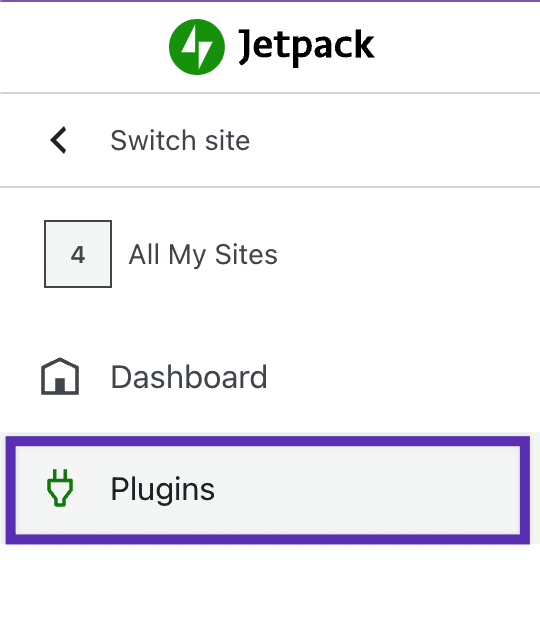
To access your Plugin Management page, please follow these steps:
- Start at cloud.jetpack.com
- Click Plugins in the side menu.
- Filter the list of plugins by clicking Active, Inactive, or Updates or search for a plugin by name using the Search Plugins search bar.
- Install a plugin update on all sites by clicking Update (x) Plugin
- Choose Edit All to manage all plugins installed on all Jetpack Manage sites, or select specific plugins by checking the box next to it.
- From there, you can Activate/Deactivate, Autoupdate, Disable, Update, or Remove on the selected plugins.
Manage one plugin across multiple sites
To install, update, or remove one plugin across multiple Jetpack Manage sites, follow these steps:
- Click on the Three Dot Menu next to the plugin.
- Click
Manage Plugin. - Update, deactivate or activate the plugin on each site connected to Jetpack Manage.
Still need help?
Please contact support. We’re happy to advise.
 Jetpack