Quickly express your thoughts and share them across your social networks without the hassle of formatting or titles—perfect for spontaneous (or scheduled) posts that keep your audience engaged.
Requirements
Before sharing notes, confirm the following:
- The Jetpack Social plugin must be installed and activated on your WordPress site.
- Verify that your Jetpack connection is active and functioning correctly. The Social Notes feature relies on this connection to operate.
- Ensure that your social media accounts are connected to Jetpack. This connection is essential for the sharing functionality.
Enabling the Social Notes feature
To activate Sharing Notes:
- Go to Jetpack → Social in your WP Admin.
- Find the Sharing Notes option and use the toggle to turn it on.
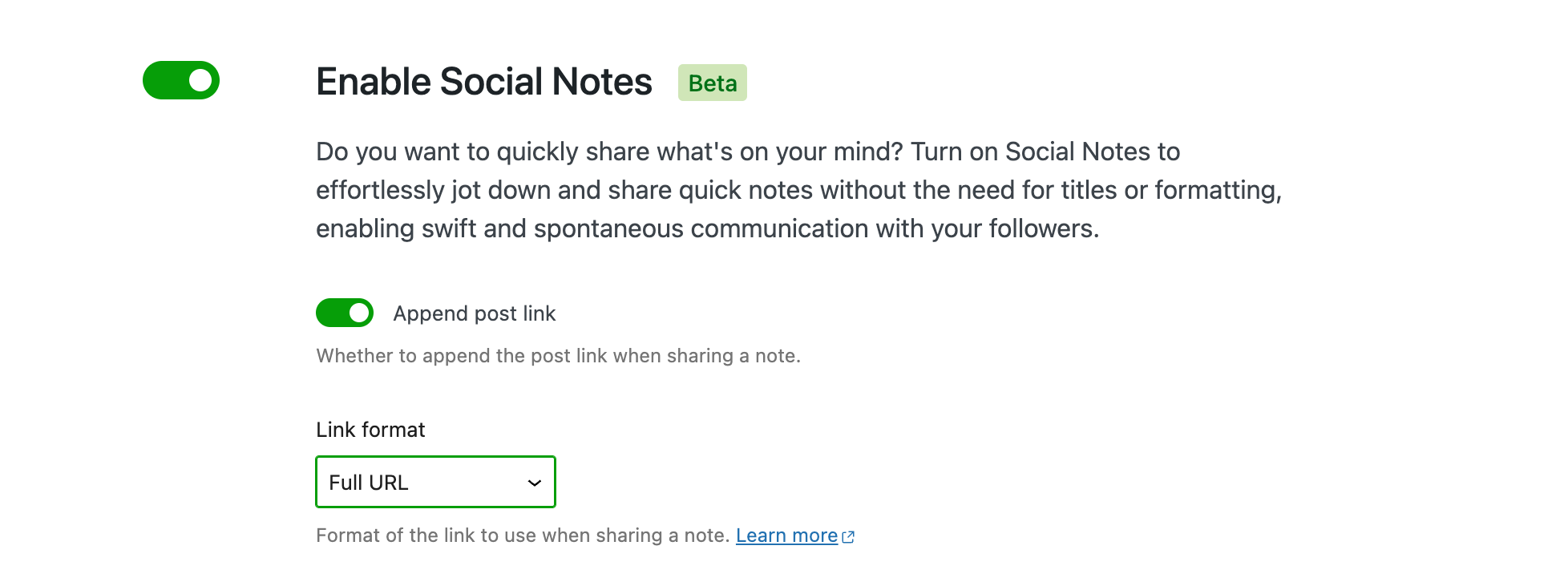
Creating Social Notes
Here’s how to create a Social Note:
- With the Social Notes feature active, select Social Notes in your WP Admin sidebar.
- Choose Add New to open a simplified WordPress editor for your note.
- You may add a featured image via the document settings on the right sidebar.

Sharing Social Notes
Follow these steps to share your Social Notes:
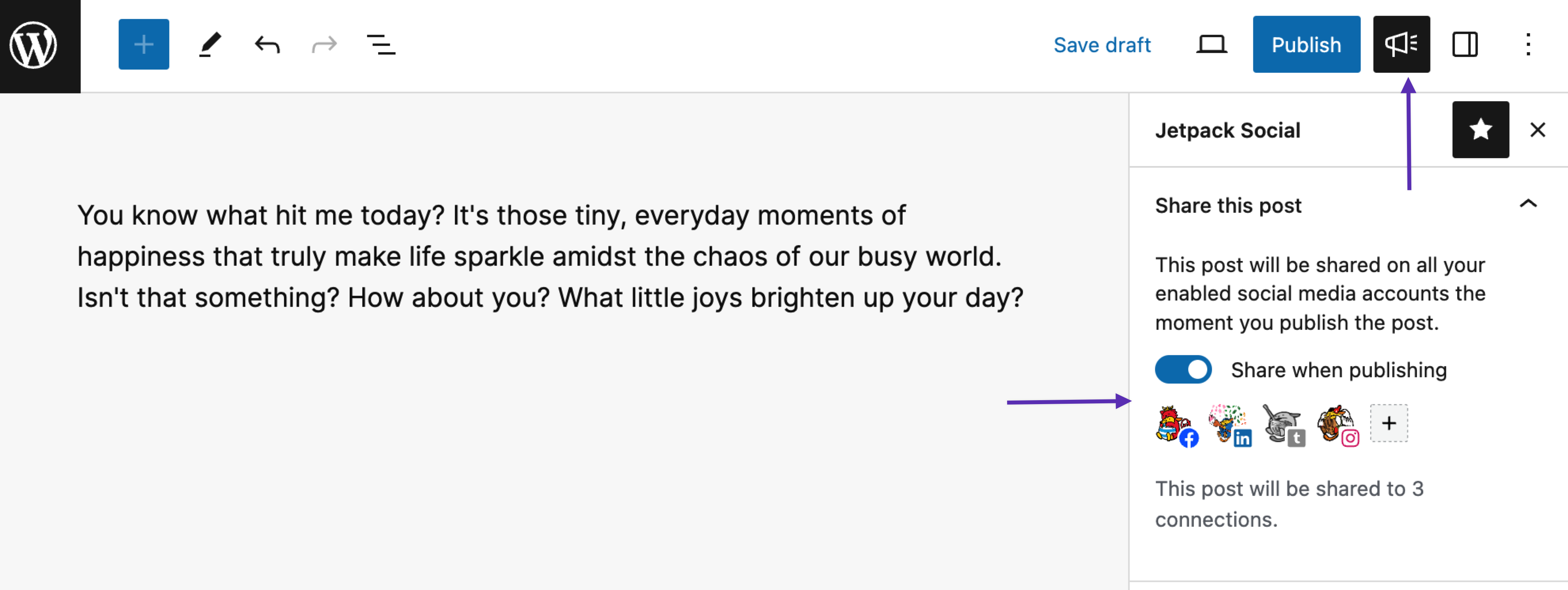
- Click the Jetpack Social icon at the top right to open sharing settings.
- Use the Share when publishing toggle in the sidebar to control automatic sharing.
- Click on the social media icons to select or deselect networks. To share to multiple networks simultaneously, ensure each network is highlighted.
- You can use the Social Preview in the pre-publish sidebar for a glimpse of your post on different social networks.
- After finalizing your selections, press Publish. You can also schedule notes for auto-sharing at a designated publishing time, just as you do with regular posts.
Upgrade: For an enhanced Social Previews feature where you can instantly preview what your post will look like across all of your connected social accounts, upgrade to a paid Jetpack Social plan or Jetpack Complete bundle.
Sharing previously published Social Notes
To share previously published Social Notes, follow these steps:
- Log in to your site’s WP Admin.
- Navigate to Social Notes from the left sidebar and select the note you want to share.
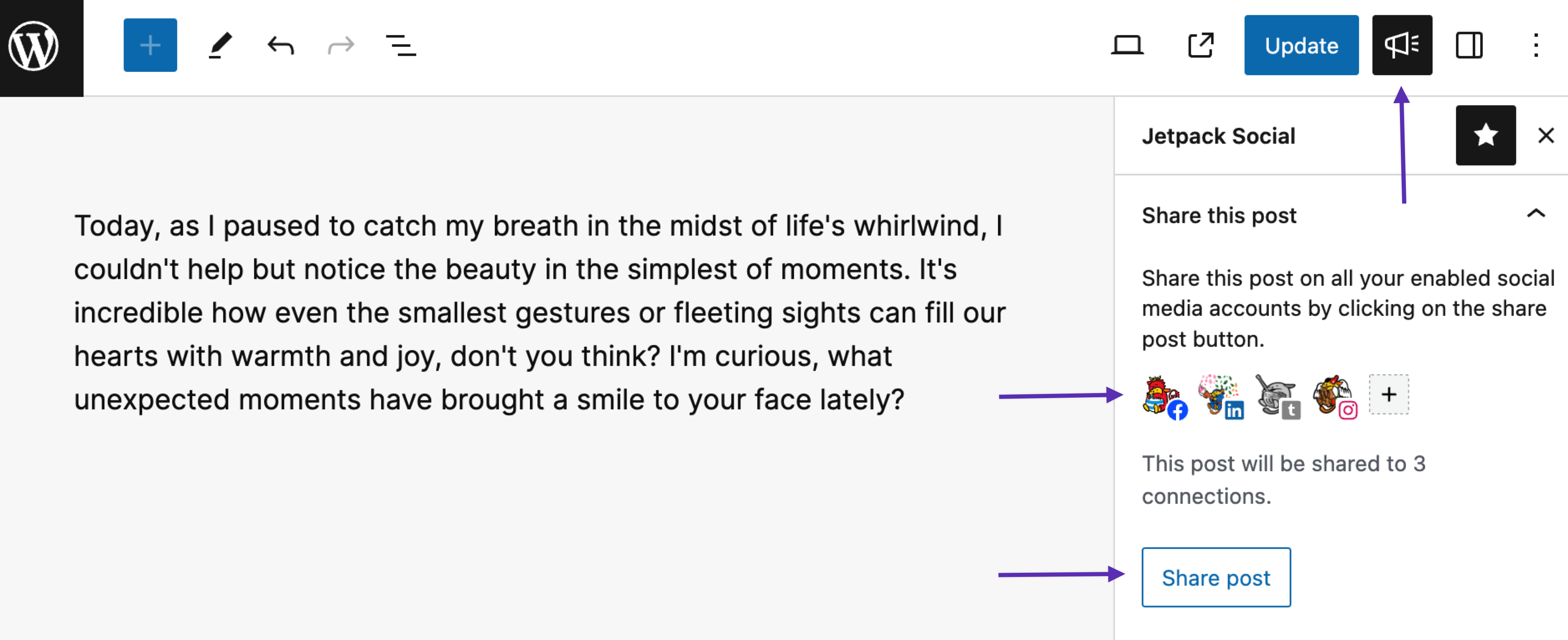
- Click the Jetpack Social icon located at the top of the right sidebar.
- Select the social platforms where you want the note to be shared.
- Finally, click the Share button located at the bottom of the left sidebar to share the note across your chosen social media platforms.
Formatting links in your Social Notes
By default, a full link to your note will be added to the posts that get shared to your jetpack social connections. You can choose to not have a link appended and/or format how it appears.
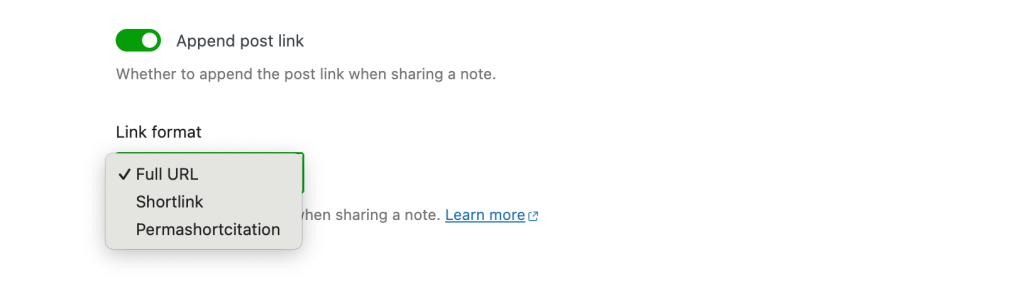
- Full URL: This is the default option. It links directly to your note using the full URL. Example:
https://yourjetpack.blog/sn/292/ - Shortlink: A condensed version of the full URL, designed to be cleaner and more visually appealing. This uses our wp.me URL shortener. Example URL:
wp.me/P1moTy-16Yv - Permashortcitation: Abbreviated as PSC, a permashortcitation is a short citation of a post’s permalink. It will be added at the end of the post. Example:
(wp.me p9IHVl-4L)
Character limits in Social Notes
There are no limits within Social Notes, but each social platform has its own constraints. Longer notes will feature a “read more” option and a direct link to the full note on your site.
Accessing Social Notes
Social Notes are grouped in a dedicated archive on your site.
- To view them, visit
https://yourjetpack.blog/sn/, substitutingyourjetpack.blogwith your actual site’s URL. - Depending on your WordPress theme, the archive’s layout may vary.
- For direct user access to your Social Notes on your site, you can add an archive link to your site’s menu.
Still need help?
If you have further questions or need assistance, don’t hesitate to contact support.
 Jetpack