

Connect social networks with Jetpack Social
Last updated:
Automatically share your blog posts to Facebook, LinkedIn, Tumblr, Mastodon, Nextdoor, Instagram Business, Threads, and Bluesky accounts by connecting them to your site via Jetpack Social. This auto-sharing feature was previously known as Publicize.
To automatically share your posts to your social media platforms, you need to connect your social accounts. You can do this using the Jetpack Core plugin or the Jetpack Social standalone plugin.
Connect social accounts via the post editor
You can connect your social media accounts to Jetpack from the sidebar of the post editor. This works with both the Jetpack Core plugin and the Jetpack Social standalone plugin. To connect an account from the editor:
- Open the post editor in your site’s WP Admin.
- In the post sidebar, click the Jetpack icon or the Jetpack Social icon at the top corner.
- In the Share this Post section, click Connect an account.
- Click Connect next to the social network you want to connect to.
- Log in to the social network and authorize the connection when prompted.
Connect social accounts via the Jetpack Social settings page
You can connect your social accounts directly from WP Admin by going to Jetpack → Social. This works with both the Jetpack Core plugin and the Jetpack Social standalone plugin. To connect an account from the settings page:
- Log in to your site’s WP Admin.
- Go to Jetpack → Social to open the Social settings page.
- Click Connect an account.
- Next to your chosen social media platform, click Connect and follow the prompts to authorize the connection.
Once you start the connection process, you will need to log in to the respective social network and authorize the connection. For specific guidance on connecting each social network, refer to the links below:
LinkedIn connection expiration
Connections to LinkedIn expire every 2 months and require reauthorization to continue auto-sharing your posts. If you notice your posts are not being shared, reconnect LinkedIn by following the steps above.
Twitter/X is not supported
Jetpack Social does not support Twitter/X sharing, including for existing connections. For details, see The end of Twitter Auto-sharing.
Customize messages per connection
With a paid Jetpack Social plan, you can set unique Message Templates for each social account. You can tailor your post format to each platform — for example, a brief message for Bluesky’s 300-character limit, or a detailed format with hashtags for Mastodon. Access the template editor by clicking the template icon next to any connection, or through the connection’s settings modal.
Enable a shared connection for your social networks
By default, a social connection is available only to the administrator who created it. When you mark a connection as shared, other site owners, including those with Administrator, Editor, and Author roles, can use it to share their posts to that social network. Shared connections do not grant these site owners direct access to the social network account itself.
To make a connection available to all eligible site owners:
- Log in to WP Admin with the same account that originally created the connection.
- Go to Jetpack → Social.
- Click the drop-down arrow next to the connection you want to share.
- Check the Mark the connection as shared option.
- Confirm the change. Other site owners with the Administrator, Editor, or Author role can now use this connection when publishing posts.
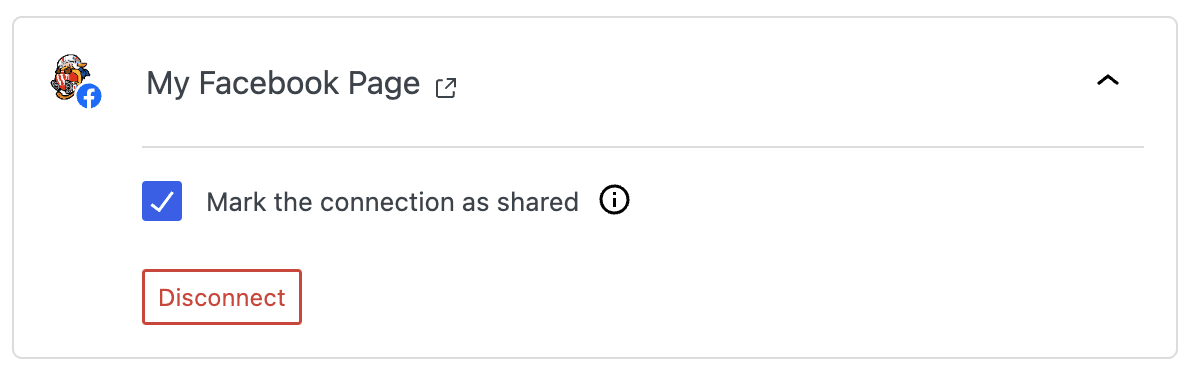
Connection ownership and the shared option
The Mark the connection as shared checkbox is visible only to the WordPress.com account that created the connection. If a different administrator logs in to WP Admin, they will not see this checkbox, and they will not see the connection at all until the original owner marks it as shared.
If you are an administrator and do not see the Mark the connection as shared option for an existing connection, the connection was created by a different WordPress.com account. To resolve this, ask the administrator who created the connection to log in and mark it as shared. Once shared, the connection appears in Jetpack → Social and in the post editor for all eligible site owners.
Shared connections on multisite networks
On WordPress multisite installations, connection ownership and sharing behavior differ depending on whether a Super Admin or a Subsite Admin creates the connection.
The following rules apply when a Super Admin creates a social connection on a subsite:
- The Super Admin can connect the social account and use it for their own posts on that subsite.
- The Super Admin cannot mark the connection as shared on the subsite.
- Subsite Admins cannot see the connection in Jetpack → Social or in the post editor.
When a Subsite Admin creates a social connection on their subsite, they have full control:
- The Subsite Admin can connect, disconnect, and mark the connection as shared.
- Once the Subsite Admin marks the connection as shared, the Super Admin and other eligible site owners can see and use it from the post editor.
- The Super Admin sees a note in Jetpack → Social stating “This connection is added by the site administrator,” and can use the connection for sharing but cannot manage it.
On the main network site, the Super Admin can create and mark connections as shared — this works the same as on a standard single-site WordPress installation.
For Subsite Admins to manage their own social connections, the following network-level setting must be enabled:
- Go to Network Admin → Jetpack → Settings.
- Enable the option: Allow individual site administrators to manage their own connections (connect and disconnect) to WordPress.com.
This setting is consistent with the recommended Jetpack multisite configuration.
Disconnect a social network
If you want to remove a social media account from Jetpack Social:
- From your site’s WP Admin, go to Jetpack → Social. You can also access this page directly at
https://yourjetpack.blog/wp-admin/admin.php?page=jetpack-social(replaceyourjetpack.blogwith your site’s address). - Locate the social network you want to disconnect.
- Click the Disconnect button next to that account.
If the same social network account is connected to Jetpack Social on more than one site, repeat these steps on every site. After you disconnect its final Jetpack Social connection, Jetpack Social deletes the stored authorization token and related connection information.
Disconnecting stops future sharing through that connection. It does not delete posts already shared to the social network. If you cannot access one of the connected sites, contact support.
Still need help?
Please contact support. We’re happy to advise.
Jetpack Social: Related Support Articles
- Post to Tumblr with Jetpack Social
- Post to LinkedIn with Jetpack Social
- Post to Mastodon with Jetpack Social
- Post to your Instagram business account with Jetpack Social
- Post to Nextdoor with Jetpack Social
- Post to Threads with Jetpack Social
- Post to Bluesky with Jetpack Social
- Troubleshoot Jetpack Social

