Jetpack Ad Block

Insert an ad unit anywhere within the content of any post, page, or widget area, thanks to the Ad Block.

Ad Block requirements

To use the Ad block, your site needs an active Jetpack Growth, Jetpack Security, or Complete plan (or our legacy Jetpack Creator plan). You also need to enable the Ads feature in WP Admin → Jetpack → Settings → Monetize.

The Ad block is a part of the Jetpack Blocks suite. See our Jetpack Blocks article to learn about the available blocks and how to activate them.

Jetpack Blocks require the Block Editor (also referred to as the Gutenberg editor). If you’ve installed the Classic Editor plugin, you have a few options:

  • Deactivate the Classic Editor: Go to PluginsInstalled Plugins in your WP Admin and deactivate the Classic Editor plugin.
  • Enable both editors: If you prefer flexibility, navigate to Settings → Writing in your WP Admin (not the menu under Jetpack settings). Set Allow users to switch editors to Yes. You will only see these options if you have the Classic Editor plugin installed and active.

Some custom themes or plugins may prevent you from using the Block Editor. In that case, please contact the support team for the plugin or theme for further assistance.

For more details, see Using Blocks and the Classic Editor.

Add the Ad block

You can see Jetpack Blocks for detailed instructions on adding blocks; to add the Ad block specifically, follow these steps:

  1. Search and/or select the block from the block selector’s search bar. The Jetpack Ad feature has a green icon.
  2. After adding the block, you’ll see a gray placeholder box, displaying the size and shape of your ad.
  3. You can customize it by clicking the settings options in the block toolbar (see below).

Block toolbar settings

You can customize how to display your Ads block from the toolbar that appears next to the Ads block:

  • Click on the block to display the block toolbar.
  • Select the Change alignment icon to adjust how to align the block on the page
  • Select the Pick an ad format to select the size that better suits your content layout.

Hide the Ad block on mobile devices

You can enable the hide ads options on mobile devices upon adding a block:

  1. Click the gear icon on the block editor in the top right corner.
  2. Select Block.
  3. Click the Visibility arrow to access the “Hide on mobile” toggle.

The Ad block has no additional settings in the editor sidebar.

Still need help?

Please contact support. We’re happy to advise.

Privacy Information

The Ad Block is deactivated by default. It can be activated at any time by toggling the Ads setting at Jetpack → Settings → Traffic in your dashboard. You will need a Jetpack plan that includes ads to use this block.

Data Used
Site Owners / Users

In order to process payments via PayPal, the following site owner-related information is utilized: site owner’s email address, physical address, site URL, and WordPress.com-connected site ID.

For compliance with US tax regulations, we also collect whether the site owner is a US Resident (or based in the US), and if so, we collect tax reporting information including Social Security Number or US Tax ID, Full Name or Business Name, and physical address.

Site Visitors

We collect and send the following information (made available from the visitor’s browser) to our Demand Partners: IP address, geographical data (derived from the IP address), user agent, operating system, device type, unique user ID (randomly generated identifier), current URL, and IAB (Interactive Advertising Bureau) interest category.

Data Retention: Log data (IP address, geographical data, user agent, operating system, device type) is stored for 30 days. The unique user ID is stored in cookies and is retained for 1 year.

Activity Tracked
Site Owners / Users

We track when, and by which user, the feature is activated and deactivated.

We also track updates to the user’s Paypal email address (so that we can continue to successfully process any payments).

Site Visitors

We track ad impressions, video-related events (i.e. pause, mute, 100% plays, etc.) or errors, and ad click events.

Various cookies are used for the following purposes: delivering targeted advertisements to specific visitors, storing user identifiers, and collecting anonymous ad platform stats.

Data Synced (Read More)
Site Owners / Users

We sync options that identify whether or not the feature is activated, as well as the site’s current approval status (i.e. is this site approved to participate in the WordAds program?).

Site Visitors

None.

 
Tagged , | Comments Off on Jetpack Ad Block

WordAds

Earn income by displaying high-quality ads on your site.

Activate WordAds

WordAds is a unique ad program from WordPress.com. You can join the ad program via your Jetpack connection. To get started, please follow these steps:

  1. Purchase a Jetpack Security, Complete, or Growth Plan — no approval process is required.
  2. Activate the feature in your WP Admin, under Jetpack → Settings → Monetize → Ads.
  3. Save the settings to start seeing ads on your site right away.

If your WordAds application was previously approved on a Jetpack free plan, you may continue using WordAds. However, new applications will require a Jetpack Security, Complete, or Creator plan.

Control ad placement

You can control where ads show up on your site from within the Ads settings:

  1. From the Jetpack → Settings → Monetize page in WP Admin, you can control ad placement on your front page, posts, pages, and archives
  2. Select additional ad placements if you like, including at the top of each page, second ad below posts, or inline within post content.
  3. If you wish to, you can enable targeted ads in the United States from the WordPress.com Dashboard at Tools Monetize Ads → Settings.

Customize your ads.txt file

To maximize the revenue your site generates, you can configure Jetpack to control your ads.txt file. When Jetpack controls your ads.txt file, the list of approved partners updates automatically, allowing you to save time and better invest in running your business or creating new content.

Enable Jetpack to customize your ads.txt file

  1. Make sure you are running the latest version of Jetpack from your WP Admin Dashboard → Updates page. You can also check for pending updates on your Plugins page in WP Admin.
  2. Head to <your-site-url>/ads.txt, and copy the custom entries you find there.
  3. Go to your site’s Ads section in WP Admin, at Jetpack → Settings → Monetize
  4. Make sure Customize your site’s ads.txt file is toggled on.
  5. Paste the entries you copied from <your-site-url>/ads.txt into the empty field below Customize your site’s ads.txt file.
  6. Click the Save Settings button at the top of the Ads section when you’re done.
  7. Confirm that there is no ads.txt file at the root of your site. If another plugin is trying to manage your ads.txt file, disable the plugin.

GDPR Consent Banner Settings

When the GDPR consent banner is enabled in your Ads settings, visitors to your site from the European Union will be prompted to provide their consent for data usage as required by the GDPR. 

Enable the GDPR Consent Banner

  1. Navigate to your WP Admin, and click on Jetpack -> Settings -> Monetize.
  2. In the Ads section, you will find the “Enable GDPR Consent Banner” option.
  3. Toggle the option on to activate the consent banner, or off to deactivate it.
  4. Save your settings. The banner will now be displayed to your visitors as per your selection.

View Earnings

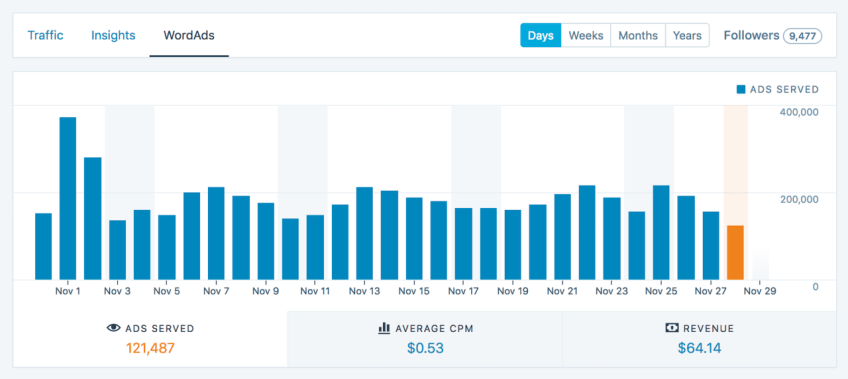
To view your Ads earnings, you will be redirected to the WordPress.com Dashboard for your site. The “View your earnings” link in the Ads page in your WP Admin will redirect you there.

You can also find the Ads Earning dashboard by navigating to WordPress.com, then to Tools → Monetize.

PayPal Payment Settings

Earnings will be paid to the PayPal account you’ve added to your Ads settings. A PayPal account in good standing with the ability to accept funds must be maintained in order to receive earnings. You can verify which PayPal features are available to you by looking up your country on the PayPal website.

Add your PayPal email address to WordAds

  1. PayPal settings are in the WordPress.com Dashboard for your site. First, navigate to WordPress.com and choose the site you’d like to add a PayPal email for.
  2. Click Ads at the top of the page to open the Ads Settings page.
  3. Find the Payment Information section and enter your PayPal account email in the PayPal E-mail Address field.

Additional ad placement customization options

There are three other options for putting advertisements on your website:

  • Use the Ads widget to place an ad unit in any widget area on your site, from Appearance → Widgets.
  • Use the [wordads] shortcode to place an ad unit within the content of any post or page. Make sure the Shortcode Embeds option is enabled.
  • Use the Ad Block.

Please check out our article on Advanced ad placement customization for even more options.

Ad format

  • Ads on your posts and pages are Medium Rectangle size (300×250).
  • The ad at the top of your site is Leaderboard size (728×90).
  • The ad widget lets you select Medium Rectangle (300×250), Wide Skyscraper (160×600) or Leaderboard (728×90).

Troubleshoot problems with WordAds

Ads not showing up

If ads are enabled but not showing, please try:

  1. Disabling any plugins that minify JavaScript. JavaScript Minification is a feature found in many optimization and performance plugins.
  2. Checking that the area you’re trying to display ads is large enough. For example, if you have a very narrow sidebar that is smaller than the ads, no ads will be displayed there.
  3. Make sure no other plugin is managing your ads.txt file. WordAds automatically creates its own ads.txt file, which you can customize in Jetpack → Settings → Monetize. If you visit yourjetpack.blog/ads.txt and see a blank page, the file might be missing, deleted, or still managed by another plugin. To ensure your ads display correctly, disable any plugin that manages or modifies the ads.txt file.

If ads are still not showing, it may be that no advertisers have bid on ad spaces on your site yet.
 
The ads on each page of your site are placed dynamically through a real-time bidding process. Advertisers bid for the ad spots on your site based on a variety of factors including — but not limited to — age of the site, content, amount of traffic, demographics of the traffic, advertiser interest, and user engagement with the ads.

Not seeing earnings

Earnings are calculated daily, so you may need to wait to check the following day. The earnings are an estimate that will be finalized around the second week of the following month. Payments are sent on or about the last day of the following month. If you earned less than $100 in a given month, your earnings will carry over to the next month instead.

Unexpected ads

It’s normal to see only WordPress.com ads for the first 24 hours or so after activation. After a day or two, you should start to see ads from other advertisers.

We work with a wide variety of advertising partners, so it’s likely that you will see ads from various other networks such as Google.

If you have more questions about how ads work, please read this document.

Still need help?

Please contact support. We’re happy to advise.

Privacy Information

WordAds is deactivated by default, and unlocking/activating it requires an upgrade to the Security, Complete, or Creator plan. It can be deactivated at any time by toggling the Enable ads and displaying an ad below each post in the Ads section from Jetpack → Settings → Traffic in your WP Admin.

Data Used
Site Owners / Users

To process payments via PayPal, the following site owner-related information is utilized: site owner’s email address, physical address, site URL, and WordPress.com-connected site ID.For compliance with US tax regulations, we also collect whether the site owner is a US Resident (or based in the US), and if so, we collect tax reporting information including Social Security Number or US Tax ID, Full Name or Business Name, and physical address.

Site Visitors

We collect and send the following information (made available from the visitor’s browser) to our Demand Partners: IP address, geographical data (derived from the IP address), user agent, operating system, device type, unique user ID (randomly generated identifier), current URL, and IAB (Interactive Advertising Bureau) interest category. The advertising partners may use that information to display personalized ads to those visitors. The sharing of this information with our advertising partners may be considered a “sale” of information under US privacy laws.

Data Retention: Log data (IP address, geographical data, user agent, operating system, device type) is stored for 30 days. The unique user ID is stored in cookies and is retained for 1 year.
Activity Tracked
Site Owners / Users

We track when, and by which user, the feature is activated and deactivated. We also track updates to the user’s PayPal email address (so that we can continue successfully to process any payments).

Site Visitors

We track ad impressions, video-related events (i.e. pause, mute, 100% plays, etc.) or errors, and ad click events.Various cookies are used for the following purposes: delivering targeted advertisements to specific visitors, storing user identifiers, and collecting anonymous ad platform stats.

Data Synced (Read More)
Site Owners / Users

We sync options that identify whether the feature is activated, as well as the site’s current approval status (i.e. is this site approved to participate in the WordAds program?).

Site Visitors

None.

Comments Off on WordAds
  • Enter your email address to receive news and updates from Jetpack

  • Join 99K other subscribers
  • Browse by Topic