You can install Jetpack on WordPress multisite either at the network level or for each individual site in the network.
Please note that Jetpack Backup and Jetpack Scan do not support multisite WordPress.
Managing Multisite Jetpack Connections
Network Level Connection
With a network-level WordPress configuration, administrators can control which sites have Jetpack enabled and which features are enabled by default.
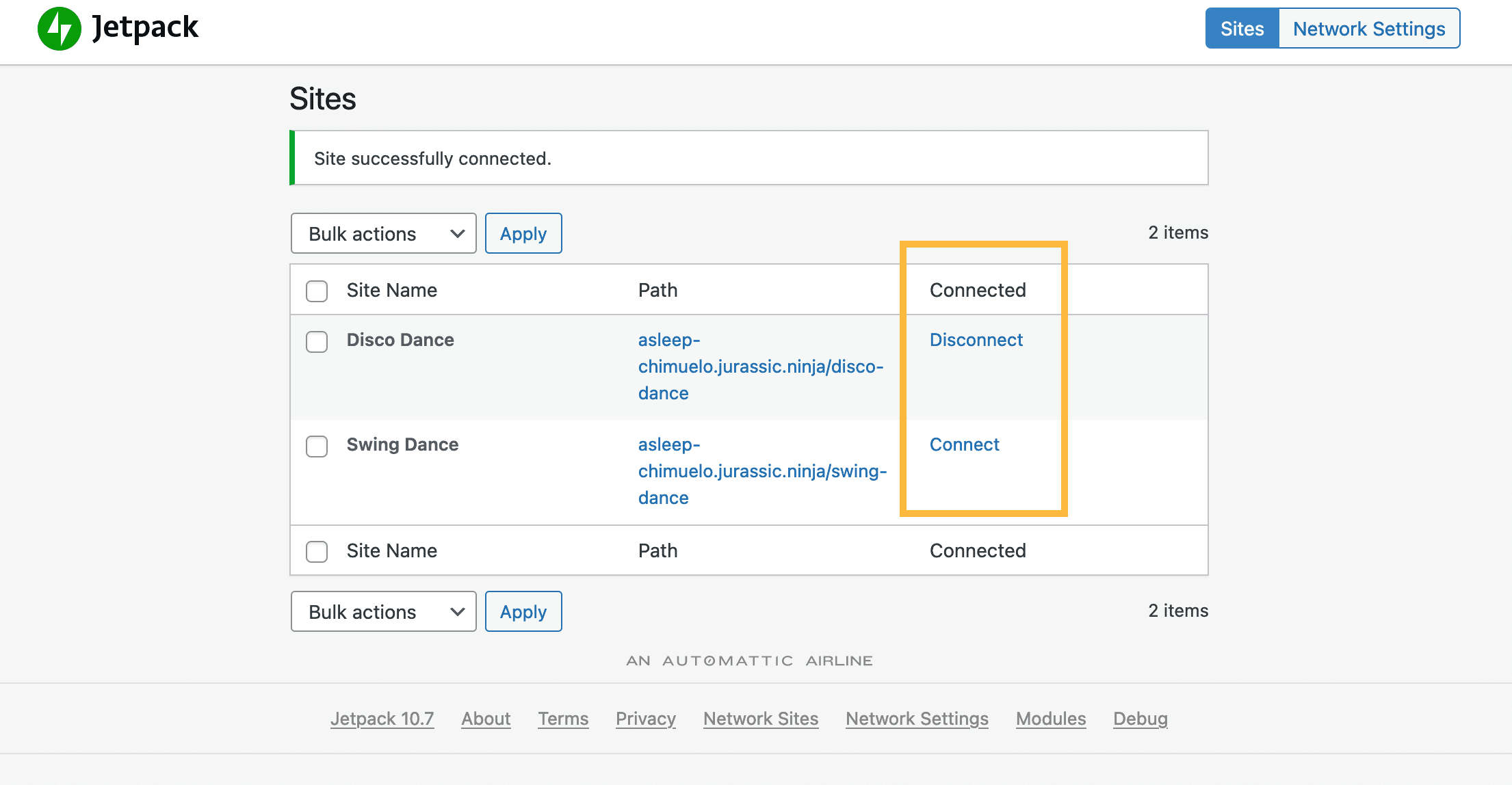
- Through the plugin management page, you can enable Jetpack for all sites in your network by going to My Sites → Network Admin → Jetpack
- You can then manage the connection to each individual site and also use the bulk action option to change settings to multiple site connection.

Individual Site Connection
Each Jetpack site can have an individual site connection. When managing this way, Jetpack will need to be enabled on each individual site.
Differences Between Jetpack Multisite and Regular Jetpack
For the most part, features on Jetpack multisite work the same as they do on regular Jetpack, but there are some differences to be aware of.
Plans
Each Jetpack site on a multisite network requires its own Jetpack plan. Plans including Jetpack Backup and Jetpack Scan are not available on multisite installations.
Brute Force Attack Protection
It requires a network-level connection to Jetpack due to the way logins are managed.
Copy Post
Using Copy Post to duplicate posts between sites within the network is not possible.
Supported features
This is a non-exhaustive list of Jetpack products or features that work with a multisite installation, with some caveats:
- Jetpack AI Assistant.
- Jetpack Boost.
- Jetpack Search.
- Jetpack Social.
- Jetpack Stats: the Stats feature does work in a Multisite network. However, each site and installation must have a separate connection to record stats. Each site needs its own Stats plan, depending on its nature and commercial/personal status.
- Jetpack VideoPress: in a standalone implementation using the Jetpack VideoPress plugin, management via WP Admin works seamlessly. However, with the full Jetpack plugin, VideoPress functions smoothly in both WP Admin and the WordPress.com Dashboard.
- My Jetpack: Non-admin users with contributor roles or higher can use it to manage their WordPress.com account connection when needed.
Unsupported features
The following Jetpack products and features do not currently support multisite:
- Jetpack VaultPress Backup.
- Jetpack Scan.
- Jetpack Web Application Firewall (WAF).
- Jetpack Anti-spam – Jetpack settings for the anti-spam feature are unavailable for multisite installations. However, the anti-spam service can work independently on each subsite if Jetpack is installed and connected to an anti-spam plan or upgrade for each subsite.
- Jetpack Ads or WordAds.
- Secure Sign-On (SSO) user’s invitation option.
Still need help?
Please contact support. We’re happy to advise.
