

If your WordPress site was flagged by Google Safe Browsing and shows a “deceptive site ahead” or “this site contains malware” warning, you’re likely on Google’s blocklist (also called the Google Safe Browsing blacklist).
This comprehensive guide walks you through the exact process to remove your site from Google’s blocklist, including malware removal, requesting a Google Safe Browsing review through Search Console, and implementing expert security practices to prevent future flags.
Whether your site was hacked, infected with malware, or flagged for black hat SEO tactics, we have all the information you need to understand if you’re on the blocklist, why your site was flagged, how to get back to normal, and how to prevent this from ever happening again.
What is Google’s blocklist? (Google Safe Browsing)
Google’s blocklist (also called Google Safe Browsing) is a database of all the websites that Google and other search engines think are harmful or dangerous. It helps protect more than four billion devices by notifying searchers about malicious content and webmasters about hacked sites. This impacts Google Search, Google Chrome, Android devices, Gmail, and Google Ads.
Why does this list exist? Because Google wants to protect its users by keeping them off of malicious websites that can steal their information or cause other damage. Plus, these types of websites don’t fit into Google’s goal of serving high-quality, relevant content for every searcher.
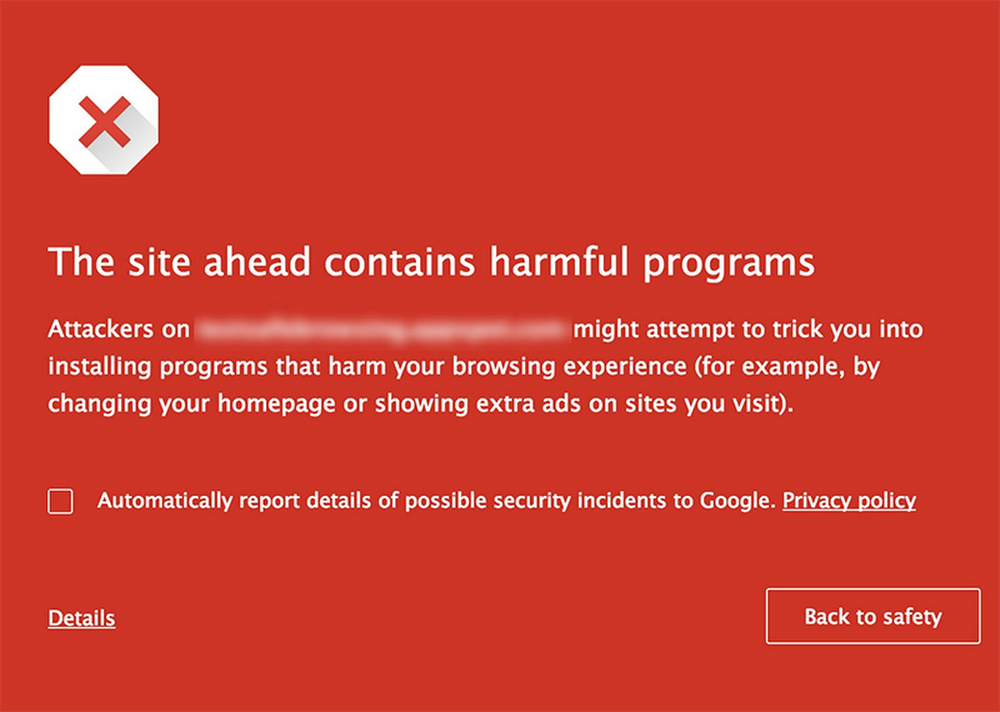
The thing is, though, your website can end up on this list even if you’re not the “bad guy.” Here are a few indications that Google blocklisted your site.
- Your site shows a “this site contains malware” warning. Google adds this message on sites that they’ve flagged to protect their users. Visitors can get past this warning by clicking “Details”, but few will.
- Your site shows a “deceptive site ahead” warning. This is another message from Google that essentially means the same thing. The exact warning shown can depend on what was found on your website.
- In Google search results, your site shows warnings like “this site may harm your computer” or “this site may be hacked.” This appears as a blue message right above the search result for your pages and can, of course, be a huge deterrent to site visitors.
- You get an email from Google Search Console informing you of a hack. If you have a Google Search Console account (and you should!), you’ll receive notifications about any potential security issues.
Want more info? Learn more about Google Safe Browsing and blocklist warnings directly from Google.
How does being on Google’s block list affect your website and SEO?
1. It turns potential visitors away with warnings
If someone arrives on your site and sees a bright red page with a perilous warning, let’s be honest — they’re probably not going to proceed. After all, they don’t want malware on their own computers! And even if they do still want to visit your site, it’s difficult to figure out how to get past the warning.
In fact, Google found that somewhere between nine and 23 percent of users click through malware and phishing warnings on sites. That means that, if your site is flagged, you could lose up to 91% of your audience — a crippling amount for any website!
And, if you sell products, offer services, or generate revenue from display ads, that also means you’ll get fewer sales and clicks. You can’t afford that!
2. It discourages people from clicking on search results
Again, would you click on a search result that specifically says it’s dangerous? No, probably not.
If there’s a warning in Google’s search results, then fewer people will click on your site. This, of course, reduces your click-through rate, page views, ad views, and sales.
Because Google uses engagement metrics to determine if sites are valuable to readers (and thus where to place them in the results), the negative impact of fewer clicks may also be compounded by a decrease in search rankings.
3. It damages your reputation
You’ve probably worked hard to build your reputation, whether you’re a blogger, service-based business, or eCommerce store. You’ve written quality blog posts, delivered stellar customer service, answered lots of questions, and have come to be recognized as a trusted resource in your industry.
But if your site is labeled as dangerous, all of that hard work could be lost. Existing customers, loyal followers, and previous clients might visit your website, see the malware warning, and think that you aren’t so trustworthy after all. This can damage long-term relationships in addition to turning away potential customers and followers.
4. It negatively affects SEO rankings
In many cases, Google will remove your site from its search results entirely if they decide that it’s not safe for their users. Then, interested shoppers and visitors may not be able to find you at all. And it can be debilitating for long-term search engine rankings, which you might have been working on for months or years.
Why might my website be blocklisted?
1. One of Google’s crawlers detected malware or suspicious activity
Google uses crawlers — the most common one is called Googlebot — to explore websites across the internet and gather information. When Googlebot finds new links or new content, it makes a note to update the Google index. The more often you make changes or add new content, the more often it visits your site.
However, if your site has been hacked, it might find malware or other types of suspicious activity. This might include phishing content designed to steal visitors’ information, spam content like comments and form submissions, or malware that visitors could accidentally download to their device.
Typically, if your site has been hacked, you’ll see other clues like suspicious links, notifications from your host or malware scanning tool, updated pages and posts, or errors on your website.
2. A display ad is driving visitors to malicious content
If you generate revenue from ads on your site, you don’t always have full control over which specific ones are shown to visitors. While ad networks do their best to prevent malicious content, nothing’s perfect. So it’s possible that one of your display ads is hostile and designed to steal visitor information or send them to a suspicious third-party site. All of this can happen without your knowledge.
3. Unsafe plugins are spreading malware
WordPress is open source, which allows absolutely anyone to create a plugin that adds valuable, additional functionality to your site. While this is a huge benefit, it also means that not every single plugin developer is ethical.
Unsafe plugins that may seem legitimate can spread malware on your site. This is typically common with nulled plugins — paid tools that are essentially stolen and sold for free or at reduced prices. Or, you may have been using an out-of-date plugin with a bug that allowed hackers to gain access to your site.
4. You’re using black hat SEO techniques
Black hat SEO is a list of techniques designed to increase your search engine rankings but that violate Google’s terms and conditions.
Black hat SEO techniques include:
- Keyword stuffing: packing your pages or posts with the same keyword over and over again to try and manipulate Google’s algorithm with the intention of increasing your rankings. This creates a negative experience for your site visitors and provides little value.
- Hidden text or links: text or links that are part of your page but aren’t visible to site visitors. This might include white text on a white page, links that look the same as the rest of your content, and text hidden with CSS code or under other elements and made invisible on purpose. This is considered deceptive.
- Link schemes: links intended to affect search results without providing value. This includes techniques like buying or selling links, automated link programs, or link exchanges that are excessive.
- Article spinning: using a program to rewrite a blog post or other piece of content using synonyms so that it appears different. This can be used to create dozens of seemingly unique pieces of content that really just say the same thing over and over.
- Sneaky redirects: links that send site visitors to a different site than they thought they were clicking on.
And, since some of these practices used to be completely legitimate, you may not even be aware that there’s anything wrong with them. However, Google frowns upon their use and can blocklist your site because of them.
5. You have plagiarized or copyrighted content or images
If you or one of your team members adds content that’s published on someone else’s site or uses a copyrighted image, you could also end up being flagged. This could be completely innocent — maybe you’re not sure of a picture’s copyright rules or add part of an article to your site to compliment the original author. However, it could still end up hurting your website.
How to check if your site is on Google’s blocklist
Many site owners only discover they’re blocklisted after traffic plummets. Use these three methods to proactively monitor your status:
1. Google Safe Browsing Status Checker
Visit `https://transparencyreport.google.com/safe-browsing/search?url=[yoursite.com]` and enter your domain. Google will show:
- Current safe browsing status
- Any detected security issues
- Historical flags (if applicable)
2. Google Search Console Security Issues report
The most reliable method:
- Sign into Search Console
- Navigate to Security & Manual Actions → Security Issues
- Check for any active warnings (you’ll receive email alerts when first flagged)
3. Browser testing
Open your site in:
- Chrome Incognito mode: Look for full-page red warning
- Firefox Private window: May show different warning text
- Safari Private mode: Check for blocking behavior
How to get your website removed from Google’s blocklist
1. Remove any malware or suspicious content
Your first goal should be to fix whatever problem got you blocklisted to begin with. So, depending on the issue, you might need to:
- Run a malware scan and fix any issues found. Use a WordPress malware scanning tool like Jetpack Scan to identify any problems. Then, either use Jetpack Scan to fix those issues, restore a backup from before the hack, or hire a professional to clean your site. Pro tip: If you use Jetpack Backup, you can find out when the hack happened using the activity log, then restore to a point just before that.
- Get rid of offending display ads. Report any malicious ads to your ad network. The exact process will vary depending on the network you use.
- Remove the malicious plugin. If the issue is a poorly-coded or malicious plugin, either update to the newest version, find another solution, or purchase the authentic version of a nulled tool.
- Change up your SEO strategy. Get rid of any black hat SEO techniques like spun articles, hidden text, or keyword stuffing. Something like link schemes could be more difficult to take care of, but disavowing your links on Google Search Console may help.
- Remove any plagiarized or copyrighted content. Delete anything on your site that doesn’t 100% belong to you or that you don’t own a license for.
2. Resubmit your site to Google
Once your site’s all cleaned up, you’ll need to ask Google to remove it from their blocklist:
1. Verify that you own your site in Google Search Console

If you already use Google Search Console, there’s no need to worry about this step. Otherwise, follow these instructions to verify your site ownership:
- Visit Google Search Console and click Start Now.
- Select a property type. You can choose between an entire domain, which covers all subdomains, or a URL prefix, which is everything under a specific URL. For the purposes of these instructions, let’s say that you use a URL prefix. Enter the URL and click Continue.
- Choose a verification method. There are several options, so it all depends on which you find easiest:
- HTML file: Upload an HTML file to your website.
- HTML tag: Add a meta tag to your site’s homepage.
- Google Analytics: Use an existing Google Analytics account to verify ownership.
- Google Tag Manager: Use an existing Google Tag Manager account to verify ownership.
- Domain name provider: Add a TXT record to your DNS settings.
- Click Verify → Done.
2. Make sure your site is loading properly.
Load several pages throughout your site to ensure that it’s visible online. You may want to do this in an incognito window to ensure that you’re not seeing a cached version.
3. Request a review.
Visit the Security Issues Report within Google Search Console. Click Request a Review. You’ll then be prompted to describe what you did to fix the issue. For example, you might want to explain the malware removal process you went through.
4. Wait for the review to be completed.
Depending on the issue, the review process could take anywhere from one day to several weeks. Once Google decides that your site is clean, all warnings will disappear within 72 hours. If it decides that your site isn’t clean, you’ll need to repeat the steps above.
How to protect your website against future blocklists
1. Change all passwords
If your site was hacked, take the time to update all of your passwords. This goes beyond just the WordPress admin — also think about logins like your cPanel, hosting account, domain name provider, FTP account, etc. Make sure each new password is unique, long enough, and includes uppercase and lowercase letters, numbers, and symbols. If you’re worried about forgetting it, you can use a tool like LastPass to make things easier.
2. Add two-factor authentication
Two-factor authentication protects your login page so, if your site was hacked, it adds an extra layer of security. Instead of just a username and password, someone will also need a one-time code to log in. That code is sent to your phone — so unless a hacker has your device, they’re locked out!
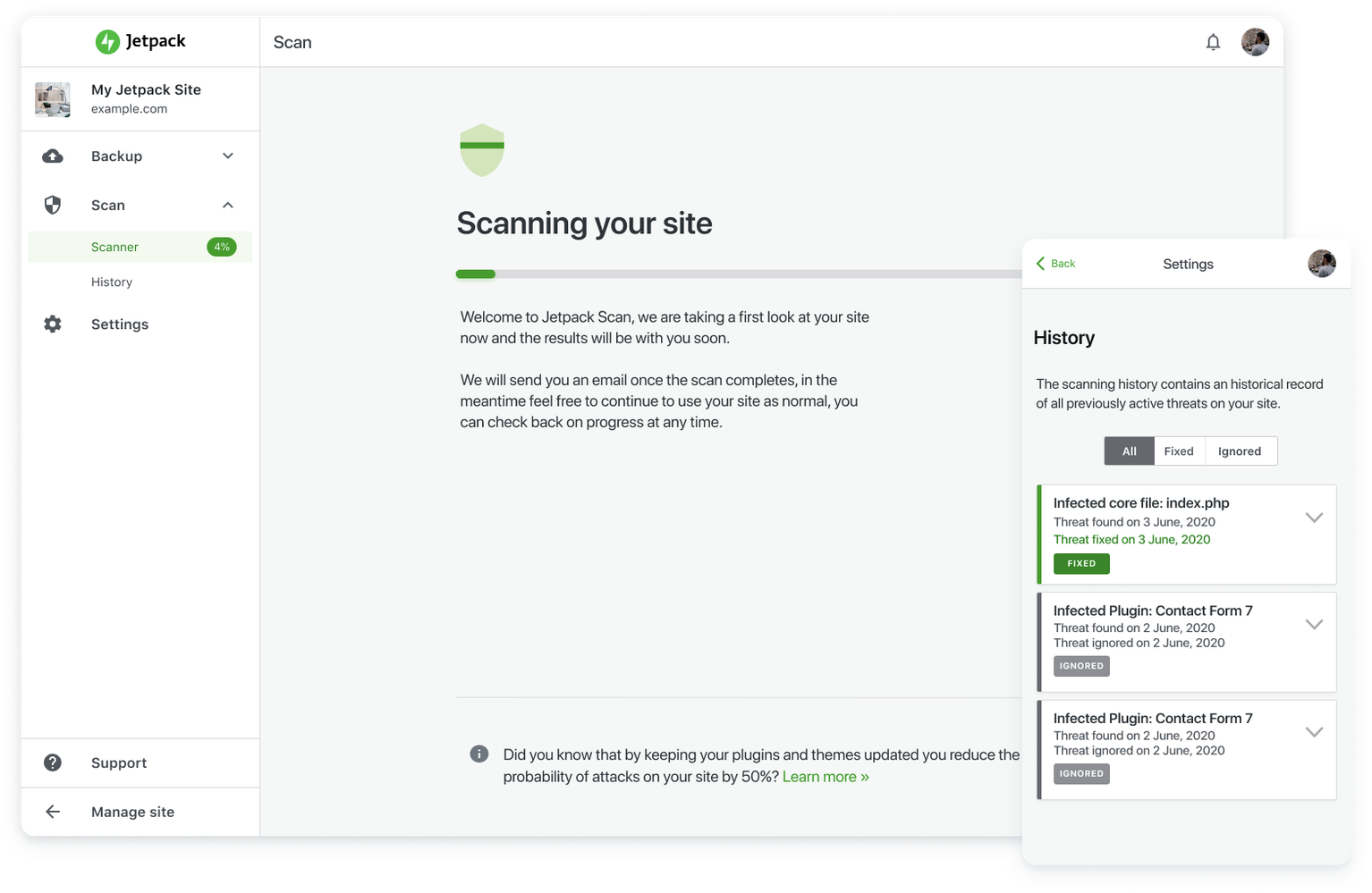
3. Run regular malware scans
Automatic malware scans run regularly on your site, searching for malware and other suspicious activity. They’ll detect anything that’s wrong as soon as it happens, allowing you to fix things quickly before they become too big of an issue (and land you on the blocklist).
4. Keep regular backups
WordPress backups are a critical part of any site. But in the event of a hack, they’re absolutely priceless. You can use them to restore your site to its exact state before something went wrong without having to hire someone to remove any malware. Plus, they get you back up and running faster, which may help you avoid Google’s blocklist.
5. Use white hat SEO techniques
When trying to improve your site rankings, avoid using any strategies that are deceptive or manipulative by nature, like keyword stuffing or hidden text. Instead, focus on writing valuable content, building helpful links through strong relationships in the industry, creating a seamless user experience, and other legitimate techniques. This will get you much further while helping you avoid the blocklist and establishing a positive reputation!
6. Only run legitimate ads on your site
If you’re using an ad network, you may not have full control over which ads show up on your website. But if you accept individual ads, make sure every single one is legitimate. Vet your advertisers, click on their links, and check their backgrounds. And, if you’re using an ad network and run across a suspicious ad, flag it as soon as possible.
7. Add brute force attack protection
Brute force attacks occur when hackers use bots to guess username/password combinations — sometimes thousands of guesses a second! By implementing brute force attack protection, you can stop these bots in their tracks so they can’t stumble upon the right combination and gain access to your site.
8. Choose quality plugins
Make sure you’re getting all of your plugins from legitimate sources, like the WordPress plugin library or WooCommerce extension marketplace. Check reviews of each one to ensure that no one has any complaints about malware or bugs. And never use nulled plugins — purchase any premium tools directly from the developer!
9. Regularly update your site
Developers often release plugin updates to patch security issues that might allow hackers to access your site. The same thing is true with WordPress core and themes. So, to make sure you’re not accidentally making things easy for suspicious characters, run updates as soon as they’re available. Worried about missing one? You can enable WordPress auto-updates to make things easier.
Get off and stay off Google’s blocklist
Remember: even if your site was flagged by Google, the situation is repairable. All you have to do is follow the steps above, ensure your site’s clear of things like malware, bad plugins, and poor SEO strategies, and put a few best practices in place to keep your website clean.
Looking for more information? Check out all the details about Google Safe Browsing.
Want the easiest way to protect your site from malware? Jetpack’s WordPress security tools provide everything you need in one comprehensive package that’s easy to set up and runs automatically in the background.
Frequently asked questions
How long does it take to remove a site from Google’s blocklist?
The time it takes to remove the warning depends on how quickly you fix the problem. Once you clean your site and send a review request to Google, the process can take several days to weeks. Google needs this time to scan your website again to make sure all the harmful files are truly gone.
If your website still has hidden malware after you request a review, Google will reject the request. This resets the clock and forces you to start over. Because of this, it is much faster to be thorough the first time than to rush the request. You should only click the request button when you are completely sure every infected file has been removed or cleaned.
Can I get my site removed from Google’s blocklist without Search Console?
No. You cannot effectively remove the warning without using Google Search Console. This tool is the only official way to communicate with Google that your site has been fixed. It is where you tell their security team exactly what you did to clean the website.
Some site owners try to just wait and hope Google notices the changes. This does not work. Google will not know you have fixed the security holes unless you file a formal report. If you have not set up an account yet, you must verify your ownership of the site first. Then you can access the Security Issues tab to submit your request for a review.
Will being blocklisted permanently damage my search rankings?
Your rankings can bounce back if you act fast. When a site is blocked for only a few days, the damage to your SEO is often temporary. Google understands that hacks happen. Once the site is clean and safe for users, your pages may start appearing in search results again where they were before.
However, if the warning stays on your site for weeks or months, the damage becomes much worse. Google will stop trusting your site. Other websites might remove links to your content because they do not want to send visitors to a dangerous page. This long-term loss of trust makes it much harder to climb back up in the rankings even after the malware is gone.
Why did Google block my website in the first place?
Google blocked your site because its automated scanners found code that could hurt visitors. This usually happens because a hacker found a way into your website files. They might have used a weak password or an outdated plugin to get inside.
Once inside, hackers insert malicious software. This software might try to steal credit card numbers from your customers. It might also try to trick visitors into downloading viruses. Google puts up the red warning screen to stop users from getting hurt. The goal is not to punish you. The goal is to keep the people who search on Google safe from bad software and scams.
Does the Google blocklist affect my Google Ads campaigns?
Yes. Being on the blocklist will stop your Google Ads immediately. Google does not allow advertisers to send traffic to a page that is flagged as dangerous. Your ads will be disapproved, and your account might be suspended if the issue is not fixed quickly.
This happens because the Safe Browsing list is used across all Google products. It protects Search, Gmail, and Ads equally. You cannot run ads again until the red warning is completely removed from your site. Once your site is clean and the block is lifted, you will need to appeal the ad disapproval inside your Google Ads account to get your campaigns running again.
What is the difference between “Deceptive Site Ahead” and “The Site Ahead Contains Malware”?
These two warnings tell you about different types of danger. The “Deceptive Site Ahead” message usually means your site is hosting a phishing attack. This happens when hackers put up fake pages that look like login screens for banks or email services to steal passwords.
The “The Site Ahead Contains Malware” message is different. It means your site is trying to install bad software on a visitor’s computer. This software could be a virus or a program that spies on the user. Knowing which warning you have is helpful because it tells you what kind of bad files you need to look for during your cleanup process.
Can my web hosting provider clean the malware for me?
Some hosting providers will help you, but many will not. It depends on what kind of service you pay for. Premium managed WordPress hosts often have support teams that will help scan and clean your site because they want to keep their servers safe.
On the other hand, cheap shared hosting providers often do the opposite. If they see your site is infected, they might take your site offline immediately to protect other customers. They will then tell you to fix it yourself before they turn it back on. You should check your hosting support policy to see if they offer malware removal services or if you need to hire an outside expert.
Why does the malware come back after I delete the infected files?
Malware often returns because you removed the symptoms but not the cause. Deleting a bad file is only the first step. If you do not close the hole the hacker used to get in, they will just walk right back in and reinfect the site.
Hackers also leave behind hidden entry points called “backdoors.” A backdoor is a small piece of code that allows them to regain access even after you change your passwords. To stop the malware from coming back, you must find and delete these backdoors. You also need to update every plugin and theme to the latest version to patch the security holes that let them in.

 Jetpack