

WordPress websites account for over 43 percent of all websites, and this popularity makes the platform a target for online attacks. That means, while there are seemingly unlimited benefits to WordPress, there are also known vulnerabilities that hackers can exploit.
That’s why it’s a good idea to take the proper web security measures to prevent your WordPress site from being hacked. This way, you can secure all your sensitive data, preserve your business’ reputation, and maintain customer trust and loyalty.
In this guide, we’ll take a closer look at common WordPress hacks and vulnerabilities. Then, we’ll show you how to prevent WordPress hacking attempts.
Quick start guide: 3 fast steps to protect WordPress from hackers
If you do nothing else, move ahead with these 3 essential steps today. They eliminate the most common real-world compromise paths (outdated software, compromised credentials, weak access control, and missing recovery).
Today (15–30 min):
- Update WordPress core + plugins + themes (and delete anything unused).
- Install and activate a security plugin like Jetpack Security for brute force protection, malware scanning, a website firewall, and realtime off-site backups.
- Turn on two‑factor authentication (2FA) for every admin user, and remove unused accounts.
How common are WordPress hacks?
The WordPress core software is very secure and is regularly audited by developers. That said, the popularity of the content management system (CMS) makes it a target for hackers that want to cast a wide net to steal sensitive information, distribute malware, and carry out other malicious actions.
WordPress may also be targeted because, as open-source software, WordPress makes all security vulnerabilities publicly known. In fact, WPScan currently has 49,000 WordPress vulnerabilities listed in its database.
This can make it easier for bad actors to compromise the software. Plus, as a beginner-friendly platform, many WordPress users don’t know how to properly maintain and secure their websites. For instance, one of the best ways to secure WordPress is to keep software up-to-date. But only 80 percent of WordPress users have installed version six of the software.
And, of that 80 percent, only 75 percent are using the absolute most recent WordPress release. As such, these websites may find it harder to prevent WordPress hacks.
Common vulnerabilities that cause WordPress site hacks
Now that you know a bit more about the problem, let’s take a look at the main vulnerabilities that can lead to WordPress hacks.
1. Outdated WordPress core and plugins
The WordPress core software is regularly updated with new features, bug fixes, and other security enhancements. In fact, there’s already been ten WordPress releases so far this year.
The latest release came with two bug fixes in Core, 12 fixes for the block editor, and one additional security fix. Most plugin developers also release newer versions of their own software that come with security fixes.
So once a piece of software has existed for some time, hackers are more likely to figure out how to exploit its weaknesses. Then, they’re able to use it as a backdoor to gain unauthorized access to your website to carry out malicious activities.
2. Weak passwords
Another common cause of WordPress hacks is weak password choices, and it’s one of the easiest ones to resolve. The bad news is that many users prioritize convenience over security when it comes to setting new passwords.
In fact, “123456” was the most common password last year, and was used more than 4.5 million times. The second most used password was “admin,” which was used four million times.
Even if website owners understand the importance of strong passwords, not every user will take the precaution to set them. That’s why it’s a good idea to educate users and enforce strong passwords across WordPress using tools like Password Policy Manager.
3. Insecure and outdated themes
As is the case with WordPress core and plugins, insecure and outdated themes are another prime candidate for WordPress hacks. Like with plugins, outdated themes are often missing security patches and bug fixes.
Plus, they may become incompatible with other plugins and the core software, which can lead to WordPress errors like the white screen of death. On top of that, since WordPress is open-source, any developer can sell themes online.
That’s why it’s important to stick to trusted sources and developers to make sure that themes are safe to use. Another positive sign is frequent updates, which you can check on the dedicated theme’s page. It’s also useful to check out ratings and read the reviews. Lots of active installations can also indicate that a theme is safe to use.
4. Lack of a security plugin
Security plugins provide a proactive way to detect threats and protect your site against WordPress attacks. Better yet, most security plugins work automatically. That means, once your security tool is configured, it will work in the background with little to no manual management required.
Without security plugins, it’s easy to miss the common signs of a WordPress hacking attempt. For instance, solutions like Jetpack Security come with brute force protection and a web application firewall (WAF) to filter out suspicious traffic on your site.

What’s more, Jetpack provides real-time malware scanning, as well as comment and spam protection. You can also automate the backup process and store your website copies in a secure, remote location. Plus, it’s easy to restore your website if anything goes wrong.
How hackers exploit these vulnerabilities
Now that you know the main vulnerabilities that lead to WordPress hacks, let’s take a look at the most common ways that hackers exploit these vulnerabilities. The primary method for WordPress hacks is to target either core files, plugins, themes, or login pages.
Many hackers utilize bots that automatically scan websites to identify weaknesses that can later be exploited. Additionally, hackers can deceive websites by using different user agents, sending different information to websites about the browser and operating system.
The WordPress login page is also a common point of entry for hackers. If you don’t change the default WordPress login page URL, anybody can find it by adding a certain suffix like “/admin” to the end of your domain name.
Then, attackers can utilize brute force attacks which involve trying hundreds of username and password combinations until they gain access to your site. And, as we discussed, many users rely on weak passwords which can be cracked very quickly.
The financial and reputational consequences of a hacked site
One of the main reasons why people want to know how to prevent WordPress hacking attempts is to avoid the financial consequences of a hacked site. Naturally, if an unauthorized person gains access to your site, they can view, tamper with, and steal private data.
If you have the personal information or payment details of customers on file, you may be in breach of data protection laws which come with hefty penalties. In fact, severe GDPR violations can be up to 20 million Euros. And last year, the average cost of a data breach in the United States amounted to nearly 9.5 million dollars.
Not only that, but this type of breach is simply a violation of privacy, which can lead to the loss of trust and loyalty of long-standing customers. As a result, it can cause permanent damage to your company’s reputation. This can be difficult to recover from, especially if your brand is less established.
You also have to think about the cost to fix or recover a website, which will depend on the type of WordPress hack. To deal with ransomware attacks, you may need to pay a lot of money to regain access to your site. Meanwhile, it can be expensive to clean or replace important site files.
Lastly, hacked websites that are deemed suspicious or dangerous can be placed on Google blocklists. If this happens, it can be difficult to remove your site from blocklists. And, since your website won’t appear in the search results until it’s removed from this list, you’ll likely take a hit to traffic and revenue.
Measures to prevent a WordPress site from being hacked
Now that you know the main causes and consequences of hacks, let’s take a look at how to prevent WordPress hacking attempts.
1. Keep WordPress up-to-date
One of the main ways for hackers to gain unauthorized access to your site is to exploit known vulnerabilities in old versions of software. This goes for the WordPress core software, plugins, and themes.
Additionally, most updates come with bug fixes and other security enhancements which make it harder for hackers to carry out attacks. And where plugins and themes are concerned, even deactivated software can be targeted, so it’s best to delete software that you no longer use.
To prevent WordPress hacks, it’s important to update your website as soon as new versions are available. You’ll usually see a notification when updates are ready. But, you can also go to Dashboard → Updates within the WordPress admin screen.

Here, you can see if there’s a new version of WordPress to install, or you can click on the Check again link to make sure. If there is a new version available, it’s a good idea to back up your site before you run the update, and perform the update in a staging environment first.
Further down, you’ll see all the themes and plugins listed that have updates available.
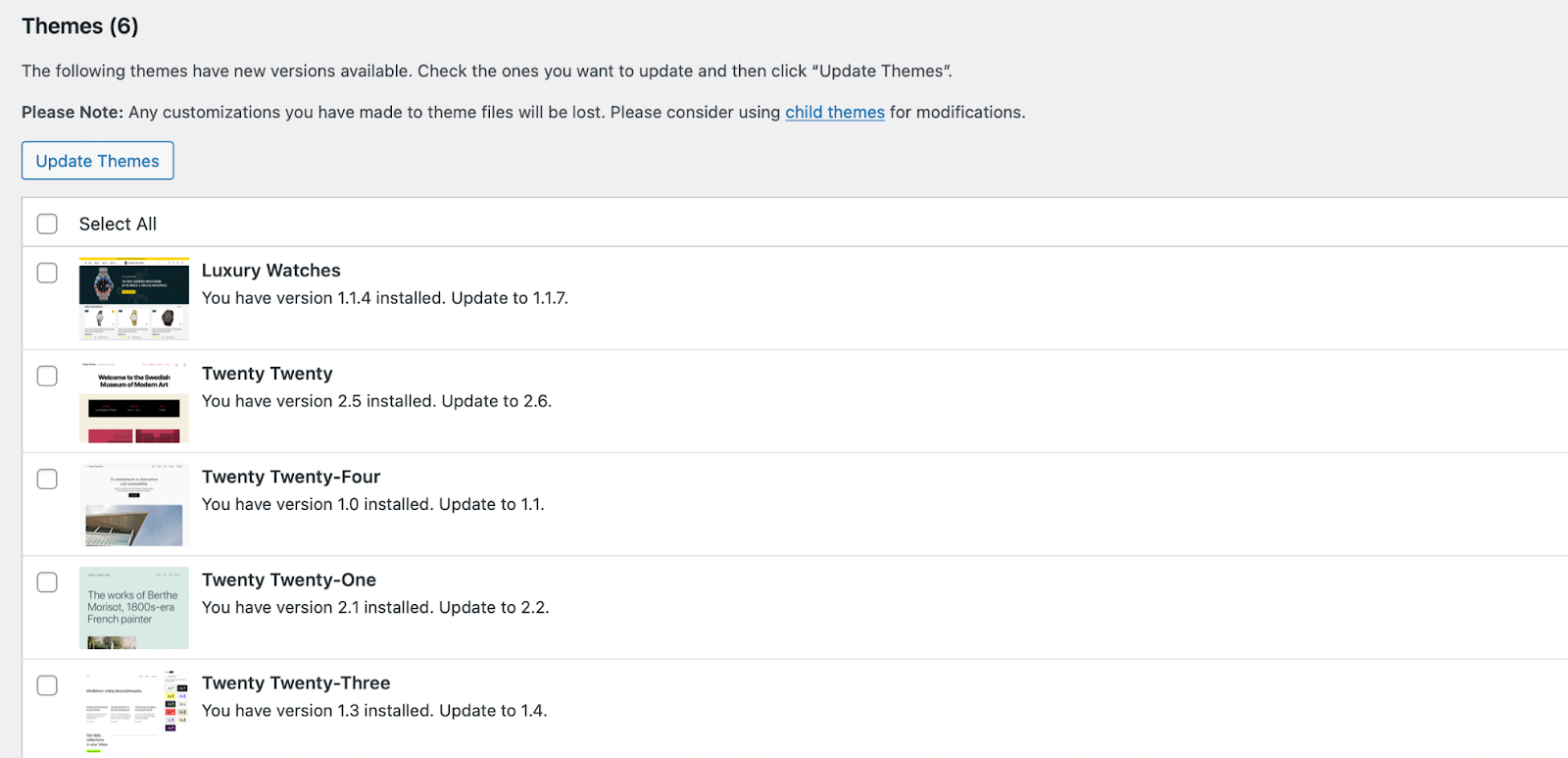
To update plugins and themes, check the box next to each one, and then click on Update Plugins or Update Themes.
For peace of mind, it can be best to enable auto-updates for plugins that you use regularly. This way, you don’t have to worry about the software becoming outdated and unsafe. To do this, simply navigate to the Installed Plugins page.
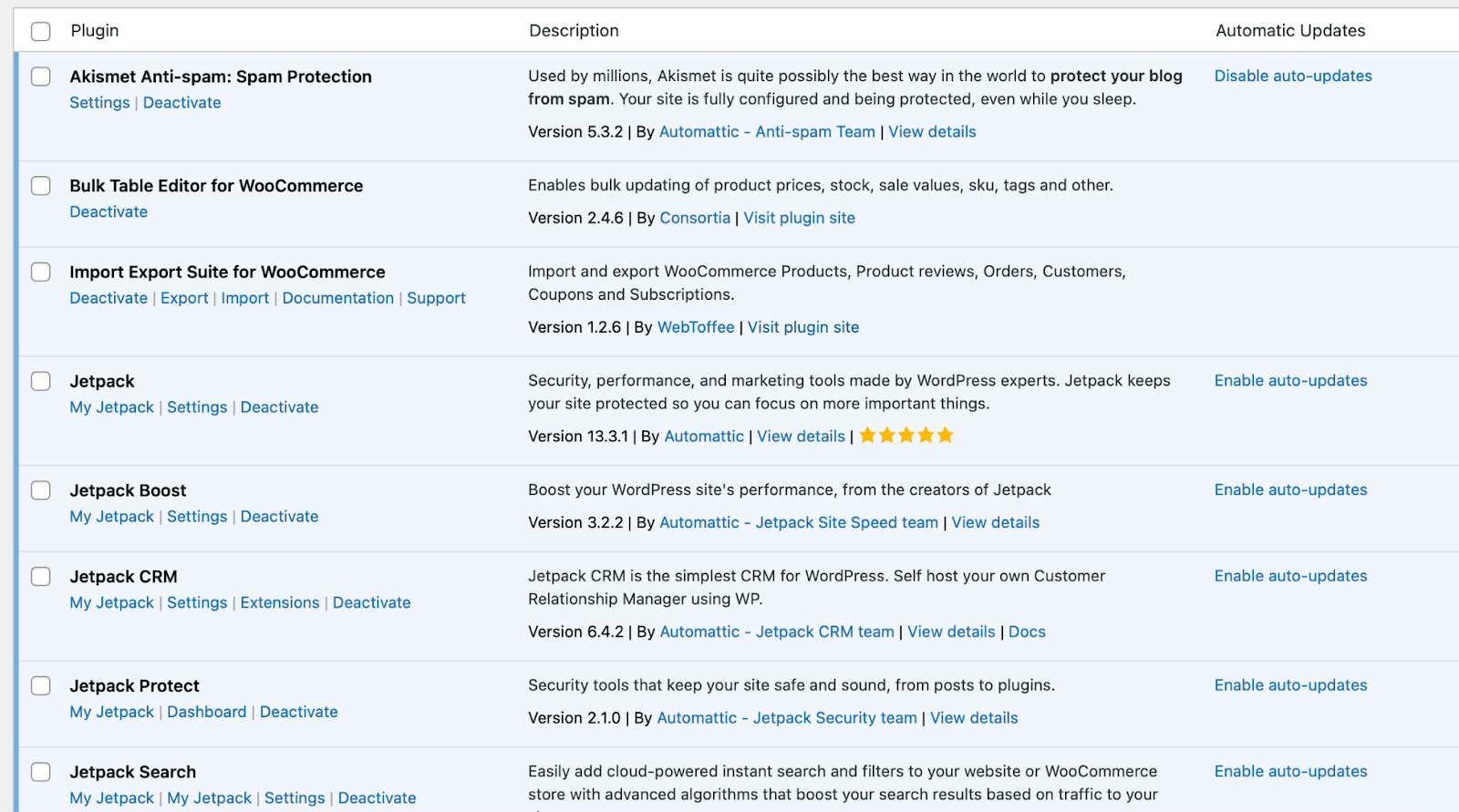
In the Automatic Updates column, you should see an Enable auto-updates link beside each installed plugin. All you have to do is click on the link. Then, if you change your mind at any point, just disable this feature.
2. Choose a secure hosting provider
If you’re wondering how to prevent WordPress hacking attempts, it’s important to choose a secure hosting provider. Although there are tons of web hosts available, some solutions take extra measures to protect servers against known threats.
A quality hosting service should also include a method to monitor suspicious traffic (like a firewall). Moreover, most good web hosts have tools in place to prevent distributed denial of service (DDoS) attacks, and provide regular backups to recover your website quickly.
Bluehost is one popular hosting provider which offers a range of affordable plans.
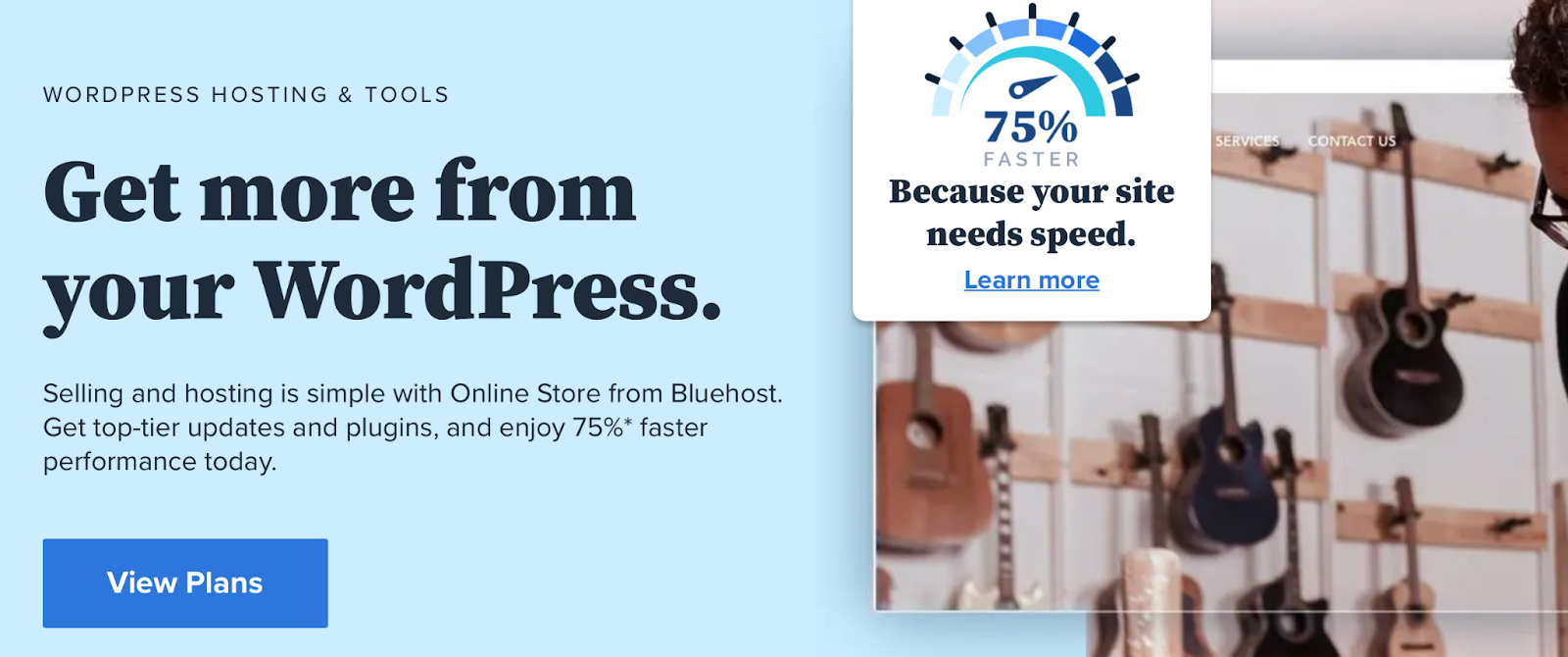
Bluehost also offers a comprehensive suite of security features. In fact, it offers data encryption, automatic backups, malware scans, and 24/7 support. Better yet, selected packages come with DDoS mitigation, a web application firewall (WAF), and more.
It’s also important to consider the type of website hosting that you’ll use. While shared hosting is the most affordable option, it comes with a higher risk of cross-site contamination. That’s because with this type of plan, you’ll share a server with other websites that might not take the same security precautions as you.
With this in mind, it can be better to opt for dedicated or virtual private server (VPS) hosting.
Or, managed hosting solutions typically provide a secure environment for your website since plenty of maintenance tasks are taken care of for you. This often includes backups, updates, and other security configurations.
3. Install an all-in-one security plugin
As mentioned, one of the most convenient ways to prevent WordPress hacks is to install an all-in-one security plugin. This way, you can automate many security processes so that you don’t have to continually check or manually update configurations.
Again, there are a number of security plugins available, but Jetpack Security makes an excellent option for hardening WordPress websites.
With a sleek dashboard and intuitive interface, it’s suitable for even complete beginners. You’ll get access to a premium WAF to filter all incoming web traffic. And, you can even block specific IP addresses that you know to be suspicious.
Thanks to a 30-day activity log, you can keep an eye on every action that’s performed on your website. This makes it easier to identify the cause of security issues and errors. Plus, Jetpack provides real-time malware scanning with many one-click fixes.
What’s more, all backups are stored in the Jetpack Cloud. So, if your server gets compromised, your backups remain safe and secure. And, you can restore your site to an exact point in time, while still maintaining current customer order details.
4. Enforce strong password policies
If you want to know how to prevent WordPress hacking attempts, another strategy is to strengthen the WordPress login procedure. A large part of this involves using and enforcing strong password policies.
A strong password contains a mix of uppercase and lowercase letters, numbers, and special characters. But, even if your password meets all these parameters, it can still be cracked instantly if it’s fewer than seven characters. Therefore, it’s best to opt for long passwords.
Still, even if you follow these best practices for your own passwords, this is essentially futile if other users on your site use weak passwords. As such, it’s a good idea to enforce strong passwords across WordPress using a plugin like Password Policy Manager.
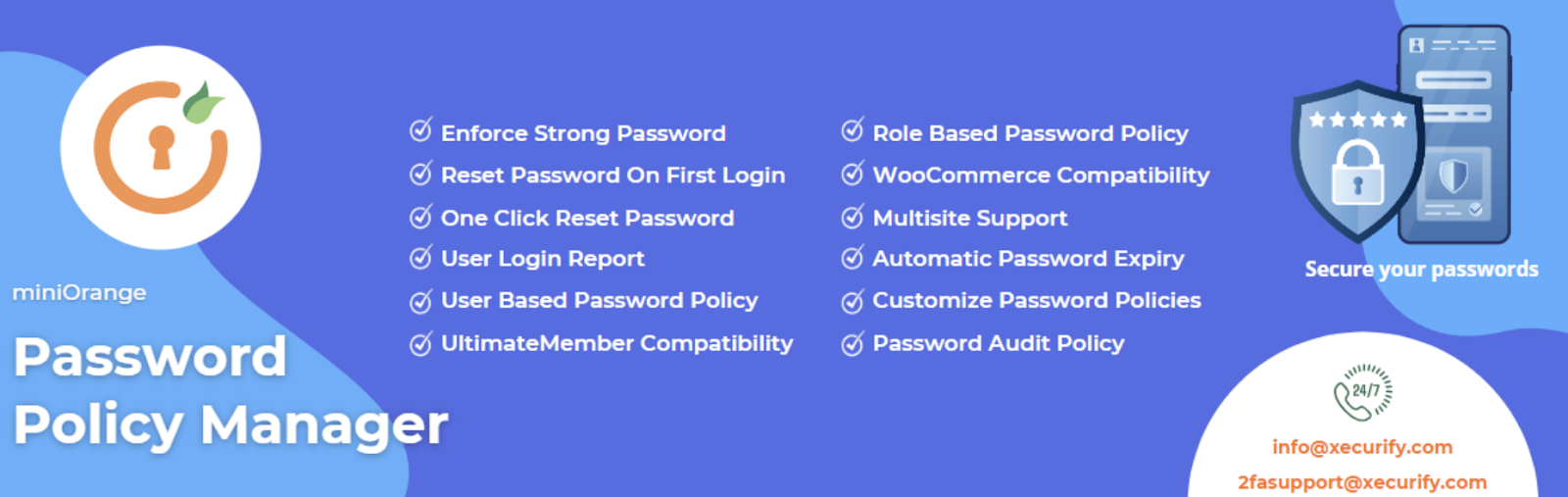
This way, you can determine password strength, force password resets, and define a period of time in which passwords will automatically expire. Additionally, with the premium version, you can lock out inactive users and generate random passwords to prevent brute force attacks.
5. Implement two-factor authentication (2FA)
Strong passwords play a vital role in hardening the WordPress login procedure, but you can add an extra layer of security using two-factor authentication. With this setup, users need to supply a second key (as well as a password) in order to gain access to your site.
Typically, this second key is a unique code that gets sent to an email address or mobile device associated with the user account. The good news is that you can secure login — including requiring 2FA — by forcing site login through a WordPress.com account. This can be done with the secure authentication feature on Jetpack.
This way, even if hackers are successful in retrieving passwords and usernames, they’ll be unable to enter the second key (which is usually generated in real-time).
6. Secure file and directory permissions
WordPress websites are made up of different files and directories with controls that determine which users can access and edit them. Without these permissions, anybody with access to your site can view and modify files.
This can be a security issue, especially if user accounts get taken over by malicious actors who would then be able to cause damage. If you use cPanel, or access your site via file transfer protocol (FTP), you’ve probably seen the WordPress files and directories.
In general, the correct file permission values for WordPress are 644 for files and 755 for folders. But, there are instances where you might prefer to secure your files further, as is often the case with the wp-config.php file and the .htaccess file.
If you want to make these files less permissive, you can change the values to 640 or 600. In fact, to lock the files down further, you might even prefer a value of 444, but this can restrict plugins that need access to the files (like many caching plugins).
We guard your site. You run your business.
Jetpack Security provides easy‑to‑use, comprehensive WordPress site security, including real‑time backups, a web application firewall, malware scanning, and spam protection.
Secure your site7. Install an SSL certificate
The secure sockets layer (SSL) protocol provides an extra layer of security for websites that deal with the transfer of sensitive information like credit card data. With an SSL certificate, the data gets encrypted. That means, even if it’s intercepted by hackers, it remains unreadable.
Additionally, SSL security verifies ownership of your website, which prevents hackers from creating fake versions of it. Therefore, it can also help establish credibility and increase customer trust.
The good news is that plenty of web hosting providers offer free SSL certificates as part of their hosting services. Or, you can purchase an SSL certificate from a valid certificate authority like Let’s Encrypt.
8. Install a web application firewall (WAF)
Another popular way to prevent WordPress hacks is to install a web application firewall. This enables you to filter all incoming traffic and block any suspicious IP addresses.
It’s a preventative measure that works like a barrier, so you can rest assured that hackers won’t even make it to your website. And, if you use Jetpack Security, you can access this added layer of security and configure specific rules for it.
To enable Jetpack’s firewall, you’ll first need a plan that includes Jetpack Scan. Then, head to Jetpack → Settings. Then, scroll down to the Firewall section and use the toggle buttons to enable the firewall, block specific IPs, and allow specific IPs.
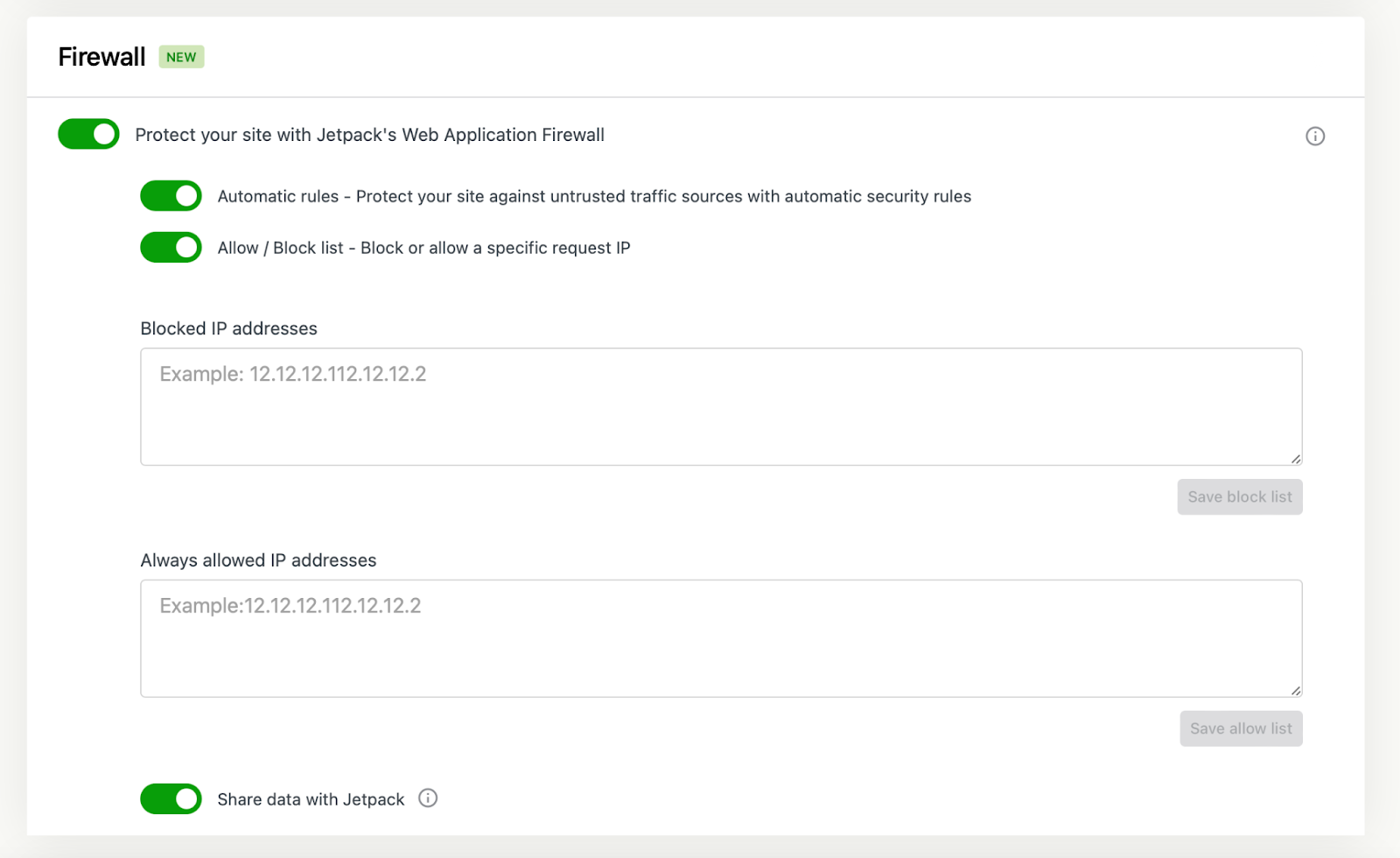
To block or allow IPs, you’ll need to enter complete IP addresses in the relevant box(es). Then, click on Save block list or Save allow list.
9. Regularly scan your site for vulnerabilities
If you’re wondering how to prevent WordPress hacking attempts, it’s also a good idea to set up regular vulnerability scans. This way, you can access around-the-clock protection and quickly detect any potential threats.
Jetpack Security provides 24/7 protection thanks to its WAF and real-time malware scans that pick up on the most up-to-date threats. But, if you’re on a tight budget, you may prefer to get started with Jetpack Scan, which provides access to these features alone (without the added benefits of Jetpack Security like real-time backups and spam protection).
You’ll still be able to use Jetpack’s WAF and malware service. And, if something is wrong with your site, you’ll be notified instantly by email. One of the best features is that all scans take place on Jetpack’s own servers, so you can still access your site even if it goes down.
This plugin will identify any vulnerabilities in plugins, themes, and select files and directories. By default, you’ll get a daily scan, but you can also initiate scans manually. And, you’re able to view the scan results directly from your dashboard (and enable one-click fixes for most issues).
10. Remove inactive user accounts
Inactive user accounts can clog up your website and raise security concerns. Typically, if a user hasn’t logged into their account in the last 90 days, this marks a clear sign of user inactivity.
It’s important to remove these accounts to prevent security issues. For instance, old accounts contain passwords that haven’t been changed in a long time, so there’s a greater chance that they’ve been leaked on the dark web.
Then, log in to the WordPress dashboard and go to Users → All Users. Beneath the user profile, you can send a password reset link if you’d prefer. Or, simply click on Delete and confirm the action on the next page.
It’s up to you to determine the specific boundaries for how you define unused accounts. You might have users that have created an account but never made a contribution or purchased a product. Or, there may be users that have never consistently utilized their accounts.
If you’re dealing with a large number of users, and you’re not sure how active they are, you can always install a free plugin like WP Last Login to track this. This tool enables you to view the last login date of users directly in the WordPress dashboard.
11. Track and monitor user activity
Another great way to prevent WordPress hacking attempts is to track and monitor user activity. This way, you can keep a complete record of every action that’s performed on your website.
For instance, depending on the tool you’re using, you may be able to see when a user runs an update, installs a plugin, uploads images, leaves comments, and more. This makes site management much more transparent, and it can speed up repairs and debugging.
The good news is that if you’re using Jetpack Security, you’ll get access to an activity log that stores user actions. More than that, you’ll get detailed information about the event, including the user that performed the action and the exact time when it took place.
Better yet, even with the free version of Jetpack, you can view the last 20 events that were carried out on your site. This can help you prevent brute force attacks since you’ll also be notified of login attempts by users.
12. Rename the default “admin” user account
As we discussed, it can be easy for hackers to access your site if you don’t change the default login page URL (which we’ll discuss later). But, also, many people continue to keep “admin” as the username of their WordPress account.
This means that hackers only need to guess your password correctly, and they’ll gain complete control over your website, since the administrator account has no limitations. Therefore, it’s best to change the default “admin” account name to prevent WordPress hacks.
To do this, go to Users → Add New User within the WordPress dashboard. Complete all the required fields, including a unique username that isn’t “admin”. Then, use the Role dropdown menu to select Administrator.
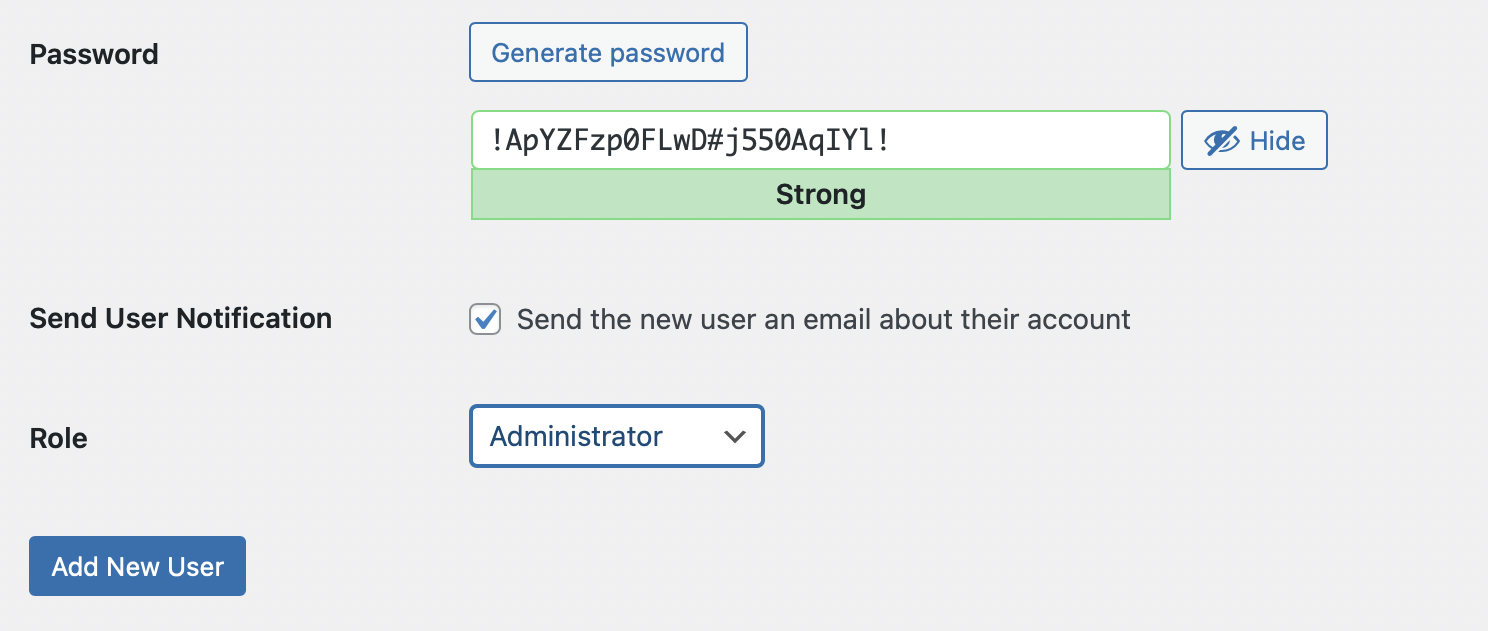
Now, click on Add New User at the bottom of the page. Now, on the All Users screen, you should see the new administrator account you just created.
At this point, you’ll need to log out of your current account (the old admin account) and log back into WordPress using your new administrator account credentials. Then, return to the Users → All Users screen and click on the Delete link beneath the old administrator account.
But, it’s important to attribute all posts and pages to the new administrator account. Otherwise, any content that was created using the old admin account will be deleted.
Therefore, you’ll need to check the box that says Attribute all posts to and use the dropdown box to select the new admin user.

Then, click on Confirm Deletion.
13. Hide wp-admin/ and wp-login.php
To help prevent WordPress hacking attempts, you can also hide the wp-admin and wp-login.php pages. By default, WordPress uses a standard login URL that combines your domain name with the wp-login.php suffix.
This basic structure looks the same even if you use subdomains and subdirectories. Therefore, hackers can enter this into the search bar and land right on your WordPress login page.
Additionally, if you combine your domain with the wp-admin suffix, hackers can be directed to the admin login page. So, if you want to make it harder for attackers to access your site, it’s best to change the login page URLs.
The easiest way to do this is to use a plugin like WPS Hide Login, which makes the wp-admin directory and the /wp-login.php page inaccessible.
Using this tool, you can replace it with a custom login URL that you’ll only share with users that you trust. It also works on subdomains and subfolders. But if you don’t want to use a plugin, you can also hide the login page URLs manually.
14. Secure your /wp-config.php file
Another common way to prevent WordPress hacking attempts is to secure your wp-config.php file. This is one of the most important WordPress files since it contains information about your WordPress installation, like database connection details and WordPress security keys.
The bad news is that WordPress has a default location for the file, which makes it easier for hackers to find. Therefore, you can move this folder outside the root directory of your site (which is usually labeled /public_html) and it will still work.
Additionally, you might also like to restrict file permissions so that only true owners can edit the file. To do this, you’ll need to download the .htaccess file, which you’ll also find in the root folder.
Then, in a plain text editor, open the file and add the following code:
<files wp-config.php>

order allow,deny

deny from all

</files>
Now, you can upload the updated .htaccess file back to the root folder to deny access to the wp-config.php file.
15. Regularly back up your site
It’s easy to panic when your website gets hacked. But, if you have an up-to-date copy of your website, you can resolve the issue promptly.
Although you can create manual backups of your database, the simplest method is to install a security plugin like Jetpack Security. This way, you’ll get access to Jetpack VaultPress Backup, which is a dedicated WordPress backup solution.
The plugin creates the first backup of your site as soon as the purchase is complete. It’s an ideal choice for ecommerce stores because it backs up all customer and order data as well as images, page content, and more.
The best part is, that unlike with built-in web hosting options, backups are stored in Jetpack’s remote cloud storage. That means you’re able to restore a clean version of your site even when you can’t log in. Plus, you can choose the exact point in time to which you want to restore your site.
How Jetpack Security handles WordPress security for peace of mind
Now that you know how to prevent WordPress hacking attempts, here’s how Jetpack Security protects your website so you can have total peace of mind.
24/7 Malware and vulnerability scanning
One of the main ways that Jetpack Security helps you prevent WordPress hacks is with real-time malware and vulnerability scanning. Malware refers to malicious software which can be used to steal or delete data, hijack core functions, and spy on your computer activity.
But, Jetpack Scan isn’t limited to just malware detection. It can also identify suspicious changes to core WordPress files, outdated or insecure plugins, and web-based shells, which give hackers full access to your server.
Once you install Jetpack Security, the first scan will start immediately. Then, go to Jetpack → Protect → Scan to view the results (although you may need to authorize your WordPress.com account first).
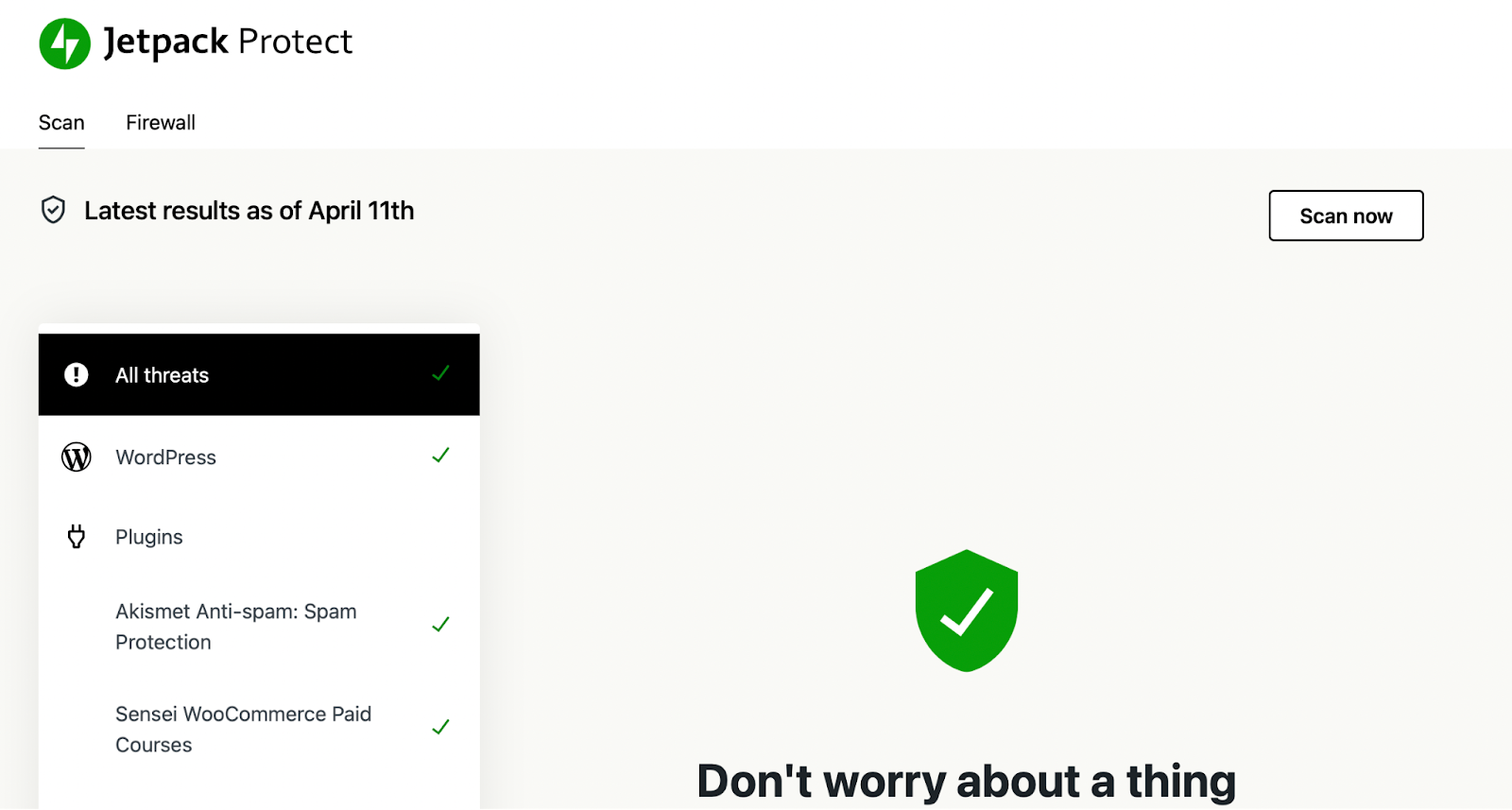
Here, you can also initiate a new scan manually, and view your scan results. Plus, you’ll be able to see whether there are any active threats. And, if there’s more than one threat identified, these will be prioritized by severity.
If threats are detected, you’ll also receive an instant email notification and be able to view the threats within the WordPress dashboard. What’s more, Jetpack often provides one-click solutions to resolve issues.
Real-time backups and one-click restores
Backups enable you to quickly recover from a WordPress hack. Without a backup, your website may remain down for a while, as you try to identify patches to address the issue. This will likely have an impact on your website traffic and revenue.
With Jetpack Security, you can simply replace the affected website with a clean and up-to-date version. Jetpack’s real-time backups are stored in the cloud, so even if your entire server is affected, you can still access the replicated website.
What’s more, Jetpack even backs up WooCommerce orders, products, and databases — which helps you remain compliant with data protection laws. And the restoration process can be performed with just one click.
Brute force attack protection
Brute force attacks were listed as one of the primary causes of cyberattacks encountered by businesses in the United States in 2022. It was also ranked as the fifth leading cause of ransomware attacks worldwide as of 2023.
Brute force attacks slow down your site due to repeated server requests, but the real aim is to gain access to important site files where hackers can insert malicious code or scripts. But with Jetpack Security, you can block attacks of this nature through your dashboard.
All you have to do is go to Jetpack → Settings and scroll down to the relevant section where you’ll see a toggle to enable or disable the feature.
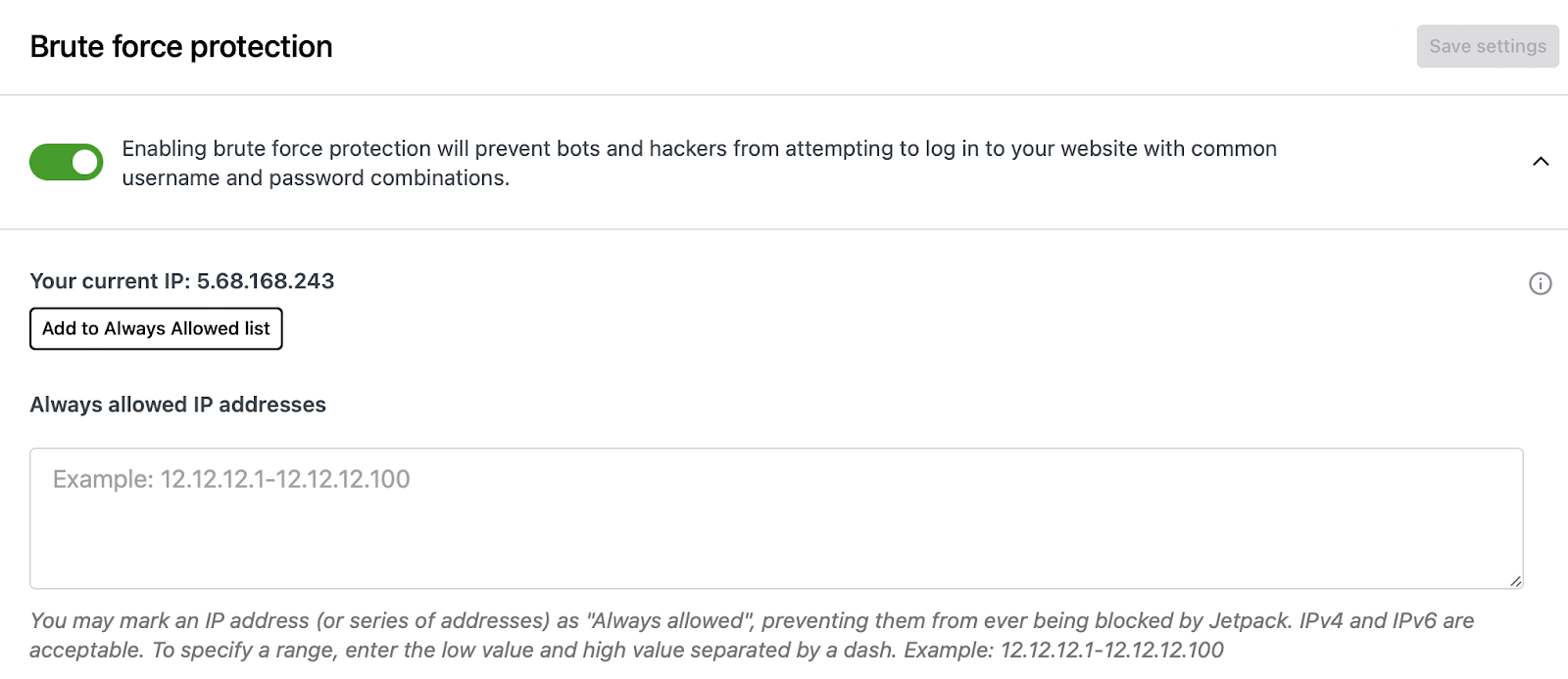
In fact, on average, Jetpack blocks 5193 brute force attacks over a website’s lifetime. It automatically blocks malicious IPs before they even reach your site. And, you can allow known IPs to reduce false positives.
A 30-day user activity log
If you want to know how to prevent WordPress hacking attempts, an activity log is an excellent solution. This way, you can track every action performed on your site — like plugin and theme updates, setting modifications, and user logins.
With Jetpack Security, you can store user actions for up to 30 days, which can simplify site management tasks, and improve the effectiveness of debugging and repairs. Plus, you’ll get detailed information about each event, including a timestamp, user, and description.
Easy one-click fixes
Another way that Jetpack Security helps to prevent WordPress hacks is with its easy, one-click fixes. This sets Jetpack apart from other security plugins that may be good at identifying the issues, but don’t provide a way to resolve them.
This means that your website may suffer long bouts of downtime where your content is inaccessible to visitors, and you’re unable to earn revenue. The good news is that if you use Jetpack Security, you’ll get access to real-time vulnerability scans.
As we mentioned, you can perform a scan by going to Jetpack → Protect → Scan. Here, you can also view the results of scans. Plus, you can find more information about the detected threats and even click on the Fix all button to resolve issues in bulk.
Comment and form spam protection
Akismet is one of the most popular anti-spam plugins, and it offers some impressive capabilities. It blocks an average of 7.5 million spam submissions per hour. And with Jetpack Security (as well as other select Jetpack plans), you’ll get access to the plugin to block comment spam and form spam.
Naturally, spam can be very frustrating to deal with, and it can make your website look less trustworthy and reliable from a customer’s point of view. But, it can also contain dangerous malware which can be used to damage devices and steal sensitive data.
Basically, the comment section and form fields enable anybody to interact with your website. As such, these areas tend to be prime targets for spam attacks.
Fortunately, you can address this problem by going to Jetpack → Akismet Anti-spam from your dashboard.
Here, you can see how many spam attempts have been blocked, and view an accuracy rating which considers missed spam and false positives.
Additionally, you’re able to set up automatic spam filtering so that you never have to see the worst and most pervasive instances of spam. Or, you might configure the settings so that every piece of spam is directed to a dedicated spam folder where you can review it.
5 Million+ sites trust Jetpack for their website security
While WordPress is largely considered to be a secure platform for websites, it’s also an attractive target for hackers because it’s so popular. With that in mind, it’s important to take measures to prevent WordPress hacks. This way, you can better protect customer data and preserve your good reputation.
Strong passwords, two-factor authentication, and a web application firewall are all great defenses. But, you also need to choose a secure web host, keep software up-to-date, and scan your site regularly for vulnerabilities.
With Jetpack Security, you’ll get access to an all-in-one security plugin that prevents a range of online attacks. It helps you automate backups, monitor user activity, block comment and form spam, and access one-click fixes. Get started today!

We guard your site. You run your business.
Jetpack Security provides easy‑to‑use, comprehensive WordPress site security, including real‑time backups, a web application firewall, malware scanning, and spam protection.
Secure your site Jetpack