Dedicating time to publish content on all your social media platforms can be tedious and time-consuming. That’s why Jetpack has been working hard to create robust tools to help you automatically share more content across more platforms, with less effort. Now you can connect your Instagram Business & Mastodon accounts to Jetpack Social, and your content will be shared the moment you hit publish.
Jetpack Social now allows you to auto-share your WordPress content to Instagram, Mastodon, Facebook, LinkedIn, and Tumblr!
This month we have worked on several improvements to enhance your Jetpack experience, including further enhancements to the Social Sharing Buttons and Form Block.
Many successful blogs attract vibrant, engaged communities of followers who are excited to read the author’s latest content. There are lots of ways to engage with your readers, but responding to and leaving comments is especially effective, as it gives you an outlet to share thoughts and promote discussions.
Today, you’ll learn about the benefits of comments, some best practices for comment management, and what tools you can use to make comments work for you.
A blog is more than its posts
A blog is more than just the content within your posts. A great blog that influences readers, reaches out to a wide community, and sparks a dialogue, will also promote interactions between its readers. These interactions won’t be limited to just you and your readers. Your readers will likely interact with each other as well. Followers who connect with each other is how a community is built in the first place.
You can build a following and community through social media. Take a look at the successful blogs that you follow. They likely have presences on Twitter and Facebook, and many will also be active on other platforms like Instagram, Reddit, or Pinterest. It makes sense to expand your community as far as possible; that way, people will visit your blog for the quality content that you post and to interact with others through the comments section.
Good comment management takes this even further. By encouraging visitors to leave and reply to comments while replying to them yourself, you can build a lively, engaged community of readers who keep coming back time and time again, and not just when you post new content.
Getting started with comment management
To get the most out of the comments on your content, you’ll need to do some basic comment management, including:
Verifying that the comments feature is activated
Ensuring that comments are configured to look great with your chosen theme, both on desktop computers and mobile devices
Actively asking readers to leave comments at the end of each post, either by posing a question or asking for people’s opinions or experiences
Replying to and answering questions
Inviting your readers to reply to each other’s comments
Covering these initial bases can encourage your readers to take part in the conversations that your posts prompt.
Improving your comment forms
People don’t always want to sign into your site just to post a comment on one of your posts. They’ll also be less likely to leave a comment if a form is difficult to use.
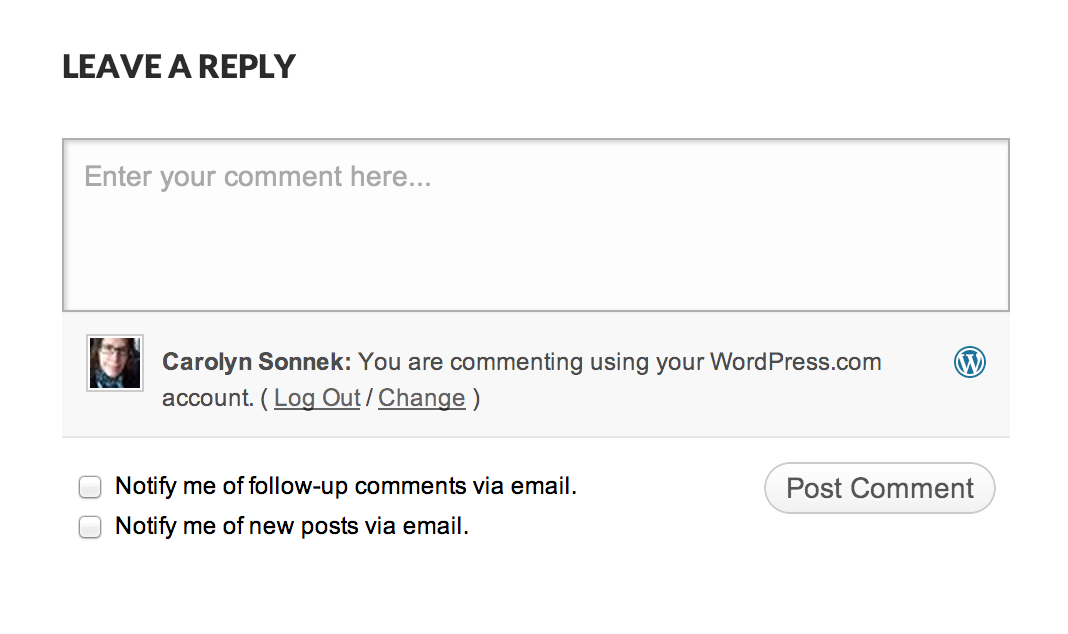
Activating Jetpack comments adds a user-friendly interface to your comments section. It also allows people to sign in through WordPress.com, Facebook, Twitter, or Google in order to leave comments. This means that people who don’t want to create an account on your site can still leave comments on your content.
Once you activate this feature (via your Jetpack settings), your readers will be given access to a comment form. This offers more flexibility than the default WordPress comment form.
Receive comment notifications
To reply to comments, you’ll need to be alerted whenever a new one is posted. Jetpack sends you comment notifications as soon as they’re posted, so you can reply immediately if you want to.
The WordPress app is the best way to receive details about every new comment. If you enable notifications, you’ll be alerted immediately. All you need to do is download the mobile app, and link your Jetpack-enabled site to it. This app also lets you post new content and monitor your site stats, making it a great companion for your WordPress site.
Encourage engagement and build a community
Great posts tend to encourage in-depth, thoughtful responses in the comment sections. This may include people posting questions that you reply to, along with discussions between readers that don’t involve you at all. It can be very rewarding to observe readers sharing their views on something that you originally posted.
Get your readers to partake in discussions by creating content that inspires conversations, like the following:
Ask readers to leave comments at the end of every post. Pose a question, ask readers for their experiences, or have them share expertise or recommendations.
Don’t shy away from stating opinions within your own posts, even if not everyone will agree. A bit of disagreement can generate heated discussions.
Don’t reply to every comment or answer every question immediately. If a member of your community answers instead, it might lead to even more community member engagement.
Comments can take your blog from good to great
Effective comment management can make readers more loyal to your blog. Loyalty is partly what drives readers to visit your site more often, as they will want to connect with other people who share similar interests. It can help you build a community, which makes your blog greater than the sum of its parts. It might also legitimize you as an expert in your field, as you’ll become someone who readers can go to when they have questions or need advice.
How do you use comments in your content, and what method works best for you? Share your thoughts, we’d love to hear them!
Audience engagement can play a large role in keeping visitors on your site for longer periods of time, inviting them to explore related posts or converting them into loyal fans.
On the other hand, there are people who won’t want to create an account on your site just to leave a comment. When this is the case, engagement is limited and it can stifle your community growth, as this group of users might not return to your site again.
Adding social commenting with Jetpack opens the door for more interactions by making it extra convenient for visitors to comment on your posts using their existing social media accounts. And streamlining this process might encourage previously reluctant visitors to share their thoughts.
Let’s review what social commenting with Jetpack entails, and why you might want to activate this handy feature on your own site.
Continue reading → Add Social Commenting to Increase User Engagement
Note: Publicize is now auto-share and is part of Jetpack Social.
Whether you want more followers, brand awareness, or increased sales, you need to strengthen your social media presence.
Social media is the bread and butter of small business advertising and blog promotion. It helps you connect to and interact with others on a personal level by sharing posts and starting conversations.
Because of social media’s increasingly important role, Jetpack offers various tools to help you reach more people across those social networks. From sharing buttons, to social media widgets that can be directly inserted into headers or sidebars, these features — along with a smart social media strategy — will attract new customers, and keep your existing fans coming back for more.
Want to learn how to grow your social presence with Jetpack? Keep reading!
Once you’ve created your latest piece of content, you naturally want to let the world know about it. But up until now, sharing your content on social media was a manual process, and one that ate up a lot of time you could have spent doing other things.
We wanted to make it easier for Jetpack users to share the great content they’ve been creating. That’s why we’re excited to add social media scheduling to Publicize, exclusively for our Premium and Professional plan customers.
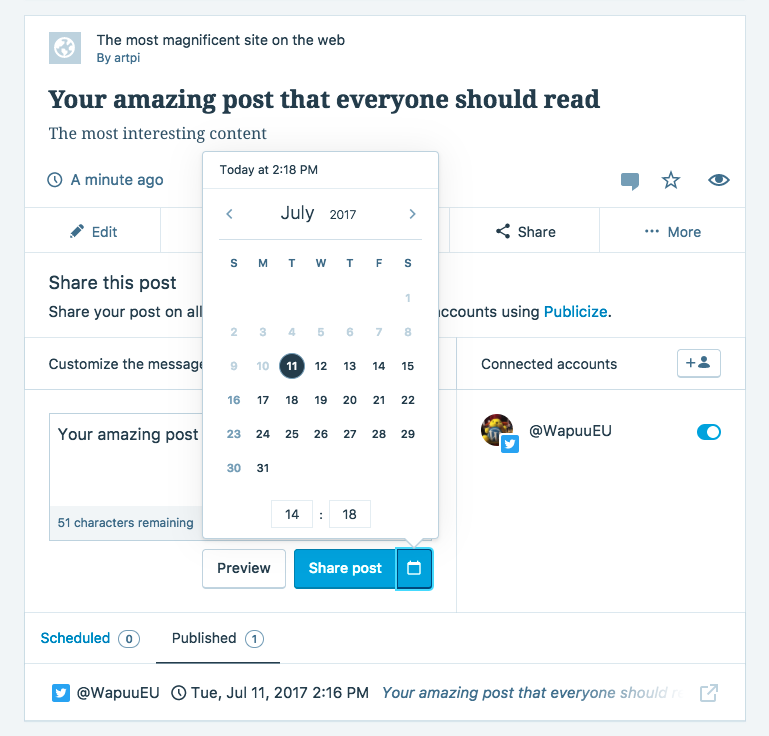
With this new feature, you can choose specific times to share your content on your favorite social media networks, like Twitter, Facebook, and LinkedIn. You can schedule one or many shares in advance, and Jetpack will take care of the rest, publishing your custom messages at the times you specify.
Up until now, Jetpack’s Publicize feature would allow you to share content manually. But now you can:
Plan all your social shares in advance to save valuable time.
Re-share previously published posts so newer followers get exposure to them.
Preview each share before it’s scheduled to be sure you’re happy with the content.
View all previous shares of your content.
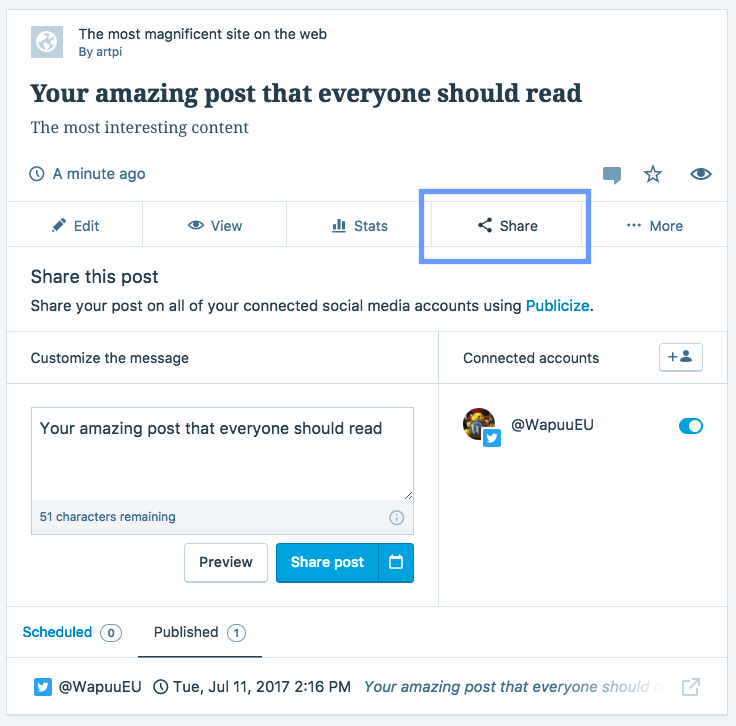
If you’re already a Jetpack Premium or Professional plan customer, you can try this new feature now. Look for the Share button under any single Post:
When you click Share, you can either share a post immediately or use the calendar tool to choose a time in the future that your content will be posted, tweeted, or shared on the network of your choice.
The social media accounts that you have connected to Jetpack will be displayed on the right side. You can choose which accounts to share to by clicking the toggles on and off (or, if you need to add a new account, clicking the icon in the top right).
To make sure you get the best results, click the Preview button to view what your content will look like when it’s shared. If you don’t like what you see, just keep on customizing until you’re happy with the results.
We hope you enjoy this new addition to Publicize — give it a try and let us know what feedback you have in the comments!
Jetpack helps you tackle this along two fronts: attracting new visitors to our sites and encouraging the existing ones to keep coming back.
Getting more traffic
Its worth mentioning what countless people have said before: writing well-written, useful and targeted content is eighty percent of the job. Neither Jetpack nor any other plugin, is a silver bullet that can ever be a substitute for that. However, if you’ve got that nailed, these features will help you with the other twenty percent:
Publicize Publicize simply automates what you probably do already: posting your articles directly to Twitter, Facebook, LinkedIn and a few more social networks. Once you set this up (about 5 minutes usually) you can sit back and not worry about this and focus on writing great content while your friends and followers read what you’ve just posted.
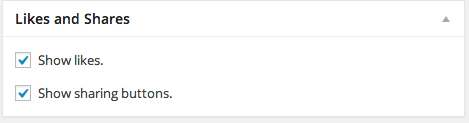
Sharing
The Sharing feature, when enabled, places share buttons at the bottom of your blog posts. This allows (and encourages!) your readers to share your content with their own networks giving you broader reach. Currently we support Twitter, Facebook, Reddit, StumbleUpon, Digg, LinkedIn, Google +1, Print, and Email. Additionally you can define your own custom services.
Site Verification
Verifying your website with external services like Google, Bing and Pinterest. This means you will be rated as “safe” by these services (e.g. by getting a “Verified” badge) and gives you to access advanced features (e.g. Webmaster tools).
Enhanced Distribution
At WordPress.com we have a service called “Firehose” which is a stream of the public data (public posts, comments, etc.) that flow through WordPress.com as well as Jetpack blogs that enable Enhanced Distribution. The firehose in turn is used by companies and people to display your content at which point they are required to link back to your blog. This means that you get both traffic back to your site as well as building up quality back-links.
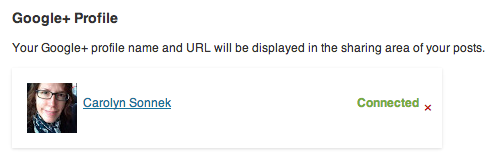
Google+ Profile Lastly, when you activate and connect this feature you connect your blog and with your Google+ accounts. Now, displayed below your posts, will be a link back to your Google+ profile, a Google+ follow button and a link will also be added to your Google+ profile allowing Google+ users to find you more easily.
Keep them coming back
The other side of the coin is staying in touch with the visitors who’ve seen and read your content so that they don’t forget about you and come back to see what else you have to say. You may not necessarily want to use all of these of course as it depends a lot on the kind of site or blog you’re running. But because Jetpack makes it easy to turn these on and off some of our users opt to try things one at a time to test out their effect.
Jetpack Comments Comments are a great way of enabling your visitors to join the conversation. It can be a pain for them however to have to create a new account if its their first time visiting your site. Jetpack Comments enables your visitors to use their existing WordPress.com, Twitter, or Facebook accounts when commenting on your site making it more likely they’ll do so.
RSS Widget
RSS is used by millions of people to keep track of blogs they like. When you enable Extra Sidebar Widgets in Jetpack you can show widget that allows you to add links to your blog’s RSS feeds in your sidebar. This makes it easy for your readers to stay updated when you post new content or receive new comments.
Likes Likes allow your readers to show their appreciation for your posts and other published content. They will then be able to review their liked posts from their WordPress.com Reader which will remind them your blog exists and encourage them to come back.
Subscriptions
Easily allow any visitor to subscribe to all of your posts via email through a widget in your blog’s sidebar. Every time you publish a new post, WordPress.com will send a notification to all your subscribers. Depending on their preferences this notification will either show up on their WordPress bar (top right) or they will receive an email directly in their inbox.
Notifications
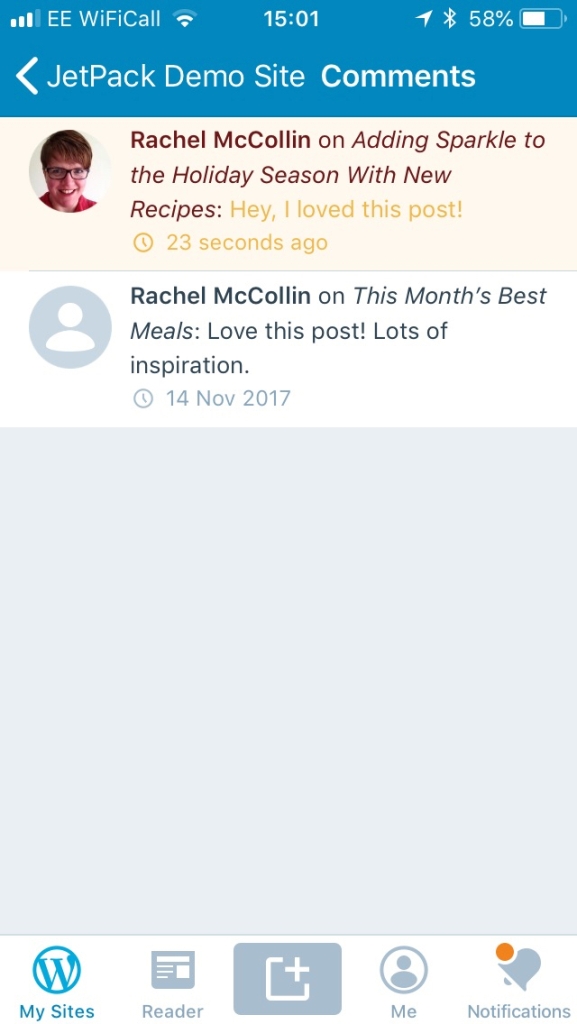
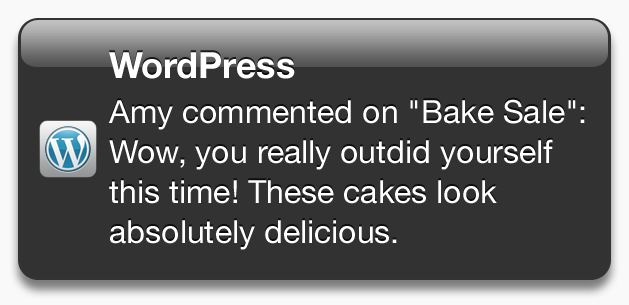
Example of a comment Push Notification from the WordPress for iOS app
Finally, this last one is for you, the site owner. With Notifications enabled you will be instantly notified when somebody comments on any of your posts or previous comments. This means that you can instantly comment back making your interaction with your readers feel more personal and in real-time.
And of course, Jetpack also gives you great stats so that you can see the effect of your work! If you’ve not used Jetpack before, read our step-by-step installation guide here to try it out for yourself.
If you are a Jetpack user already please tell us what you think in the comments and, if you’d like to get involved by writing a guest post about Jetpack get in touch!







Add Social Commenting to Increase User Engagement
Audience engagement can play a large role in keeping visitors on your site for longer periods of time, inviting them to explore related posts or converting them into loyal fans.
On the other hand, there are people who won’t want to create an account on your site just to leave a comment. When this is the case, engagement is limited and it can stifle your community growth, as this group of users might not return to your site again.
Adding social commenting with Jetpack opens the door for more interactions by making it extra convenient for visitors to comment on your posts using their existing social media accounts. And streamlining this process might encourage previously reluctant visitors to share their thoughts.
Let’s review what social commenting with Jetpack entails, and why you might want to activate this handy feature on your own site.
Continue reading → Add Social Commenting to Increase User Engagement