In Jetpack Manage, you can manage all your billing related settings from one place.
This billing documentation is for licenses issued via Jetpack Manage. For billing and payment information for Jetpack plans purchased via WordPress.com or Jetpack.com, please see Manage your Jetpack billing and payments.
Jetpack Manage license usage
A license key in Jetpack Manage can only be used on a single site. If you want to use Jetpack on multiple sites that you manage, you’ll need to issue a license for that site, or issue a bundle of licenses to use on multiple sites.
If at any time you want to stop using Jetpack on a site where a license has been issued via Jetpack Manage, you will need to revoke that license. The license is no longer valid.
If you revoke a license was part of a license bundle, then a new license will be added to the bundle to replace the cancelled license which can be assigned to a new site. License bundles will always have the same number of active licenses.If you revoke a bundle of licenses, then all licenses in that bundle will be cancelled. All licenses will no longer be valid.
Jetpack Manage billing cycle
Jetpack Manage licenses and license bundles are billed based on the day they were issued. Billing stops when the license or license bundle is revoked. When a license or license bundle is active for a portion of a month, you will only be billed for the days that license or license bundle was active.
You will always be billed for active licenses, even if they are not assigned to a website, or if the site is disconnected from Jetpack. Because of this, we’re unable to offer refunds for unused or unassigned licenses. We recommend revoking any licenses you’re no longer using to avoid future charges.
Jetpack Manage invoices
You will be invoiced at the beginning of the month for your licenses. Our payment partner, Stripe, generates your monthly invoices based on how many active licenses you have issued from your account, and how many days they were active during that month.
Paying your invoice
Your invoice will be paid automatically using the payment method you have on file via our payment partner, Stripe.
Unpaid invoices
If your invoice is unable to be paid when it is issued, you will receive an email letting you know that you have an unpaid invoice. The email will let you know what you need to do to resolve the issue.
If the invoice has not been paid 14 days after it is issued, you will no longer be able to issue new licenses. Licenses that are already issued will continue working.
If the invoice remains unpaid 28 days after it is issued, all of your licenses in Jetpack Manage will be revoked, and you will need to pay the past due invoice and then re-issue new licenses to all of your sites.
Payment methods
Add a payment method

- Go to https://cloud.jetpack.com/ and navigate to Purchases → Payment Methods.
- Click New credit card.
- Enter your credit card details and click Save payment method.
- If you have no payment methods on file, this will be used as a primary payment method. All invoices will be charged to this card.
- If you do have a payment method on file, you can uncheck Set as primary payment method if you do not wish it to be used as the default payment method on your account.
- The payment method that you have stored as your primary payment method will be charged automatically each month for all of your Jetpack Manage licenses.
Delete a payment method
- Go to https://cloud.jetpack.com/ and navigate to Purchases → Payment Methods.
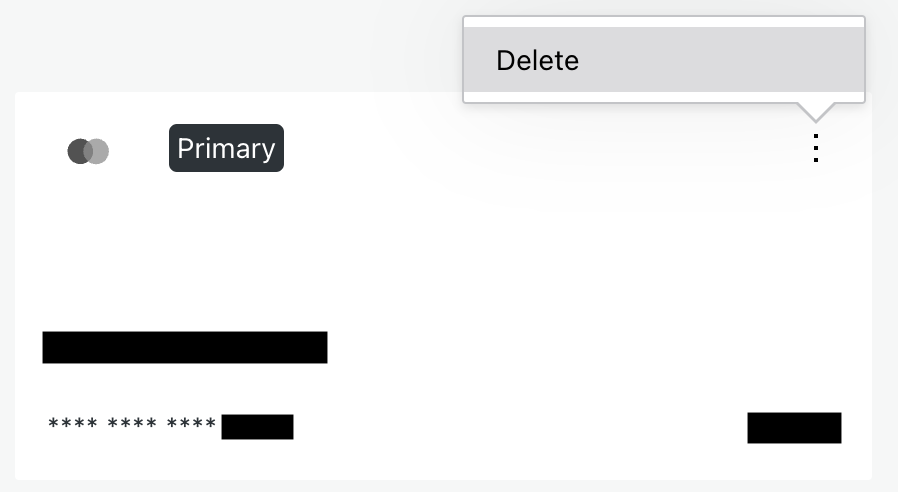
- On the payment method you want to remove, click the three dot menu and then click Delete.
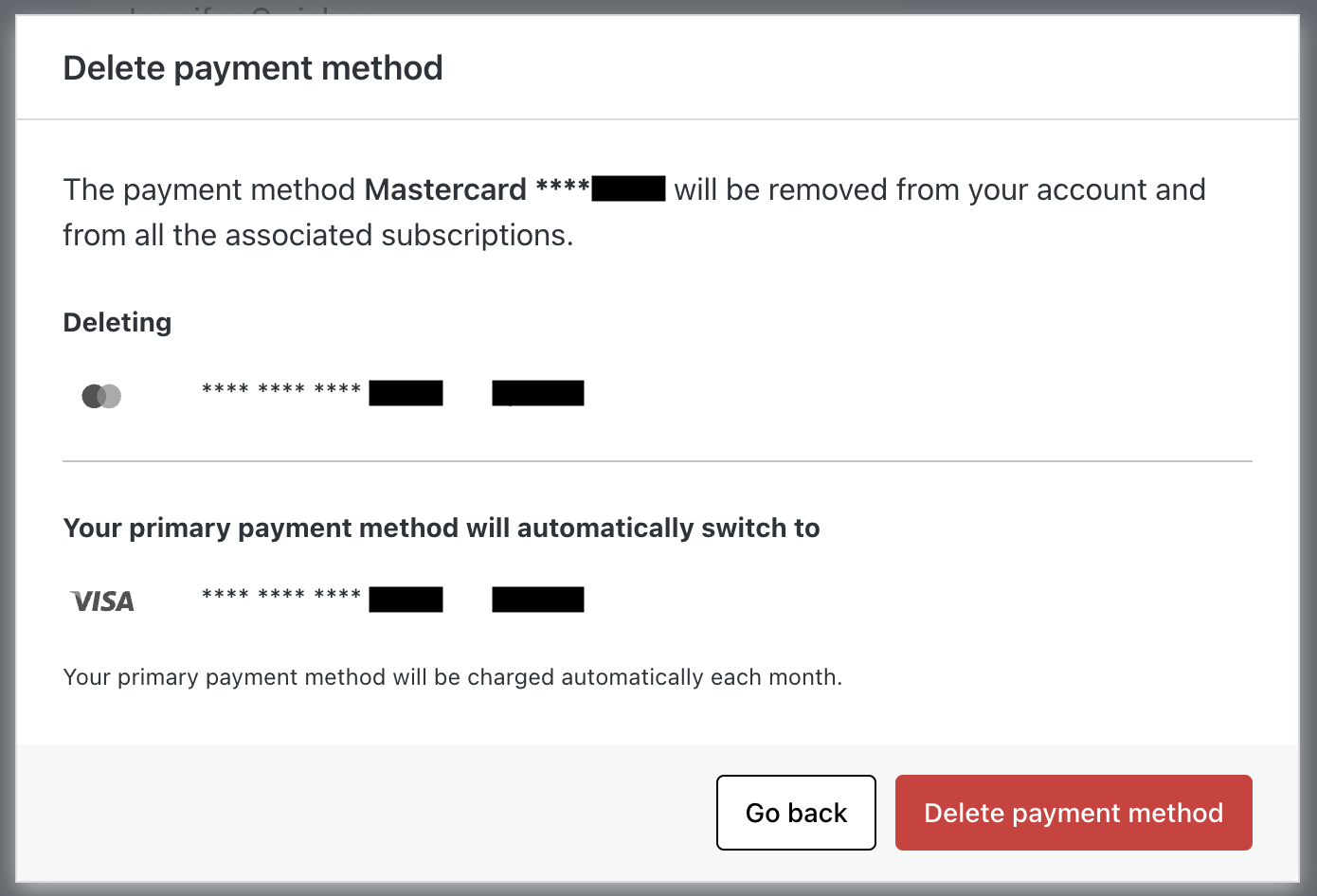
- If you delete a payment method, and you have another on file, you will be asked to confirm that you understand that your secondary payment method will now become the primary payment method and will be charged automatically each month for all of your Jetpack Manage licenses.
Missing payment method
If you do not have a payment method on file, you will not be able to issue new licenses from Jetpack Manage until you add a new payment method to your account.
If you remove all saved payment methods before being charged for the month, you will need to pay any past due invoice before you can assign new licenses.
Still need help?
Please contact support. We’re happy to advise.
 Jetpack