

Viewing Jetpack Stats in the WP Admin Posts and Pages List
In the Posts and Pages lists in WP Admin, a Stats column displays the number of views each post or page has received over the past 30 days. This allows you to monitor content performance directly from your content overview screen.
With Jetpack installed and connected, the Stats column appears by default in the list of posts or pages in WP Admin. Each row includes an eye icon with a number next to it showing total views in the past 30 days.
This makes it easy to review performance at a glance without opening the full Jetpack Stats panel.

Accessing more Stats
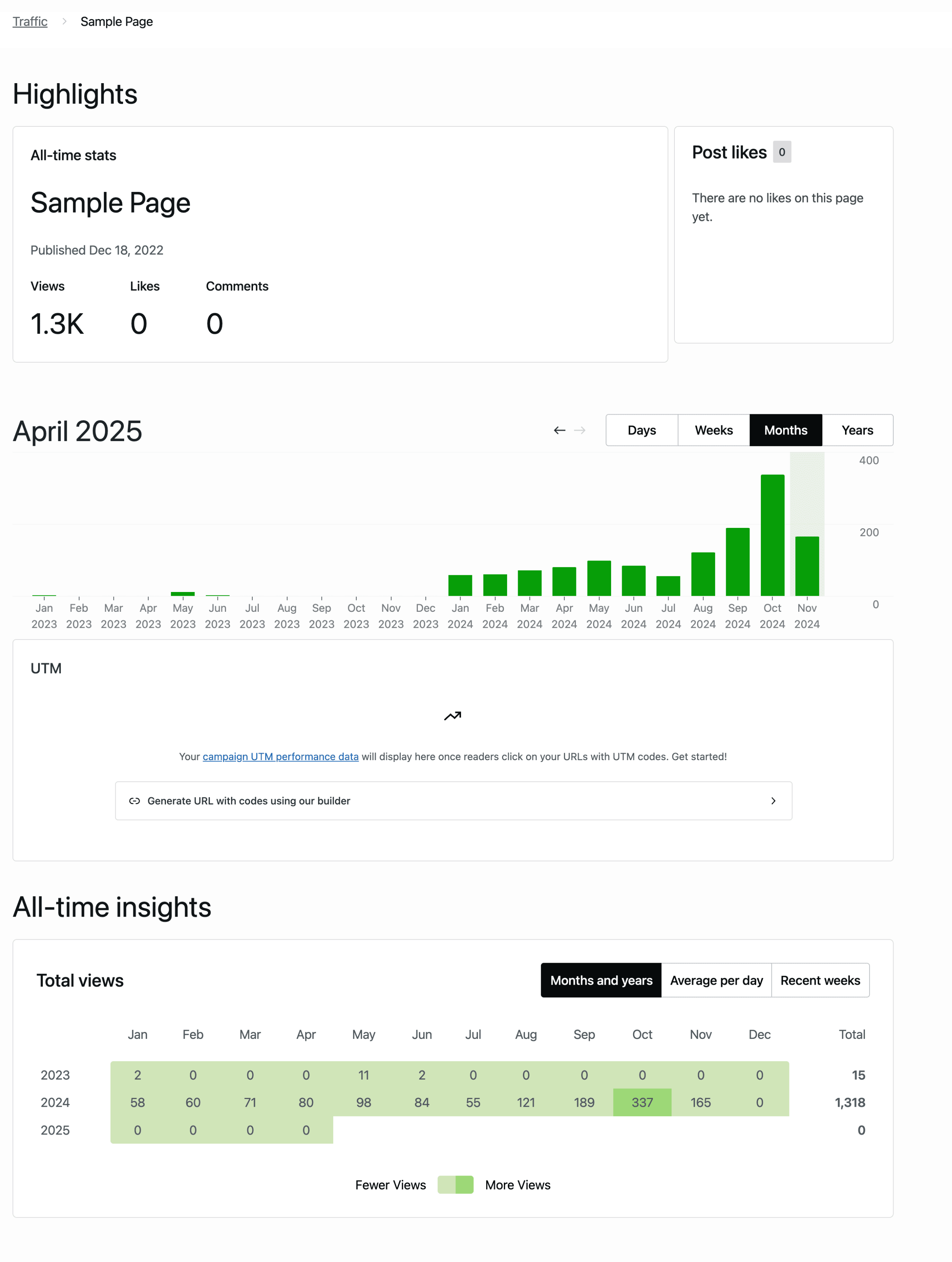
To view detailed statistics for an individual post or page, click the eye icon in the Stats column next to that post or page. This will open the Jetpack Stats summary for the selected content.
In the detailed view, you’ll see:
- Total views, likes, and comments
- Traffic charts by day, week, month, or year
- All-time engagement stats
- If available, campaign UTM data for incoming traffic
Adjusting the display
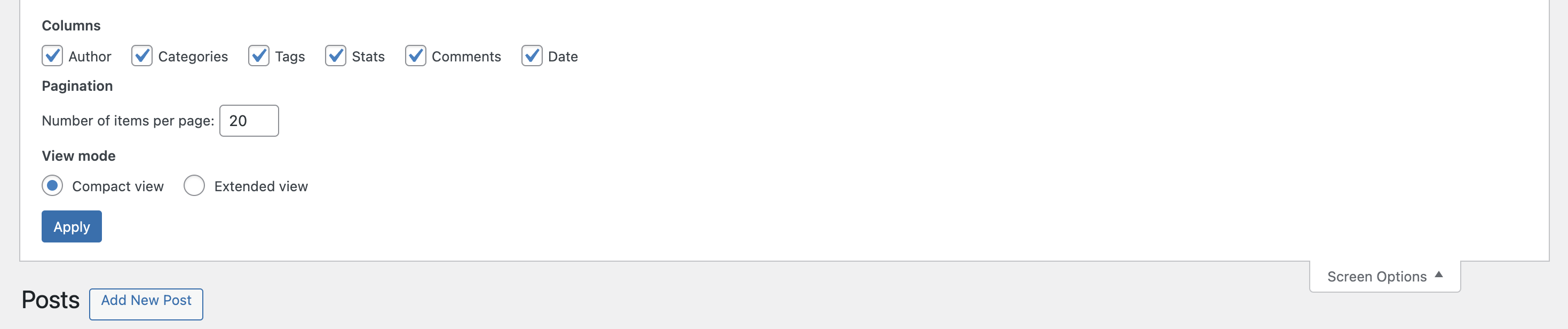
While the Stats column is enabled by default, you can control if columns appear in the post and pages lists:
- Click Screen Options at the top right of the Posts or Pages screen.
- In the Columns section, check or uncheck Stats as needed.
- Click Apply to update the view.
Still need help?
Please contact support. We’re happy to advise.

