You can transfer ownership of your Jetpack connection and/or your Jetpack plan to any other connected admin user on your site.
- Site owners are users who have connected Jetpack to WordPress.com.
- Plan purchasers are users who purchased a paid plan for the site.
Generally, it is best if these are the same person. It is possible, though, for them to differ. For example, a developer may be the site owner, because they set up the website and connected Jetpack to WordPress.com, and their client may be the plan purchaser, who used their connected WordPress.com account and billing information to purchase the plan for the site.
Before you begin, be sure to add a new WP Admin Administrator-level user (see guide) and have them connect their account to Jetpack with their WordPress.com account.
Change the site owner
Note that transferring the site’s ownership does not transfer the plans active on the site to the new user. If you have active plans that you want to transfer, check also our Change the plan purchaser guide. Before starting the process, double-check if you wish to transfer the site connection ownership, the plans, or both.
To change the site owner for your site:
- From your site’s WP Admin dashboard, navigate to Jetpack → My Jetpack.
- Scroll to the bottom of the page and find the Connection area.
- Click Manage or Site and account connected.
- Click Transfer ownership to another admin.
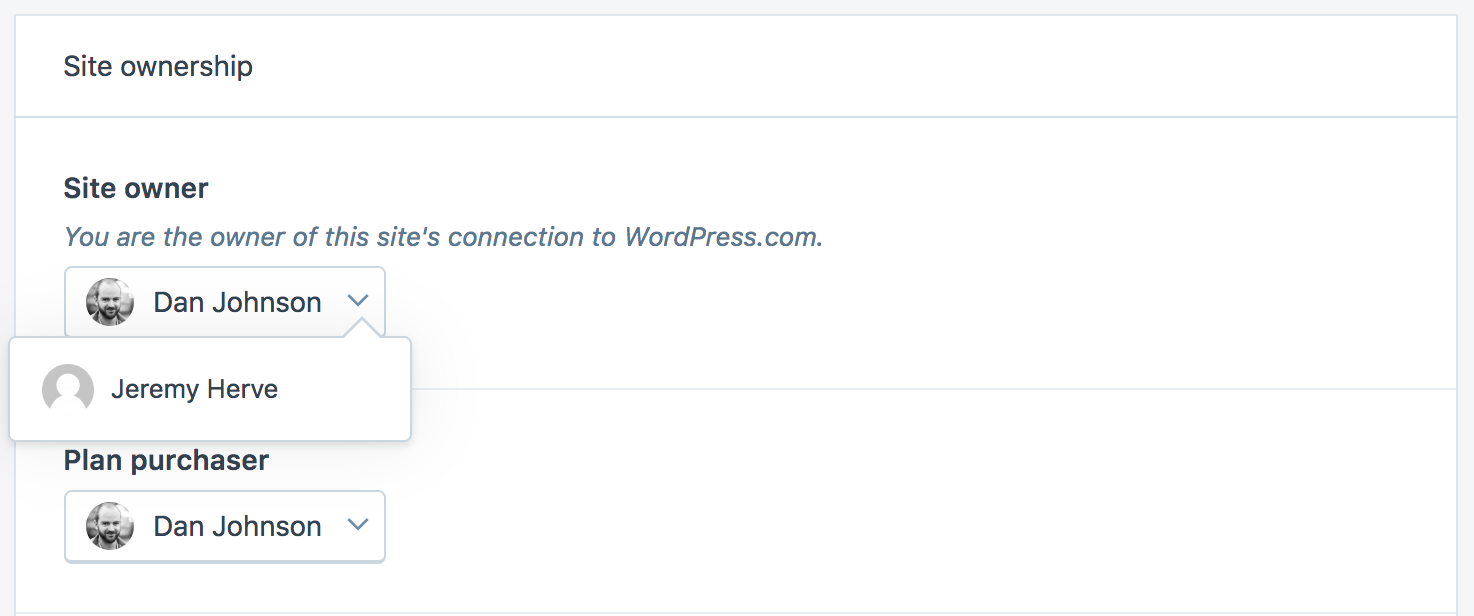
- Under “Site Ownership,” you’ll find the current site owner.
- Choose new owner: In the Site owner drop-down list, select the user you want to transfer ownership to. If the new user does not show in the dropdown, ensure that the new user:
- Has an administrator account on your site.
- Has connected their administrator account to their WordPress.com account.
- Select a user to become the new Site owner and click the Transfer ownership button to complete the transfer.
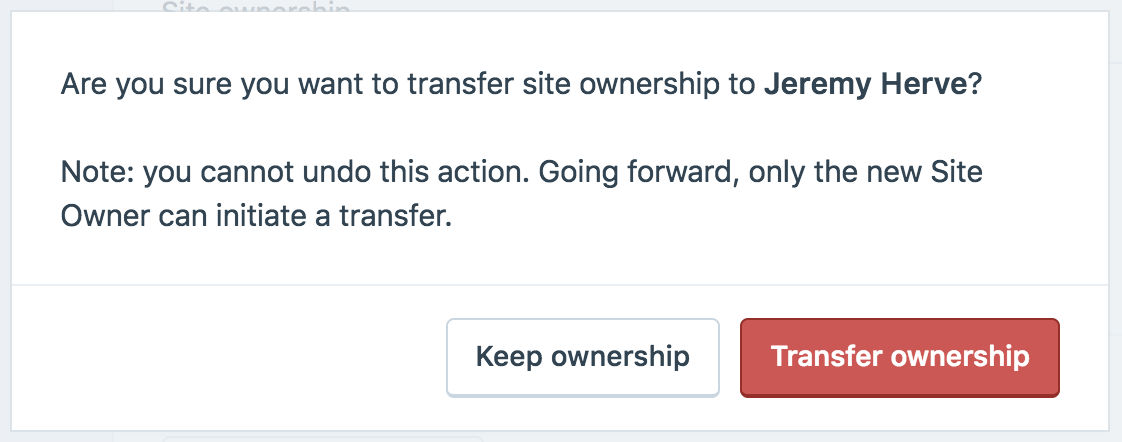
Once the transfer is complete, note that you won’t be able to revert the changes. Only the new owner will have the authority to make further adjustments.
Under the Site owner in the Site ownership section, you will see this notice: “Somebody else owns this site’s connection to WordPress.com.”
Change the plan purchaser
If you need to transfer the plan to another user, the steps depend on the type of plan you have.
For Jetpack bundles (Complete, Security, Growth) and legacy plans (Jetpack Personal, Jetpack Premium, Jetpack Professional), you can transfer the plan yourself directly from WP Admin.
For all other plans, the transfer requires help from our support team. Make sure the new user has an Administrator account connected to WordPress.com, then contact support directly and provide their email address.
Plans listed below require that you contact us and request the transfer:
- Jetpack Akismet Anti-Spam
- Jetpack AI Assistant
- Jetpack Boost
- Jetpack Scan
- Jetpack Search
- Jetpack Social
- Jetpack Stats
- Jetpack VaultPress Backup
- Jetpack VideoPress
- CRM Entrepreneur
Alternatively, you can also consider to cancel and refund the plan, and re-purchase it by using the correct WordPress.com/ Jetpack account.
Transfer a plan yourself (only available for Jetpack bundles and legacy plans)
Here is how to transfer a Jetpack bundle (Complete, Security, and Growth) or a legacy plan (Jetpack Personal, Jetpack Premium, and Jetpack Professional):
- From your site’s WP Admin dashboard, navigate to Jetpack → My Jetpack.
- Scroll to the bottom of the page and find the Connection area.
- Click Manage or Site and account connected.
- Click Transfer ownership to another admin.
- Under “Site Ownership,” you’ll find the current plan purchaser.
- Choose new plan purchaser: In the Plan purchaser drop-down list, select the user you want to transfer the bundle or the legacy plan to.
If the Plan Purchaser dropdown does not appear, ensure that the plan you want to transfer is one of the following: Jetpack Complete, Jetpack Security, Jetpack Growth, Jetpack Personal, Jetpack Premium, or Jetpack Professional. For other plans, contact our support directly.
If the new user does not show in the dropdown, ensure that the new user:- Has an administrator account on your site.
- Has connected their administrator account to their WordPress.com account.
- Select a user to become the new Plan purchaser and confirm by clicking Yes, change the plan purchaser.
Once the transfer is complete, note that you won’t be able to revert the changes. Only the new plan purchaser will have the authority to make further adjustments.
Under the Plan purchaser in the Site ownership section, you will see this notice: “Somebody else is the plan purchaser for this site.”
If you change the Plan purchaser, the new Plan purchaser will need to add payment details in order to enable automatic renewal of the plan. They will receive an email prompting them to add new payment details.
Determine the owner of the plan
All plans that you purchased or that were transferred to your account appear at https://wordpress.com/me/purchases.
If you need to determine which account owns a plan active on your site but that does not appear at https://wordpress.com/me/purchases, please contact our support team directly. If possible, share the transaction ID for the charge associated with this subscription.
Export a site to WordPress.org
If you need to transfer a site from WordPress.com to WordPress.org, you can follow the instructions on this page.
Still need help?
Please contact support. We’re happy to advise.
 Jetpack