Accept credit and debit card payments for donations, tips, and other forms of contribution, with the Donations Form block.
This block uses Stripe as the payment gateway, ensuring secure and encrypted transactions.
Requirements
To use the Donations Form block, you will need the following:
- A Stripe account to process payments and transfer funds to your bank account
- A stable Jetpack connection. You can check the status of the connection to your site by using the Jetpack Debug Tool. If the connection is broken, follow these troubleshooting steps.
- A WordPress.com account that is connected to Jetpack. See this support guide for information on how to connect your Stripe account to your WordPress.com account.
- The Block Editor
The Donations Form Block is a part of the Jetpack Blocks suite and is activated by default on connected sites. It does not require a paid upgrade to use. See our Jetpack Blocks article to learn about the available blocks and how to activate them.
Jetpack Blocks require the Block Editor (also referred to as the Gutenberg editor). If you’ve installed the Classic Editor plugin, you have a few options:
- Deactivate the Classic Editor: Go to Plugins → Installed Plugins in your WP Admin and deactivate the Classic Editor plugin.
- Enable both editors: If you prefer flexibility, navigate to Settings → Writing in your WP Admin (not the menu under Jetpack settings). Set Allow users to switch editors to Yes. You will only see these options if you have the Classic Editor plugin installed and active.
Some custom themes or plugins may prevent you from using the Block Editor. In that case, please contact the support team for the plugin or theme for further assistance.
For more details, see Using Blocks and the Classic Editor.
Please be aware of the following:
- If the person making a donation doesn’t have a WordPress.com account, they will be required to create one before proceeding.
- The Stripe account processes the payments and sends receipts to supporters automatically.
- For monthly and yearly recurring payments, the system bills subscribers at the end of their renewal period and transfers the funds to your Stripe account.
- As a site owner, you can cancel the subscription at any time.
- You can create multiple Donations Form blocks across your website.
Add the Block
You can add the Donations Form block by searching and/or selecting it from the Jetpack section of the block selector. Here are the steps you can follow:
- Navigate to your site’s Pages or Posts from the WP Admin.
- Edit the page or post where you want to add the Donations Form block. Or create a new post or page.
- Add a new block by clicking the (+) icon or type
/to search for blocks. - Type “donations” in the search box and select the Donations Form block.
- After adding the Donations Form block, you can set it to a One-Time donation, Recurring Monthly, or Yearly donation.
See Jetpack Blocks for more detailed instructions on adding blocks.
You will be prompted to connect your WordPress.com account to Stripe after adding the Donations Form block for the first time. Click Connect to proceed.
Manage Stripe
- All the earnings through the Donations Form block will directly go into your Stripe account.
- Stripe requires citizenship or company ownership in specific countries to accept payments (a list of countries is available in Stripe’s support center).
- Supporters can pay with a credit card issued anywhere in the world.
Configure the Donations block
Once you have connected your Stripe account successfully, you can insert a pre-populated Donations Form block on your page or post. If you already added the block, you should see the pre-populated form on your page or post. This block is fully customizable, including:
- Renewal interval: Set the frequency your supporters are billed (options for one-time, monthly, or yearly donations).
- Price: Set suggested amounts, with defaults at $5.00, $15.00, and $100.00.
- Currency: Select the payment currency.
- Custom text: Provide additional information for your donors about the cause they are supporting. The title is set to “Make a one-time donation” by default. You can change that and also add more information to the default “Choose an amount” instruction.
Make sure to click “Publish” once you have finalized your customizations on the block to go live.
Accept custom donation amounts
By default, allowing supporters to specify their own donation amounts is activated for one-time, monthly, and yearly donations. If you prefer, you can turn off this feature from the Block Settings in the right sidebar.
Other block settings
In the block settings on the right sidebar, you can:
- Choose the intervals for which you would like to accept donations.
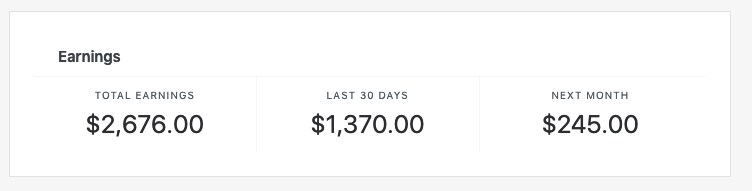
- View earnings via a “View donation earnings” link to your donor dashboard.
- Add CSS classes for custom button styling.
Choose how the form appears
At the top of the block settings, choose how the donation form is shown to visitors:
- In-Page: The form appears directly on the page. This is the original (default) display.
- Pop-Up: The form is hidden behind a trigger button and opens in a modal window when clicked.
When you select Pop-Up, you can:
- Choose whether the trigger button sits in the page or sticks to the bottom-right corner as a floating button.
- Edit the trigger button text (for example, “Donate” or “Support us”).
- Show or hide an icon on the button, and pick from four icon options.
In-Page display shows the full form at all times. Pop-Up display shows only the trigger button until a visitor opens it.
In the block settings, turn each donation frequency (also called renewal interval) on or off:
Choose donation frequencies
- One-time.
- Monthly.
- Yearly.
At least one frequency must stay enabled. If only one is enabled, it cannot be turned off. Explainer text in the editor shows which options visitors will see.
Set donation defaults
In the block settings, choose which frequency and amounts are pre-selected for visitors.
Default frequency
Choose which frequency (one-time, monthly, or yearly) is selected when the form loads. If you later turn off the default frequency, the next enabled frequency automatically becomes the default.
Default amounts
For each enabled frequency, choose which suggested amount is selected by default. You can also edit the placeholder text shown in the custom amount field.
Style the block
Select the block and open the Styles tab in the block sidebar to control its appearance. Settings are grouped into four areas:
- Block: text, background, link, and button colors; font size and line height; border color, thickness, and radius.
- Tabs: display as tabs or as buttons; active and inactive text and background colors; tab border color; font size; and padding.
- Amounts: selected amount of text, background, and outline color; font size; and border color, thickness, and radius.
- Donate button: font size, padding, border radius, and alignment (left, center, right, or full width).
Align the block
Use the alignment control in the block toolbar to align the form’s content left, center, or right. The Donate button alignment set in Styles overrides the toolbar alignment for the button only; the rest of the content still follows the toolbar setting.
Appearance changes for existing forms
Tab labels and amount buttons now inherit the site’s body text styles from the Site Editor, including font size. They are no longer fixed at 16 px.
Inactive tabs and amount buttons now have a transparent background, so the page or block background color shows through. They previously had a white background.
Tab and amount button text now follows your site’s global text color. It is no longer fixed at dark gray.
The donate button cannot be activated until a visitor selects an amount. This applies to keyboard and screen reader users as well — the button is fully unavailable, not just visually dimmed, until an amount is chosen.
Set donation limits
Open the Security panel in the block settings to set minimum and maximum donation amounts and discourage fraud.
- Minimum donation amount: Reduces card-testing attacks. Defaults to Stripe’s minimum for the selected currency.
- Maximum donation amount: Helps prevent money-laundering schemes and malicious chargebacks from large refunds.
Donations below the minimum or above the maximum are not accepted.
Use the Tips variation
The Tips variation is a pre-configured version of the block for collecting tips (also called “Buy me a coffee” contributions) instead of donations. Add it from the block inserter, by typing /tip or /tips, or by selecting it inside the Payments block.
The Tips variation comes pre-set with:
- Pop-up display.
- A coffee cup icon and a “Buy me a coffee” trigger button.
- One-time and monthly frequencies enabled.
- Tabs styled as buttons.
- Centered content and a full-width donate button in the modal.
- No heading or body text in the modal – only a “Thank you” line above the donate button, with no mention of donations.
You can change any of these settings after adding the variation.
Related fees
Please see our support article for information about associated transaction fees.
Post-donation management
Consider maintaining a strong relationship with your supporters by sending personal thank you emails, putting them on a mailing list, or sharing thank you videos. This practice aids in building your community and brand, while encouraging continuous support.
Sharing the URL of your Donations Form on various channels such as social media, email lists, friends, and family also helps to boost visibility, traffic, and potential donations.
Still need help?
Please contact support. We’re happy to advise.
Privacy Information
The Donations Form block is activated by default. You can deactivate it by turning off Jetpack Blocks.
Please note that payments are processed via Stripe, so we recommend reviewing its privacy policy and documentation.
| Data Used | |
|---|---|
| Site Owners / Users To process a payment, the Stripe account ID, Amount being charged ( from product information ), and Currency ( from product information ) is sent to Stripe. | Site Visitors To facilitate new signup and renewals, the following is sent to Stripe (governed by Stripe TOS): Name, Credit Card number, CVV, and Expiry date. Note – the credit card details are not stored by us – this data is collected and stored by Stripe. WordPress.com systems are fully PCI compliant. |
| Activity Tracked | |
| Site Owners / Users Email-related events (you will receive an email from Jetpack when a payment has been completed) are tracked – sends, opens, and clicks. | Site Visitors We plan to store anonymized analytics about which step in the purchase process was reached to improve the user experience. Cookies may be stored to implement content blocking in the future. |
| Data Synced (Read More) | |
| Site Owners / Users We sync the following meta around payments/products: all information regarding new products being created/edited. We also sync the following meta from Stripe with Oauth connection: Account ID, secret and public keys necessary to facilitate the payment, country, timezone, default currency, and the account name. | Site Visitors We create a new WordPress.com account for the user or use the account associated with the email customer gives us. An explanation of WordPress.com data used can be found here. History of signups and billing facilitated via this feature is stored on WordPress.com servers for accounting and subsequent renewal purposes. To renew the subscription, on our servers, we store the Safely encrypted Stripe ID of the credit card connected to the subscription, the User id that initiated the purchase, Details about the product, Payment history for the subscription, Last 4 digits of the credit card and the brand – what is known in the industry as “safe details.” Also, we connect the credit card ID to the WordPress.com user id, allowing for one-click payments on other subscription products sold on the WordPress.com network. |