

Why the WordPress.com connection is important for Jetpack
The Jetpack connection links your self-hosted WordPress site to the WordPress.com cloud, giving your site access to security, performance, and growth features. This article explains which Jetpack features need a WordPress.com account connection, which features work with a site-only connection, and how to connect Jetpack to your WordPress.com account.
By connecting your self-hosted website to a WordPress.com account through the Jetpack plugin, you can access many features originally developed for WordPress.com sites.
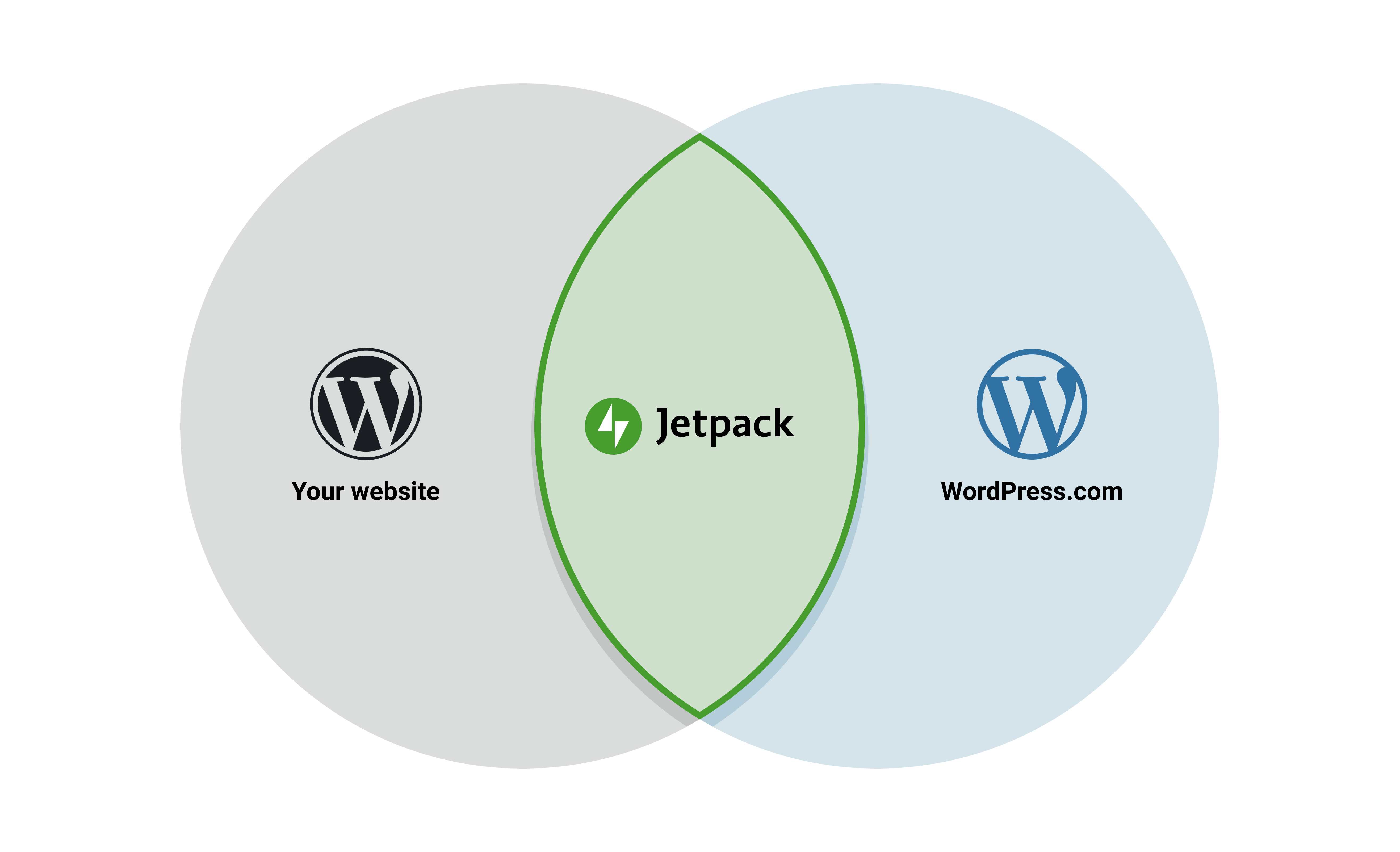
Benefits of connecting your site with your WordPress.com account
When you connect your site to Jetpack with your WordPress.com account, you gain access to the following benefits:
- Automatic actions performed on your behalf: You can enable some features to take actions automatically. For example, Jetpack Social can share your site’s posts on multiple social media networks when you publish new content, and you can get notifications on your phone when you receive new likes and comments.
- Access to special tools: Some tools and features rely on data stored on the WordPress.com servers, so you access them through a WordPress.com account connection. Examples include the Activity Log, a comprehensive list of events on your site, and Jetpack Stats, where you find details about visitors, including views by country, unique views, and other insights about your site.
- Use the Jetpack API: You can use the API connection to add functionality to your site while keeping it secure. You can connect Jetpack products and services to your site, adding new functionality powered by the WordPress.com cloud. For example, you can use Jetpack VaultPress Backup to create full site backups and store them in the cloud. Jetpack Search also requires this connection; it indexes all your content in the cloud and runs search queries without using resources on your site.
Jetpack features that do not need a WordPress.com account connection
Some Jetpack features work without a WordPress.com account connection, though connecting your WordPress.com account is still recommended to access the full range of features. If you recently installed Jetpack and were prompted to connect to WordPress.com, that prompt comes from My Jetpack, which is the connection management interface and requires a connection to function. That prompt does not mean every Jetpack feature requires a connection. The features listed below work without a WordPress.com account connection. Some may still require your site to be registered with WordPress.com (a site connection), but none require you to link a WordPress.com user account.
To establish a site-only connection, click Set up Jetpack. You can then access and use the features in the sections below.
Offline Mode
Jetpack can run in Offline Mode, for example when the JETPACK_DEV_DEBUG constant is defined. In Offline Mode, some features remain available without a WordPress.com connection.
Security and performance
The following security and performance feature works with a site-only connection:
- Site Accelerator: load pages faster by allowing Jetpack to optimize and serve your images and static files from the global network of servers.
Growth
The following growth features work with a site-only connection:
- SEO Tools — optimize your site for search engines with custom title formats, front-page meta descriptions, and social previews.
- Sitemaps — generate sitemaps that list each post and page that should be indexed by search engines such as Google or Bing.
- Comment Likes — let your visitors interact by allowing them to like comments.
- Comments — replace your default comment form with a comment system that includes social media login options.
- Contact Form — add and customize contact forms on your site.
- Extra Sidebar Widgets (except the Instagram widget) — add extra widgets to your blog.
- Gravatar Hovercards — make your profile visible to others on the web.
- Likes — let your visitors show appreciation for your posts with a Like button.
- Sharing — add sharing buttons to your blog posts.
- Verification Tools — verify your site ownership with Google, Bing, Pinterest, and Yandex.
Create
The following content creation features work with a site-only connection:
- Carousel — turn your standard WordPress galleries on posts or pages into a full-screen photo browsing experience with comments and EXIF metadata.
- Copy Post — start new posts based on existing posts.
- Custom Content Types — add content that does not fit into a post but is not right for a static page either.
- Infinite Scroll — create a constant flow of content by pulling the next posts automatically into view when the reader approaches the bottom of the page.
- Math block (formerly known as LaTeX) — write complex mathematical equations, formulas, and more with this markup language.
- Markdown — compose posts and comments with links, lists, and other styles using regular characters and punctuation marks.
- Related Posts — display contextual posts your visitors might be interested in after they read the current post.
- Shortcodes — embed media content from across the web directly into your site.
- Shortlinks — get short links to your posts and pages using the
wp.medomain. - Stories — combine photos and videos to create tappable, full-screen slideshows.
- Tiled Gallery — display your image galleries as a thumbnail grid, tiled mosaic, square tiles, circles, tiled columns, or slideshow.
- Widget Visibility — configure widgets to appear only on certain pages or be hidden on certain pages.
Jetpack features that need a WordPress.com account connection
You need to connect Jetpack using your WordPress.com account to use the features listed below. These features require data synchronization from the WordPress.com cloud, as well as your account authentication for security and privacy. Some of these features require a paid plan in addition to a working WordPress.com account connection, while others are included in the Jetpack Free plan.
Security and performance
The following security and performance features require a WordPress.com account connection:
- Activity Log — build a comprehensive list of all the events that happen on your site.
- Jetpack VaultPress Backup — get automatic full backups of your site and restore them in one click.
- Brute Force Attack Protection — protect your site and account against traditional brute force attacks and distributed brute force attacks that use many servers to target your site.
- Firewall — block or allow a specific request IP, or keep any rules delivered to the site functional after a paid subscription with a Jetpack Scan feature lapses or is removed.
- JSON API — access WordPress.com’s OAuth2 authentication system and the WordPress.com REST API to authorize applications and services to connect to your site securely, offering additional functionality.
- Monitor — get an automated email, with steps to take action, every time the WordPress.com servers find something wrong on your site.
- Jetpack Scan — get automated scanning for security threats and use the one-click fixes to address them.
- Jetpack Search — index all your content and run search queries without using resources on your site.
- VideoPress — speed up your site by serving your video content via the WordPress.com cloud.
Growth
The following growth features require a WordPress.com account connection:
- Instagram Widget — display an Instagram box with the latest photos from your account within a widgetized area of your theme.
- Mailchimp — let your visitors sign up for your Mailchimp list.
- Notifications — get notifications on new comments and likes.
- Jetpack Social — distribute your content across your social media networks.
- SSO — sign in to your self-hosted sites quickly and securely using the same login credentials you use for WordPress.com.
- Jetpack Stats — check your site’s statistics to see how many visits your site gets and which posts and pages are the most popular.
- Subscriptions — let your visitors sign up for email notifications of your latest posts and comments.
- WordAds — generate income from your WordPress site through advertisements.
- WordAds block — insert an ad unit anywhere within the content of any post or page. All other blocks already work with a site-only connection.
Create
The following content creation features require a WordPress.com account connection:
- Jetpack AI Assistant — add AI-powered text generation into your block editor.
- Donations — add a payment button to any post or page for donations, tips, and other contributions, using Stripe as the payment gateway.
- Pay with PayPal — add a payment button to any post or page to accept PayPal payments for physical products, digital goods, or donations.
- Post by Email — publish blog posts via email.
- Recurring payments — add a payment button to any post or page using Stripe as the payment gateway.
- VideoPress block — upload videos from your computer to be hosted on WordPress.com rather than on your host’s servers.
Connect Jetpack with your WordPress.com account
To connect your WordPress.com account, go to Jetpack → My Jetpack. Under Connection, select Connect my account.
You can also connect from Settings → Connectors. Click Details on the WordPress.com card. If your account is not yet linked, you see a Connect account prompt. Click it to start the authorization flow. The details panel also shows who the connection owner is, including their WordPress.com display name and login, so you can identify which account the site is registered under.
For steps to reconnect Jetpack, see Reconnect and reinstall Jetpack. To install Jetpack from scratch, see Get started with Jetpack.
If you have trouble connecting Jetpack to WordPress.com, see Fixing Jetpack connection issues.
User roles and the WordPress.com connection
Only users with the Administrator role can establish or remove the site connection for Jetpack. Non-admin users (Editor, Author, Contributor) cannot connect or disconnect the site.
If a non-admin user needs to link their personal WordPress.com account to access user-level features, they can do so through Jetpack → My Jetpack. Linking a personal account does not affect the site connection.
If the site connection was set up by an administrator who has since left or lost admin access, a current Administrator needs to reconnect the site. See Reconnect and reinstall Jetpack for steps.
Still need help?
Please contact support. We’re happy to advise.

