Jetpack Boost: Image Performance Guide

Ensure that the images used on your site’s pages and posts are the right size with Jetpack Boost’s Image Performance Guide.

Use the Image Performance Guide

The Image Performance Guide will calculate the recommended dimensions for images on your site. By resizing your images to these dimensions, you can reduce the file sizes and subsequently reduce your site’s page load times. Our Image Performance Guide offers best practices, helpful tips, and actionable steps to help you get the most out of your images.

  1. On your WP Admin dashboard, navigate to Jetpack → Boost, scroll down the page and toggle the Image Guide feature.
  2. Check the images on your site. While logged in, visit your site, and you’ll see a bubble with a number on each image. When hovering over the bubble, a card with the details about the image will be displayed as follows:
  • The image name: if you click on it, the image will be opened in a new tab.
  • Image file dimensions: it shows the actual size of the image.
  • Expected dimensions: this is the suggested ideal size of the image in order for it to be loaded on the page as quickly as possible.
  • Size on screen: it shows the size of the image displayed on the screen when visiting the page.
  • Image Size: it shows the actual file size for the image.
  • Potential savings: it shows how much the file size could be reduced by resizing the image to match the Expected Dimensions exactly.

Test the Image Performance Guide with different devices and settings

The Image Performance Guide shows you information about your images as they appear on the current device. We recommend testing your site from a few different device types to ensure that they are served efficiently, no matter how users visit your site.

Different devices have different pixel densities. Pixel density is a measure of the number of pixels that appear within a given area of the screen. It can affect the number of pixels used on the screen to render an image at a particular size.

As the Image Performance Guide shows you how well your images suit the current device, it is worth testing it from multiple devices, such as computers and phones, to get a more complete picture of how well optimized your images are on different screens.

Zooming in or out on your web page can also affect your browser’s pixel density, which in turn affects the results from the Image Performance Guide. We recommend using the feature at the standard zoom level for your browser.

We use small Indicators to show relevant information without being intrusive. For smaller images, the overlay bubble will appear as a small dot instead.
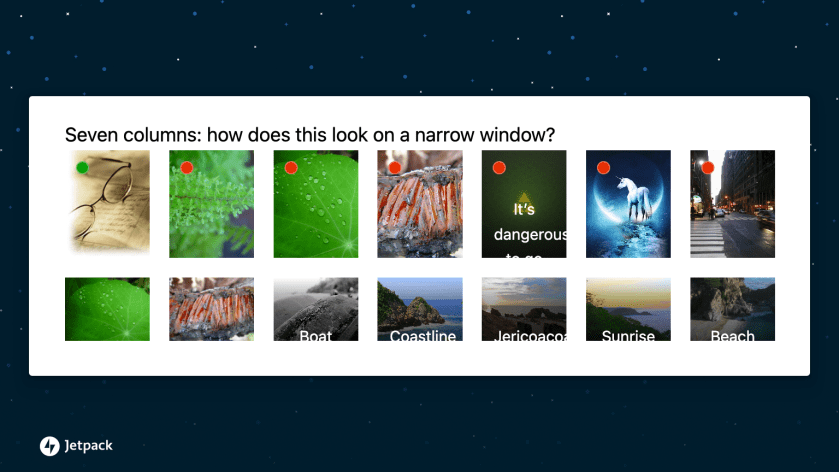
Pause the Image Guide

Once the image guide is turned on, you can set the feature as needed to Active or Paused from the WordPress Admin bar by clicking Image Guide.

The Boost Image Guide does not operate with page builders

Some page builders use iframes to render content, which results in the Image Guide displaying details in the admin area. To provide a lean experience, we disabled Image Guide when page builders are used.

How to optimize the images on your site

By optimizing the size of your images, you can improve the overall performance of your site, which can help site pages load more efficiently.

While Jetpack Boost can’t optimize the images hosted on your own server, you can enable the Jetpack Image CDN under Jetpack > Boost to serve optimized images from Jetpack’s servers instead. To learn more about the Image CDN, check out our Site Accelerator guide. For more granular control over image quality and enhanced image optimization, consider upgrading Jetpack Boost or subscribing to Jetpack Complete.

Below are a few options for optimizing the images on your site.

Before uploading them to the Media Library

There are a few different ways to optimize your images before uploading them to your Media Library:

  • Resize: Make sure that the image size you’re uploading is sufficient for the way you’ll be using it. For example, if you’re going to be using an image at a max size of 800px by 800px, upload the image at that size.
  • File Type: This really depends on the purpose of the image:
    • JPG: If you want an image that loads quickly, doesn’t have a transparent background, and the image doesn’t need to have a great deal of detail, using a JPG is recommended. This is good for things like photos that will be used in a gallery, or other applications where a super high quality image isn’t needed.
    • PNG: If you want an image that has a transparent background, and needs to be super high quality, using a PNG is recommended. This is good for things like logos, or other images that a user may look at in high detail, such as product images.

Activate the Jetpack Site Accelerator

The core Jetpack plugin includes our Site Accelerator; a free service which optimizes your images and serves them from a global network of servers (often called a CDN, or Content Delivery Network), enabling images to load from servers closer to the users accessing them when they browse your site. Site Accelerator also automatically resizes your images to fit in many situations.

We recommend using Site Accelerator to improve the performance of your images, particularly in cases where the Image Guide indicates they are over-sized.

Resize images from within your Media Library

You can resize images directly in your Media Library. Editing images and scaling them to an appropriate size in your Media Library is a non-destructive operation. In other words, it creates a new version of your image at the size you specify, leaving your original image unchanged.

Privacy Information

The Image Performance Guide is deactivated by default. You can activate it from your WP Admin dashboard → Jetpack → Boost.

Data Used
Site Owners / Users

This feature examines the images in use across your site, and how and where they are rendered.

Site Visitors

None.
Activity Tracked
Site Owners / Users

We track statistics on the over-sized images identified by the Image Guide, to help us improve the service and target improvements effectively.

Specifically, we track the size of over-sized images, and the approximate location within the page they appear (e.g.: within post content, or theme files)
Site Visitors

None.
Data Synced (Read More)
Site Owners / Users

None.
Site Visitors

None.
Comments Off on Jetpack Boost: Image Performance Guide

Understand Console Errors in Jetpack Boost

Know when you can safely ignore console errors caused by Jetpack Boost.

With Jetpack Boost’s “Optimize CSS Loading” feature, we analyze your website and figure out the most important CSS rules to display first (called Critical CSS). Critical CSS helps display your content sooner, so your users don’t have to wait for the entire page to load.

When you enable “Optimize CSS Loading”, the Critical CSS generation process starts, and Jetpack shows green progress bar. If you open your browser’s developer tools, you may notice a few errors depending on the browser you are using.

Behind the scenes, the plugin opens sample pages from your site in a hidden iframe to assist with generating the required Critical CSS. The iframe is configured to use tight security settings, which block any script execution from inside the iframe. As a result, browsers report blocked content in their console.

Since these are safety measures to protect your site, you don’t need to worry about them!

Examples of console errors you might see and can safely ignore:

  • Blocked script execution in '<URL>' because the document's frame is sandboxed and the 'allowed-scripts' permission is not set.
  • Blocked script execution in 'https://jp.test?jb-generate-critical-css=08174b89cb' because the document's frame is sandboxed and the 'allowed-scripts' permission is not set.
Screenshot showing the above Console error in Chrome.
Google Chrome showing a “Blocked script execution” console error

Still need help?

Please contact support. We’re happy to advise.

Comments Off on Understand Console Errors in Jetpack Boost

Jetpack Boost

Jetpack Boost helps your site load faster by optimizing how key assets are delivered—like CSS, JavaScript, and images. This guide explains how to install Boost, what each feature does, and how to use them.

You can get started for free, or upgrade to unlock premium features like automatic CSS optimization, image quality controls, and advanced image analysis.

WordPress.com hosting plans (Business or Commerce) don’t include premium Jetpack Boost features—you’ll need a Paid Boost plan to use them.

Installation Requirements

To use Jetpack Boost, make sure your site:

You don’t need the Jetpack plugin to use Boost. Jetpack Boost is a separate plugin.

Install Jetpack Boost

  1. From WP Admin → Plugins → Add New, search for Jetpack Boost.
  2. Click Install Now, then Activate.
  3. Choose a Free or Paid plan.
  4. After activation, you’ll be redirected to the Boost dashboard, where your Mobile and Desktop performance scores will be calculated.

If Jetpack Boost can’t connect to your site, follow these troubleshooting steps.

Jetpack Boost Dashboard

Once installed, the dashboard displays:

  • Mobile and Desktop performance scores based on Lighthouse.
  • A performance letter grade.
  • Toggle switches to enable or disable features.
  • A Refresh button to update scores after changes.
  • A historical score graph (available on paid plans).

Feature Reference

Jetpack Boost includes several tools to help improve your site’s front-end performance. Each one can be toggled individually from the dashboard.

FeatureFreePaid
Site performance scores
View site performance scores based on Google PageSpeed Insights. Learn more.
Optimize CSS Loading
Regenerate CSS manually after making design changes.
Cache site pages
Creates static versions of your pages to reduce load time for visitors.
Defer non‑essential JavaScript
Delays the loading of scripts that aren’t required for initial rendering, helping your content appear faster
Image performance guide
Calculate recommended dimensions for images on your site. Learn more.
Image CDN
Delivers your images from Jetpack’s high-speed global CDN.
Concatenate JS and CSS
Combines multiple JavaScript or CSS files into one to improve load performance.
Automated Critical CSS
Optimizes CSS loading automatically after changes.
Performance history
Track your performance history over time.
Image quality control
Adds image quality controls to CDN-served images and access to lazy load resizing.
Cornerstone Pages
Optimizes the Largest Contentful Paint (LCP) image on your Cornerstone Pages to improve perceived load time and Core Web Vitals scores.
One (1) pageTen (10) pages
What is included in Jetpack Boost Free and Paid plans

Cornerstone Pages

Cornerstone Pages help Boost prioritize performance improvements on your most important content. Boost focuses on these pages when generating Critical CSS and Page Speed scores. Your homepage will always be considered a Cornerstone Page.

  • On the Free plan, you can set one additional Cornerstone Page.
  • On the Paid plan, you can set up to ten additional pages.

By default, Boost adds:

  • Your WooCommerce shop page (if active).
  • Pages marked as Cornerstone Content in the Yoast SEO plugin.

Note: If you’re on a Free plan, only one page from the above (not counting home page) will be added when you first install Jetpack Boost.

You can view or change this list from the Boost dashboard, right below your speed scores.

Boost stores Cornerstone Pages as relative URLs, so if you change domains, your list will continue working without updating anything.

Cornerstone Pages affect:

  • Speed scores: Boost uses the first page in the list to measure performance.
  • Critical CSS: Each Cornerstone Page gets its own optimized CSS, improving loading precision.

Prerender Cornerstone Pages

When enabled, this feature uses WordPress 6.8’s speculative loading to prerender Cornerstone Pages in supported browsers. This means linked pages may begin loading in the background when users hover over them, resulting in faster perceived performance when they click.

You can toggle this on or off from the Cornerstone Pages section in the Boost dashboard. It’s off by default.

Learn more about Cornerstone Pages.

Optimize CSS Loading

It moves essential styles—called Critical CSS—to the top of your page’s code so that content starts rendering faster.

  • On the Free plan, you may need to regenerate CSS manually after making design changes.
  • On the Paid plan, this happens automatically after changes.

If your Site Health tool reports “Outdated Critical CSS,” click the link to visit the Boost dashboard and click Regenerate.

Stay on the dashboard while Boost generates Critical CSS. If you navigate away, the process will pause.

Learn more about optimizing CSS.

Cache Site Pages

Creates static versions of your pages to reduce load time for visitors.

  • Automatically updates the cache when content changes.
  • Includes an option to exclude specific pages from caching (helpful for frequently updated content).

To enable:

  1. Toggle Cache Site Pages in your dashboard.
  2. (Optional) Click to exclude pages from caching using URL patterns.

If this setting isn’t available, your host or another plugin may already provide server-side caching.

Learn more about caching site pages with Boost.

Defer Non-Essential JavaScript

It delays the loading of scripts that aren’t required for initial rendering, helping your content appear faster.

To enable it, toggle Defer Non-Essential JavaScript in the dashboard.

If site features break (e.g., forms or sliders), they may depend on JavaScript, which needs to load earlier.
Here is what you can try:

  • Turn the setting off.
  • Or exclude specific scripts using the script handle.

Concatenate JavaScript

It combines multiple JavaScript files into one, minimizing the number of requests your browser needs to make.

To enable it, toggle Concatenate JS in your Boost settings.

Excluding specific scripts

Some JavaScript files may not function correctly when combined. To exclude them you can identify the script’s handle by checking your page’s source code or plugin documentation.

 Example script tag:

https://yourjetpack.blog/wp-content/plugins/snow-effects/snow-effects.js

  1.  The handle is: snow-effects.
  2. Add snow-effects to the Excluded Files field.

When successful, you’ll see a comment like this in the page source:

<!-- No Concat JS snow-effects => Excluded option -->

This feature works only with scripts added via the WordPress Enqueue API. It doesn’t affect inline or embedded scripts.

Concatenate CSS

Combines multiple CSS files into one to improve load performance.

To enable it, toggle Concatenate CSS in your Boost dashboard.

Excluding specific stylesheets

Some stylesheets may break when combined. To exclude them, you can find the stylesheet’s handle from the id attribute in the HTML.

 Example:

<link rel="stylesheet" href="https://example.com/wp-content/themes/twentytwenty/style.css" id="twentytwenty-style-css">

  1.  The handle is: twentytwenty-style.
  2. Add twentytwenty-style to the Excluded Files field.

Like JS concatenation, this works only with styles added using the WordPress Enqueue API.

Image CDN

Delivers your images from Jetpack’s high-speed global CDN. This also converts images to more efficient formats like WebP for faster loading.

  • Free plan: Images are optimized and served via the CDN automatically.
  • Paid plan: Adds image quality controls and access to lazy load resizing.

Adjusting image quality (Paid feature)

In the dashboard, you’ll see sliders for:

  • JPEG
  • PNG
  • WebP

You can control each format’s quality level (0–100).

Auto-Resize Lazy Images (Paid feature)

Resizes lazily loaded images so they better match the size of their container. This helps reduce layout shifts and improves Cumulative Layout Shift (CLS).

  • Available when Image CDN is enabled.
  • Toggle Auto-Resize Lazy Images to turn this on.

LCP Image Optimization (Free for 1 page, Paid for up to 10)

Optimizes the Largest Contentful Paint (LCP) image on your Cornerstone Pages to improve perceived load time and Core Web Vitals scores.

Free plan: Optimizes one Cornerstone Page.
Paid plan: Optimizes up to ten.

Automatically identifies the largest visible image or background image and:

  • Prioritizes loading with fetchpriority="high"
  • Disables lazy loading for LCP images
  • Uses Jetpack CDN and responsive image techniques
  • Preloads background images with image-set()

Learn more about LCP Image Optimization

Image Performance Guide

This tool walks you through identifying and resolving common image-related performance issues on your site.

This is especially useful if you’re unsure where to begin with image optimization.

Multisite and Local Usage

  • Multisite installations: Activate Boost separately on each site in the network.
  • Local environments: Use Offline Mode to test Boost on private or local sites.

Jetpack Boost Troubleshooting Hub

If Jetpack Boost isn’t working as expected, we have helpful documentation to get things back on track. Most issues can be fixed with a few simple steps—starting with the right diagnosis.

Use the guide below to find common issues, organized by feature. Each link opens a dedicated troubleshooting article with detailed instructions.

CachingFix problems with Boost’s page caching—like file access issues or conflicts with other plugins.Troubleshooting Jetpack Boost caching issues
Critical CSSSolve errors related to outdated or missing Critical CSS.Troubleshooting Critical CSS in Jetpack Boost
Concatenate CSS/JSFix layout or script errors caused by CSS or JavaScript concatenation.Troubleshooting Concatenated CSS or JavaScript Delivery Methods
JavaScript DeferralLearn how to exclude scripts that break when loaded late.Exclude JavaScript files from Jetpack Boost deferral
Speed Score MeasurementUnderstand how Boost calculates speed scores and what each metric means.How the speed score is measured with Jetpack Boost
Console ErrorsTroubleshoot JavaScript or CSS errors reported in your browser’s console.Understand Console Errors in Jetpack Boost
Cache Filter CustomizationFor developers: customize how Boost handles caching using optional filters and config files.Using Filters to Customize Cache Parameters in Jetpack Boost
Speed Score FluctuationsUnderstand why your Boost performance score may change on each refresh, and how to test more reliably.Why my Jetpack Boost speed score changes (and what to do about it)
LCP Image OptimizationFix issues preventing Boost from optimizing your Largest Contentful Paint images.Troubleshooting common issues with Optimize LCP Images within Jetpack Boost

Need help?

If you’re having trouble setting up or using Jetpack Boost, contact Jetpack Support. We’re happy to help.


Privacy Information

We are fully committed to the privacy and security of our customers and their personal data. For a better understanding of how Jetpack Boost uses your data, please refer to the  Privacy Notice (Automattic owns and operates the Jetpack Boost plugin), the Automattic Privacy Policy, and the following section.

Jetpack Boost uses Jetpack libraries to connect to WordPress.com and calculate the page speed score (making use of the tk_ai cookie). There is more information about cookies within Jetpack here.

Data Used
Site Owners / Users

In order to calculate Page speed scores, generate Critical CSS blocks, etc, the following information is used: WordPress.com-connected site ID, local site ID, and site URL. Additionally, for activity tracking (detailed below): IP address, WordPress.com user ID, WordPress.com username, WordPress.com-connected site ID and URL, Jetpack version, user agent, visiting URL, referring URL, timestamp of event, browser language, country code, Critical CSS generation URL, block counts, block sizes, error details, generation time, provider keys, Boost version, and active Boost features. We monitor the types of errors encountered during the Boost Cache setup process to pinpoint user challenges and direct our enhancement efforts.

Site Visitors

None.

Activity Tracked
Site Owners / Users

We track when, by which user, and which website is connected to WordPress.com and when the plugin is deactivated. We also track activities such as the Critical CSS generation process, when, and which, configuration settings are modified. For Jetpack Boost Premium subscribers, we also track site performance over time. We use this data to populate the Historical Performance section of the Jetpack Boost dashboard. We track activities such as toggling the Cache feature and altering its settings. We use this data to identify common usage patterns to better target our future improvements.

Site Visitors

None.

Data Synced (Read More)
Site Owners / Users

We sync options that identify whether or not optimization features are enabled, latest speed score measurements, and options that contain the state of last critical CSS generation.

Site Visitors

None.

Comments Off on Jetpack Boost

Progressive Web Application (PWA)

The Progressive Web Application feature was deprecated and removed in Jetpack version 7.9.

If you’re looking for Progressive Web Application (PWA) functionalities, you can search for other plugins in the WordPress repository.


Comments Off on Progressive Web Application (PWA)

Site Accelerator

Speed up your website’s loading time by optimizing your images and common static assets by serving them from our global network of servers.

Jetpack’s Site Accelerator (a.k.a. Jetpack content delivery network or CDN, formerly known as Photon) helps your pages load faster by optimizing your images and serving them alongside static files (like CSS and JavaScript) from our global network of servers.

For general features and FAQs, please see our CDN features here.

Activate Site Accelerator

Site Accelerator is deactivated by default. To activate it, please follow these steps:

  1. In your site’s dashboard, go to Jetpack → Settings → Performance.
  2. In the Performance & speed section, toggle on
Screenshot of the Performance & Speed dashboard in Jetpack.

Once you turn on Site Accelerator, please keep your photos on your server for the CDN to work correctly. We only make copies, and any images that are removed from your server will eventually “expire” and be removed from our CDN.

If you ever turn off Site Accelerator, images will continue to show on your website, they will just start loading from your webhost’s server again instead of ours. Please note that it could take a few minutes for these changes to take place.

Check that Site Accelerator is working

To check if images are loading from the CDN, you can follow these steps:

  1. Wait a few moments and then load your site in a different web browser, to avoid any caching issues.
  2. Check an image’s URL in your browser’s inspector, or open the image in its own tab. The images served from our CDN have URLs that begin https://i0.wp.comhttps://i1.wp.com, https://i2.wp.com or similar.
  3. If you do not see i0.wp.com or similar, see our troubleshooting steps below.

How Site Accelerator works

Image load times

Our Image CDN is an image optimization and editing service. We copy your photos and then host them from our servers, alleviating the load on your server and providing faster image loading for your readers.

Static file load times (Asset CDN)

The Asset CDN serves a limited set of static files only from WordPress core, Jetpack, and WooCommerce via our global network of servers. This reduces the load on your server for these specific assets.

  • It does NOT serve: static files from themes, third-party plugins, or custom scripts.
  • If you disable Site Accelerator, only WordPress core, Jetpack, and WooCommerce assets will revert to loading from your local server. Theme and plugin assets are not affected, as they were never served by Jetpack’s CDN.
  • Site accelerator filters the URLs of assets that are loaded with every WordPress page.
  • Site accelerator only acts on assets shipped with WordPress core, Jetpack, and WooCommerce.

What happens when you disable Site Accelerator?

If you turn off Site Accelerator:

  • Images will still load on your site but will no longer be served via Jetpack’s CDN.
  • WordPress core, Jetpack, and WooCommerce assets will switch back to loading from your site’s local server.
  • Theme and plugin files were never served by Site Accelerator. They will continue to load exactly as before.
  • If your site breaks after disabling Site Accelerator, check for:
    • Caching conflicts – Clear your browser and site cache (both plugins and server-side caching)
    • Missing assets – Ensure all theme and/or plugin files exist on your local server.
    • Dependencies – Some themes or plugins might expect assets to load from Jetpack’s CDN. If disabling causes problems, check with the theme or plugin developer.

Allow the Photon User Agent to Ensure Site Accelerator Works

Jetpack’s Site Accelerator (also known as the Image CDN) relies on accessing your images using a special user agent: Photon/1.0. If this user agent is blocked—by a security plugin, server rules, or firewall—Jetpack will not be able to fetch your images, and they will not be served via Site Accelerator.

Common causes of blocking:

  • Security plugins may block the Photon user agent by default.
  • Custom .htaccess rules may include blocks for unknown or bot-like user agents.
  • Firewall settings may filter or deny requests from Photon/1.0

To fix this issue:

  1. Look for .htaccess or firewall rules that may include a line like:
  2. Check any active security or optimization plugins for user agent filtering features.
  3. If present, remove it or adjust the rule to allow Photon/1.0.
  4. If you must use user agent filtering, make sure to allowlist Photon/1.0 and Jetpack requests.
  5. Optionally, allow Jetpack’s IP ranges if server-level filtering is applied.

When this is misconfigured, you may see:

  • Images not loading from i0.wp.com, i1.wp.com, etc.
  • Broken images or timeouts in the browser.
  • A 403 or empty response for requests from Jetpack servers.

Image resizing

Site Accelerator resizes photos by first checking the img element’s width and height attributes and then serving an image resized to those dimensions, or to the width of the containing element (whichever is smaller).

If there is no size set on the element, Jetpack will constrain images to the size indicated when adding the image to a post, or to your theme’s “content width” setting.

Finally, if a content width isn’t set in your theme, then Site Accelerator will default to 1,000px. This is to help ensure that sites are not trying to serve images larger than what the theme intended to be able to display.

We remove the width and height arguments to prevent your images from skewing when the resized image doesn’t have the same dimensions as the original. This is particularly important when you switch from one theme to another, and the new theme might be narrower than the previous one. One of the benefits of this is that we will automatically resize your images so they don’t exceed the width supported by your theme.

Limitations of Site Accelerator

Cache and theme/plugins

  • Site Accelerator will not fetch or process images larger than 50 MB in size.
  • Site Accelerator does not do cache invalidations. Static assets are tied to the public version of WordPress, Jetpack, or WooCommerce that you’re using. For images, if you want to “refresh” an image, you will need to change its file name. Adding random query arguments, commonly known as “cache busters,” will not work.
  • Theme and plugin assets are not supported by Site Accelerator at this time.
  • Themes and plugins can also use the Photon API to transform images using GET query arguments. Developers will find Photon API examples and documentation on developer.wordpress.com.

Self-served image purge

It is not possible to automatically purge or delete all cached site images from Jetpack servers.

If there is an image that is no longer on your server and you’d like us to remove it, please contact Jetpack support with a direct link to the file as it appears on your site. Cached image links usually begin with i0.wp.com, i1.wp.com, i2.wp.com, or i3.wp.com.

Since images can only be purged or deleted manually by individual URL, there is a limit to how many we can remove. Bulk purges or whole-site deletions for cached images are not possible.

Size edit, and type of files

  • We will not “upscale” an image in most circumstances. If your original image is 1,000px wide and you ask for Jetpack to make it 5,000px, we will serve the original 1,000px image. Upscaled images are usually of poor quality, and we want to avoid that.
  • Site Accelerator only handles GIF, PNG, JPG, and WebP images from servers that listen on port 80 for HTTP and port 443 for HTTPS. This applies to about 99.99% of the web servers in the world. If you are having issues, please try using the jetpack_photon_reject_https filter.
  • Site Accelerator does not support animated PNGs.
  • Site Accelerator does not serve audio (.mp3, .wav, .flac, etc.) or video (.mp4, .wmv, .flv, etc.) files. If you’d like to host videos on our CDN, check out our Video Hosting feature.

Server time out and serving image location

  • If your server takes longer than 10 seconds when an image is being retrieved for our CDN, the process will time out and your image will appear to be broken. Try to upload a differently-named image with a smaller dimension or file size if this happens.
  • It’s not possible to choose or limit where in the world your images will be served from. We have servers placed all over the world, and which server will load your image is dependent on a variety of factors, including the visitor’s location.

Site Accelerator is only allowed to be used by sites hosted on WordPress.com or on Jetpack-connected WordPress sites. If you move to another platform or disconnect Jetpack from your site, please also switch to another image CDN service. Any abuse of Jetpack or violation of the WordPress.com Terms of Service could result in the suspension of your site from WordPress.com-connected services, including Site Accelerator.

Troubleshooting Site Accelerator

My images don’t load

  1. Wait a few minutes and reload your site in an incognito/private browsing window. It may take time for changes to apply.
  2. Right-click an image and open it in a new tab. If the URL doesn’t start with i0.wp.com, i1.wp.com, or similar, image acceleration isn’t active.
  3. Make sure Jetpack is properly connected to WordPress.com.
  4. Some image optimization plugins may conflict with Site Accelerator by altering image URLs or introducing lazy loading mechanisms. Disable all other plugins except Jetpack and check if the issue resolves. If images display properly, re-enable plugins one by one to identify the conflicting plugin.
  5. If images still aren’t loading, switch to a default WordPress theme (e.g., Twenty Twenty-Four) to check for a theme conflict.

The static assets don’t load after disabling Asset CDN

  1. Clear your browser cache and site cache to remove any outdated references to Jetpack’s CDN.
  2. Check if the missing files exist on your local server. If they’re missing, try reinstalling WordPress core, Jetpack, or WooCommerce. If the issue persists, check for incorrect file paths or conflicts with caching plugins.
  3. If using a caching plugin, purge the cache and reload your site. Some plugins may still be referencing the old CDN URLs.
  4. Disable all other optimization plugins and test again. Some caching/minification tools may interfere with asset delivery.
  5. If issues persist, temporarily re-enable Site Accelerator and check if the problem is resolved. This helps confirm whether the issue is related to disabling the CDN.

Site Accelerator and User Agent Filters

Site Accelerator requires Jetpack to access your images using a specific user agent, Photon/1.0. If this user agent is blocked by a plugin, firewall, or server configuration, Jetpack will not be able to retrieve or cache your images. This prevents Site Accelerator from functioning correctly.

Why this matters

Jetpack’s Site Accelerator fetches and optimizes images directly from your server. This process depends on the `Photon/1.0` user agent being allowed. If it’s blocked, Jetpack cannot deliver your images via its CDN even if the feature is enabled.

Signs that the Photon user agent may be blocked

  1. Images are not loading from Jetpack CDN domains like i0.wp.com, i1.wp.com, etc.
  2. You see 403 or timeout errors in your browser’s network tools.
  3. Site Accelerator appears enabled but has no visible effect on image delivery.

How to check for and resolve user agent blocks

Check for plugin, firewall, or server rules that may be filtering or blocking user agents. Security tools like Blackhole for Bad Bots or WP-Optimize have been known to interfere with Jetpack in this way.

To verify, look for code similar to the following in your .htaccess file:

# Block Photon

RewriteEngine On
RewriteCond %{HTTP_USER_AGENT} Photon/1.0 [NC]
RewriteRule .* - [F,L]

If this rule is present, Site Accelerator will not be able to access your images. You’ll need to remove or modify the rule to allow the Photon/1.0 user agent.

If you use stricter user agent filtering, we recommend allowlisting Photon/1.0 and optionally Jetpack’s IP ranges to avoid unintended blocking.

We provide this example for reference only. Per our Scope of Support, we cannot assist with implementing or troubleshooting custom server rules.

Still need help?

Please contact support. We’re happy to advise.

Privacy Information

Site Accelerator is deactivated by default. You can toggle the feature on or off under the Performance & speed section from Jetpack → Settings → Performance in your dashboard.

Data Used
Site Owners / Users

While not actively used in the delivery of this functionality, EXIF data may exist (and be accessible to site visitors) in any of the images that you upload to your site.Additionally, for activity tracking (detailed below): IP address, WordPress.com user ID, WordPress.com username, WordPress.com-connected site ID and URL, Jetpack version, user agent, visiting URL, referring URL, timestamp of event, browser language, country code.

Site Visitors

None.

Activity Tracked
Site Owners / Users

We track when, and by which user, the feature is activated and deactivated.

Site Visitors

None.

Data Synced (Read More)
Site Owners / Users

We sync a single option that identifies whether or not the feature is activated.

Site Visitors

None.

Comments Off on Site Accelerator

Improve your site’s performance with Jetpack

Jetpack includes powerful tools to help your WordPress site load faster, perform better in search engines, and deliver a smoother experience for your visitors. Whether you’re optimizing Core Web Vitals, speeding up image load times, or reducing server load, Jetpack can help boost your site’s performance.

This guide highlights Jetpack’s most important performance tools — from built-in settings to optional plugins — to help you improve your site’s speed, stability, and SEO.

Jetpack Boost: optimize core web vitals and load speed

Jetpack Boost is a performance plugin designed to improve how quickly your site loads and help you meet Core Web Vitals — key speed metrics used by Google.

Why use it:

  • Speed up the appearance of visible content
  • Improve Largest Contentful Paint (LCP)
  • Prioritize performance on your most important pages

Includes:

  • Critical CSS: Prioritizes styling for content that loads first.
  • Defer JavaScript: Delays non-essential scripts to reduce loading time.
  • Caching: Speeds up repeat visits by saving full page versions. 
  • LCP Image Optimization: Detects and optimizes the most important image on each page.
  • Cornerstone Pages: Focuses performance improvements on specific high-value pages.

Learn more in the full Jetpack Boost guide

Performance & Speed: load assets from a global CDN

The Site Accelerator feature helps your site load faster by serving your images and static files from Jetpack’s global content delivery network (CDN).

Why use it:

  • Reduces load on your server
  • Speeds up image-heavy pages
  • Improves loading times by serving files from data centers near your visitors

You can choose to accelerate image delivery, static file delivery, or both. These options are available in the Jetpack plugin under the Performance tab at Jetpack → Settings

More about Site Accelerator

Media: fast, reliable video hosting with VideoPress

VideoPress lets you upload high-quality videos directly in the WordPress editor and delivers them quickly through Jetpack’s fast, ad-free player.

Why use it:

  • Offloads large files from your web server
  • Streams videos from a global infrastructure so videos load faster
  • Supports adaptive quality for smooth playback

More about VideoPress

Search: help visitors find content faster

Jetpack Search improves the default WordPress search with fast, real-time results and advanced filtering.

Why use it:

  • Offloads database intensive WordPress searches to cloud servers
  • Adds filters for categories, tags, dates, and more
  • Scales well for large sites and WooCommerce stores
  • Makes search feel modern and responsive

More about Jetpack Search

Caching: speed up repeat visits

Jetpack Boost includes a built-in page caching feature that stores and serves full versions of your pages for logged-out visitors. This helps reduce server load and significantly improves load times on repeat visits.

Why use it:

  • Faster page load times for returning users
  • Reduced server and database usage
  • Automatically clears cache when content is updated

Jetpack Boost’s caching works out of the box for most sites. You can also customize it with filters, adjust cache duration, exclude certain pages from caching, or enable logging for debugging.

Learn more about caching with Jetpack Boost

If you need advanced caching features or your hosting provider prevents Boost’s cache from activating, you can use WP Super Cache for more control.

More about WP Super Cache

WP Super Cache: advanced page caching

WP Super Cache is a free plugin by Automattic that saves static versions of your pages and serves them to visitors without repeated database queries.

Why use it:

  • Reduces load on high-traffic or dynamic sites
  • Improves load speed for returning visitors
  • Offers advanced configuration beyond what’s built into Jetpack Boost

View WP Super Cache setup guide

Also helpful for site stability and performance

Jetpack includes features that indirectly support speed and reliability:

  • Jetpack Protect: Blocks brute-force login attempts and bots that can slow down your site.
  • Jetpack Monitor: Alerts you if your site goes offline so you can act fast.
  • Jetpack Stats: Gives you lightweight analytics without slowing down your site.

Summary: Which tools should I use?

GoalRecommended Tool
Improve Core Web VitalsJetpack Boost
Speed up images and static filesSite Accelerator
Optimize Largest Contentful PaintJetpack Boost 
Cache full pagesJetpack Boost or WP Super Cache
Host fast, ad-free videosJetpack VideoPress
Improve content discoverabilityJetpack Search
Block malicious trafficJetpack Protect
Monitor downtimeJetpack Monitor
Lightweight visitor analyticsJetpack Stats

Need help?

Not sure which tools are right for your site? Contact Jetpack Support — we’re happy to help.

Comments Off on Improve your site’s performance with Jetpack

Lazy Loading Images

Still need help?

Please contact support. We’re happy to advise.

Privacy Information

Lazy loading has been deprecated.

Comments Off on Lazy Loading Images
  • Enter your email address to receive news and updates from Jetpack

  • Join 99.1K other subscribers
  • Browse by Topic