

Jetpack Search blocks: search and results
Learn about the search shell blocks in Jetpack Search, including the input field and the blocks that control how search results are displayed, sorted, and paginated.
Adding search blocks to your page
- Open the page or template where you want to add search blocks in the block editor.
- Click the + button in the editor toolbar to open the block inserter.
- Scroll to the Jetpack Search category, or type the block name in the search field.
- Click the block you want to insert.
All search shell blocks are designed to work together. To get started, insert the Search Results block, which automatically includes the Results Count, Sort By, Results List, Load More, and Powered by Jetpack blocks inside it. Then add a Search Input block above it for the search box.
Search shell blocks
These blocks make up the search query input and results display area. Each block is described below with its available settings and tips for use.
Search Input
The Search Input block adds the search box to your page. Visitors type their query here and results update automatically as they type.
Available settings
Open the block settings panel in the editor to configure these options:
- Placeholder text: The text displayed inside the empty search box before a visitor types anything. Defaults to “Search…” if left blank. Use this to give visitors a hint, for example, “Search posts, pages, and more.”
- Show search icon: Toggle the magnifying-glass icon inside the input on or off. Enabled by default. Turn it off if the design of your page already makes the input’s purpose clear.
- Search on submit only: By default, results update as the visitor types (live search). Enable this setting to only trigger a search when the visitor presses Enter or clicks a submit button. This is useful when your page layout is not designed for rapid updates, when you want to reduce the number of search requests, or for accessibility scenarios where rapid live updates can be disorienting for assistive-tech users.
Search Results
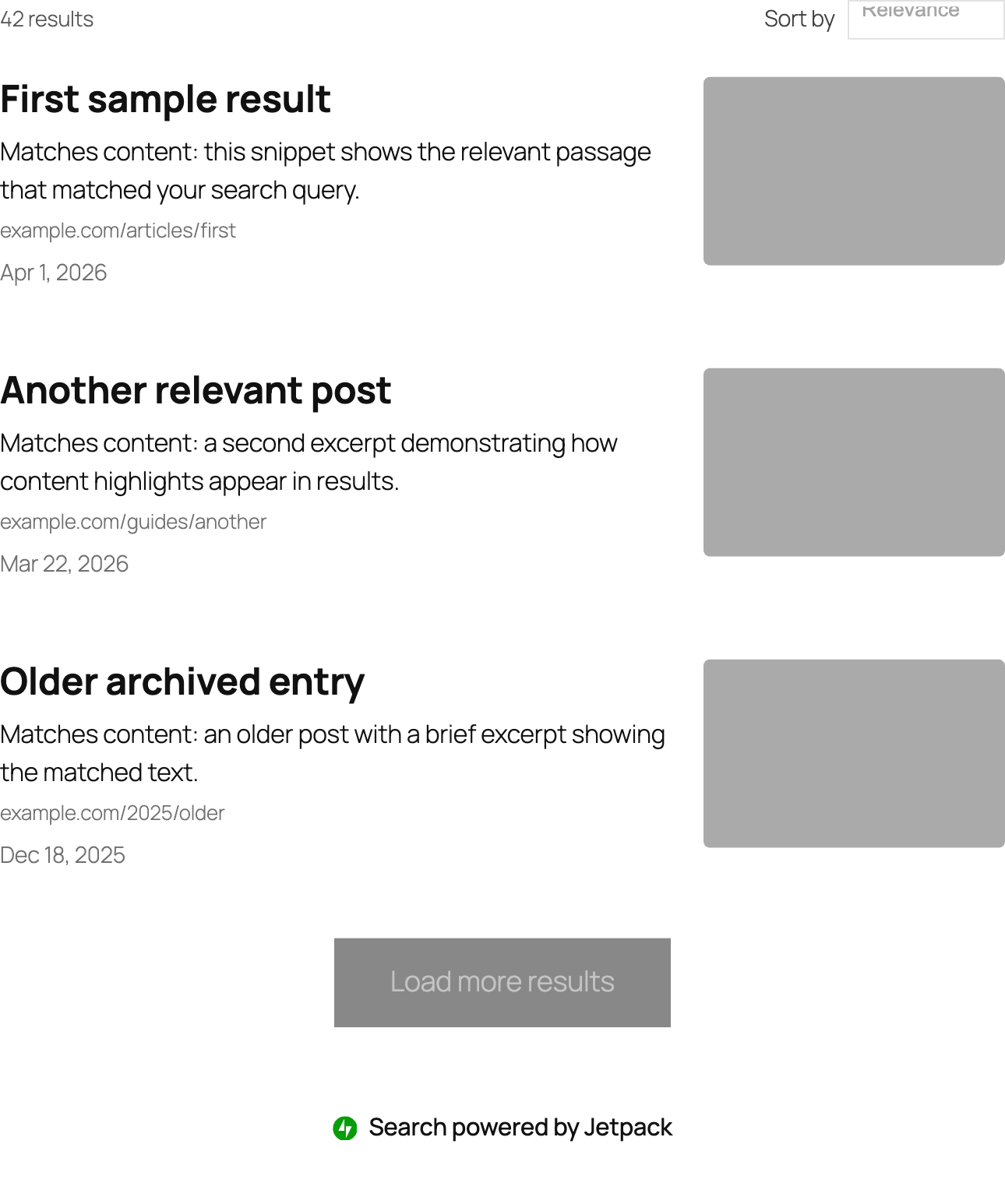
The Search Results block is the main results container. When you insert it, it comes pre-built with everything needed to display results: a result count, sort control, the results list, a load more button, and an attribution link.
What is included by default
When you first add this block, it contains:
- Results Count: shows how many results were found.
- Sort By: lets visitors sort results by relevance, date, and more.
- Results List: displays the individual result items.
- Load More: button to load the next page of results.
- Powered by Jetpack: attribution link (required on the Jetpack Free plan).
You can rearrange these inner blocks, remove ones you do not need, or add them back from the block inserter.
Customizing the layout
Use the standard block styling controls (color, spacing, border, typography) in the editor sidebar to style the container. Each inner block has its styling controls as well.
Pagination
The Search Results block includes a Pagination panel in the block sidebar inspector. This panel lets you set how many results appear on each page of search results.
Previously, block-based search always returned exactly 10 results per page and per Load more batch. This value was fixed and did not respond to any site setting.
The default number of results per page now matches your site’s Settings → Reading → Blog pages show at most value (the posts_per_page setting), clamped to the package maximum.
The Pagination panel contains a single field – Results per page, which is a number field that sets how many results appear on each page.
The placeholder shows the current site default, for example, “Site default (10)”, and the help text reads “Leave blank to match the site’s Reading setting.”
Enter a number to override the site default for this block. Clear the field to reset back to the site default, which reverts to your live Settings → Reading → Blog pages show at most value rather than a value saved at the time you edited the block. The maximum value is 100 on standard sites and 1000 on VIP sites.
The Results per page value applies to both the initial search load and every Load more batch.
Please note that this setting applies to block-based search only. For Classic Search, the results per page is controlled by your theme or plugin settings. It does not affect the Instant Search overlay.
Powered by Jetpack
If your site is on the Jetpack Free plan, the Powered by Jetpack attribution is required. If you remove that inner block, it will be added back automatically when the page renders. On a paid plan, you can remove it freely.
Results List
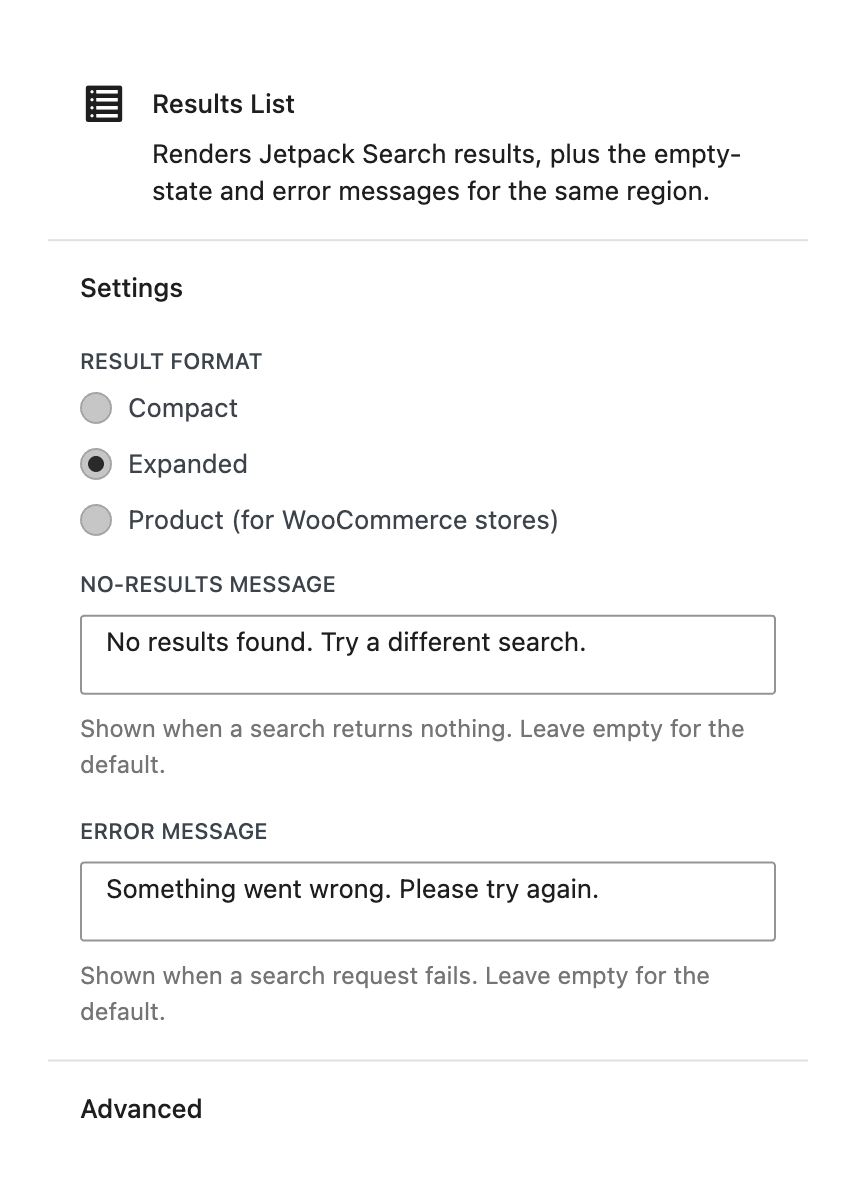
The Results List block displays the individual search result items returned by Jetpack Search. It also shows a message when a search finds nothing and an error message if something goes wrong.
Available settings
Open the block settings panel in the editor to configure these options:
- Layout: Choose how much detail each result shows:
- Expanded (default): Thumbnail image, title, excerpt, URL path, and date.
- Compact: Title and date only. Good for dense results lists or sidebars.
- Product: Thumbnail image, title, price, and star rating. Designed for WooCommerce shops.
- No results message: The text shown when a visitor’s search returns zero results. Defaults to a translated “No results found” message if left blank. Customize this to match your site’s tone, for example, “We couldn’t find anything for that search. Try different keywords.”
- Error message: The text shown if a search request fails, for example, due to a network issue. Defaults to a translated error string if left blank.
Results Count
The Results Count block shows visitors how many results were found for their search, for example, “1,234 results for ‘WordPress’.” Before a search is typed, the count area is empty.
Sort By
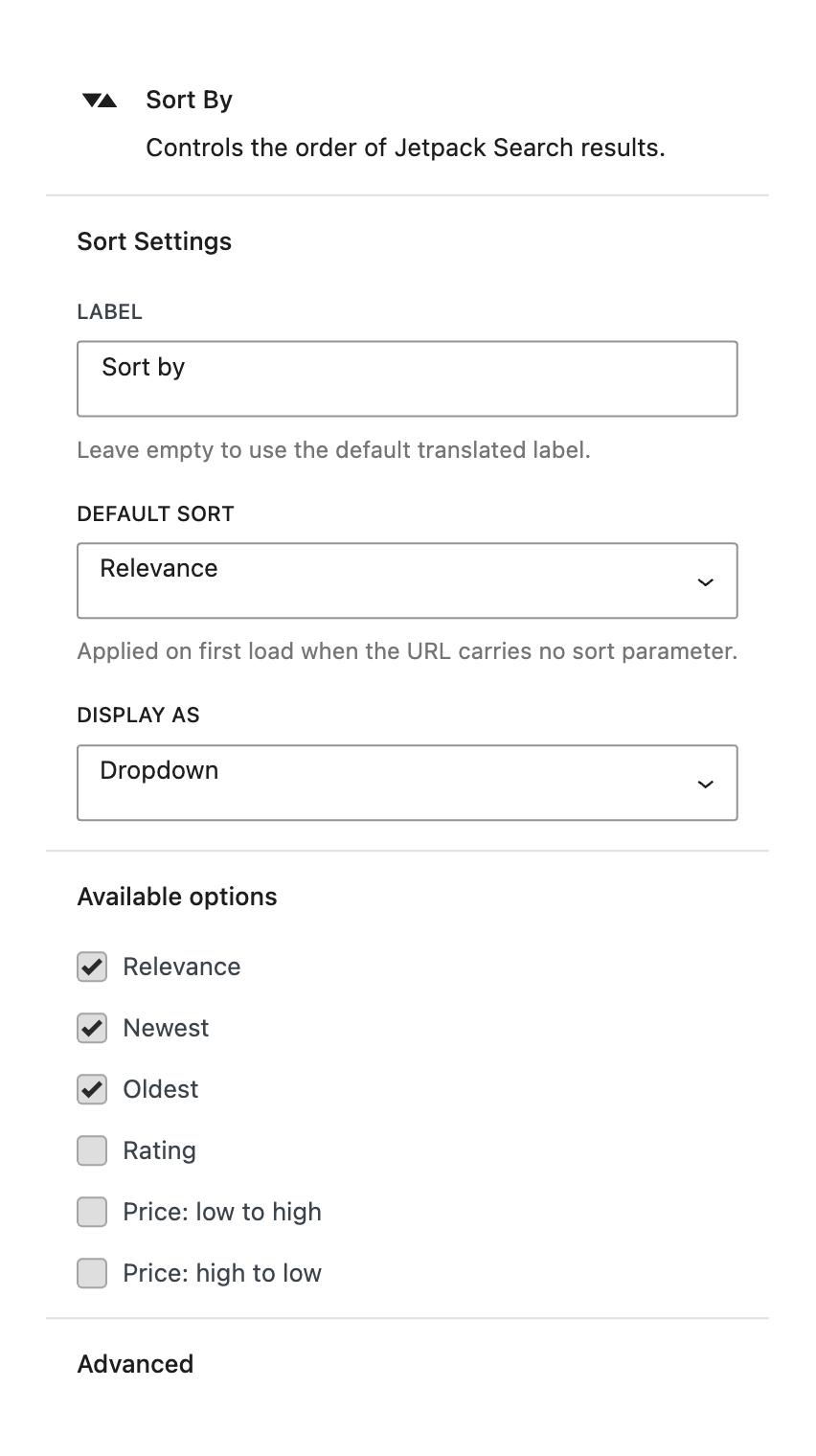
The Sort By block lets visitors change the order in which search results are displayed. You choose which sort options to offer and which one is selected by default.
Available settings
Open the block settings panel in the editor to configure these options:
- Label: The text label that precedes the sort control. Defaults to “Sort by” if left blank.
- Default sort order: The sort order applied when a visitor first arrives on the search page. The Highest rated, Lowest price, and Highest price options are only relevant on sites that use WooCommerce. Options include:
- Relevance (default): Results are ordered by best match to the search query.
- Newest: Most recently published content appears first.
- Oldest: Earliest published content appears first.
- Highest rated: Highest WooCommerce product rating first.
- Lowest price: Cheapest WooCommerce product first.
- Highest price: Most expensive WooCommerce product first.
- Display as: Choose how the sort control looks:
- Dropdown (default): A select menu that is compact and familiar.
- Radio buttons: All options visible at once. Works well when there are only two or three choices.
- Collapsible: A compact button that opens a popover, saving space in tight layouts.
- Available options: Choose which sort options are available to visitors. You can include as many or as few as you like, but at least one must always remain. For a blog, offering Relevance and Newest is usually enough. For a shop, you might add Lowest price and Highest price.
Load More
The Load More block adds a button that appends the next page of results to the list when clicked, without reloading the page.
Available settings
Open the block settings panel in the editor to configure this option:
- Button label: The text shown on the load more button. Defaults to “Load more results” if left blank. Customize this to match your site’s style, for example, “Show more” or “Load next page.” When there are no more results, this button is hidden.
Powered by Jetpack
The Powered by Jetpack block displays a small “Powered by Jetpack” attribution link at the bottom of your search results area.
Free plan vs paid plan
On the Jetpack Free plan, this attribution is required. If you remove this block from the results area, it will be added back automatically when the page renders.
On a paid plan, you can remove or reposition this block freely. Removing it entirely will not cause it to reappear.
Available settings
This block has no configurable options beyond standard styling controls (color, typography, spacing) in the editor sidebar.
Still need help?
Please contact support. We’re happy to advise.

