“Immutable Real-Time Objects” ensure that certain data, which Jetpack VaultPress Backup considers “unchangeable,” stays the same whenever you restore with Jetpack VaultPress Backup. For WooCommerce users, this means that specific important information won’t be altered or lost during the restore process.
Imagine restoring your site to a state from a week ago. With our immutable feature, your website would revert back to how it was one week ago, but all of the orders placed and any product modifications made over the past seven days would remain intact and unaltered. This ensures you never lose an order even if you restore the other content of your site.
How Does It Work?
A simplified explanation is when Jetpack Backup receives an update, it determines whether the change is immutable and keeps it if so. It locates these changes by considering the item’s characteristics, such as the type of object or post.
All recognized immutable changes are then conserved and applied during Jetpack VaultPress Backup’s restore process, seamlessly and without any need for special configuration on behalf of the user.
While the Immutable Real-Time Objects feature is powerful, it has some limitations.
Data not treated as immutable
These following will not be treated as immutable (or “unchangeable”):
Your site’s stock/inventory
Images added to a product description
Custom events triggered from purchase are not immutable. Items such as subscriptions may need to be reactivated after the restore.
Potential limits with restored products
Products that are restored by Jetpack may not be instantly ready for use in your WooCommerce store. Instead, they serve primarily as a reference point and may require additional configuration and verification before they can be used on a live site.
Real-time Requirement
Because the immutable feature is conditional upon receiving updates in real-time, any data that is not supplied in real-time cannot be treated as immutable.
High-Performance Order Storage (HPOS)
On sites using WooCommerce’s HPOS, Jetpack VaultPress Backup will backup orders in real-time. However, these orders will not appear in a site’s Activity Log.
Having trouble making backups with Jetpack VaultPress? Learn some basic troubleshooting steps you can take to fix backup issues.
After fixing the issue, you can wait for the new backup to run the next day, or trigger a new backup by clicking the ‘Backup now’ button on your Backup page.
First: check the website’s Jetpack Connection
A working Jetpack connection is required to get Jetpack VaultPress Backup working properly. There are times when the connection can become unstable or broken. This may be due to a misconfiguration of your site or a problem on your host server.
Before attempting any other troubleshooting steps, make sure your site’s Jetpack connection is working:
Check your site’s connection on the Jetpack Debug page.
If the Jetpack Debug page shows connection errors, troubleshoot the connection using the Fix Jetpack Connection Issues guide.
We encountered some issues with the latest backup, but don’t worry! We’re using the most recent backup available.
Or:
We ran into an issue backing up your site, but we’re aware of the issue and working on fixing it.
These messages usually indicate a temporary issue with the backup system. In most cases, you don’t need to take any immediate action — backups often resume on their own.
If the message continues to appear after a couple of days, or if no new backups are showing in your site’s Activity Log, please contact Jetpack Support so we can take a closer look.
Add server credentials
If backups are not working via HTTP (the default), you can add server credentials to Jetpack VaultPress Backup, and we’ll use those instead. For step-by-step instructions about adding server credentials to Jetpack VaultPress Backup, please read our Add Credentials in the Jetpack Plugin article.
Lost Backup history or duplicate sites
If you recently changed your domain or hosting and are now seeing duplicate sites in the Jetpack dashboard or have lost backup history, this could be due to an Identity Crisis.
An Identity Crisis happens when Jetpack mistakenly assigns a new site ID instead of updating the existing one, causing historical data, like backups, to appear missing.
Because resolving an Identity Crisis requires support intervention, please contact Jetpack Support for assistance.
Speak to your host
Even when everything has been set up correctly, it’s still possible to see errors. This is often due to security settings at the host level, outside your control.
If you are not sure about who your web host is, you can check using WhoIsHostingThis.com.
Reach out to your host and ask them to do the following:
Check for any other security blocks that might be preventing Jetpack from communicating with your website.
Check for security plugins
Some security and firewall plugins may also block requests from Jetpack; adding Jetpack’s IP ranges to these plugins may be required. You could also try temporarily disabling other plugins to determine which may be blocking requests.
Fix file errors
You can fix transient file errors by doing the following:
Log into your site’s File Manager or log into your site via FTP, SFTP, or SSH.
Create a new directory (folder) named donotbackup.
Move the files listed on your Backup Warnings list to this folder. From now on, Jetpack VaultPress Backup will know to skip this directory automatically.
Remote server credentials create a way for Jetpack to access the files on your website’s server.
What are remote server credentials?
Every WordPress site is hosted on a server – this is where the files, directories, and programs that make up your site are located.
In most scenarios, Jetpack Backup and Scan work over an HTTP connection without needing server credentials. This includes:
Performing backups and restores.
Performing malware scans.
Resolving security threats found by Jetpack Scan – (note that this requires installing and activating the Jetpack Protect plugin v4.2 or higher).
However, Jetpack will need remote server credentials in cases where the backups, scans, or restores don’t perform as expected.
Remote server credentials provide a way to transfer files from one server to another. The way the file transfer happens is different for each method. You can read more about each method if you are curious to learn:
Remote server credentials are unique and different from:
Your WordPress.org login
Your WP Admin login
Your WordPress.com login
Your host’s control panel or dashboard login
File Access Permissions
The remote server credentials you add to Jetpack VaultPress Backup will need full read and write access to the directory where your WordPress is installed.
The read and write permissions settings vary depending on your host, so we are unable to tell you the exact permissions you’ll need. If you have any trouble, please contact your host’s support team and point them to this documentation. They should know how to help.
Unless we have specific permission, we will never use your server credentials for anything other than backups and restores.
Recommendations for the type of credentials
We recommend credentials in this order:
SSH (most recommended)
SFTP
FTP (least recommended, but better than no credentials)
FTPS (not recommended)
Currently, Jetpack VaultPress Backup can only use unencrypted private keys for SSH and SFTP. These are keys without a password or passphrase.
Find your remote server credentials
Your host provides these credentials for you. You will often receive these details via email when you first create a hosting account.
If you have issues adding your credentials to Jetpack VaultPress Backup, we recommend contacting your hosting provider for support. When you reach out to your hosting provider, you can share the following message with them:
I’m in the process of setting up my site on VaultPress Backup, and I need server credentials to enter into the plugin so that it can perform backups and restores on my website. Could you help me determine the correct information for the following items:
Protocol: FTP is fine, but SSH or SFTP would be ideal.
User: The user needs to have read and write permissions for my site’s files on the server. More on why VaultPress Backup needs read and write permissions can be found here. Note: the root user cannot be used.
Password: If using SSH credentials, this password is optional.
Host/IP Address: If my site uses Cloudflare, I require the IP address for the server my site is located on, otherwise the URL that points to my site on the server is fine.
Port: Should the port be 21, 22 or something else?
SSH Private Key: If using SSH, the SSH private key cannot be password protected and must use OpenSSH format. Password protected private keys and/or keys in PuTTY format are not supported.
WordPress Path: The WordPress path should point to the folder on the server where my WordPress instance lives.
You can add FTP/SFTP/SSH server credentials for Jetpack VaultPress Backup and Jetpack Scan.
When you purchase a plan that includes Jetpack VaultPress Backup or Jetpack Scan, we will back up and/or scan your site right away as long as Jetpack is properly connected.
In some cases, we may require remote server credentials. Adding them helps ensure:
Backups and scans continue even if Jetpack gets disconnected.
Site restores work if an HTTP restore fails.
Backups run as efficiently as possible.
Jetpack Scan can fix threats when an HTTP-based fix fails or your setup doesn’t support it. Note: Auto-fixes over HTTP require the Jetpack Protect plugin v4.2 or higher.
Add your remote server credentials
To add your FTP/SFTP/SSH remote server credentials:
Get remote server credentials from your web host settings. You may need to ask your web host’s customer support team for help if you can’t find them in your hosting account.
Navigate to WordPress.com or Cloud.Jetpack.com
Select the Jetpack-connected site you want to add server credentials for.
Go to Settings → Jetpack on WordPress.com or just Settings in Cloud.Jetpack.com.
Click on your hosting provider if listed. If not, or you already have your server credentials, click I don’t know / my host is not listed here / I have my server credentials.
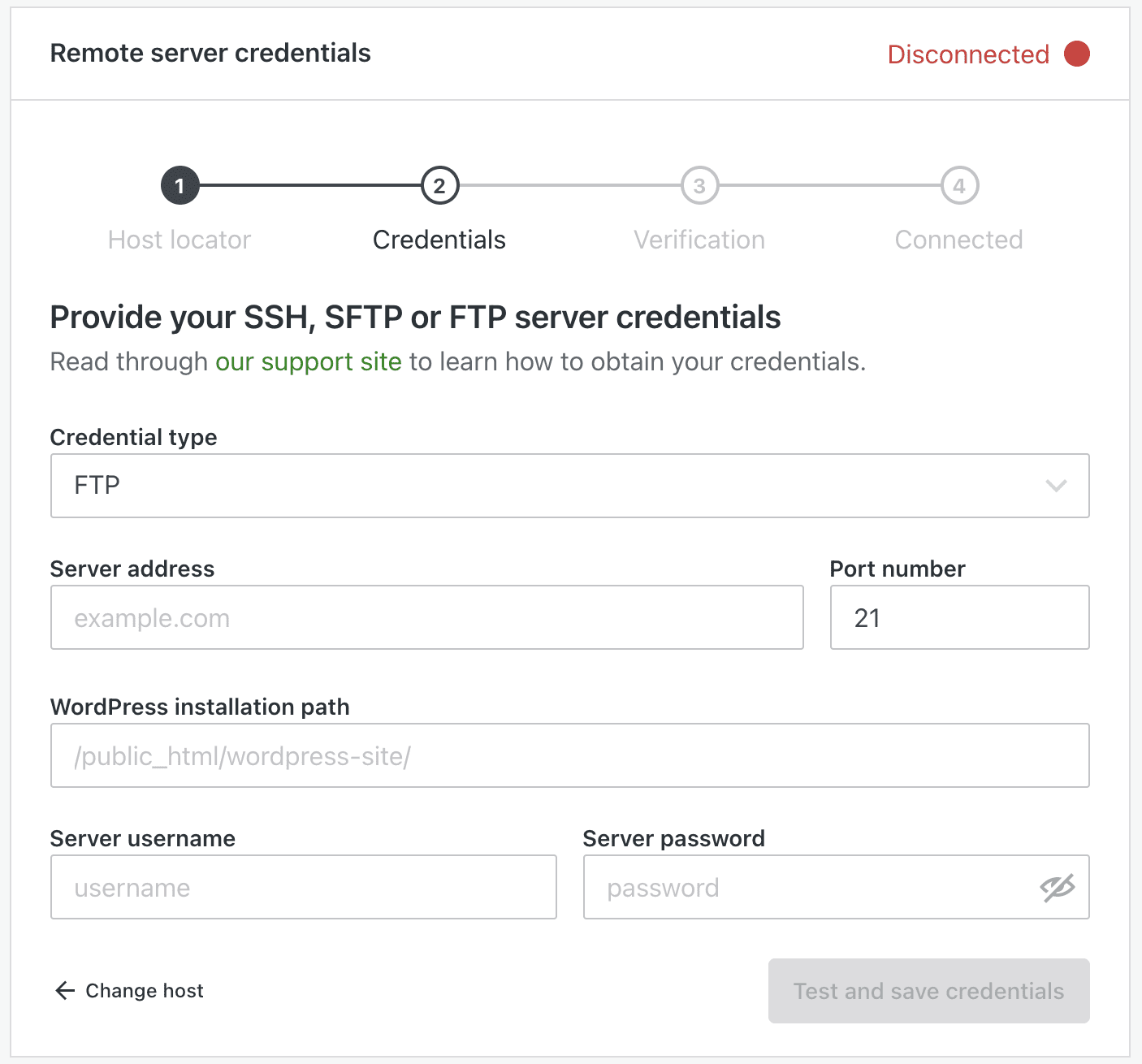
On the next screen, enter your credentials. See below for more details about each field.
Click Test and save credentials. Once the site is connected, Jetpack will start your first backup.
Note: If your site is hosted at Pressable, we can automatically detect these credentials for you. In that case, you will see a message asking for your approval to grant Jetpack permission to use credentials to back up your site.
Details about remote server credentials
The information below explains what to enter into each field, based on the type of remote server credentials you’re adding.
Credential type: FTP or SFTP/SSH
Server address: Often your site URL, but some hosts require you to use a special domain or an IP address. Note: If you’re using Cloudflare with your website, always use the server’s IP address where your site is located.
Port Number: Typically 21 for FTP and 22 for SFTP/SSH. Check with your host to make sure.
WordPress installation path: The directory on your server where your WordPress installation is located.
Server username: This username should have read and write (rw) access to your WordPress directory. Note: the root user cannot be used.
Server password: Make sure this password is secure and is different from other passwords you use. How to select a strong password.
If you are unsure about any of this information, contact your hosting provider for assistance.
Add SSH credentials with private key
To use SSH with a private key instead of a password, please follow these steps:
Generate a private/public key pair on your server.
Copy the private key and add it to a text file somewhere on your computer.
You’ll need the following information:
Server password: This field is optional if you’re using a private key. If you enter one, Jetpack will try both the private key and the password. Make sure this password is secure and is different from other passwords you use. How to select a strong password.
SSH Private key: Make sure that it is not password protected and using OpenSSH/RSA format. Password protected private keys and/or keys in PuTTY format are not supported.
If you are unsure about any of this information, please contact your hosting provider for assistance.
If you see an error message when you click Test and save credentials, click on the More details toggle for more information about the error; below are the most common issues.
If you see an error of Can't save credentials for an invalid public host, please make sure the credentials are correct by following these steps:
Check for typos, or extra spaces before or after what you entered.
Try to connect to your server using an FTP client (such as FileZilla) or a command line (if you are comfortable with that). If the connection fails, contact your hosting provider and check for the correct credentials with them.
This could also indicate that there is malware on your site which is preventing the credentials from being saved.
If you see an error of Could not open connection with given credentials please check that your host is not blocking our access, by following these steps:
Try to connect to your server using an FTP client (such as FileZilla) or a command line (if you are comfortable with that). If the connection fails, contact your hosting provider and check for the correct credentials with them.
If you are able to connect via an FTP client or command line, but the connection via our interface fails, please contact your host and ask them to allow connection from the IP addresses listed here.
If you see an error of We looked for wp-config.php in the WordPress installation path you provided but couldn't find it, please follow these steps:
Contact your host to confirm that you add the correct path. It should contain your wp-config.php file.
Try to connect to your server using an FTP client (such as FileZilla) or a command line (if you are comfortable with that).
Make sure that you can connect to your server and see your WordPress installation files.
If you only see .ftpquota this indicates that your FTP client does not have required read and write permissions; please contact your host for help with the correct permissions.
Manually restore a Jetpack VaultPress Backup to any host on any server anywhere.
Have you tried an automatic restore?
Before getting started with a manual restore, it is often possible to restore your site with a click of a button, using Jetpack VaultPress Backup. If you haven’t already attempted our one-click restore, please check out our documentation about Restoring with Jetpack VaultPress Backup.
Jetpack Support Scope doesn’t cover assisting with manual restores beyond the guidance provided in this documentation. If you need further assistance, please contact your hosting support for help.
Download your backup and manually restore your site
Your backup files are stored on our servers and can be downloaded from the Jetpack Cloud interface.
To manually restore your website from a backup, please follow these steps:
Go to the Jetpack Activity Log for your site, either via WordPress.com →Jetpack → Activity Log or cloud.jetpack.com → Activity Log. If the Jetpack connection is broken to the point that you cannot access the Activity Log, please contact support directly with the details about the backup you want to use. We will generate a download link for you.
Locate the backup you would like to download. You can do this by using the filters at the top of the Activity Log.
Click Download or Actions→Download Backup. The download will be a compressed file with a tar.gz file extension.
Unzip the file. On Mac OS you can double-click the file. In Windows, use an archiving tool such as 7-Zip. The resulting folder will contain your data, divided into the following sub-folders: wp-content (plugins, themes, and uploads) and .sql.
Transfer your plugins, themes, and uploads folders via FTP or a File Manager tool to the wp-content folders on your WordPress site.
Import your .sql files into your MySQL database in a few different ways. It’s easiest to use something like phpMyAdmin or a desktop tool like Sequel Pro. If you have direct access to MySQL via the command line, you can run the following command:
mysql --user="username" --password="password" --hostname="mysql.yoursite.com" database_name < file_name.sql
If you’re restoring to an empty database, it’s often easier to join the .sql files into a single file.
In OS X: Launch Terminal.app and run the following command: cat *.sql > backup_db.sql
In Windows: Use the command prompt and run the following command: copy /b *.sql newfile.sql
You may see 2 files for each table in the sql folder: something like wp_posts.sql and wp_posts-updates.sql. If you are importing one-by-one, you should do the primary table first (wp_posts.sql) then the table labeled -updates. If you’ve concatenated them all together as explained in step 7, there’s no need to worry about this.
Manually restore your site to a new domain
When restoring your site to a new domain, you’ll need to update the siteurl and home values in your wp_options table. You can either edit the SQL (.sql) export file, or import the SQL and edit your database using phpMyAdmin or a desktop tool like Sequel Pro.
Troubleshoot problems with downloading a backup
If you are having any issues with downloading a backup, please contact support directly, with details of any errors you see.
Jetpack VaultPress Backup and Jetpack Scan Support Articles
Use Jetpack’s backup feature to automatically create backups and restore your site with a single click. Track every change, go back in time, and rest assured your content is always safe. Jetpack’s backup feature uses WordPress.com’s servers to back up your site, so you never have to worry about losing your content, Woo products, and Woo orders.
What do I need to do to use Jetpack VaultPress Backup?
At least one theme or plugin on your site from the WordPress.org theme or plugin repository. The theme can be a child theme, and the plugin can be a mu plugin.
Your first backup
Your first backup is created as soon as you complete your purchase and Jetpack is connected.
The first backup can take some time to complete. You can see your backup progress by going to Jetpack → Backup in the WordPress.com dashboard. Future backups should take less time.
Realtime backups
In addition to daily full backups, Jetpack also does real-time backups: quick synchronizations of specific changes that occur on the site. The following events will trigger a realtime backup:
Posts published or updated
Pages published or updated
Comments
Changes to media
Changes in themes and plugins
Changes in settings
Changes to users
Realtime backups and WooCommerce orders
WooCommerce orders and products are backed up in real-time in an immutable way; which means if you need to restore to a point before an order occurred, the order will not be lost.
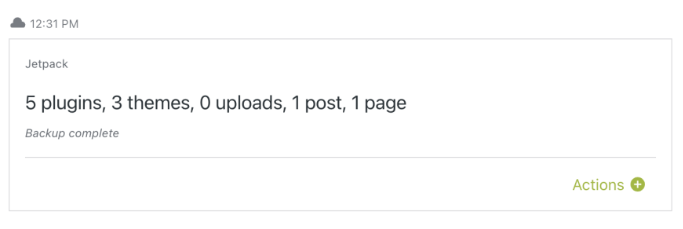
You’ll see the most recent completed backup there, with information about the date and time of the backup, and what was included. If a backup hasn’t happened yet today, you’ll see the schedule for the next one.
Click the Backup now button to run a backup on demand at any time.
Click the Actions button to show the options to restore the backup, download the backup, or browse the backup files, via View Files. You can also download individual files from there.
If you ever wish to stop Jetpack VaultPress backups, please contact support for assistance.
Add server credentials to Jetpack
At the top of the Backup page, you may see a prompt to set up server credentials. You can also access the server access credentials settings from Cloud.jetpack.com at https://cloud.jetpack.com/settings/yourjetpackblog.
Server credentials allow our system to communicate with your site. They are used to back up and restore your site as an alternative to the Jetpack connection and are especially helpful when the Jetpack connection isn’t working correctly. Note: your server credentials will not help you access your backup files stored on our servers.
If you don’t see a notification at the top of the Latest Backup section in Jetpack Cloud indicating that a backup is running, try adding credentials to start backups.
If we lose contact with your site and backups stop running, we’ll let you know by email after the second attempt so you can take action quickly.
Scheduling your backups
You can configure the time of day when your daily full backup will run. You may wish to schedule your backups during off-peak hours or other low-traffic times.
To configure your daily backup time schedule, follow these steps:
Under the Daily backup time schedule, you’ll see the timeframe selector. If you haven’t configured a timeframe, it will be set to a default range.
Select your chosen timeframe using the dropdown selector. You’ll see that the timeframe has now been set.
When you view your latest backup, you’ll see information about when your next backup will run. You can also adjust the setting by clicking on the Modify link.
Frequently asked questions (FAQs)
What data is included in a Jetpack VaultPress Backup?
The backup data includes all the unique and irreplaceable data you have stored in WordPress, and everything properly integrated into the WordPress installation. Jetpack VaultPress Backup backs up the following data:
Your WordPress database. This includes any tables that begin with your WordPress database’s table prefix and also have a unique key or primary key.
All files in the plugins, mu-plugins, themes, and uploads directories.
Everything in your WordPress root directory that isn’t part of another WordPress installation.
Certain other files inside the wp-content directory.
WooCommerce products and orders
When does a backup occur?
Jetpack VaultPress Backup will back up your site at least once a day. We also back up your site after certain events, like a post or page published/updated, theme and plugin installations and updates. These are called “real-time backups.”
Adjustments to the automatic daily backup frequency are not possible (for instance, it’s impossible to configure backups to run either on an hourly or weekly basis).
By default, backup timing is handled automatically by our system to balance server load, and normally happens about 24 hours after the previous backup. If you prefer, you can designate a specific time of the day for the backup process to occur. See the Scheduling your backups section above for more details.
Also, you can manually start a backup anytime you would like to, by clicking the Backup now button on your Jetpack Backup Dashboard.
What data is not included in a Jetpack VaultPress Backup?
Database tables that don’t look like they belong to WordPress.
Database tables whose rows have no unique identifier.
Cache, logs, and backup directories.
Empty directories.
Additional WordPress installs, such as ones that are included inside a subdirectory.
What is /jetpack-temp/ folder and what are these jp-helper files?
Jetpack creates a /jetpack-temp/ directory in the root of your WordPress installation. During each backup process, Jetpack writes a temporary helper file to this directory. The file is named like so jp-helper-xyzxYzXYZ.php. It is removed after the backup is complete.
What kind of backups does Jetpack run: full, incremental, or differential?
Jetpack VaultPress Backup performs all three types of backup on your site. The first backup is a full backup of your site. Subsequent backups are incremental, backing up only the files and/or database tables that have been changed since the last backup was saved. Finally, differential backups are the “real time” backups, saving the data that was introduced or changed since the last complete backup.
Does Jetpack VaultPress Backup work on a multisite installation?
No. The Jetpack VaultPress Backup feature doesn’t currently support websites built on WordPress multisite.
Can I use one Jetpack VaultPress Backup plan for multiple websites?
Each Jetpack VaultPress Backup plan supports one WordPress site. If you want to back up another site, you’ll need to purchase a separate backup plan for it.
If you’re running a multisite, Jetpack VaultPress Backup is not a suitable option — it does not support WordPress multisite.
Where are the backups stored?
The Jetpack VaultPress Backup plugin stores your backups on servers in our secure data centers around the world.
While it isn’t possible to restrict data storage to a particular geographic location, what we can provide is the Standard Contractual Clauses, which we include in our Data Processing Agreement (DPA). DPAs are contractual tools for websites and companies to make commitments to their customers, vendors, and partners that their data handling complies with the law, including transferring data out of the EU.
If you are interested in having a DPA with us, you can request one from the Privacy Settings page in your dashboard at https://wordpress.com/me/privacy.
Can I stop a Jetpack backup that is already in progress?
There is no way to interrupt a Jetpack VaultPress backup once it has started. If there’s some reason you need to stop an in-progress Jetpack backup, or if you want to disable Jetpack backups entirely, please contact support for assistance.
Why does it say that the VaultPress plugin is deprecated?
The notice regarding the deprecation of the Jetpack VaultPress plugin refers to our legacy Jetpack VaultPress plugin. If you see the notice that the VaultPress plugin is deprecated or no longer actively supported for new customers, you are looking at our legacy plugin. Make sure to opt for Jetpack VaultPress Backup instead (the plugin that has the “Backup” keyword in its name). It’s important to note the distinction between these two plugins. They are both available in the WordPress plugins repository. If you check the plugin slug – the one is jetpack-backup as opposed to vaultpress.
We currently back up the following data: WordPress database tables (any tables which begin with your WordPress table prefix and also have a unique key or a primary key). We also back up the files in your plugins, themes, and uploads directories, as well as select files from your WordPress root directory and `wp-content` directory. This includes all the unique and irreplaceable data in WordPress, as well as everything properly integrated into the WordPress installation.
In addition to the data that we back up and store, we also use (and store) your server access credentials (if provided): SSH and/or FTP/SFTP. These credentials are explicitly provided by you when activating Jetpack VaultPress Backups.
For feature usage tracking (detailed below): IP address, WordPress.com user ID, WordPress.com username, WordPress.com-connected site ID, user agent, referring URL, timestamp of event, browser language, country code, and user site count.
We track several events around the usage of this feature: backup requests/downloads/confirmations, restore requests/confirmations/cancellations, date-picker changes/expansions, and backup storage upgrade requests or indications of interest.
We’ve developed Jetpack VaultPress Backup with WooCommerce in mind. You can safely restore your site to any past state — all orders and products will be kept current.
There are various ways to restore your site:
Restore your website to a particular event;
Restore your website to a particular day;
Restore specific files or plugins;
Download a backup and restore it manually.
You can restore your site either at Cloud.Jetpack.com or the WordPress.com dashboard, depending on which interface you typically use.
Before You Restore
To restore with Jetpack VaultPress Backup, you will need:
During restore, existing files with the same name will be overwritten, but files with unique names will not be removed. We do not delete anything but our helper files, which we must add to the site during the restore process.
However, it is important to note that your website’s database is completely replaced with the database from the backup you’re restoring from. So, any posts, pages, or other content you’ve added since the restore point date would be lost. You should make an export of this content before using our restore feature; then, you can import it back to your site after the restore.
It is not possible to interrupt or stop a restore once it starts. If you initiate a restore in error, please wait for it to complete, and then restore it again to the desired version.
The length of time for a restore to finish depends on many factors, such as the number of files in your site.
Restore via Cloud.Jetpack.com
To restore your website from the Cloud.Jetpack.com dashboard, please follow these steps:
Open the site’s Activity Log if you are looking for a particular event and/or date range.
Use the filters to search by Date Range and/or Activity Type (for example Plugins, Posts and Pages) you’d like to restore.
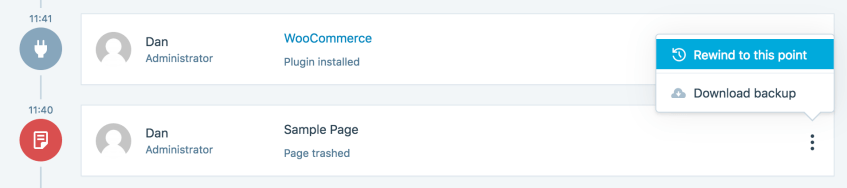
Click Actions > Restore to this point, which will open the restore site dialog box.
Alternatively, you can also navigate to VaultPress Backup. You’ll see the latest backup for your site or the scheduled time of your next one.
From the restore dialog box, uncheck any boxes for items you don’t wish to restore. If you want to restore everything, leave all of the options checked and click Restore now.
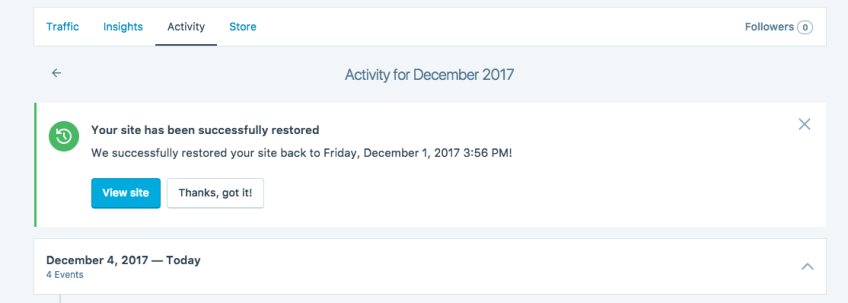
Your restore will begin, and a progress bar will appear on the page. You will also receive email updates on the progress of your restore. When the restore has been completed, you’ll see a confirmation message.
Restore specific files
Want to revert back to an older version of only specific files? Or roll back to a previous version of a plugin? Perform a granular restore in these cases.
Navigate to a daily Jetpack Backup in the Activity Log or in the Backup page.
Click on the Actions(+) and then View files.
Browse all the files and select which ones you want to download or restore by checking the corresponding boxes.
Confirm.
Exclude specific files from a restore
As well as restoring specific individual files from a backup, you can also choose which files you don’t want to restore.
Navigate to a daily Jetpack Backup in the Activity Log or in the Backup page.
Click on the Actions (+) and then View files.
Check the box at the top to select all files and folders.
Browse files and folders and deselect the ones you want to exclude from the restore by unchecking the corresponding boxes.
Click Restore selected files.
Restore when your site is completely down
If the website you want to restore is down or showing a fatal error, you can try these steps:
Revert to a fresh installation of WordPress. Your host may have this option in the cPanel, but you may need to ask your host the best way to do this.
Connect Jetpack.
Attempt a Jetpack Restore by following the above steps.
If that still does not work, you can will most likely have to proceed with a manual restore.
Download a Backup for manual restore
In the event that a one-click restore is not possible, you can download a backup for a manual restore like this:
Use the filters to search by Date Range and/or Activity Type you’d like to restore.
Click Download to open the backup download box.
Uncheck any boxes for items you don’t want to include in your download. If you want to download everything, leave all of the boxes checked and click Create download.
Jetpack will begin preparing your selected download. At the top of the Activity Log, you can follow the progress of your download.
A message will appear at the top of the Activity Log when your backup download is ready. Click Download to download the backup. You will also receive an email with a link to the download when it’s complete.
Access the full list of management events that occurred on your site via the Activity Log.
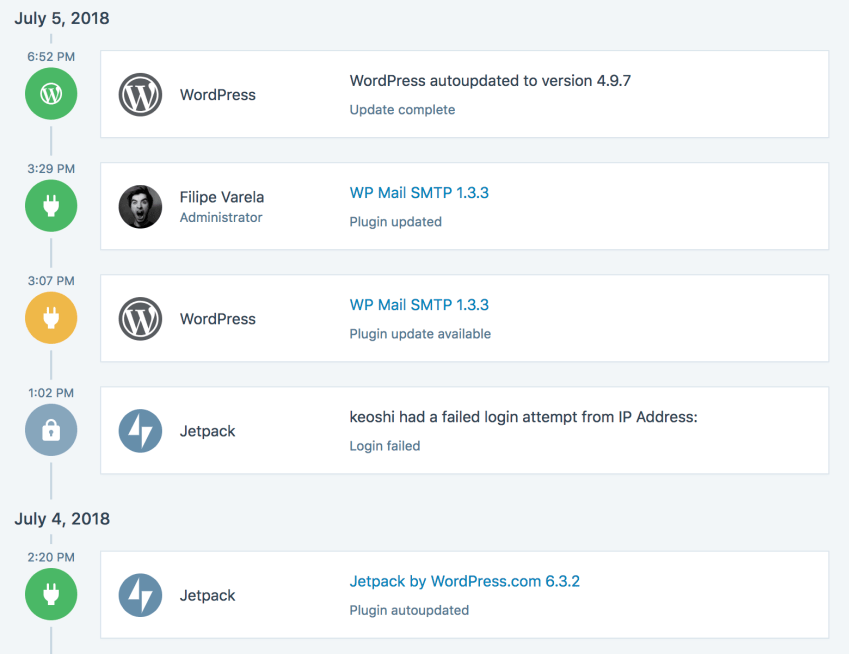
The Jetpack Activity Log is available to all users, including those on the free plan. From the Jetpack Activity Log, you can access a detailed record of site activities, including core WordPress and Jetpack events. Check this page’s general features for more information about the Activity Log.
View Activity Log
To see your site’s Jetpack Activity Log, please follow these steps:
Select the site for which you’d like to see recent activity. Please note that you can view Activity for sites where you are an Administrator. Accounts with the Editor role and below cannot view any activities.
Click on Activity Log.
Activity Log history by plan
The Activity Log is available on all Jetpack sites. The length of event history visible in your log depends on your plan:
For Jetpack Complete, a maximum of 1,000 events will show in the feed. You can filter the events by date range and activity type, and the feed will also show up to 1,000 events from that filtered range.
Types of activities recorded
You can check the following events stored in your site’s Activity Log:
The Activity Log is activated by default. There is currently no way to deactivate this feature.
Data Used
Site Owners / Users
To deliver this functionality and record activities around site management, the following information is captured: user email address, user role, user login, user display name, WordPress.com and local user IDs, the activity to be recorded, the WordPress.com-connected site ID of the site on which the activity takes place, the site’s Jetpack version, and the timestamp of the activity. Some activities may also include the actor’s IP address (login attempts, for example) and user agent.
Site Visitors
None.
Activity Tracked
Site Owners / Users
Recorded site management activities include: login attempts/actions, post and page update and publish actions, comment/pingback submission and management actions, plugin and theme management actions, widget updates, user management actions, and the modification of other various site settings and options. See Complete List.
All core WordPress and Jetpack option/setting update actions are synced. This includes the current and previous state of a site’s options. Successful and failed login attempts (these include IP address and user agent) are synced.
Site Visitors
Successful and failed login attempts, which will include the actor’s IP address and user agent.
Comments Off on Jetpack VaultPress Activity Log
Enter your email address to receive news and updates from Jetpack