You can use a Telegram bot (@wordpressagentbot) to manage your self-hosted Jetpack sites through conversation. Use it to publish posts, check stats, find domains, and more. This guide explains how to connect your account and what you can do with the bot.
Connect your WordPress.com account
To start using the Telegram bot, connect your WordPress.com account through Telegram by following these steps:
- If you don’t already have a Telegram account, sign up through Telegram.
- Click this link to start a conversation with @wordpressagentbot on Telegram, or scan the QR code in the section below.
- Send your first message. The bot will reply with a login link.
- Click the login link and log in to your WordPress.com account.
Your account is now connected. You can start managing your sites from Telegram.
Create a new WordPress.com account
If you do not have a WordPress.com account yet, the Telegram bot can help you create one. Start a conversation with @wordpressagentbot in Telegram, and the bot walks you through account creation and setting up your first site.
Start a conversation with the QR code
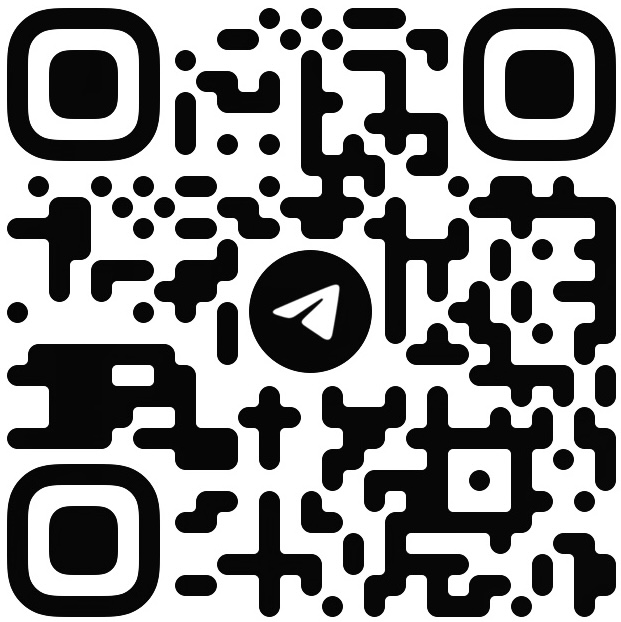
Scan the QR code below to start a conversation with the @wordpressagentbot on Telegram.
Manage your site through Telegram
You can use the Telegram bot to create content, check stats, find domains, and manage your sites through a Telegram conversation.
Create and edit content
You can create and edit posts, pages, and media by describing what you want in plain language. For example, you can ask it to:
- “Write a post about our new summer menu.”
- “Update the About page to mention our new location.”
- “Brainstorm post ideas based on my recent content.”
Generate and upload images
You can generate AI images or upload your own photos directly in the chat. For example:
- Ask it to “Generate an image of a coffee shop with outdoor seating.”
- Send a photo from your camera roll to your conversation to upload it to your site’s media library.
Check your site stats
Ask the Telegram bot for stats on any connected site. For example, send “Show me my stats” to see visits, visitors, posts published, and subscriber counts.
Find a domain name
Send a message like “Is yourgroovydomain.com available?” to check whether a domain name is available. The bot shows pricing and provides a link to purchase the domain. Learn more about registering a domain on WordPress.com.
Manage your sites
The Telegram bot includes tools for managing your connected sites. For example:
- “Switch to my other site.”
- “Take a screenshot of my site.”
- “Search the web for free WordPress themes for restaurants.”
Type /abilities in Telegram to see the full list of what the Telegram bot can do.
Understand rate limits
The Telegram bot has a daily message limit that depends on your Jetpack plan:
- Free sites: 40 messages per day.
- Any paid plan: 500 messages per day.
When you reach your daily limit, the bot lets you know in the conversation.
Manage your preferences
The Telegram bot remembers your preferences across conversations. You can set communication style, workflow preferences, or personality adjustments through the chat.
The Telegram bot stores preferences in your WordPress.com account. There is no settings page to view or edit stored preferences. To change a preference, ask the bot in the conversation.
Use Voice Mode
On the Telegram mobile app, you can speak to the Telegram bot using voice messages instead of typing. The bot processes your voice message and responds in text.
Telegram and your data
Once you connect your WordPress.com account, the Telegram bot can access all WordPress.com sites associated with your account. Your user role on each site determines which actions the bot can perform.
Automattic has access to chat transcripts between you and the Telegram bot.
Send feedback
Type /feedback in Telegram to share your feedback with the Telegram bot team.
Still need help?
Please contact support. We’re happy to advise.

 ) code in your post, use the following:



Markdown in Classic Editor
Compose posts and comments with links, lists, and other styles with Markdown, using regular characters and punctuation marks.
You can use Markdown on your Jetpack-powered blog for posts, pages, and comments. Here, you can find details and information on how to enable Markdown on your blog and write with it if you use the Classic Editor. See the Jetpack Markdown Block support guide for more information on using Markdown in the Block Editor.
Markdown is used by writers and bloggers who want a quick and easy way to write rich text without having to take their hands off the keyboard and without learning a lot of complicated code and shortcuts.
If you’re already familiar with Markdown, simply enable it on your blog and start writing. Refer to the WordPress.com Markdown Quick Reference page for help. Jetpack uses Markdown Extra, which adds some features not originally available in Markdown. For best results, please use the Text tab in the Editor, as the Visual editor can give unexpected results. See below for more details.
Enable Markdown
You can enable the Markdown for Classic Editor by following these steps,
Once activated, Markdown is enabled for posts and pages and is available to all users on your blog.
To enable Markdown for comments:
Visitors to your blog can now compose comments using Markdown.
Write content with Markdown
Markdown uses special characters and punctuation marks to indicate styles and links. The specific characters you use and how you place them in the document are key to how your document will be formatted.
Markdown converts these special characters to the appropriate formatting when the document is published. For best results, use the Text tab in the Editor. The Visual Editor can produce unexpected results.
For example, in Markdown, to emphasize a word, you wrap it with an asterisk on both ends, like this:
*emphasized*.When your writing is published, it will look like this: emphasized. Similarly, two asterisks denote strong text:**strong**will be published as strong.To indicate links, use regular and square parentheses. Wrap the text you want to link in square parentheses; immediately after it, insert the link target, wrapped in regular parentheses. The actual Markdown could look like this:
[Jetpack.com](https://jetpack.com/). When published, it will be a standard link: Jetpack.com.The original Markdown text you write will always remain in Markdown, so you can go back and edit it using Markdown. Only the published document – the post or the page – will be converted.
If you write a post in Markdown, it will be published as a fully formatted post on your blog, but when you go back and edit, it’ll still be in Markdown.
The best way to get started with Markdown is to experiment. Open the Markdown Quick Reference guide, start a draft post on your blog, and try to use the different features.
Markdown Extra and Markdown in Jetpack
Jetpack uses Markdown Extra by Michel Fortin. It includes features not originally available in Markdown, including improved support for inline HTML, code blocks, tables, and more. Code blocks can use three or more backticks (
```), as well as tildes (~~~).See the WordPress.com Markdown Quick Reference page for the most useful formatting and features offered by Markdown Extra. For more detailed information, see the original reference guide for Markdown and the Markdown Extra page.
However, the Markdown block currently follows the CommonMark spec. For more information, you can refer to the official CommonMark spec.
About Markdown
Markdown was created by John Gruber and Aaron Swartz in 2004 as a solution for easily composing richly formatted text on the web. It employs plain text only and is based on conventions established in the computer and technology industry for writing emails and other documents with limited resources.
In plain text documents, the text you see on the screen represents all the information in the file, with no formatting or other data hidden from view. Plain text documents have been used for decades for their simplicity, portability, and reliability. You can probably still open and edit any plain text document from the past 40 years on any computing device available today.
Markdown has seen popular adoption on the web since it was first introduced, and it is now included in many sites and software programs.
Add Markdown support to your Custom Post Types.
There are two different options to add Markdown support to a specific Custom Post Type on your site.
You can add Markdown support to an existing post type thanks to the
add_post_type_support()function. To do so, add the following code to a functionality plugin:add_action( 'init', 'my_custom_init' ); function my_custom_init() { add_post_type_support( 'product', 'wpcom-markdown' ); }You’ll need to replace “product” with your Custom Post Type name.
Alternatively, you can add Markdown support when registering the post type, like so:
// Register Custom Post Type
function custom_post_type() {
    $labels = array(
        'name' => _x( 'Products', 'Post Type General Name', 'text_domain' ),
    );

    $args = array(
        'label' => __( 'product', 'text_domain' ),
        'supports' => array( 'title', 'editor', 'publicize', 'wpcom-markdown' ),
    );

    register_post_type( 'product', $args );
}

// Hook into the 'init' action
add_action( 'init', 'custom_post_type', 0 );
Still need help?
Please contact support. We’re happy to advise.
Privacy Information
Markdown is deactivated by default. If you ever need to deactivate this feature, you can toggle the Write posts or pages in plain-text Markdown syntax setting in the Composing section from Jetpack > Settings > Writing in your dashboard.
For activity tracking (detailed below): IP address, WordPress.com user ID, WordPress.com username, WordPress.com-connected site ID and URL, Jetpack version, user agent, visiting URL, referring URL, timestamp of event, browser language, country code.
None.
We track when, and by which user, the feature is activated and deactivated.
None.
We sync a single option that identifies whether or not the feature is activated.
None.