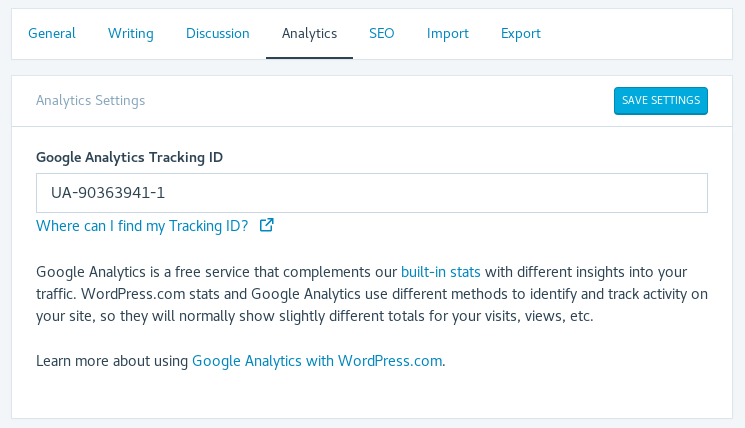
Google Analytics

Track your WordPress site statistics with Google Analytics.

Still need help?

Please contact support. We’re happy to advise.

Comments Off on Google Analytics

Google Translate Widget

Reach new audiences by allowing visitors to translate your website into their own language with one click, with the Google Translate Widget

Adding The Widget

To add the Google Translate Widget to your site, follow these steps:

  1. Activate the Extra Sidebar Widgets feature.
  2. Visit your dashboard.
  3. Navigate to Appearance → Customize  → Widgets.
  4. Search for the Google Translate Widget and add it to a supported widget area.
  5. You can customize a title for the widget or you can leave the field blank.

When your readers click on the dropdown menu to choose their language, the page will refresh and display an automatically generated translation of your site.

Still need help?

Please contact support. We’re happy to advise.

Comments Off on Google Translate Widget

Sitemaps

Generate sitemaps so your posts and pages can be found by search engines like Google or Bing.

Turn Sitemaps on

To enable Sitemaps, follow these steps:

  1. From your WP Admin, head to Jetpack → Settings.
  2. Head to the Traffic tab.
  3. Scroll down to the Sitemaps feature.
  4. Click the toggle switch next to Generate XML Sitemaps.
  5. Access your Jetpack Sitemap at yourdomain/sitemap.xml.

To help search engines find your website faster, we recommend submitting your sitemap (along with other information about your site) to the various webmaster tools programs that search engines offer, like Google Search Console and Bing Webmaster Tools. You’ll need to add and verify your site on both services before you’re able to submit the sitemap.

Types of sitemaps

Jetpack will generate four different sitemaps for you:

  • A general sitemap for search engines, with your public posts and pages
  • A news sitemap built specifically for Google News
  • An image sitemap
  • A video sitemap

Sitemap for search engines

The sitemap file generated by Jetpack is available to every search engine that supports the protocol, including Google, Yahoo!, Bing, Ask.com, and others. If you would like to learn more about the protocol, please visit sitemaps.org.

You can customize this filter to remove specific posts, pages, or URLs from your sitemap.

Jetpack automatically updates the sitemap file every 12 hours (or every time the content changes in the case of the News Sitemap). This happens on the server-side, not on Google. If you want to update the sitemap(s) directly in Google Search Console, please make sure that the sitemap’s XML file is first updated on the server. 

News sitemap

News sitemaps are very similar to standard XML sitemaps for search engines, but they are specific to Google News. Publishers must be pre-approved for Google News before Google will index a news sitemap. News sitemaps include only posts published in the last 48 hours.

Once you activate the Sitemaps feature, you’ll be able to access your news sitemap at yourdomain/news-sitemap.xml Approved publishers must log in to Google Search Console and add their news sitemap location as another sitemap.

Don’t forget to apply to get your posts listed in Google News.

Image and video sitemaps

The image and video sitemaps help search engines index media on your website so that it can be displayed in searches for that specific type of media, e.g., images or video files. The image and video sitemaps are generated by default. You can disable each respectively by adding the following code to your site. It is good practice to ensure that you have a recent backup of your site before modifying any code.

Disable image sitemap

add_filter( 'jetpack_sitemap_image_skip_post', '__return_true' );

Disable video sitemap

add_filter( 'jetpack_sitemap_video_skip_post', '__return_true' );

Excluding images and videos from their sitemaps

By default, all images and videos in your WordPress media library will be included in your image and video sitemaps.

However, you can use filters to exclude specific images and videos that:

  1. are not attached to any posts/pages or,
  2. are attached to posts/pages that are private or unpublished.

Excluding specific images from the image sitemap

It is good practice to ensure that you have a recent backup of your site before modifying any code. To exclude unattached images or images that are referenced by private or unpublished content, you can add the following code snippet:

add_filter( 'jetpack_sitemap_image_skip_post', 'jetpack_sitemap_image_skip', 10, 2 );

function jetpack_sitemap_image_skip( $skip, $post ) {
if ( 0 === $post->post_parent ) {
// Skip unattached images.
return true;
}

if ( 'publish' !== get_post_status( $post->post_parent ) ) {
// Skip images with an unpublished parent post
return true;
}

return $skip;

}

Excluding specific videos from the video sitemap

To exclude unattached videos or videos that are referenced by private or unpublished content, you can use the following code snippet:

add_filter( 'jetpack_sitemap_video_skip_post', 'jetpack_sitemap_video_skip', 10, 2 );

function jetpack_sitemap_video_skip( $skip, $post ) {
if ( 0 === $post->post_parent ) {
// Skip unattached videos.
return true;
}

if ( 'publish' !== get_post_status( $post->post_parent ) ) {
// Skip videos with an unpublished parent post
return true;
}

return $skip;
}

Please use our guide on how to add custom code to your site.

Sitemaps are automatically updated around every 12 hours by using WP-Cron. The effect of the filter will not take place until the next update.

If you are using Jetpack’s Site Accelerator (our CDN), the sitemap will list the original URLs even though the photos are served by the CDN.

Sitemap update frequency

  • The News sitemap is generated when it’s requested. New posts are added to this sitemap right away.
  • Other sitemaps including post, image, and video sitemaps are automatically updated around every 12 hours by using WP-Cron.

If you have noticed that your sitemaps are not updated after 12 hours, please contact us via our dedicated forum or via this contact form.

Add more post types to the sitemap

The default sitemap includes:

To add a new Custom Post Type to the default sitemap, use the jetpack_sitemap_post_types filter to specify your own set of post types to include.

The News sitemap only lists posts by default. To add another post type to the News sitemap, use the jetpack_sitemap_news_sitemap_post_types filter.

Choose which sitemap plugin to use

There are a number of plugins in the plugin repository that allow you to create sitemaps for your WordPress site. If you already use such a plugin, you can either remove that plugin and use Jetpack’s Sitemap feature instead, or leave Jetpack’s Sitemap disabled. We won’t activate our Sitemap feature if we detect you’re already using one of the more popular sitemap plugins on your site.

If you are using a different plugin for SEO-related stuff, stick with that. Alternatively, if you still want to use the Jetpack sitemap, please deactivate any other SEO or Sitemap plugins. Using multiple sitemap plugins can result in a “Sitemap cannot be read” error in Google Search Console, or other errors.

Increase the sitemap URL limits

Individual sitemaps have a limit of 1000 URLs to keep sitemaps within the 50MB size limit. If you need to increase that limit, you can add the following constants to your site’s wp-config.php file and edit the values as required:

define( 'JP_SITEMAP_MAX_ITEMS', 2000 );
define( 'JP_NEWS_SITEMAP_MAX_ITEMS', 1000 );

You will then need to deactivate and reactivate the Sitemaps module in Jetpack to trigger a new index. Keep in mind that generating sitemaps with thousands of URLs can take some time. It is good practice to ensure that you have a recent backup of your site before modifying any code.

Troubleshooting

General issues

Typical issues with sitemaps include:

  • 404 error when loading the sitemap.
  • Sitemaps are constantly being purged and moved to trash.
  • Sitemap is blank, displays a white page, or shows a header with no URLs.
  • Empty News sitemap.
  • No XML-Tags or there are “Missing XML-Tag” errors.

The following troubleshooting steps should resolve these types of errors:

  1. Make sure you are using the most updated version of Jetpack.
  2. In WP Admin, go to Settings → Permalinks and click Save Changes.
  3. Check for conflicts: deactivate and reactivate your plugins one by one.
  4. Check for any security features you may have enabled, and try temporarily disabling them.
  5. Search for any firewall on your server-side that might be conflicting – your host should be able to help you.
  6. Toggle the Generate XML sitemaps feature off and on again under Jetpack → Settings → Traffic.
  7. If you use a caching plugin, make sure it is up to date and synced, or try disabling it.
  8. Check if you have any redirection plugins enabled. If you can’t find anything, ask your host to check for any rewrite rules that might interfere.

Blank or empty sitemaps

If your sitemap is blank, follow these additional troubleshooting steps:

Force a rebuild

If you have command-line access, run the following CLI command:

wp jetpack sitemap rebuild --monitor --purge

This clears out old sitemap data, generates and loads a new sitemap. It also logs errors it runs into to your site’s error log (for example, debug.log).

If you don’t have command-line access, ask your host to run the command for you.

Check cron events with WP Crontrol

  1. Install the WP Crontrol plugin.
  2. Go to Tools → Cron Events.
  3. Look for jp_sitemap_cron_hook. If it is missing, the sitemap module cannot schedule the event to generate or update the sitemap.
  4. If the jp_sitemap_cron_hook event is there, confirm the Next Run field is set in the future. If it is in the past, WP-Cron is not running properly on your server. Click Run now to manually trigger the event.

Confirm WP-Cron is running

Jetpack relies on WP-Cron to refresh your sitemap automatically when new content is published. If WP-Cron is disabled on your site or not functioning properly, your host should configure a real cron job that calls wp-cron.php regularly.

Still need help?

Please contact support. We’re happy to advise.

Privacy Information

Sitemaps are deactivated by default. They can be activated any time by toggling the Generate XML sitemaps setting in the Sitemaps section from Jetpack → Settings → Traffic in your dashboard.

Data Used
Site Owners / Users


The URL of the page/post, the title of the page/post, and the publication date of the page/post.Additionally, for activity tracking (detailed below): IP address, WordPress.com user ID, WordPress.com username, WordPress.com-connected site ID and URL, Jetpack version, user agent, visiting URL, referring URL, timestamp of event, browser language, country code.

Site Visitors


None.

Activity Tracked
Site Owners / Users


We track when, and by which user, the feature is activated and deactivated.

Site Visitors


None.

Data Synced (Read More)
Site Owners / Users


We sync options that identify whether or not the feature is activated and some additional information around sitemaps, including the state of the sitemap, the location of the sitemap, and which post types are included in the site map.

Site Visitors


None.

Comments Off on Sitemaps

Site Verification Tools

Leverage insights from search engines by verifying your WordPress site.

Verifying ownership of your site will unlock tools provided by different search engines. Get insight into how visitors interact with your site, for example the total number of URLs indexed by Google, information on each URL, the search keywords that are most significant for your site.

Jetpack supports the verification services provided by Bing, Facebook, Google, Pinterest, and Yandex.

Note: You do not need to verify your site in order for it to be indexed by search engines; you only need to use the enhanced insights different search engines offer.

Verify your site

To verify your site, you normally need to add a “meta tag” to your page or create a new DNS entry.

To get started, follow these steps:

  1. Start in WP Admin.
  2. Go to Jetpack → Settings → Traffic
  3. Scroll to the Site verification section.
  4. Toggle the feature to On.
  5. Configure the settings for each service you want to use (for Google you can choose auto verification or manual verification).
  6. If you have multiple domain names pointing to the same site, we recommend verifying the primary domain.

Configure individual services

Here are instructions for how to verify your WordPress site with each service:

Google Site Verification (Including Automatic Verification)

Automatic Verification

  1. Go to Jetpack → Settings → Traffic in your WP Admin and scroll down to the Site Verification section.
  2. Click the Verify with Google Button.
  3. A popup window will appear and will either list your Google accounts or prompt you to log in. Choose or log into the account you wish to use with Google Search Console.
  4. After logging in you will be prompted to give permission to WordPress. Press the Allow button.
  5. After a few seconds the site should confirm that is verified with a green check mark and the message Your site is verified with Google.

Google Site Verification – Manual Verification

Note: Manual verification should not be necessary. Only verify manually if automatic verification does not work.

  1. Log into Google Search Console with your Google account
  2. Click on Add a Property
  3. Enter your blog address
  4. Click the Continue button
  5. Click on the “Alternate Methods” tab
  6. The verification option you want is “HTML Tag.”
  7. Copy the meta tag that you’re provided. For example:
    <meta name="google-site-verification" content="rc2RXSkjV5rz9P2s2hTwdDsnwTu4tD-gmruKUrqBGjs" />
  8. Leave the verification page open and go to your WP Admin in a new tab or window
  9. Go to Jetpack → Settings → Traffic, and scroll down to the Site Verification section to find the Google text field
  10. Click the Manually Verify button
  11. Paste the meta tag that was copied in step 7 into the Google text field
  12. Click on the Save button
  13. Go back to Google’s verification page and click Verify
Bing Site Verification

Bing Site Verification – Manual Verification

To verify your site manually with Bing, follow these steps:

  1. Log in to Bing Webmaster Center.
  2. Enter your site URL under ‘Add your site manually’ and clickSubmit
  3. Copy the meta tag you’re provided. For example:
    <meta name='msvalidate.XX' content='XXXXXXXXX'>
  4. Leave the verification page open, and go to your WP Admin in a new tab or window
  5. Go to  Jetpack → Settings → Traffic, and scroll down to the Site Verification section to find the Bing text field
  6. Paste the meta tag that was copied above in step 4
  7. Click on Save Settings
  8. Go back to the Bing verification page and click Verify

To import your site from Google Search Console, follow these steps:

  1. Sign in to Bing Webmaster Center.
  2. Click Import under Google Search Console.
  3. Sign in with your Google Search Console account and click Allow to give Bing Webmaster Tools access to your list of verified sites and sitemaps.
  4. After authentication, Bing Webmaster Tools will display the list of verified sites present in your Google Search Console account along with the number of Sitemaps and corresponding roles for each site. Select the sites which you want to add to Bing Webmaster Tools and click Import.
Pinterest Site Verification

Verify your site on Pinterest by following these steps:

  1. Log in at Pinterest with your Pinterest account
  2. Go to your profile and click the gear menu, then Account Settings.
  3. Scroll down and enter your site address if you haven’t already.
  4. Click the Verify website button.
  5. A popup window will show a meta tag, which you’ll to copy. For example: <meta name="p:domain_verify" content="8525e3384b3545fb80b9e21f0910de21"/>
  6. Leave the verification page open, and go to your WP Admin in a new tab or window
  7. Go to  Jetpack → Settings → Traffic, and scroll down to the Site Verification section to find the Pinterest text field
  8. Paste the meta tag that was copied in step 5
  9. Click on Save Changes
  10. Go back to the verification page and click the Finish button.
Yandex Site Verification

Verify your site on Yandex by following these steps:

  1. Log into Yandex with your Yandex account
  2. Click the Go button to be taken to your site management page
  3. Click the Add site button
  4. Enter your site’s address in the Site address text field
  5. Choose the ‘Meta tag’ verification option. This will look like the following example: <meta name="yandex-verificationcontent="e9535a1473929459" />
  6. Leave the verification page open, and go to your WP Admin in a new tab or window
  7. Go to  Jetpack → Settings → Traffic, and scroll down to the Site Verification section to find the Yandex text field
  8. Paste the meta tag was copied in step 5
  9. Click on Save changes
  10. Go back to Yandex’s verification page and click the Check button
Facebook Business Verification

Verify your site on Facebook Business by following these steps:

  1. To get started, log into the Business Settings page. Select your business or create a new business account in Facebook. Then, follow these steps:
  2. In your Business Settings, click on the Brand Safety section and then click Domains:
  3. Click the Add button, type your domain into the box, and then click Add:
  4. On the next screen, you will be presented with a number of verification options. Ensure the “Add a meta-tag to your HTML source code” option is selected, and copy the entire meta-tag as shown here:
  5. Back on WordPress.com, go to Tools → Marketing and click on the Traffic menu at yourdomain.com/wp-admin/admin.php?page=jetpack#/traffic. Scroll down to Site Verification Services and paste your code into the box for Facebook.
  6. Click Save Settings.
  7. Return to the Facebook settings from Step 3 and click the Verify button. You will see a confirmation that you have verified your domain.
  8. Note that if your website is in maintenance mode, the verification will fail. Deactivate the coming soon/maintenance mode (if activated) and verify the domain.

Still need help?

Please contact support. We’re happy to advise.

Privacy Information

Site verification tools are activated by default but each individual service must be configured before any verification can happen. To manage these settings, go to Jetpack → Settings → Traffic and click the toggle switch labeled “Verify site ownership with third-party services”.

Data Used
Site Owners / Users

For activity tracking (detailed below): IP address, WordPress.com user ID, WordPress.com username, WordPress.com-connected site ID and URL, Jetpack version, user agent, visiting URL, referring URL, timestamp of event, browser language, country code.
Site Visitors

None.
Activity Tracked
Site Owners / Users

We track when, and by which user, the feature is activated and deactivated.
Site Visitors

None.
Data Synced (Read More)
Site Owners / Users

We sync options that identify whether or not the feature is activated and how its available settings are configured, including any active HTML tags.
Site Visitors

None.
Comments Off on Site Verification Tools

Embed media content using shortcodes with Jetpack

You can use shortcodes to embed videos, social media content, and other web media directly into your WordPress-powered site.

How to get started with shortcode embeds

To begin embedding media, you can follow the steps:

  1. Visit Jetpack → Settings → Writing in your site’s WP-Admin dashboard.
  2. Scroll down to the Composing section and toggle on the option Compose using shortcodes to embed media from popular sites.
  3. Paste URLs directly into your visual editor to embed various elements. These are called Inline Embeds.

Types of media you can embed

Jetpack supports a wide range of media types through shortcodes, so you can add diverse content to your site:

Video

Audio

Images and Documents

Miscellaneous

Shortcodes for adding a blog archive index, contact form, polls, WordAds, and more.

Feature-Dependent Shortcode

This shortcode only works when the corresponding feature is enabled.

Inline Embeds

PDF: Embed a PDF in a post or page using the File block. » Full instructions to embed a PDF

Embedding Facebook and Instagram Posts

Facebook and Instagram no longer support their oEmbed API. However, we’ve partnered with Meta to ensure this content continues to be displayed. Ensure your site is connected to Jetpack and paste the Facebook or Instagram content link in the post or page editor. Please note that for Instagram, the post embedded on the site will show a link to Instagram, where the post can be viewed.

Still need help?

Please contact support. We’re happy to advise.

Privacy Information

Shortcode Embeds are deactivated by default. You can activate them at any moment from your WP Admin. To do so:

  1. Go to Jetpack → Settings.
  2. Click the Writing tab.
  3. Scroll down to the Composing section and toggle on the Compose using shortcodes to embed media from popular sites option.
Data Used
Site Owners / Users


We use any information required for the actual configuration of any shortcodes; see the links in the above section accompanying each shortcode for those specific details. Note that, if you add a shortcode to one of your posts, anybody with access to edit that post will have access to those shortcode details. The following WordPress options are also used (these are synced): embed_autourls (Spotify, YouTube), page_on_front (Sitemap), embed_size_w (TED, YouTube).Additionally, for activity tracking (detailed below): IP address, WordPress.com user ID, WordPress.com username, WordPress.com-connected site ID and URL, Jetpack version, user agent, visiting URL, referring URL, timestamp of event, browser language, country code.

Site Visitors


See the Jetpack Stats privacy documentation for some shortcodes that record impressions (VideoPress and Slideshow).Note that, due to the nature of shortcodes (i.e. third-party content embeds), it is possible that third-party services may make use of certain pieces of data.

Activity Tracked
Site Owners / Users


We track when, and by which user, the feature is activated and deactivated.

Site Visitors


VideoPress: video plays; Slideshow: image views.Note that, due to the nature of shortcodes (i.e. third-party content embeds), it is possible that third-party services may track activity in some instances.

Data Synced (Read More)
Site Owners / Users


We sync an option that identifies whether or not the feature is activated. We also sync which specific shortcodes are currently used/active on your site.

Site Visitors


None.

Comments Off on Embed media content using shortcodes with Jetpack

Sharing Buttons

Help your readers spread your message across the web via social media Sharing Buttons.

Give readers the tools to post your content to their networks. You can configure services to appear as icons, text, or both. Some services also display the number of times the post has been shared, as reported by that service.

Add Sharing Buttons via the Sharing Buttons Block

If you use a block-based theme, we recommend adding Sharing Buttons via the Block designed for this purpose. Follow these steps:

  1. Search for the Sharing Buttons Block in the Jetpack section of the block selector. See Jetpack Blocks for detailed instructions on adding blocks.
  2. After adding the Block, add one or more individual sharing services to the block.
  3. Adjust the Block settings to change the justification, orientation, and settings such as Icon + Text, Icon Only, or Text Only.
  4. If you wish, you can add the Block to a template so that it appears on every post or page.

Add Sharing Buttons via Jetpack Settings (Legacy)

You can also turn on Sharing Buttons in your settings to automatically appear at the bottom of every post and page. (We recommend using the Sharing Block described above whenever possible.)

Note: block themes have Sharing Buttons active by default. Head to Appearance → Site Editor and add Jetpack’s Sharing buttons block to your templates.

You can deactivate them by going to WP Admin Jetpack > Settings Sharing and toggling off the Add sharing buttons to your posts and pages option.

If you are not using a block theme and do not see the Sharing Buttons options, you will need to activate it by following these steps:

  1. In the WP Admin, go to Jetpack → Settings → Sharing.
  2. Under the Sharing buttons, activate the Add sharing buttons to your posts and pages option.

Add and configure Sharing Buttons

Once the Sharing Buttons feature is active, you can add them to your website by following these steps:

  1. Navigate to Jetpack → Settings → Sharing in your site’s WP Admin.
  2. Click on Configure your sharing buttons.
  3. Under Sharing Buttons, click Edit sharing buttons.
  4. Click on the services you would like to add or remove.
  5. Drag and drop the services in the order you want them to display on your site.
  6. Choose your preferred button style and where you would like the buttons to appear.
  7. Click Save Changes.

Add more Sharing buttons

Optionally, you can click Edit “More” buttons to add extra social networks, which will be hidden behind a “More” button on your site. The additional network buttons will be displayed when your reader clicks on this “More” button.

Sharing Button Options

There are a few options that you can customize on your sharing buttons:

  • Show buttons on: This option allows you to show sharing buttons on the Front Page, Archive Pages, and Search Results, Posts, Pages, and/or Media.
  • Sharing Label: This option allows you to customize the message above your sharing buttons.
  • Button Style: This option allows you to display buttons with Icons + Text, Icons Only, Text Only, or the service’s official sharing button.

Display the number of likes

Some services allow share counts to be displayed, and they all count them differently. For example, Facebook Share numbers are a total of shares + likes + comments on Facebook.

Share counts are only displayed on the “official buttons” for certain services. If the number of shares does not display, try selecting official buttons from the Button Style dropdown. Pinterest’s Pin-It Button will only show on images if you are using the Official Buttons style.

These totals are reliant on the site’s URL. If your URL changes in any way (for example, changing from http to https), the Sharing Button counts will be reset to zero. Unfortunately, there is no way for us to recover the old totals.

Supported services

The following services are currently supported for Sharing Buttons (others may be added in the future.)

  • Email*
  • Facebook
  • LinkedIn
  • Mastodon
  • Tumblr
  • Twitter/X
  • WhatsApp
  • Bluesky
  • Pinterest
  • Pocket
  • Print
  • Reddit
  • Telegram
  • Nextdoor
  • Threads
  • Skype

*Jetpack uses a mailto: link to share via email. The visitor must have an email client that can handle the link.

Still need help?

Please contact support. We’re happy to advise.

Privacy Information

Sharing Buttons are deactivated by default. You can activate them at any moment from your WP Admin. To do so:

  1. Go to Jetpack → Settings.
  2. Click the Sharing tab.
  3. Toggle the Add sharing buttons to your posts and pages setting in the Sharing buttons section.
Data Used
Site Owners / Users

If you add your Twitter/X username to the Sharing settings, it will be published with the post sharing your content. The post title and permalink will also be shared with any of the services. Additional activity tracking: IP address, WordPress.com user ID, WordPress.com username, WordPress.com-connected site ID and URL, Jetpack version, user agent, visiting URL, referring URL, timestamp of event, browser language, country code.

Site Visitors

When official sharing buttons are active on the site, each button loads content directly from its service in order to display the button as well as information and tools for the sharing party. As a result, each service can in turn collect information about the sharing party. When a non-official Pinterest sharing button is active on the site, information such as the sharing party’s IP address as well as the page URL will be made available to Pinterest, so sharing counts can be displayed next to the button. In addition, Pinterest may add cookies to the page.

Additionally, if reCAPTCHA (by Google) is enabled by the site owner, the sharing party’s IP address will be shared with that service. You can find Google’s privacy policy here.

Activity Tracked
Site Owners / Users

We track when, and by which user, the feature is activated and deactivated. We track when, and which, configuration settings are modified (and by which user).

Site Visitors

None.

Data Synced (Read More)
Site Owners / Users

We sync options that identify whether or not the feature is activated and how its available settings are configured.

Site Visitors

None.

Comments Off on Sharing Buttons

Jetpack Comments

Integrate social media login options into your comment form with Jetpack Comments.

When someone reads an article on your site and wants to comment, offer them the option of using an existing social networking account to post.

Since it replaces the default WordPress comment form, Jetpack Comments are deactivated by default. To activate them, visit Jetpack → Settings → Discussion on your Dashboard and toggle the Let readers use WordPress.com or Facebook accounts to comment setting.

Please read this article to learn how to turn off WordPress comments altogether.

When activated, Jetpack Comments takes the place of your theme’s comment form. It will look something like this:

Log in to leave a comment with Jetpack Comments

Third-party cookies must be enabled for social login

WordPress.com and Facebook login options for Jetpack Comments require third-party cookies to work properly. If WordPress.com and Facebook login options are not available when you enable Jetpack Comments, you can take the following steps to troubleshoot:

  1. Enable third-party cookies in your browser. If you need guidance on how to do this for your preferred browser, please consult their documentation.
  2. Check your browser’s privacy settings:
    • Temporarily disable privacy or ad-blocking extensions temporarily.
    • Ensure you’re not in private/incognito browsing mode.
  3. Clear browser cache and cookies, then restart your browser. If you need guidance on how to do this for your preferred browser, please consult their documentation.

Comment form settings

Update your Comment form settings:

  1. Go to Jetpack → Settings → Comments.
  2. Change the Comment form introduction: the message that appears above your comment form from the default “Leave a Reply” to anything.
  3. Change the comment form color scheme. Choose from Light, Dark, or Transparent.

Other Settings

  • Enable pop-up business cards over commenters’ Gravatars: Enable Jetpack’s Gravatar Hovercards feature.
  • Enable Markdown use for comments: Users can write their comments in Markdown.
  • Enable comment likes: Users can like other users’ comments with Jetpack’s Comment Likes feature

Pingbacks and trackbacks

Pingbacks are very similar to trackbacks. Think of pingbacks as a form of remote comment. When you publish a post that contains a link to a post on another person’s pingback-enabled blog, the author of the other post receives a notification that you’ve linked to their post on their blog. The pingback is then displayed on the other post as a link to your post. 

Pingbacks can be used as a means to place spam comments on your site. You can follow these steps to completely disable pingbacks on your site:

  1. Select Settings → Discussion in your site’s WP Admin
  2. Disable Allow link notifications from other blogs (pingbacks and trackbacks) on new posts
  3. Select Save Changes to disable pingbacks and trackbacks on new posts

You can also enable or disable Pingbacks for individual posts via the “Discussion” settings available in the sidebar when creating or editing a post.

Leave a comment

To leave a comment, click in the box and start typing. Once you click in the box, the comment form will expand and there will be options to log in with WordPress.com and Facebook.

If you do not have a WordPress.com or Facebook account or do not want to connect, you can still leave a comment by submitting your email and name. Your email address will never be publicly displayed; only the blog owners and admins will see it.

You can add your website if you would like to, and check a box to indicate you would like to save your email address in your current browser for next time you leave a comment here.

You can also sign up to be notified by email of new comments to the post and of new posts to the blog.

Leave a comment using Jetpack Comments

Comment Options

Before you click Post Comment, you have a few checkboxes that you can check:

  • Checking Save my name, email, and website in this browser for the next time I comment will store your information for the next time you participate in a discussion on this site.
  • Checking Notify me of new comments via email will email you to confirm that you want to subscribe to comments. Once confirmed, you’ll get notifications via email each time a new comment is posted.
  • Checking Notify me of new posts via email will email you to confirm that you would like to subscribe to the site’s blog posts. Once confirmed, you’ll get notifications via email each time a new blog post is posted.

Once you’ve clicked any checkboxes that you’d like, you can click Post Comment and your comment will either be posted automatically or held for moderation. This is based on the site owners’ settings found under Settings → Discussion → Before a comment appears.

Still need help?

Please contact support. We’re happy to advise.

Privacy Information

Jetpack Comments are deactivated by default. You can activate them at any moment from your WP Admin. To do so:

  1. Go to Jetpack → Settings.
  2. Click the Discussion tab.
  3. Toggle the Let visitors use a WordPress.com or Facebook account to comment setting in the Comments section.
Data Used
Site Owners / Users


This features the same data as the core WordPress commenting system: commenter’s name, email address, and site URL (if provided to the comment form), submission date/time, and IP address.

Additionally, a jetpack.wordpress.com IFrame receives the following data: WordPress.com blog ID attached to the site, ID of the post on which the comment is being submitted, commenter’s local user ID (if available), commenter’s local username (if available), commenter’s site URL (if available), MD5 hash of the commenter’s email address (if available), and the comment content.

If Akismet (also owned by Automattic) is enabled on the site, the following information is sent to the service for the sole purpose of spam checking: commenter’s name, email address, site URL, IP address, and user agent.

For toggle activity tracking (detailed below): IP address, WordPress.com user ID, WordPress.com username, WordPress.com-connected site ID and URL, Jetpack version, user agent, visiting URL, referring URL, timestamp of event, browser language, country code.

Site Visitors


This features the same data as the core WordPress commenting system: commenter’s name, email address, and site URL (if provided to the comment form), submission date/time, and IP address.

Additionally, a jetpack.wordpress.com IFrame receives the following data: WordPress.com blog ID attached to the site, ID of the post on which the comment is being submitted, commenter’s local user ID (if available), commenter’s local username (if available), commenter’s site URL (if available), MD5 hash of the commenter’s email address (if available), and the comment content.

If Akismet (also owned by Automattic) is enabled on the site, the following information is sent to the service for the sole purpose of spam checking: commenter’s name, email address, site URL, IP address, and user agent.

Activity Tracked
Site Owners / Users


The comment author’s name, email address, and site URL (if provided during the comment submission) are stored in cookies. Learn more about these cookies.

We also track when, and by which user, the feature is activated and deactivated. We also track when, and which, configuration settings are modified.

Site Visitors


The comment author’s name, email address, and site URL (if provided during the comment submission) are stored in cookies. Learn more about these cookies.

Data Synced (Read More)
Site Owners / Users


We sync all data and metadata associated with a user’s comment. We also sync options that identify whether or not the feature is activated and how its available settings are configured.

Site Visitors


We sync all data and metadata associated with a user’s comment.

Comments Off on Jetpack Comments
  • Enter your email address to receive news and updates from Jetpack

  • Join 99K other subscribers
  • Browse by Topic