Customize Jetpack Instant Search

Jetpack Search uses an overlay to display all search results when the Instant search experience option is enabled. This guide demonstrates how to customize this overlay.

You can customize the look and feel of the Search results overlay to ensure it fits in well with your theme. You can also adjust how your search results are sorted, which post types to exclude from search results and several additional display settings.

Jetpack Instant Search is used on our support page, you can give it a try at https://jetpack.com/support/.

Requirements for Jetpack Search

Install and activate Jetpack or the standalone Jetpack Search plugin on your site and sign up for a Jetpack Search plan. This support guide provides more information about how to do that.

Activate and Customize Instant Search

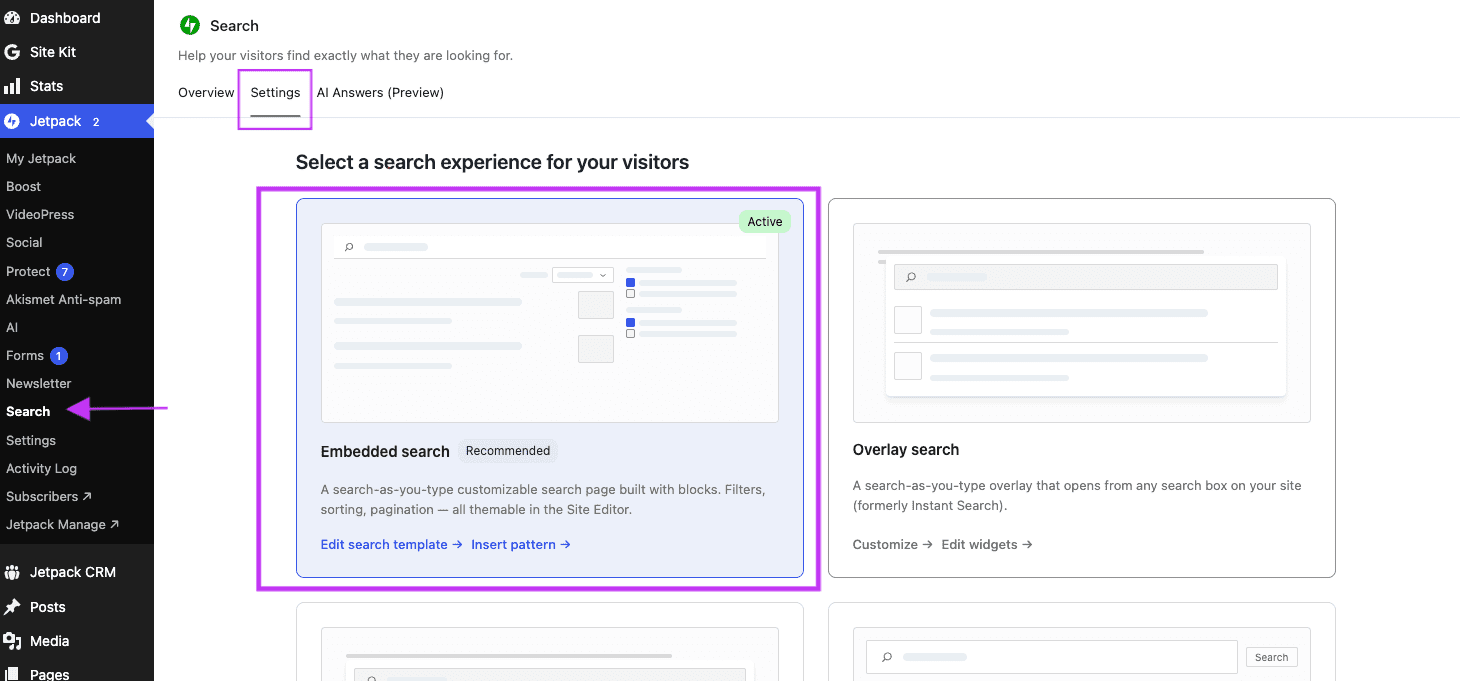
To set up the Jetpack Instant Search options:

  1. From WP Admin, navigate to Jetpack Search.
  2. Toggle on the option Enable instant search experience.
  3. Then click Customize search results.
  4. On the right sidebar, make sure the Options tab is selected

The Options tab will display all the customization options available, described in the next section.

Overview of the Jetpack Instant Search Options

Styling Jetpack Search

You can adjust the layout and color schemes as follows:

  • Light and Dark modes: Use this to set the display mode for the search results overlay to light or dark mode. In light mode, dark or black text is shown on a white or light background, while in dark mode, the white or light-colored text is displayed on a dark or black background.
  • Result format: Choose the format of the search results:
    • Minimal – Displays the result title along with either:
      • The matching content or product description (if a keyword is found there), or,
      • An excerpt if the match was found in another field (e.g., custom meta field or title).
    • Expanded – Same as Minimal, but includes an image thumbnail (if available) and a navigation path (breadcrumbs).
    • Product – Displays results in a grid format, ideal for WooCommerce stores. Each result includes the product title, image, and price (if available). This format does not display keyword highlights.
  • Highlight for search terms:
    • You can select the highlight color for search terms as they appear in search results (in the titles, excerpts, or descriptions). You can pick from displayed color options or use the color palette to choose a custom color.
    • Search terms are automatically highlighted in Minimal and Expanded result formats. This behavior cannot be disabled, but you can use jetpack_instant_search_options filter to select which fields should be highlighted. See this example for more details.

Jetpack Search settings

These options help you fine-tune the search results as the user looks for information on your site.

Default sort

In the drop-down options, choose your preferred default sort order for the search results:

  • Relevance: This is the recommended and default choice. When selected, Jetpack will show results in the order of most relevant to the search term to least relevant.
  • Newest first: When selected, Jetpack will sort the results by date and show the latest records first.
  • Oldest first: When selected, Jetpack will sort the results by date and show the oldest records first.

Overlay trigger

In the drop-down options, pick your preferred trigger for the search results overlay:

  • Open when user submits the form: This is the default choice. When selected, the overlay shows up when the user submits the search form by either clicking Search or tapping the Enter or Return key on their keyboard, that is when the user has finished entering their search term or query.
  • Open when user starts typing: When selected, the overlay shows up as soon as the user starts typing their search term or query, and the results get updated as the user continues to type.

There’s also the option to Open overlay from filter links which is toggled on by default. When enabled, the search results overlay opens when any search filters are used as Jetpack Search takes over. If you have custom filters on your Search results page, you may want to turn this off, and do not want Jetpack’s Instant Search to conflict with that. You can read more on how to set up filters in this section.

Excluded post types

You can exclude records that belong to one or more post types from the search results. This is useful when you have private or restricted post types with records you don’t want users to find.

Additional Jetpack Search settings

The additional settings include:

  • Show sort selector: This is enabled by default. You can toggle this off to hide the sort selector from the search results overlay if you don’t want users to select how they want the results shown to be ordered.
  • Enable infinite scroll: This is enabled by default. When active, more results are loaded and displayed as the user scrolls down to the end of the visible list of search results. You can toggle this off to disable that behavior.
  • Show post date: This is turned on by default and shows or hides the publish date for each post or record in the search results.

Customize Jetpack Search results with the Customizer

This is relevant if your site is using an older non-block theme that doesn’t support full site editing and instead still uses the older WordPress Theme Customizer – as opposed to the newer Site Editor to provide customization settings.

With a non-block theme, you can still access the Search options through Jetpack Search as described in the earlier section. But, if you prefer using the Customizer to configure the appearance of your site, here’s how to navigate to the Jetpack Search section of the Customizer:

  1. From your WP Admin dashboard, go to Appearance → Customize.
  2. Click on the section Jetpack Search.

The Jetpack Search section in the Customizer will display all the options described in the previous section for you to configure the appearance of the Instant Search overlay.

Configure Jetpack Search filters

Thanks to the filters, visitors can quickly discover and browse through content on your site. This feature is available on desktop and mobile searches.

When you enable Jetpack Search, a widget area called Jetpack Search Sidebar will automatically be added to your site. This widget area controls what appears in the right sidebar on the Instant Search results overlay.

The Jetpack Search Sidebar comes preloaded with filters that you can remove and configure as you like. To adjust these filters:

  1. Go to Appearance Widgets.
  2. Click Jetpack Search Sidebar to expand the widget area if it is collapsed.
  3. Select the Jetpack Search widget block to bring up the different filters.

If you add filters in a different widget area outside of the Jetpack Search Sidebar, any filters you configure will open the search overlay automatically, no matter where the widget lives. This can be disabled by toggling off the Open overlay from filter links setting as described in the previous section.

The available filters are:

  • Post types
  • Author
  • Blog
  • Custom Taxonomies (only a subset is supported)
    • Categories
    • Tags
    • Formats
    • Product categories
    • Product tags
    • Product shipping classes
  • Date
    • Year
    • Month

If you remove all the widgets from the Jetpack Search Sidebar widget area, all the filter options will disappear from the right sidebar of the search results overlay.

The Jetpack Search overlay should be triggered by almost any search box on your site’s pages that is added by your theme.

If you use a block theme with Site Editor support, you can add a search form to any part of your site that your theme allows you to edit with WordPress full site editing capabilities. For example, to add a search box to your navigation menu at the top of your site:

  1. Proceed to Appearance → Editor.
  2. Select Navigation from the menu on the left sidebar.
  3. Click the pencil icon to edit your site’s navigation menu.
  4. Use the plus (+) icon to look for and add the Search block.

If your theme doesn’t support the Site Editor and has a sidebar, you can add a search form to the sidebar:

  1. Go to Appearance → Widgets.
  2. Expand the Sidebar or Blog Sidebar widget area by clicking on it or the arrow icon next to the title.
  3. Add the Jetpack Search widget block into the sidebar area. You can also configure and add filters from here.

If your theme does not have a sidebar or a built-in search box, then you can also add it by creating a child theme and then adding code to your header that calls get_search_form(). Some themes will have a built-in search box that is not compatible with Jetpack Search. If this is the case for you, there are a few things you can try.

Open the overlay with a search button

Sometimes, all you need is a search button on your site to open the overlay. The search button on the top of this page uses this HTML:

<a class="header__search-btn jetpack-search-filter__link" href="#">
	<svg class="gridicon gridicons-search" height="24" width="24" xmlns="http://www.w3.org/2000/svg" viewBox="0 0 24 24"><g><path d="M21 19l-5.154-5.154C16.574 12.742 17 11.42 17 10c0-3.866-3.134-7-7-7s-7 3.134-7 7 3.134 7 7 7c1.42 0 2.742-.426 3.846-1.154L19 21l2-2zM5 10c0-2.757 2.243-5 5-5s5 2.243 5 5-2.243 5-5 5-5-2.243-5-5z"></path></g></svg>					
</a>

Any link on the page can trigger opening the search overlay and applying whatever filters you desire. The link needs a few special attributes to work:

  • Set the class for the a HTML tag to jetpack-search-filter__link and the href attribute to #
  • To filter by a taxonomy, the link attributes are data-filter-type, data-taxonomy, and data-val. For example, data-filter-type="taxonomy" data-taxonomy="category" data-val="performance"
  • To filter by month, the link attributes are: data-filter-type="month_post_date" data-val="2020-01-01"
  • To filter by year, the link attributes are: data-filter-type="year_post_date" data-val="2020-01-01"
  • To filter by post type, the link attributes are: data-filter-type="post_type" data-val="jetpack_support"

Here is an example of filtering by the product Post type:

<a href="#" class="jetpack-search-filter__link" data-filter-type="post_types" data-val="product" >Search Products</a>

Note: Custom filter links will only work if that taxonomy was configured as a filter in a Jetpack Search widget or the Jetpack Search Sidebar.

Still need help?

Please contact support. We’re happy to advise.

Comments Off on Customize Jetpack Instant Search

Jetpack Search

Power up your visitors’ search results with Jetpack Search, a powerful replacement for the standard WordPress search capability.

Jetpack runs on Elasticsearch, an open-source project for building distributed, scalable search engines. We power many of our features using Elasticsearch instead of the MySQL database used for most of WordPress.

Elasticsearch is a trademark of Elasticsearch BV, registered in the U.S. and other countries.

Help your visitors find what they need

Choose the right Jetpack Search plugin

Jetpack Search can be used via one of two plugins:

Read about general Jetpack requirements to make sure it is compatible with your website.

Once you have installed and activated one of the plugins, navigate to Jetpack → Search in WP Admin.

Choose the right Jetpack Search Plan

Jetpack Search is free for sites with up to a limited number of records and search requests per month.

For larger sites with more traffic, upgrade to Jetpack Search subscription or a Jetpack bundle that includes Search.

Read more about the Jetpack Search pricing and billing structure.

After choosing a plan, Jetpack will get to work on indexing the records in your website so that we can serve up results to your visitors.

Indexing your website

When you first install Jetpack, it may take a few minutes or hours before your content is fully indexed. After that, new and updated content is usually indexed within seconds.

Jetpack Search automatically indexes:

  • All public posts
  • All public pages
  • WooCommerce products
  • Products from other eCommerce platforms
  • The metadata of the publicly-accessible items in your Media Library, such as alt text

Jetpack Search does not index:

  • Draft posts and pages
  • Private pages and posts
  • Password-protected pages and posts
  • The content of PDF files

Customize Jetpack Search

Jetpack Search uses an overlay to display search results, providing an instant search experience, and also offers configuration options for customizing the styling and sorting of the search results, available filters, and so on.

“Instant” search is also sometimes known as live search, “AJAX” search, real-time search, or dynamic search. As your visitors are typing their search terms, the search results auto-update to minimize how long it takes to find results. On mobile devices, this is particularly important.

Learn how to customize Jetpack Search to offer your visitors the best search experience:

Still need help?

Please contact support. We’re happy to advise.

Privacy Information

The Search block is deactivated by default. You can activate or deactivate the feature by toggling the Enable Search setting in the Search section from Jetpack Settings Performance in your dashboard.

Data Used
Site Owners / Users

We use the WordPress.com-connected blog ID in order to submit a visitor’s search request to the WordPress.com servers. Additionally, for activity tracking (detailed below): IP address, WordPress.com user ID, WordPress.com username, WordPress.com-connected site ID and URL, Jetpack version, user agent, visiting URL, referring URL, timestamp of event, browser language, country code.

Site Visitors

We use any of the visitor-chosen search filters and query data in order to process the search request on the WordPress.com servers. We also use aggregate data about page views and searches to adjust our search results.

Activity Tracked
Site Owners / Users

We track when, and by which user, the feature is activated and deactivated. We also track when, and which, configuration settings are modified (and by which user), as well as when, and by which user, the Jetpack Search widget is updated.

Site Visitors

None.

Data Synced (Read More)
Site Owners / Users

We sync website content and options to provide search results and improve our search results ranking algorithms.

Site Visitors

None.

Comments Off on Jetpack Search

Customize Jetpack Inline Search

Let’s say you run a blog covering various topics like technology, travel, and food. With Inline Search, you have the power to tailor how your search function operates and appears to your visitors. Want to make it easy for users to narrow down their search results? You can utilize sidebar filters, which are conveniently accessible in the Customizer. Let’s say a visitor lands on your blog and wants to find articles specifically related to technology. With sidebar filters, they can easily select the ‘Technology’ category to refine their search. But if you’re looking to implement more intricate changes, like customizing search behavior based on user interactions, you can delve into the world of custom code. By adding custom code snippets, you can unlock advanced customization options, ensuring your search functionality perfectly aligns with your site’s unique needs and user expectations.

Note: These filters only apply to Inline search, not Instant Search.

Add sidebar filters using the customizer

Search filters can be enabled through the widget’s settings or in the customizer. First, add the Search (Jetpack) widget to your sidebar, then run a search so that you will be able to customize the results. The filters are only displayed when on a search results page, but the search box (if enabled) in the widget will get displayed on all pages. Also, the filters are only displayed if the current search results would have more than one filter.

Below is an example configuration where we have three types of filters: categories, the month the post was published, and what type of post (e.g. page/post/product).

How to add sidebar filters using code

You can also enable sidebar filters on your search results page by adding the Search widget and then customizing them with code. Here is a simple example:

function jp_search_setup_filters() {
	if ( class_exists( 'Jetpack_Search' ) ) {
		Jetpack_Search::instance()->set_filters( array(
			'Categories' => array(
				'type'     => 'taxonomy',
				'taxonomy' => 'category',
				'count'    => 10,
			),
			'Tags' => array(
				'type'     => 'taxonomy',
				'taxonomy' => 'post_tag',
				'count'    => 10,
			),
			'Month' => array(
				'type'     => 'date_histogram',
				'field'    => 'post_date',
				'interval' => 'month',
				'count'    => 10,
			),
		) );
	} else {
		error_log( "Jetpack search does not exist" );
	}
}
add_action( 'init', 'jp_search_setup_filters' );

The code snippets below provide examples of some of the other filters included for Inline Search. You can add these code snippets to a functionality plugin, or to your theme’s functions.php file.

You can also check Jetpack’s source code to discover more filters.

Please note that these snippets are provided as a convenience and our support team does not offer assistance on customizing them further.

In order for these filters to appear, you must add the Search (Jetpack) widget to your sidebar or other widget area.

Add WooCommerce product filters to the sidebar

For the filtered search of WooCommerce products we can do something similar to the other coding example:

function woo_search_setup_filters() {
	if ( class_exists( 'Jetpack_Search' ) ) {
		Jetpack_Search::instance()->set_filters( array(
			'Categories' => array(
				'type'     => 'taxonomy',
				'taxonomy' => 'product_cat',
				'count'    => 10,
			),
		) );
	} else {
		error_log( "Jetpack search does not exist" );
	}
}
add_action( 'init', 'woo_search_setup_filters' );

Adding filters to the page without using a widget

If you want to add a Filters section to your theme, you can use the Jetpack_Search_Template_Tags::render_available_filters() template tag in the search.php theme template like this:

<?php if ( class_exists('Jetpack_Search_Template_Tags' ) ): ?>
	<h2>Filter posts</h2>
	<?php Jetpack_Search_Template_Tags::render_available_filters(); ?>
<?php endif; ?>

Note that for any filters to appear, you need to have programmatically defined custom filters as per the examples above.

Customizing the WordPress Search Query

Jetpack Search will only work with the main search WP_Query. If you want to modify the default WordPress search page, for example, including additional post types in search results, we don’t recommend creating a custom WP_Query as this will not work with Jetpack Search. Instead, we recommend using the pre_get_posts filter. By leveraging this filter, you can modify the main search WP_Query to include additional post types seamlessly. This ensures that Jetpack Search continues to operate smoothly while still allowing you to customize the WordPress search page to meet your specific needs.

Debug Search Query

Jetpack Search has built-in support for two plugins for examining the search query and search query results: Query Monitor and Debug Bar.

Once the plugin is enabled, on any search page you can open the tool and go to the Jetpack Search tab to see the queries that were run and their results. This valuable insight allows you to identify any potential issues, fine-tune search parameters if needed, and ensure a seamless search experience for your users.

How to exclude posts by tags/post_id/etc using a Search Algorithm Filter

The posts that are returned as a part of the search can be easily filtered by wrapping the main search query in a bool query that adds some filters.

Here is a simple case that excludes any post with the tag slug exclude_me:

function filter_jetpack_search_query( $es_query_args, $query ) {
	$es_query_args['query'] = array( 'bool' => array(
		'must' => array( $es_query_args['query'] ),
		'must_not' => array(
			array( 'term' => array( 'tag.slug' => 'exclude_me' ) )
		),
	) );
	return $es_query_args;
}
add_filter( 'jetpack_search_es_query_args', 'filter_jetpack_search_query', 10, 2 );

Filtering can be made significantly more complex. Here we exclude: post_ids 3, 4, and 5; the category exclude_me; and the tag exclude_me

function filter_jetpack_search_query( $es_query_args, $query ) {
	$es_query_args['query'] = array( 'bool' => array(
		'must' => array( $es_query_args['query'] ),
		'must_not' => array(
			array( 'terms' => array( 'post_id' => array( 3, 4, 5 ) ) ),
			array( 'term' => array( 'category.slug' => 'exclude_me' ) ),
			array( 'term' => array( 'tag.slug' => 'exclude_me' ) ),
		),
	) );
	return $es_query_args;
}
add_filter( 'jetpack_search_es_query_args', 'filter_jetpack_search_query', 10, 2 );

Search within a single category with an Algorithm Filter

Sometimes you may only want your search results to be within a single category. Similar to excluding posts, we wrap the main query in a bool query. In this case, we will only search for posts that have the category include_me1 or include_me2.

function filter_jetpack_search_query( $es_query_args, $query ) {
	$es_query_args['query'] = array( 'bool' => array(
		'must' => array( $es_query_args['query'] ),
		'filter' => array(
			array( 'terms' => array( 'category.slug' => array( 'include_me1', 'include_me2' ) ) )
		),
	) );
	return $es_query_args;
}
add_filter( 'jetpack_search_es_query_args', 'filter_jetpack_search_query', 10, 2 );

Searching custom taxonomy with an algorithm

The search tool doesn’t automatically look through custom categories (taxonomies). However, you can tell it to include them in the search. Here’s how you can do that using an example: product_tag:

function set_jetpack_search_fields( $query_args ) {
	$query_args['query_fields'] = array(
		'title.en^2',
		'content.en',
		'excerpt.en',
		'tag.name',
		'category.name',
		'taxonomy.product_tag.name',
	);

	return $query_args;
}
add_filter( 'jetpack_search_es_wp_query_args', 'set_jetpack_search_fields', 10, 1 );

Note that this is boosting the title to have twice the weight of the other fields. This method can also be used to adjust your boosting.

Currently, the search index does not have any view counts available, but you can boost based on the number of comments which often works well:

function boost_jetpack_search_query( $es_query_args, $query ) {
	$es_query_args['query'] = array(
		'function_score' => array(
			'query'     => $es_query_args['query'],
			'functions' => array(
				array(
					'field_value_factor' => array(
						'field'    => 'comment_count',
						'factor'   => 5,
						'modifier' => 'log2p',
						'missing'  => 1,
					),
				),
			),
		),
	);
	return $es_query_args;
}
add_filter( 'jetpack_search_es_query_args', 'boost_jetpack_search_query', 10, 2 );

If you have Jetpack Likes enabled, then you could also boost with a combination of both likes and comments:

function boost_jetpack_search_query( $es_query_args, $query ) {
	$es_query_args['query'] = array(
		'function_score' => array(
			'query'     => $es_query_args['query'],
			'functions' => array(
				array(
					'field_value_factor' => array(
						'field'    => 'comment_count',
						'factor'   => 5,
						'modifier' => 'log2p',
						'missing'  => 1,
					),
				),
				array(
					'field_value_factor' => array(
						'field'    => 'like_count',
						'factor'   => 5,
						'modifier' => 'log2p',
						'missing'  => 1,
					),
				),
			),
		),
	);
	return $es_query_args;
}
add_filter( 'jetpack_search_es_query_args', 'boost_jetpack_search_query', 10, 2 );

Boosting posts with images using a Search Algorithm

For some sites, the best posts are the ones with the most images or galleries in them. We maintain two fields with a count of the number of images and galleries that can be used for boosting.

function boost_jetpack_search_query( $es_query_args, $query ) {
	$es_query_args['query'] = array(
		'function_score' => array(
			'query' => $es_query_args['query'],
			'functions' => array(
				array(
					'field_value_factor' => array(
						'field'    => 'has.image',
						'factor'   => 5,
						'modifier' => 'log2p',
						'missing'  => 1,
					),
				),
				array(
					'field_value_factor' => array(
						'field'    => 'has.gallery',
						'factor'   => 5,
						'modifier' => 'log2p',
						'missing'  => 1,
					),
				),
			),
		),
	);
	return $es_query_args;
}
add_filter( 'jetpack_search_es_query_args', 'boost_jetpack_search_query', 10, 2 );

How to boost pages over posts with a Search Algorithm

Matching any filter can be used as a way to boost search results. Fields such as post_type and post_format are often good choices for boosting certain types of content over others:

function boost_jetpack_search_query( $es_query_args, $query ) {
	$es_query_args['query'] = array(
		'function_score' => array(
			'query'     => $es_query_args['query'],
			'functions' => array(
				array(
					'filter' => array(
						'term' => array( 'post_type' => 'page' )
					),
					'weight' => 10,
				),
			),
		),
	);
	return $es_query_args;
}
add_filter( 'jetpack_search_es_query_args', 'boost_jetpack_search_query', 10, 2 );

Elasticsearch is a trademark of Elasticsearch BV, registered in the U.S. and in other countries.

Still need help?

Please contact support. We’re happy to advise.

Comments Off on Customize Jetpack Inline Search

Jetpack Inline Search

This information is preserved for our customers who are still using Inline Search, but we do plan on removing that option completely in the future.

Jetpack Inline Search indexes all WordPress posts, pages, and custom post types as long as the post status is one of ‘publish’, ‘trash’, ‘pending’, ‘draft’, ‘future’, or ‘private’.

Get Inline Search on your site

Once you’ve connected your site, follow these steps to add Inline Search:

  1. Go to WP Admin → JetpackSettings → Performance
  2. Enable Search. Jetpack will then override the website’s default WordPress backend search system.
  3. Keep the Enable instant search experience (recommended) toggle turned OFF.
  1. Click Add Jetpack Search Widget to add Inline Search to your site using your theme’s customizer.
  2. Choose the Widget area which you wish to display the Search Box. (Number and types of Widget areas will depend on your theme.)
  3. Click Add a widget.
  4. Select the Search (Jetpack) widget.

From there, you can also choose whether to display the search box or not, and whether to show the sorting selection dropdown. You can customize what post types to search and the default sort order. Finally, you can add custom filters that let your site visitors select category, tag, post format, date, post type, and so on.

Filters will only display in the widget on the search results page, after you perform a search.

Taxonomies and post meta in Jetpack Inline Search

When you add an extra filter to the widget – for example, to refine a search by taxonomy – the links for taxonomy terms will only appear in the search widget if there is at least one taxonomy term for the given results. Results with zero matching taxonomy terms will not show the filter controls. This is to prevent user confusion by having redundant controls taking up space on the screen.

Post meta is not included in the index. Custom taxonomies are currently in the index, but the indexing structure has changed, so we do not recommend them for custom queries. For better post meta and custom taxonomy support, consider using Instant Search on your site.

For advanced customizations with relevant code snippets, see how to customize Inline Search.

Still need help?

Please contact support. We’re happy to advise.

Comments Off on Jetpack Inline Search

Jetpack Stats

Track your site visits and other valuable insights, so you can drive more traffic to your website.

View your stats

Non-commercial sites can use Jetpack Stats for free. Commercial sites require a paid plan, which comes with priority support and access to advanced features.

Read more about free vs. paid stats.

You can view your stats in different ways using Jetpack:

On your WP Admin dashboard, check out at-a-glance stats on the Site Stats widget.

Get more in-depth stats by following these steps:

  1. Go to your site’s WP Admin.
  2. Navigate to My Jetpack.
  3. Check out your 7-day highlights for a quick summary.
  4. Click on See Detailed stats to see more information.

Access Jetpack Stats dashboards

See the information you want broken down into specific categories:

For information on configuring Jetpack Stats, see this support guide. For issues with Jetpack Stats and general FAQs, see this troubleshooting and FAQs guide.

Note: Jetpack Stats on Jetpack sites does not track or show you Totals, Followers, and Shares on your stats page. It also does not track file downloads for any files hosted on your server, such as PDF links.

Hide the view count for posts in WordPress.com Reader

If you have Jetpack Stats enabled, the Reader feed shows the view count for each post with at least 10 views.

If you do not want view counts to show on your posts in the Reader, you can disable this feature in the Jetpack Stats settings by following these steps:

  1. Go to WP Admin and then Jetpack  Settings in the sidebar. 
  2. Click Traffic.
  3. Scroll down to the Jetpack Stats section and expand it.
  4. Toggle the WordPress.com Reader “Show post views for this site” setting to the off position.

Honor DNT

Do Not Track (DNT) is a feature in web browsers and websites that asks advertisers and other web software providers to not track individuals’ browsing habits. As a site owner, you can force the Jetpack Stats feature to honor any visitors with DNT enabled and not track their activity (i.e., post and page views). For information about how to do this, see our DNT Guide.

Turn off Jetpack Stats

If you would ever like to disable the Jetpack Stats function, please follow these steps:

  1. Go to the Modules page link located in the footer of the Jetpack Settings page (WP AdminJetpack → Dashboard).
  2. Find the Jetpack Stats feature.
  3. Click Deactivate.

Enable Jetpack Stats

To enable Jetpack Stats:

  1. Go to your site’s WP Admin. 
  2. Then, go to Jetpack → Settings
  3. Select the Traffic tab.
  4. Click Activate Jetpack Stats, if it is not already active.

You can also use the Stats feature on a multisite network. Read more about how to enable Stats on a WordPress multisite network.

Privacy Information

Jetpack Stats are activated by default. You can deactivate it by following the instructions on how to deactivate Jetpack Stats.

Data Used
Site Owners / Users

This feature requires usage of the following information and data: WordPress.com user ID, WordPress.com-connected blog ID, domain name, site timezone, blog charset, blog admin color preference, Jetpack version, site title and description, and permalink settings.Additionally, for activity tracking (detailed below): IP address, WordPress.com user ID (if logged in), WordPress.com username (if logged in), user agent, visiting URL, referring URL, timestamp of event, browser language, country code.

Site Visitors

IP address, WordPress.com user ID (if logged in), WordPress.com username (if logged in), user agent, visiting URL, referring URL, timestamp of event, browser language, country code. Please also see Data Visibility and Retention information for this feature.

Activity Tracked
Site Owners / Users

We track when, and by which user, the feature is activated and deactivated. We also track when, and which, configuration settings are modified (and by which user). If the user viewing the stats explicitly requests to view them without JavaScript turned on, we will set a cookie to remember this preference.

We also track stats page views in your dashboard.

Additionally, if the site’s settings are configured to record events for logged-in users of the site, the following events will also be recorded: post and page views, video plays (if videos are hosted by WordPress.com), outbound link clicks, referring URLs and search terms, and country.

You can now honor a visitor’s DNT preference, as well.

Site Visitors

Post and page views, video plays (if videos are hosted by WordPress.com), outbound link clicks, referring URLs and search engine terms, and country. When this feature is enabled, Jetpack also tracks performance on each page load that includes the JavaScript file we use for Stats. This is exclusively for aggregate performance tracking across Jetpack sites in order to make sure that our plugin and code is not causing performance issues. This includes the tracking of page load times and resource loading duration (image files, JavaScript files, CSS files, etc.).

A site owner can choose to honor your DNT preference.

Data Synced (Read More)
Site Owners / Users

We sync options that identify whether or not the feature is activated and how its available settings are configured.

Site Visitors

None.

Data Visibility and Retention

Any piece of data explicitly identifying a specific user (IP address, WordPress.com ID, WordPress.com username, etc.) is not visible to the site owner when using this feature. For example, a site owner can see that a specific post has 285 views, but he/she cannot see which specific users/accounts viewed that post.

Stats logs — containing visitor IP addresses and WordPress.com usernames (if available) — are retained by Automattic for 28 days and are used only for the purpose of powering this feature.

Comments Off on Jetpack Stats
  • Enter your email address to receive news and updates from Jetpack

  • Join 99K other subscribers
  • Browse by Topic