Use the standalone Jetpack Social plugin to share your WordPress posts with your social networks. Use all the features of Jetpack Social without installing the full Jetpack plugin.
To learn more, please read some general information about the features of Jetpack Social.
Requirements
- A web host that meets the WordPress host requirements.
- The latest version of WordPress. If your version of WordPress is out of date, you’ll see a prompt to automatically upgrade with a single click, or can upgrade manually.
- A WordPress.com account. Don’t have one yet? Sign up for one here, or create one during the Jetpack connection flow. You only need one WordPress.com account to access all our services (including Akismet, Crowdsignal, Gravatar, and WordPress.com itself). If you use any of these services, you already have a WordPress.com account to connect to Jetpack. You can reset your WordPress.com password if you need to.
- A publicly accessible WordPress site: no password protection or Coming Soon / Maintenance Mode plugin in use.
- A publicly accessible XML-RPC file.
Install the Jetpack Social plugin
Install the Jetpack Social from your site’s WP Admin by following these steps:
- Start from your WP Admin dashboard.
- Navigate to Plugins → Add New.
- Look for Jetpack Social. The latest version will show in the search results.
- Once found, click Install Now and Activate.
- Complete the setup by connecting to Jetpack when prompted.
Enable auto-share
Once the Jetpack Social plugin is installed and activated, you will be able to turn on the auto-share by following the steps:
- Start from your WP Admin dashboard.
- Navigate to Jetpack → Social.
- Toggle on Automatically share your posts to social networks.
Connect your social accounts
In order to share your posts on social media, you first need to connect your social accounts. You can do that by following the steps:
- Start from your WP Admin dashboard.
- Navigate to Jetpack → Social.
- Click Connect an account and follow the instructions.
You can link your site with your accounts on the following networks: Facebook, Instagram, Tumblr, LinkedIn, Nextdoor, Threads, and Mastodon. Read more about each connection.
Share your posts
To configure the Jetpack Social options when writing a new post, click the green Jetpack icon at the top right of the editing sidebar.
You’ll then see the Social options under the Share to Social Media section, where you can toggle social media connections, connect new platforms, and create a custom message to be used when your post is shared.
With a paid Jetpack Social plan or a Jetpack Complete bundle, the Share to Social Media section includes an enhanced Social Previews feature, where you can instantly preview your posts as you draft them.
Further reading: Auto-sharing posts with Jetpack Social
My Jetpack
Jetpack Social includes My Jetpack, a dashboard for managing all of your Jetpack products and plans in one place. All of your Jetpack products will be displayed in a grid, and you’ll be able to see which are active and which are inactive. You can click on the View button for each product to access its product dashboard and settings, and make changes.
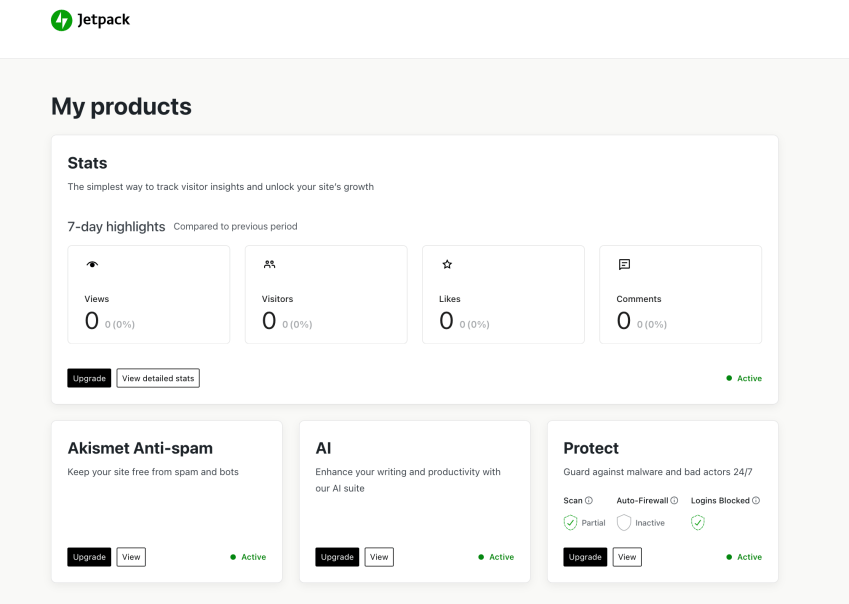
Learn more about the My Jetpack dashboard.
Jetpack Social: Related Support Articles
- Post to Tumblr with Jetpack Social
- Post to LinkedIn with Jetpack Social
- Post to Mastodon with Jetpack Social
- Post to your Instagram business account with Jetpack Social
- Post to Nextdoor with Jetpack Social
- Post to Threads with Jetpack Social
- Post to Bluesky with Jetpack Social
- Troubleshoot Jetpack Social
Still need help?
Please contact support. We’re happy to advise.
 Jetpack