Customizing Jetpack Social

Jetpack Social can be customized to better suit your workflow. This guide walks through several common customizations, including enabling auto-sharing for custom post types, disabling auto-sharing for WooCommerce products, and hiding Jetpack Social UI options from the editor.

Auto-sharing Custom Post Types with Jetpack Social

By default, Jetpack Social’s auto-sharing feature is only triggered when you publish a new blog post. If you want to enable auto-sharing for custom post types, follow one of the methods below.

Option 1: Adding support to an existing post type

To add Jetpack Social support to an existing post type, use the add_post_type_support() function. Follow these steps:

  1. Open your functionality plugin:
    If you don’t have one, create a new plugin or add code to an existing one.
  2. Add the following code:
add_action('init', 'my_custom_init');
function my_custom_init() {
    add_post_type_support('custom_post_type', 'publicize');
}
  1. Replace the placeholder:
    Replace custom_post_type with your Custom Post Type slug.

Option 2: Adding support when registering the post type

To add Jetpack Social support while registering a new post type, follow these steps:

  1. Open your functionality plugin or theme’s functions.php file
  2. Add the following code:
function jetpackme_custom_post_type() {
    $args = array(
        'label' => __('Custom Post Type', 'text_domain'),
        'supports' => array('title', 'editor', 'publicize'),
        'public' => true
    );
    register_post_type('custom_post_type', $args);
}
add_action('init', 'jetpackme_custom_post_type', 0);
  1. Replace the placeholder:
    Replace custom_post_type with your Custom Post Type slug.

Removing WooCommerce Products from Jetpack Social

By default, WooCommerce includes Jetpack Social support and your new products will be auto-shared to your social media accounts. You can disable this functionality by adding the following code snippet:

add_action('init', 'woo_publicize_remove');
function woo_publicize_remove() {
    remove_post_type_support('product', 'publicize');
}

Please be aware that code snippets are provided as a courtesy and our support team is unable to offer assistance customizing them further.

Still need help?

Please contact support. We’re happy to advise.

Comments Off on Customizing Jetpack Social

Post to Bluesky with Jetpack Social

Automatically publish your blog posts on your Bluesky profile.

Connect Bluesky

To connect your Bluesky social media profile to your website, follow the steps below:

  1. Log in to your Bluesky profile.
  2. Log in to your site’s WP Admin.
  3. If you use the Jetpack plugin, navigate to Jetpack → Settings and click the Sharing tab. If you use the Jetpack Social plugin, navigate to Jetpack → Social.
  4. Make sure the “Automatically share your posts to social networks” option is enabled.
  5. Click “Connect an account” and once the pop-up module with social networks is displayed, click “Connect” near Bluesky.
  6. Enter your Bluesky handle in the format username.bsky.social. If you use a custom domain for your handle, you can add only the domain without the .bsky.social suffix.
  7. Generate an app password by visiting https://bsky.app/settings/app-passwords and following the instructions provided. Once created, add it to your Jetpack Social connection.
  8. Click “Connect” to finish the Bluesky connection.

Share to Bluesky

Automatically share your blog posts to your Bluesky profile by following these steps:

  1. When editing a post, click the Jetpack icon at the top right corner (or Jetpack Social icon if using Jetpack Social).
  2. Toggle on the Share to Social Media option.
  3. Select the social platforms where you want the post to be shared by clicking on each social media platform, including Bluesky.
  4. Add a custom message if desired, with a limit of 255 characters.
  5. Publish the post. Once published, it will automatically be shared to your selected social accounts.

Make Bluesky Connection Global

You can enable the Bluesky connection for all users of the website. This means that when another user creates a post on your site, it will also be auto-shared to your Bluesky profile.

When using the Jetpack plugin:

  1. Log in to your site’s WP Admin.
  2. Navigate to Jetpack → Settings → Sharing.
  3. Use the drop-down arrow beside the Bluesky connection.
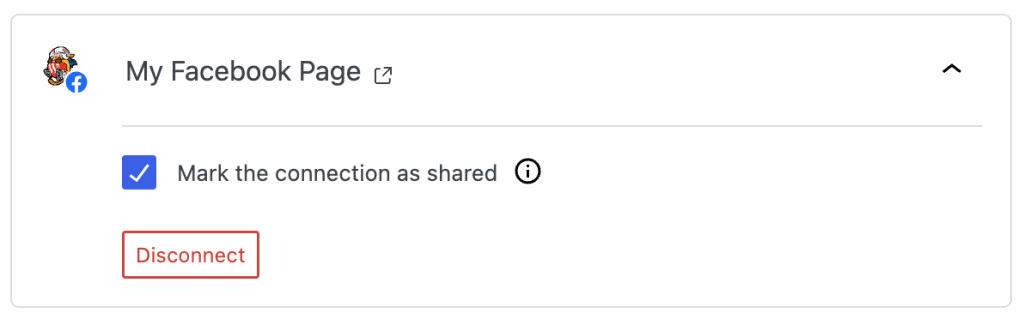
  4. Check the “Mark the connection as shared” option.

When using the Jetpack Social plugin:

  1. Log in to your site’s WP Admin.
  2. Navigate to Jetpack → Social.
  3. Use the drop-down arrow beside the Bluesky connection.
  4. Check the “Mark the connection as shared” option.

Troubleshoot Bluesky Connection Issues

The auto-share feature of Jetpack Social relies on a working Jetpack connection. If your posts are not automatically sharing, first check the Jetpack connection. For further assistance, visit our Troubleshooting page.

Still need help?

Please contact support. We’re happy to advise.

Comments Off on Post to Bluesky with Jetpack Social

Social Media Posting Limits for Jetpack Social

Learn about the posting limits on various social media platforms, along with our recommended posting frequencies to help you maintain engagement and avoid being flagged for spamming.

When managing social media accounts, it’s important to be aware of the posting limits imposed by different social networks to avoid being flagged for spamming. By understanding and adhering to these platform-specific posting guidelines, you can effectively manage your social media presence, fostering engagement and avoiding potential restrictions.

Here are reported posting limits for supported social networks, along with some recommendations for engaging effectively:

Facebook

Facebook is a space where connections and conversations are key. While the upper limit is 35 posts per day, it’s generally recommended to post 1–2 times daily to maintain a steady presence without overwhelming your followers. Regular, thoughtful updates help keep your community engaged and foster meaningful interactions.

Instagram

Instagram thrives on visual storytelling and creative expression. The platform allows up to 50 posts per day, including Reels and Stories. However, focusing on quality over quantity with 3–5 posts per week can enhance your engagement, allowing your content to resonate more deeply with your audience.

LinkedIn

LinkedIn is a professional networking hub where insightful, valuable content takes precedence. The platform permits up to 50 posts per day, but it’s advised to post 1–2 times daily to maximize reach and maintain a professional image. Consistent, well-timed posts can help establish your expertise and grow your professional network.

Threads

Threads is designed for rapid, conversational updates. You can post up to 250 times per day. To make the most of this platform’s dynamic nature, a suggested frequency of 2–3 posts daily ensures you stay visible and engaged in ongoing discussions without overwhelming your audience.

Mastodon

Mastodon offers a more decentralized and community-focused experience. With a limit of 100 posts per day, you have ample opportunity to participate in community conversations. Engaging authentically with your followers and spreading out your posts helps maintain a neighborly tone within your chosen instances.

Nextdoor

Nextdoor is all about fostering a sense of community among neighbors. While there is no specific daily posting limit, maintaining a neighborly tone and engaging authentically with your local community is crucial. The platform encourages users to post regularly, with a suggested frequency of 3–5 posts per week to build trust and maximize reach within your neighborhood.

Disclaimer: These are general suggestions based on available information, as most social platforms do not provide official or clear posting limits. If you have specific questions or concerns about posting on a particular platform, we recommend contacting their support team directly

Comments Off on Social Media Posting Limits for Jetpack Social

Post to Threads with Jetpack Social

Automatically publish your blog posts on your Threads profile.

Connect Threads

Connect your site to your Threads profile by following the steps:

  1. Log in to your Threads profile.
  2. Log in to your site’s WP Admin.
  3. If you use the Jetpack plugin, navigate to Jetpack → Settings and click the Sharing tab. If you use the Jetpack Social plugin, navigate to Jetpack → Social.
  4. Make sure the “Automatically share your posts to social networks” option is enabled.
  5. Click “Connect an account” and once the pop-up module with social networks is displayed, click “Connect” near Threads.
  6. On the newly opened tab click “Continue as [your name] and on the next screen confirm the connection.

Share to Threads

Automatically share your blog posts to your Threads profile by following the steps:

  1. When editing a post, click the Jetpack icon at the top right corner or the Jetpack Social icon.
  2. Toggle on the “Share to Social Media” option.
  3. Select the social platforms where you want the post to be shared by clicking the icons for each platform, including Threads.
  4. Add a custom message if desired, with a limit of 255 characters.
  5. Publish the post. Once published, it will automatically be shared to your selected social accounts as well.

Make Threads connection global

You can enable the Threads connection to all users of the website. This means that when another user creates a post on your site, it will also be auto-shared to this Threads profile. Depending on the plugin used, Jetpack or Jetpack Social, you can do this by following the steps listed below.

When using the Jetpack plugin

  1. Log in to your site’s WP Admin
  2. Navigate to Jetpack → Settings → Sharing
  3. Use the drop-down arrow from the right sidebar near the connection you want to share.
  4. Check the Mark the connection as shared option.

When using the Jetpack Social plugin

  1. Log in to your site’s WP Admin
  2. Navigate to Jetpack → Social
  3. Use the drop-down arrow from the right sidebar near the connection you want to share.
  4. Check the Mark the connection as shared option.

Troubleshoot Threads connection issues

The auto-share feature of Jetpack Social relies on a working Jetpack connection. If your posts are not automatically sharing, first check the Jetpack connection. For further assistance, visit our Troubleshooting page.

Known issue

There is a known issue with the authorization process. If you log in to Threads as part of the authorization flow, it often fails due to security settings on the Threads login page preventing communication with the popup window. It is therefore best to be logged in before connecting the account. If an error is displayed, close the window and attempt the authorization again. The authorization will succeed on the second attempt.

Still need help?

Please contact support. We’re happy to advise.

Comments Off on Post to Threads with Jetpack Social

Understanding platform-specific media requirements

Not all social platforms support all media types. This guide provides details about the specific image and video requirements of different social platforms.

Jetpack Social automatically adjusts your images for compatibility across different social platforms. With Jetpack Social, you can be confident that your images will meet the optimal specifications for social sharing.

Below, you’ll find detailed tables for both image and video requirements across various social media platforms.

Images

While Jetpack Social takes care of image optimization behind the scenes, there might be times when the media you’ve uploaded cannot be converted. If you see a media error message, check the table below to confirm that your image meets the platform requirements.

PlatformSupported formatsFile sizeAspect ratioDimensions
FacebookJPG, PNG, GIF, TIFF, BMPMax 8 MB
LinkedInJPG, PNGMax 20 MB
TumblrJPG, PNGMax 20 MB
MastodonJPG, PNG, WebPMax 10 MB
ThreadsJPGMax 8 MB
NextdoorJPG, WebPMax 7 MB
InstagramJPGMax 8 MBBetween 4:5 – 1.91:1Min width: 320px
Max width: 1440px
BlueskyJPG, PNG, WebP
Supported media formats and file sizes by social media platforms.

Ensuring image compatibility across all platforms

If you want to make sure your image meets all the requirements of every media platform listed above, we recommend following these guidelines:

  • Format: Use JPG format, as it’s supported by all platforms.
  • File Size: Keep your image file size under 7 MB to comply with the most restrictive platform (Nextdoor).
  • Aspect Ratio: Use an aspect ratio between 4:5 and 1.91:1 to ensure compatibility with Instagram’s requirements.
  • Dimensions: Ensure your image has a minimum width of 320px and a maximum width of 1440px, which will meet Instagram’s specifications.
  • Filename: Ensure your image filename contains only US ASCII characters.

By adhering to these guidelines, you can be confident that your image will be accepted by all the social media platforms supported by Jetpack Social.

Videos

Jetpack Social does not automatically convert your videos for compatibility across social platforms. Check the table below to confirm that your video meets the platform requirements.

PlatformSupported formatsFile sizeAspect ratioDimensions
FacebookMP4, MOV + others (full list)Size: Max 1 GB
Length: Max 20 minutes
LinkedInMP4Size: Max 200 MB
Length: Max 10 minutes
TumblrMP4, MOVSize: Max 500 MB
Length: Max 10 minutes
MastodonMP4, M4V, MOV, WebMSize: Max 40 MB
ThreadsMP4, MOVSize: Max 1 GB
Length: Max 5 minutes
NextdoorMOV, MP4 + others (full list)Size: Max 50 MB
InstagramMP4, MOVSize: Max 1 GB
Length: Max 15 minutes
Between 4:5 – 1.91:1Max width: 1920px
Supported video formats and file sizes by platform.

We keep this information up-to-date, but we recommend always checking the latest guidelines directly on each platform’s official documentation.

Ensuring video compatibility across all platforms

If you want to make sure your video meets all the requirements of every media platform listed above, we recommend following these guidelines:

  • Format: Use MP4 format, as it’s supported by all platforms.
  • File Size: Keep your video file size under 40 MB to comply with the most restrictive platform (Mastodon).
  • Length: Limit your video length to 5 minutes to ensure it can be shared on all platforms, including Threads.
  • Aspect Ratio: Use an aspect ratio between 4:5 and 1.91:1, and make sure the maximum width is 1920px to meet Instagram’s requirements.

By adhering to these guidelines, you can be confident that your video will be accepted by all the social media platforms supported by Jetpack Social.

Still need help?

Please contact support. We’re happy to advise.

Comments Off on Understanding platform-specific media requirements

Sharing Social Notes with Jetpack Social

Quickly express your thoughts and share them across your social networks without the hassle of formatting or titles—perfect for spontaneous (or scheduled) posts that keep your audience engaged.

Requirements

Before sharing notes, confirm the following:

  1. The Jetpack Social plugin must be installed and activated on your WordPress site.
  2. Verify that your Jetpack connection is active and functioning correctly. The Social Notes feature relies on this connection to operate.
  3. Ensure that your social media accounts are connected to Jetpack. This connection is essential for the sharing functionality.

Enabling the Social Notes feature

To activate Sharing Notes:

  1. Go to Jetpack → Social in your WP Admin.
  2. Find the Sharing Notes option and use the toggle to turn it on.
Enabling the Social Notes feature

Creating Social Notes

Here’s how to create a Social Note:

  1. With the Social Notes feature active, select Social Notes in your WP Admin sidebar.
  2. Choose Add New to open a simplified WordPress editor for your note. 
  3. You may add a featured image via the document settings on the right sidebar.
Creating Social Notes

Sharing Social Notes

Follow these steps to share your Social Notes:

  1. Click the Jetpack Social icon at the top right to open sharing settings.
  2. Use the Share when publishing toggle in the sidebar to control automatic sharing.
  3. Click on the social media icons to select or deselect networks. To share to multiple networks simultaneously, ensure each network is highlighted.
  4. You can use the Social Preview in the pre-publish sidebar for a glimpse of your post on different social networks.
  5. After finalizing your selections, press Publish. You can also schedule notes for auto-sharing at a designated publishing time, just as you do with regular posts.

Upgrade: For an enhanced Social Previews feature where you can instantly preview what your post will look like across all of your connected social accounts, upgrade to a paid Jetpack Social plan or Jetpack Complete bundle.

Sharing Social Notes

Sharing previously published Social Notes

To share previously published Social Notes, follow these steps:

  1. Log in to your site’s WP Admin.
  2. Navigate to Social Notes from the left sidebar and select the note you want to share.
  3. Click the Jetpack Social icon located at the top of the right sidebar.
  4. Select the social platforms where you want the note to be shared.
  5. Finally, click the Share button located at the bottom of the left sidebar to share the note across your chosen social media platforms.
Sharing Previously Published Posts

Formatting links in your Social Notes

By default, a full link to your note will be added to the posts that get shared to your jetpack social connections. You can choose to not have a link appended and/or format how it appears.

  • Full URL: This is the default option. It links directly to your note using the full URL. Example: https://yourjetpack.blog/sn/292/
  • Shortlink: A condensed version of the full URL, designed to be cleaner and more visually appealing. This uses our wp.me URL shortener. Example URL: wp.me/P1moTy-16Yv
  • Permashortcitation: Abbreviated as PSC, a permashortcitation is a short citation of a post’s permalink. It will be added at the end of the post. Example: (wp.me p9IHVl-4L)

Character limits in Social Notes

There are no limits within Social Notes, but each social platform has its own constraints. Longer notes will feature a “read more” option and a direct link to the full note on your site.

Accessing Social Notes 

Social Notes are grouped in a dedicated archive on your site.

  • To manage them, visit https://yourwebsitedomain.com/sn/, substituting yourwebsitedomain.com with your actual site’s URL.
  • Depending on your WordPress theme, the archive’s layout may vary.
  • For direct user access to your Social Notes on your site, you can add an archive link to your site’s menu.

Still need help?

If you have further questions or need assistance, don’t hesitate to contact support.

Comments Off on Sharing Social Notes with Jetpack Social

Blogroll Block

Use the Blogroll block to share a list of blogs you follow with your website visitors.

Edit the Blogroll Item List

When you first add the Blogroll block to your site, it will look something like this:

You can select each item in your blogroll and make changes:

  • Edit an item’s avatar by clicking on the image.
  • Edit an item’s title and description by clicking on the text and typing new text.
  • Delete an item from the blogroll in the same way as you would delete any other block.

You can edit the default heading used — “Blogroll” — to say whatever you’d like.

You can also click the + Block Inserter icon at the bottom right of the block to add a new blogroll item from the list of sites you follow.

At the moment, this block will only display WordPress.com sites to which you’re subscribed. We plan to add support for custom URLs as this feature develops.

Block Toolbar

When you click on the block, a toolbar of options will appear above or below it:

Screenshot of the Blogroll block options toolbar, showing the block icon, the handle for moving the toolbar, up and down arrows, and the three dots icon for more options.
The Blogroll block options toolbar

The Blogroll block has the following options in its toolbar:

  • Change block type.
  • Drag the block.
  • Move the block up or down.
  • More options.

Block Settings

The Settings toggle switches for the Blogroll block are:

  • Show avatar
  • Show description
  • Open links in a new window
  • Hide my own sites
  • Advanced settings

Block Styles

The Styles options for the Blogroll block are:

  • Color
  • Typography
  • Dimensions

Still need help?

Please contact support. We’re happy to advise.

Privacy Information

The Blogroll block is activated by default. It cannot be deactivated, and is always available to select from the Block Selector.

Data Used
Site Owners / Users

None.

Site Visitors

None.

Activity Tracked
Site Owners / Users

None.

Site Visitors

None.

Data Synced (Read More)
Site Owners / Users

Post/page content.

Site Visitors

None.


Comments Off on Blogroll Block

Add a Like Button to Your Page

Enhance your readers’ experience by allowing them to show appreciation for your posts and pages.

Requirements

The Like block can be used on any site, but it is especially useful if you use a block-based theme.

By adding the block to one or more of your theme templates, the Like button can appear on multiple pages of your site. For instance, you could add the block to the bottom of your Single Posts template, ensuring the Like button appears at the bottom of all your posts.

Add the Like Block

Follow these steps to add the Like Block:

  1. Open the page or post editor where you want to add the Like block.
  2. Click the “+” button to add a new block.
  3. Search for “Like” in the block selector.
  4. Position the Like block where you want it to appear on your page or post.
  5. Save or publish your changes.

Check Jetpack Blocks for detailed instructions on adding blocks.

Still need help?

Please contact support. We’re happy to advise.

Privacy Information

The Like block is activated by default. It cannot be deactivated, and is always available to select from the Block Selector.

Data Used
Site Owners / Users

IP address, WordPress.com user ID, WordPress.com username, WordPress.com-connected site ID (on which the post was liked), post ID (of the post that was liked), user agent, timestamp of event, browser language, country code.

Site Visitors

IP address, WordPress.com user ID, WordPress.com username, WordPress.com-connected site ID (on which the post was liked), post ID (of the post that was liked), user agent, timestamp of event, browser language, country code.

Activity Tracked
Site Owners / Users

We track when, and which user, likes (or receives a like on) a specific post.

Site Visitors

We track when, and which user, likes a specific post.

Data Synced (Read More)
Site Owners / Users

We sync options that identify whether or not the feature is activated and how its available settings are configured.

Site Visitors

None.

 
Tagged , | Comments Off on Add a Like Button to Your Page

Post to Nextdoor with Jetpack Social

Thanks to Jetpack Social‘s auto-sharing feature, you can automatically publish each one of your blog posts on your Nextdoor profile. Foster community engagement by sharing content with your neighbors on Nextdoor.

Connecting Jetpack Social to your Nextdoor account

Important: Jetpack Social currently supports sharing only to personal Nextdoor profiles. Nextdoor Business Pages are not supported at this time.

To automatically share your posts to Nextdoor, you first need to connect to your account. You can do that by following the steps:

  1. Navigate to your site’s WP Admin and go to Jetpack -> Social.
  2. Click Connect an account, find Nextdoor in the list, and click Connect.
  3. A new tab will open where you can log in to your Nextdoor account.
  4. On the Nextdoor login screen, press the Accept button to continue.
  5. You’ll be redirected back to your WP Admin. Locate and click the Connect button once more to complete the connection.

To confirm the successful connection, you’ll see a notice at the top of the screen that says, “Your Nextdoor account has been successfully connected.”

Marking the Nextdoor as shared

If you’d like to give your site’s other users (administrators, editors, and authors) access to your Nextdoor connection, enabling them to share posts to the same Nextdoor profile, you can do so by following the steps:

  1. From your site’s WP Admin, go to Jetpack -> Social.
  2. Under Connected accounts, click the downward facing arrow beside the Nextdoor connection.
  3. Check the option that says Mark the connection as shared.

When this option is enabled, all administrators, editors, and authors who publish posts on your site will be able to share them to the same Nextdoor profile.

Connecting multiple Nextdoor accounts

With Jetpack Social, you can easily expand your network by connecting multiple Nextdoor accounts. This enables you to conveniently share your posts across more Nextdoor profiles. To add a new account, follow these steps:

  1. From your site’s WP Admin, go to Jetpack -> Social.
  2. Under Connected accounts, click Connect an account.
  3. Find Nextdoor in the list and click Connect more.
  4. Follow the prompts to connect your additional Nextdoor account.

Troubleshooting Jetpack Social Nextdoor connections

As a first step, check that your Jetpack connection is working properly. Jetpack Social will not work correctly otherwise.

If you’re trying to connect a Nextdoor account but it keeps defaulting to the wrong profile — or the Business Page isn’t appearing — please note:

Jetpack Social currently supports sharing only to personal Nextdoor profiles. Nextdoor Business Pages are not supported at this time.

If you continue to have trouble with Jetpack Social, take a look at our documentation for troubleshooting Jetpack Social.

Still need help?

Please contact support. We’re happy to advise.

Comments Off on Post to Nextdoor with Jetpack Social
  • Enter your email address to receive news and updates from Jetpack

  • Join 99K other subscribers
  • Browse by Topic